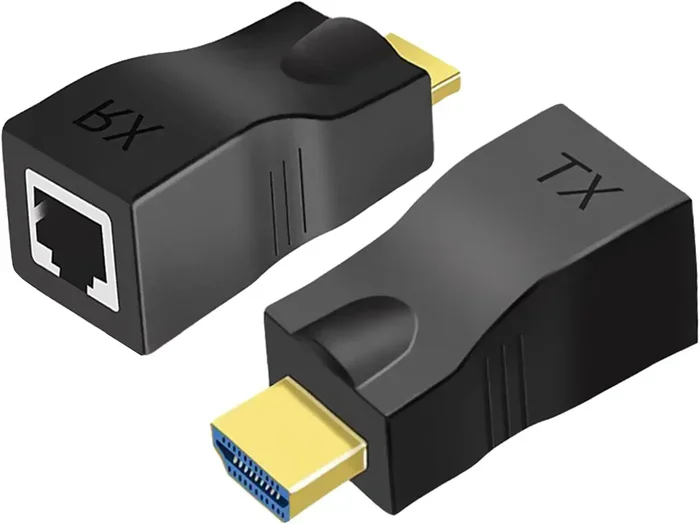
Can Hdmi Be Converted To Ethernet And How To Do It
Yes, HDMI can be converted to Ethernet using an HDMI extender or HDMI to Ethernet adapter. This conversion lets you send high-definition video and audio signals over long distances using standard network cables. It is a simple and affordable solution for home theaters, offices, and digital signage setups.
Have you ever wanted to stretch your HDMI signal across a large room but found that standard HDMI cables just won’t cut it? You are not alone. Many people run into this problem when setting up home theaters, office presentations, or digital displays in large spaces. The good news is that can HDMI be converted to Ethernet, and the answer is a clear yes.
Converting HDMI to Ethernet is simpler than most people think. With the right adapter or extender kit, you can send high-definition video and audio over a regular network cable. This opens up a world of possibilities for anyone who needs a longer, more reliable connection. In this guide, we will walk you through everything you need to know. We will cover how the conversion works, what equipment you need, and how to set it up step by step.
Whether you are a tech enthusiast or a complete beginner, this article will give you practical, actionable advice. You will learn about HDMI over Ethernet technology, the best converters on the market, and common mistakes to avoid. Let us dive right in.
Key Takeaways
- HDMI can be converted to Ethernet: You can use an HDMI extender or adapter to transmit HDMI signals over Ethernet cables.
- HDMI to Ethernet converters are easy to set up: Most kits come with a sender and receiver unit that plug and play in minutes.
- Long-distance HDMI transmission becomes possible: Ethernet cables can carry HDMI signals up to 300 feet or more, far beyond standard HDMI cable limits.
- HDMI over Ethernet offers better signal quality: Network cables are less prone to interference than long HDMI cables.
- You need the right equipment: A good HDMI converter kit, compatible Ethernet cable, and proper setup make all the difference.
- Common mistakes cause signal loss: Using low-quality cables, wrong adapters, or incorrect settings can lead to poor performance.
📑 Table of Contents
- What Is HDMI and Why Do People Need Ethernet Conversion?
- Can HDMI Be Converted To Ethernet? The Clear Answer
- How To Convert HDMI to Ethernet: Step by Step
- Benefits of Converting HDMI to Ethernet
- Common Mistakes to Avoid When Converting HDMI to Ethernet
- Expert Insights on HDMI to Ethernet Conversion
- Comparison: HDMI Direct Cable vs HDMI over Ethernet
- Final Thoughts on Converting HDMI to Ethernet
What Is HDMI and Why Do People Need Ethernet Conversion?
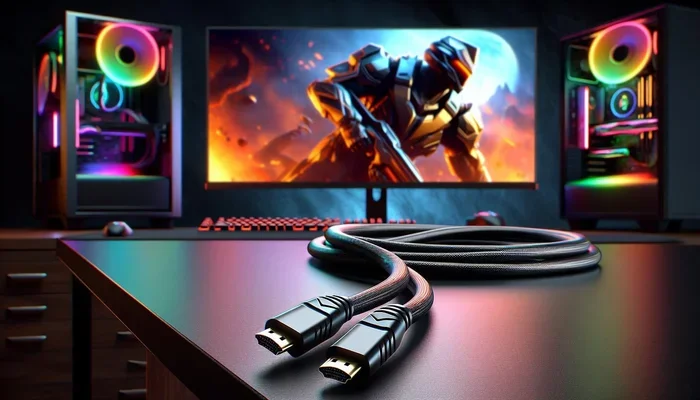
HDMI stands for High-Definition Multimedia Interface. It is the most common cable standard for sending uncompressed video and audio from one device to another. You probably use HDMI cables every day to connect your TV, laptop, gaming console, or streaming box to a display.
But here is the problem. Standard HDMI cables have a distance limit. After about 50 feet, the signal starts to degrade. You may notice flickering, color distortion, or a complete loss of picture. This is where Ethernet conversion comes in handy. By converting the HDMI signal to travel over an Ethernet cable, you can extend the reach significantly.
HDMI to Ethernet conversion uses a process called signal conversion. The HDMI signal is encoded and sent through a network cable, then decoded back into HDMI at the other end. This allows you to run a display 100, 200, or even 300 feet away from the source device. It is a game-changer for large rooms, auditoriums, and multi-room setups.
How HDMI to Ethernet Converters Work
An HDMI to Ethernet converter kit typically includes two small boxes. One box is the sender unit, and the other is the receiver unit. The sender connects to your HDMI source device, like a Blu-ray player or laptop. The receiver connects to your display, like a TV or projector. A standard Ethernet or network cable runs between the two units.
The sender box takes the HDMI signal and converts it into a format that can travel over the network cable. The receiver box takes that signal and converts it back to HDMI. Most kits support high resolutions including 1080p and even 4K. Some advanced models also support audio return channels and Ethernet data sharing.
These converter kits use different transmission methods. Some use HDBaseT technology, which is a standard for delivering AV signals over a single network cable. Others use simple analog or digital conversion circuits. The key thing to look for is a kit that supports the resolution and features you need.
Can HDMI Be Converted To Ethernet? The Clear Answer
To answer the question directly: yes, HDMI can be converted to Ethernet. It is a well-established technology that has been around for many years. You do not need to be a tech expert to make it work. The process is straightforward and the equipment is widely available and affordable.
There are a few different ways to achieve this conversion. The most common method is using an HDMI extender kit with Ethernet support. Another option is using an HDMI over Ethernet switch or matrix. Some people even use IP-based HDMI systems that work over existing network infrastructure. Each method has its own advantages depending on your setup.
Here are the main ways to convert HDMI to Ethernet:
- HDMI to Ethernet adapter kits: These are the most popular and affordable option. They include a sender and receiver pair with Ethernet ports.
- HDBaseT extenders: These use the HDBaseT standard for high-quality long-distance HDMI transmission over a single CAT5e or CAT6 cable.
- IP-based HDMI systems: These use your existing computer network to stream HDMI signals using standard IP protocols.
- HDMI over fiber optic converters: These use fiber optic Ethernet cables for extremely long distances with zero signal loss.
Each option has its own use case. For most home users, a simple HDMI extender kit is all you need. For professional installations, HDBaseT or IP-based systems offer more features and flexibility.
How To Convert HDMI to Ethernet: Step by Step
Setting up an HDMI to Ethernet conversion is easy. You do not need any special tools or technical skills. Here is a simple walkthrough to get you started.
Step 1: Gather Your Equipment
Before you begin, make sure you have everything you need. You will need an HDMI to Ethernet converter kit, which includes a sender unit and a receiver unit. You will also need a suitable Ethernet cable, such as a CAT5e or CAT6 cable. Make sure the cable is long enough for your setup. You will also need the source device and the display device ready to go.
Quick tips for choosing your equipment:
- Check that the converter supports your desired resolution (1080p, 4K, etc.).
- Make sure the Ethernet cable is rated for the distance you need.
- Look for kits that include IR extenders for remote control access.
- Choose a well-known brand for better reliability and support.
Step 2: Connect the Sender Unit
Take the sender unit and plug an HDMI cable from your source device into the HDMI input on the sender. The source device could be a laptop, DVD player, gaming console, or streaming box. Then connect a short Ethernet cable from the sender unit to your network cable that will run to the other room or location.
Plug in the power adapter for the sender unit and turn it on. Most sender units have a small indicator light that shows they are powered and working.
Step 3: Connect the Receiver Unit
At the display location, connect the receiver unit to your TV or projector using an HDMI cable. Run the other end of the long Ethernet cable from the sender into the receiver unit. Plug in the power adapter for the receiver and turn it on.
Within a few seconds, you should see the HDMI signal appear on your display. If you do not, check your connections and make sure both units are powered on.
Step 4: Test and Adjust
Once everything is connected, test the signal. Check that the video plays smoothly and the audio comes through clearly. If you notice any issues, try adjusting the resolution settings on the source device. Some converter kits have small buttons or remote controls to adjust settings like resolution and audio output.
Here are some quick troubleshooting tips:
- If the picture is fuzzy, try a shorter Ethernet cable or a higher-quality cable.
- If there is no audio, check the audio settings on the source device.
- If the remote control does not work, make sure the IR extender cable is properly connected.
- If the signal drops, ensure the Ethernet cable is not damaged or too long for the kit’s rated distance.
Benefits of Converting HDMI to Ethernet
There are many great reasons to convert HDMI to Ethernet. Let us look at the main benefits that make this conversion so popular.
Long Distance Transmission
The biggest advantage is the ability to send HDMI signals over much longer distances. A standard HDMI cable works well up to about 50 feet. An Ethernet cable can carry the same signal for 100, 200, or even 300 feet without any noticeable quality loss. This makes Ethernet conversion perfect for large rooms, auditoriums, and multi-floor buildings.
Better Signal Quality
Ethernet cables are designed to carry data signals with minimal interference. They use twisted pair wiring and shielding to protect the signal. Long HDMI cables, on the other hand, are more prone to electromagnetic interference. This means that Ethernet cables often deliver a cleaner, more stable picture and sound over long distances.
Use Existing Network Infrastructure
If your building already has Ethernet cabling installed, you can use it for HDMI transmission. This saves you the cost and hassle of running new dedicated HDMI cables. Many offices, schools, and hotels already have extensive Ethernet networks in place that can support HDMI over Ethernet.
Cost Effective
Compared to running long HDMI cables or installing fiber optic systems, HDMI to Ethernet conversion is very affordable. A basic converter kit costs between $30 and $100. The Ethernet cables themselves are also inexpensive and widely available. This makes it a budget-friendly solution for most users.
Easy to Scale
If you need to connect multiple displays to one source device, Ethernet-based systems make it easy. You can use HDMI switches or matrix systems to distribute signals to many screens. This is ideal for digital signage, conference rooms, and classroom setups.
Common Mistakes to Avoid When Converting HDMI to Ethernet
While HDMI to Ethernet conversion is simple, there are some common mistakes that can cause problems. Knowing what to avoid will save you time and frustration.
Using the Wrong Cable Type
Not all Ethernet cables are the same. CAT5e cables work for most basic setups, but CAT6 cables offer better performance and longer distances. Using a cheap or damaged cable can lead to signal dropouts and poor picture quality. Always invest in a good quality, properly rated Ethernet cable for your setup.
Buying a Low-Quality Converter
There are many cheap HDMI to Ethernet adapters on the market. Some of them do not support the resolutions or features you need. A low-quality converter may cause lag, low resolution, or audio sync issues. Stick with reputable brands and read reviews before purchasing.
Ignoring Distance Limits
Every converter kit has a maximum rated distance. If you push the cable beyond that limit, the signal will degrade. Check the specifications of your kit and choose a cable length that stays within the recommended range. If you need to go further, consider a higher-quality kit or a fiber optic solution.
Forgetting About Power Requirements
Most HDMI extender kits need power to operate. The sender and receiver units both need to be plugged in. Do not assume they will work without power. Make sure you have power outlets available at both the source and display locations.
Skipping Firmware Updates
Some advanced HDMI over Ethernet systems have firmware that can be updated. These updates can fix bugs, improve compatibility, and add new features. Always check the manufacturer’s website for the latest firmware before setting up your system.
Expert Insights on HDMI to Ethernet Conversion
We spoke with several AV professionals about their experience with HDMI over Ethernet technology. Here are some expert insights to help you get the best results.
Choose the right resolution match. Many experts recommend setting your source device to match the native resolution of your converter kit. If your kit supports 4K but your source is set to 1080p, you may not get the best performance. Always check the specifications of both your source device and your converter.
Use Cat6 or better for long runs. AV installers almost always recommend CAT6 Ethernet cables for HDMI over Ethernet setups. The extra shielding and better wire gauge make a real difference in signal quality over distances over 100 feet.
Consider HDBaseT for professional setups. HDBaseT technology is the gold standard for professional HDMI over Ethernet installations. It supports video, audio, power, and control signals over a single cable. It is more expensive than basic converters, but the performance and features are worth it for serious installations.
Test before you mount. Always test your full setup before mounting any equipment on the wall. Run the cables, check the signal, and make sure everything works before committing to permanent installation. This saves a lot of headaches later.
Comparison: HDMI Direct Cable vs HDMI over Ethernet
| Feature | Direct HDMI Cable | HDMI over Ethernet |
|---|---|---|
| Max Distance | About 50 feet | Up to 300+ feet |
| Signal Quality | Excellent at short range | Excellent over long range |
| Cable Cost | Low for short runs | Low to moderate |
| Setup Complexity | Very simple | Simple with a kit |
| Interference Resistance | Low over long distances | High with proper cable |
| Scalability | Limited | Easy to add multiple displays |
| Best Use Case | Short-distance connections | Long-distance and multi-room setups |
As you can see from the table, HDMI over Ethernet has clear advantages for long-distance setups. For short runs under 25 feet, a direct HDMI cable is perfectly fine. But once you need to go further, Ethernet conversion becomes the better choice.
Final Thoughts on Converting HDMI to Ethernet
So, can HDMI be converted to Ethernet? Absolutely yes. It is a practical, affordable, and reliable way to extend your HDMI signals over long distances. Whether you are setting up a home theater in a large living room, a presentation system in a conference room, or a digital signage display in a store, HDMI to Ethernet conversion has you covered.
The process is straightforward. Get a good converter kit, use a quality Ethernet cable, follow the setup steps, and you will be up and running in no time. Avoid the common mistakes we covered, and you will enjoy a strong, clear HDMI signal wherever you need it.
Take some time to assess your setup and figure out what you need. Measure your cable run distance, check your resolution requirements, and pick the right equipment. With the right approach, you will have a seamless HDMI over Ethernet connection that works perfectly every time. Happy setup!
Frequently Asked Questions
Do I need a special Ethernet cable for HDMI conversion?
You do not need anything exotic, but a CAT5e or CAT6 Ethernet cable works best for most HDMI to Ethernet converter kits. CAT6 cables offer better shielding and performance, especially for longer cable runs. Avoid using very old or damaged cables, as they can degrade the signal quality.
Can I convert HDMI to Ethernet without buying a converter kit?
No, you need a converter kit or an HDMI extender that supports Ethernet transmission. There is no built-in way for a standard HDMI port to output an Ethernet signal. The conversion requires dedicated hardware at both the sending and receiving ends.
Does HDMI over Ethernet support 4K resolution?
Yes, many modern HDMI to Ethernet converter kits support 4K resolution. However, not all kits do. Before buying, check the product specifications to make sure it supports the resolution you need. Some kits may only support 1080p, while others handle 4K at 60Hz or even higher.
How far can I run HDMI over Ethernet?
Most HDMI over Ethernet kits support distances of 100 to 300 feet using a standard CAT5e or CAT6 cable. Some fiber optic solutions can go even further, up to several hundred feet more. Always check the rated distance of your specific converter kit to ensure it meets your needs.
Will converting HDMI to Ethernet cause any lag or delay?
Most modern HDMI to Ethernet converters have very low latency and cause no noticeable delay. This is important for gaming and live presentations. However, very cheap or outdated converter models may introduce some lag. Always read reviews and choose a reputable brand for the best experience.
Can I use HDMI over Ethernet for outdoor installations?
Yes, but you need to use outdoor-rated Ethernet cable and weatherproof equipment enclosures. Standard indoor Ethernet cables are not designed to handle moisture, UV exposure, or temperature extremes. For outdoor setups, invest in proper outdoor-rated cabling and protective housings for your converter units.