Can You Show Me A List Of My Passwords On Any Device
Can you show me a list of my passwords? Yes — you can access your saved login credentials on any device through your browser, phone settings, or a dedicated password manager. This guide walks you through every method step by step so you can find your stored passwords quickly and keep them safe.
Have you ever sat in front of your screen and thought, “Can you show me a list of my passwords?” It happens to all of us. We sign up for dozens of accounts, and before long, we forget which password goes with which site. Maybe you changed a password months ago and now you cannot log in. Or perhaps you got a new phone and need to transfer your saved login details. Whatever the reason, finding your stored passwords is easier than you think.
The good news is that almost every device and browser today has a built-in way to show you your saved passwords. You can view them on your phone, your laptop, or even your tablet. You just need to know where to look. In this guide, we will walk you through every method step by step. We will also talk about password managers, security tips, and common mistakes to avoid. By the end, you will know exactly how to access your login credentials on any device.
Key Takeaways
- You can view passwords on any device: Whether you use a phone, tablet, or computer, there are built-in tools to show your saved login credentials.
- Browser password managers are the easiest option: Chrome, Safari, Firefox, and Edge all let you see stored passwords with just a few clicks.
- Dedicated password managers are safer: Apps like 1Password, Bitwarden, and Dashlane offer encrypted password vaults that sync across all your devices.
- Security matters most: Always use strong master passwords and enable two-factor authentication when accessing your password list.
- Avoid writing passwords on paper or in notes apps: These methods are risky and make your login information vulnerable to theft.
- You can recover forgotten passwords too: Most password tools offer password recovery options if you ever get locked out.
📑 Table of Contents
- What Happens When You Want To See Your Passwords
- How To Find Saved Passwords On Your Phone
- How To View Passwords On Your Computer
- The Best Password Managers For Creating A Password List
- How To Keep Your Password List Safe And Secure
- Common Problems When Trying To Access Your Passwords
- Quick Tips For Managing Your Password List
- Expert Insights On Password Security
- Key Takeaways
- Conclusion
What Happens When You Want To See Your Passwords
When you save a password on any device, it gets stored in a secure location. This could be your browser’s built-in password vault, your phone’s operating system, or a third-party password manager app. Each method works a little differently, but the goal is the same: to keep your login information safe and easy to find when you need it.
Most people store their passwords in one of three places. The first is their web browser. The second is their phone or computer operating system. The third is a dedicated password manager app. Let us look at each of these in detail so you can find the method that works best for you.
Where Are Passwords Stored?
Your browser saves passwords in an encrypted format. This means the data is scrambled so no one else can read it easily. When you visit a website and click “Save Password,” the browser stores the username and password in its local database. On phones, the operating system — like iOS or Android — also keeps a secure vault for your login details. Password manager apps take this a step further by storing your data in the cloud with strong encryption.
Understanding where your passwords live is the first step to accessing them. Once you know which tool you used to save them, you can go straight to the right place to pull them up.
How To Find Saved Passwords On Your Phone
Your phone is probably the device you use most often. It makes sense to check there first when you want to see your password list. Both iPhone and Android make it pretty simple to view your stored login credentials.
On iPhone Using iCloud Keychain
If you use an iPhone, your passwords are likely saved in iCloud Keychain. This is Apple’s built-in password manager. To view your saved passwords, open the Settings app and tap “Passwords.” You may need to use Face ID or Touch ID to unlock the list. Once you do, you will see all your saved login credentials organized by website. Tap any entry to reveal the username and password.
iCloud Keychain also syncs your passwords across all Apple devices. So if you save a new password on your iPhone, it will appear on your iPad and Mac too. This makes it very convenient if you use multiple Apple products.
On Android Using Google Password Manager
Android users can rely on Google Password Manager. Open the Chrome browser on your phone and tap the three dots in the top right corner. Go to “Settings” and then “Passwords.” You will see a list of all your saved login details. Tap any entry to view the username and password. You can also search for a specific site if you have a long list.
Google Password Manager also works across devices when you sign into your Google account. This means your saved passwords on your phone will show up on your computer too, as long as you use the same Google account.
How To View Passwords On Your Computer
Viewing passwords on a computer follows a similar process. The exact steps depend on which browser you use. Let us cover the most popular ones.
Google Chrome Password Manager
Chrome is one of the most widely used browsers, and its password manager is easy to access. Open Chrome and click the three dots in the top right corner. Go to “Settings” and then “Autofill” or “Passwords.” You will see a list of all your saved passwords. Click on any entry, and Chrome will ask you to enter your computer password or use your fingerprint to reveal the details.
Chrome also has a password checkup feature. This tool tells you if any of your saved passwords have been exposed in a data breach. It is a great way to stay on top of your password security without extra effort.
Safari On Mac
If you use a Mac, Safari stores your passwords in the Keychain. Open Safari and go to “Preferences” or “Settings.” Click the “Passwords” tab. You will need to authenticate with your Mac password or Touch ID. Once unlocked, you can browse through all your saved login credentials and even search for a specific website.
Firefox And Edge
Firefox lets you access saved passwords through its settings menu. Click the menu button, go to “Settings,” then “Privacy and Security,” and scroll down to “Saved Logins.” Edge works similarly. Click the three dots, go to “Settings,” then “Profiles,” and select “Passwords.” Both browsers let you view, copy, or delete your stored login details with ease.
The Best Password Managers For Creating A Password List
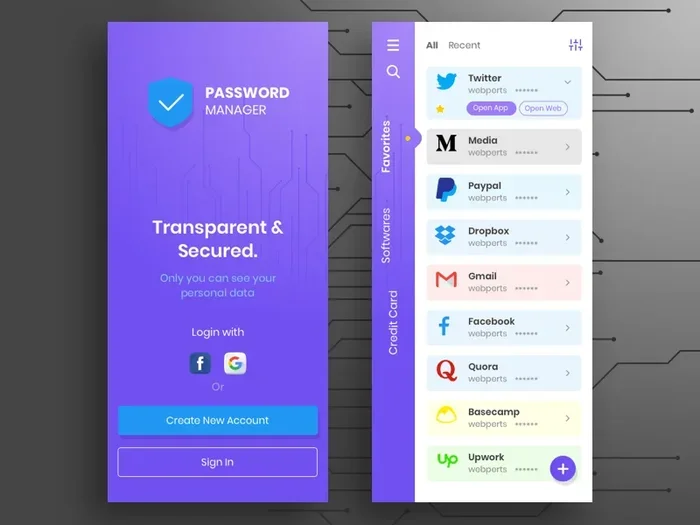
While built-in tools are convenient, a dedicated password manager offers more features and better security. A password manager acts as a digital vault for all your login credentials. You only need to remember one master password to access everything else.
Why Use A Password Manager?
A password manager does more than just store your passwords. It can generate strong, unique passwords for every account. It can autofill your login details on websites and apps so you never have to type them out. And it syncs your password list across all your devices, whether you use a phone, tablet, or computer.
Most password managers also offer a password audit feature. This shows you which of your passwords are weak, reused, or have been compromised in a breach. It is one of the best ways to improve your overall password security.
Top Password Managers To Consider
Here are some of the best options available right now:
- 1Password: Known for its clean interface and strong security features. It works on all major platforms and offers excellent family plans.
- Bitwarden: A great open-source option that is free for basic use. It offers solid encryption and a generous free tier.
- Dashlane: Includes a built-in VPN and dark web monitoring. It is a premium option with lots of extra features.
- LastPass: A popular choice with a free version. It offers easy autofill and cross-device syncing.
- Apple Passwords (formerly iCloud Keychain): Built into Apple devices and now available on Windows through iCloud for Windows.
Each of these tools lets you export or view your full password list whenever you need it. They also make it easy to transfer your login credentials to a new device in just a few steps.
How To Keep Your Password List Safe And Secure
Once you know how to view your passwords, the next important question is how to keep them safe. A list of passwords can be very sensitive information. If someone gets access to it, they could log into your email, bank accounts, and social media profiles.
Use A Strong Master Password
If you use a password manager, your master password is the key to everything. Make it long, unique, and hard to guess. A good master password should be at least 12 characters long and include a mix of uppercase letters, lowercase letters, numbers, and symbols. Avoid using birthdays, names, or common words.
Enable Two-Factor Authentication
Two-factor authentication adds an extra layer of protection. Even if someone knows your master password, they still cannot access your account without a second form of verification. This could be a code sent to your phone, a fingerprint scan, or a security key. Most password managers and browsers support two-factor authentication. Turn it on for every account that offers it.
Never Share Your Password List Over Email Or Text
It might be tempting to send your password list to a family member through email or a messaging app. But this is a big security risk. Email and text messages are not encrypted end-to-end by default. Anyone who intercepts them could read your login details. Instead, use a password manager’s secure sharing feature if you need to share access with someone you trust.
Update Your Passwords Regularly
Even the best password list needs maintenance. Make it a habit to review your saved passwords every few months. Change any that look weak or have been reused across multiple sites. A password manager can help you identify which ones need updating.
Back Up Your Password Data
Losing access to your password list can be a real headache. Make sure you have a backup plan. Most password managers offer secure backup options. Some allow you to export your encrypted password data to a file. Store this file in a safe place, like an external hard drive kept in a secure location.
Common Problems When Trying To Access Your Passwords
Sometimes things do not go smoothly when you try to pull up your password list. Here are the most common issues and how to fix them.
You Forgot Your Master Password
This is the most common problem with password managers. If you forget your master password, you may not be able to access your vault. Most password managers do not store your master password anywhere, which is good for security but tough if you forget it. Some services offer account recovery options, but they can be complicated. The best prevention is to write your master password down and store it in a very safe physical location.
Passwords Not Syncing Across Devices
If your password list shows up on one device but not another, check your sync settings. Make sure you are signed into the same account on all devices. For browser-based password managers, ensure that password syncing is turned on in your settings. For phone operating systems, check that iCloud Keychain or Google sync is enabled.
Browser Not Saving New Passwords
Sometimes your browser stops saving new passwords automatically. This can happen after a browser update or if you accidentally turned off the save feature. Go to your browser settings and make sure the “Save Passwords” option is enabled. You may also want to clear your browser cache and try again.
Passwords Appear As Dots Or Asterisks
Most password managers hide your passwords behind dots or asterisks for security. To see the actual password, you usually need to click a “Show” or “Eye” icon next to the entry. You may need to authenticate with your device password or fingerprint first.
Quick Tips For Managing Your Password List
Here are some quick tips to keep your password list organized and secure:
- Use a password generator for every new account. Do not reuse passwords across sites.
- Review your saved passwords monthly and delete any you no longer use.
- Enable autofill carefully. It is convenient but can be risky on shared or public devices.
- Check for data breaches regularly. Many password managers and browsers offer built-in breach alerts.
- Keep your password manager app updated. Updates often include important security patches.
- Use a password-protected vault for any passwords you write down on paper or store digitally outside a password manager.
Expert Insights On Password Security
Cybersecurity experts agree that a good password manager is one of the most important tools you can use today. The average person has over 100 online accounts, and trying to remember a unique password for each one is nearly impossible. A password list stored in a secure manager solves this problem completely.
Experts also recommend moving away from browser-only password storage for your most important accounts. While browsers are convenient, dedicated password managers offer stronger encryption and better cross-platform support. If you have banking apps, email accounts, or work-related logins, consider moving those to a premium password manager.
Another expert tip is to use passphrases instead of traditional passwords. A passphrase is a string of random words that is easy to remember but hard to crack. For example, “BlueTigerCoffeeRain42” is much stronger than “password123” and easier to type on your phone.
Key Takeaways
- You can view your passwords on any device: Use your browser settings, phone operating system, or a password manager app to access your saved login credentials.
- Built-in tools work well for basic needs: iCloud Keychain, Google Password Manager, and browser password vaults are free and convenient.
- Dedicated password managers offer more features: They provide stronger encryption, cross-device syncing, and password generation tools.
- Security should always come first: Use a strong master password, enable two-factor authentication, and never share your password list over unsecured channels.
- Regular maintenance keeps your passwords safe: Review your list often, update weak passwords, and back up your data.
Conclusion
So, can you show me a list of my passwords? Absolutely. Whether you use an iPhone, an Android phone, a Windows computer, or a Mac, there are simple and reliable ways to access your saved login credentials. Built-in tools like iCloud Keychain and Google Password Manager make it easy to view your passwords on the go. And if you want more control and security, a dedicated password manager is the best choice.
The key is to find the method that fits your workflow and stick with it. Once you have your password list organized and accessible, you will wonder how you ever managed without it. Take a few minutes today to check your saved passwords, update any that are weak, and set up a secure system that works for you. Your digital life will be safer and much more convenient because of it.
Remember, your passwords are the keys to your online world. Treat them with care, store them securely, and always keep your password list backed up. With the right tools and habits, you will never have to worry about forgetting a password again.
Frequently Asked Questions
Can you show me a list of my passwords for free?
Yes, you can view your saved passwords for free using built-in tools like Google Password Manager, iCloud Keychain, or your browser’s password vault. These tools do not cost anything and are already available on your phone or computer. Just go to your settings and look for the passwords or autofill section.
Is it safe to view my passwords on my phone?
It is safe as long as you are using your own device and have a strong screen lock. Both iOS and Android encrypt stored passwords in a secure vault. Avoid viewing your password list on public or shared devices, and always lock your phone when you are done.
Can I export my password list to another device?
Yes, most password managers and browser tools allow you to export your passwords as a file. Password managers like 1Password, Bitwarden, and Dashlane offer secure export options. Always encrypt or password-protect any exported file and store it in a safe location.
What should I do if I cannot find a saved password?
First, check which browser or device you likely saved it on. Search your browser’s password manager or phone settings for the website name. If you still cannot find it, try using the site’s password recovery option. Going forward, save all new passwords to one central password manager to avoid this problem.
How often should I update my password list?
You should review your password list at least once every few months. Update any passwords that are weak, reused, or have been involved in a known data breach. A good password manager can alert you automatically when it is time to change a password.
Can I see my passwords without a password manager?
Yes, you can view saved passwords directly through your browser or phone settings without installing any extra software. Both Chrome and Safari let you see stored passwords with just a few taps. However, a dedicated password manager offers better security, stronger encryption, and easier cross-device access.
=== CONCLUSION ===
Now you know the answer to the question, “Can you show me a list of my passwords?” You have all the tools and methods you need to access your saved login credentials on any device. Whether you use a browser, your phone settings, or a dedicated password manager, your passwords are always within reach when you need them. The most important step you can take today is to organize your password list, strengthen any weak passwords, and set up a secure system that keeps your digital life safe and simple.