Can I Connect A USB C Device To A USB A Port Safely
Yes, you can connect a USB C device to a USB A port using a simple adapter or cable. This setup works for charging, data transfer, and connecting accessories, but the speeds and features depend on the adapter quality and port versions. Understanding how these two connector types work together helps you avoid damage and get the best performance from your devices.
You just bought a shiny new device with a USB-C port, and now you need to connect it to something that only has a USB-A port. Maybe it is an older computer, a car charger, or a legacy printer. The question is simple: can you make it work? The answer is yes, but there is more to know than just plugging things in.
USB-C and USB-A look completely different. One is small and reversible. The other is larger and has a specific orientation. Despite their differences, these two connector types can communicate with each other. You just need the right bridge between them. This guide walks you through everything you need to know about connecting USB C devices to USB A ports safely and effectively.
Whether you want to transfer files, charge your phone, or use an older accessory, this article covers it all. You will learn about adapters, speed limits, common mistakes, and expert tips. By the end, you will feel confident making any USB connection without worry.
Key Takeaways
- USB C and USB A are different connectors: They have different shapes, sizes, and capabilities, but they can work together with the right adapter.
- You need a USB-C to USB-A adapter or cable: A direct plug is not possible without an adapter because the physical shapes do not match.
- Data transfer speeds vary: USB 2.0 adapters cap at 480 Mbps, while USB 3.0 adapters can reach speeds up to 5 Gbps or more.
- Charging works fine through the adapter: Most USB-C devices charge normally when connected to a USB A port, though faster charging may be limited.
- Cheap adapters can be risky: Low-quality adapters may cause slow speeds, connection drops, or even damage your device.
- Thunderbolt and USB4 devices may lose features: When using a USB-C to USB-A adapter, advanced features like display output may not work.
- Always check compatibility: Make sure your adapter supports the speed and power level your device needs.
📑 Table of Contents
Understanding USB-C and USB-A Ports
Before you plug anything in, it helps to understand what each port type is and why they look so different. Both serve the same basic purpose: connecting devices to transfer data and power. But their designs and capabilities have evolved over time.
What Is a USB-A Port?
The USB-A port is the classic rectangular connector you have seen for decades. It is the standard port found on most desktop computers, older laptops, wall chargers, and many peripherals. It has a flat, horizontal shape with a distinct top and bottom. This means you have to insert it the right way, which can sometimes be frustrating.
USB-A ports come in different versions. USB 2.0 is the most common and supports data transfer speeds up to 480 Mbps. USB 3.0 and USB 3.1 offer much faster speeds, reaching up to 5 Gbps and 10 Gbps respectively. You can usually identify USB 3.0 ports by their blue color inside the connector.
Even though USB-A is older, it is still everywhere. Printers, keyboards, mice, external hard drives, and many other devices use USB-A ports. This is why you often need to connect a modern USB-C device to a USB-A port.
What Is a USB-C Port?
The USB-C connector is the modern standard for most new devices. It is small, oval-shaped, and reversible. This means you can plug it in either way, and it will work. No more flipping the cable three times to find the right orientation.
USB-C is not just a connector shape. It also supports newer protocols like USB 3.1, USB 3.2, USB4, and Thunderbolt 3 or 4. These protocols allow for much faster data transfer, higher power delivery, and even video output through a single cable. A USB-C port can deliver up to 100 watts of power through USB Power Delivery, which is enough to charge most laptops.
Because USB-C is so versatile, many people want to use their USB-C devices with older USB-A equipment. That is where adapters come in.
Can You Connect USB C to USB A Directly?
The short answer is no, not directly. You cannot plug a USB-C cable into a USB-A port or vice versa without an adapter. The physical shapes are completely different. But with the right adapter or cable, the connection is straightforward and safe.
How the Connection Works
When you use a USB-C to USB-A adapter or cable, the adapter acts as a bridge. It translates the signals from one connector type to the other. The data and power flow through the adapter seamlessly, and your devices communicate just as they would with matching ports.
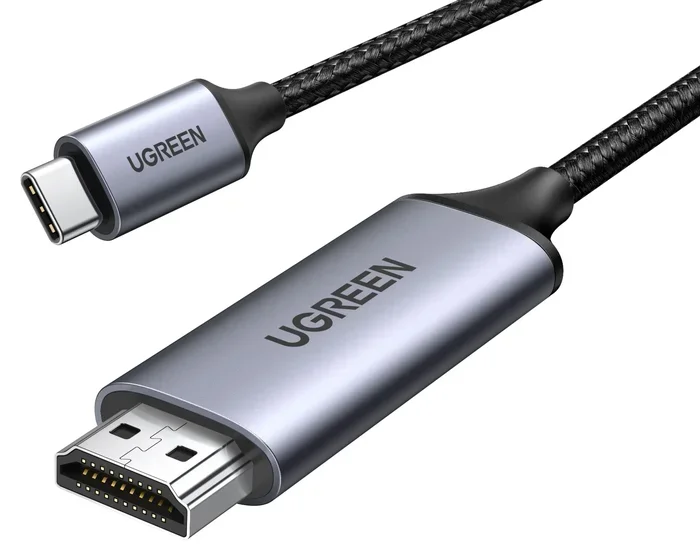
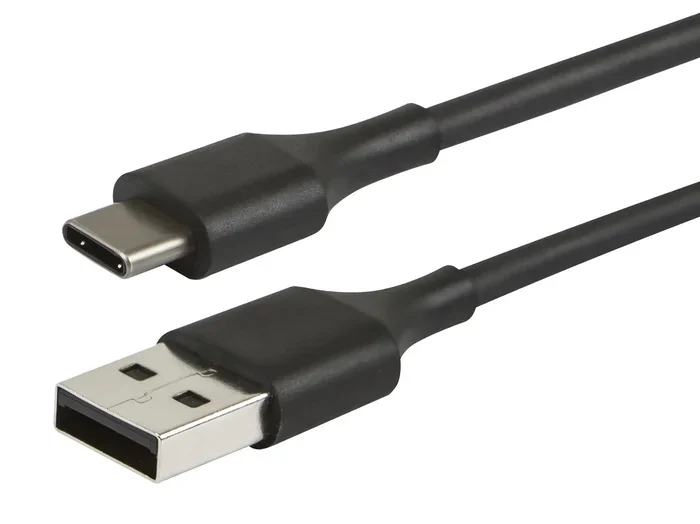
Most USB-C to USB-A cables have a USB-C plug on one end and a USB-A plug on the other. You plug the USB-A end into your older device, and the USB-C end goes into your newer device. It is plug and play in most cases. Your computer or device should recognize the connection immediately.
The adapter handles the communication between the two different standards. It makes sure the data signals and power delivery are compatible. This means you do not need to install any special drivers in most cases. The connection just works.
What Happens When You Plug Them Together
When you connect a USB C device to a USB A port through an adapter, several things happen. First, the device charges if it is a charging cable. Second, data can transfer between the devices if the connection is for data. Third, the speed of these operations depends on the slower of the two ports involved.
For example, if your USB-C device supports USB 3.1 speeds but your USB-A port is USB 2.0, the connection will run at USB 2.0 speeds. The adapter does not magically upgrade the slower port. It simply enables communication between the two.
Most of the time, this is perfectly fine. Charging speed may be slightly slower on older ports, and file transfers will take a bit longer. But for everyday use, you will barely notice the difference.
Do You Need an Adapter to Connect USB C and USB A?
Yes, you need either a USB-C to USB-A adapter or a USB-C to USB-A cable with a built-in adapter. These are widely available and affordable. You can find them at most electronics stores, online marketplaces, and even convenience stores.
Types of USB-C to USB-A Adapters
There are several types of adapters you can choose from. Each serves a slightly different purpose depending on your needs.
- Simple USB-C to USB-A adapter: This is a small dongle that plugs into your USB-A port. You then plug your USB-C cable into the adapter. It is compact and easy to carry.
- USB-C to USB-A cable: This is a cable with a USB-C plug on one end and a USB-A plug on the other. No separate adapter needed. It is convenient for permanent setups.
- USB-C to USB-A hub: This adds extra ports to your connection. You can connect multiple USB-A devices through a single USB-C connection. Great for laptops with limited ports.
- USB-C to USB-A adapter with Ethernet: Some adapters include additional ports like Ethernet or SD card slots. Useful for professionals who need multiple connection types.
When to Use an Adapter
You should use an adapter whenever you need to connect a USB-C device to a device that only has a USB-A port. Common situations include connecting a new phone to an older computer, using a USB-C flash drive with a USB-A port, or plugging a USB-C peripheral into a desktop with only USB-A ports.
Adapters are also helpful when traveling. You may need to connect your laptop to a hotel room TV or use an older printer at a business center. A simple adapter in your bag can save you a lot of hassle.
Data Transfer Speeds and Compatibility
One of the most common questions people have is about speed. When you connect a USB C device to a USB A port, the data transfer speed depends on the capabilities of both the adapter and the ports involved.
USB 2.0 vs USB 3.0 Speeds
USB 2.0 is the older standard and the most common type of USB-A port. It supports data transfer speeds of up to 480 Mbps. This is fine for basic tasks like transferring documents or charging devices. But it is slow for large files like videos or backups.
USB 3.0 and USB 3.1 are much faster. USB 3.0 supports speeds up to 5 Gbps, and USB 3.1 Gen 2 can reach 10 Gbps. These ports are usually colored blue inside the connector to help you identify them.
When you use a USB-C to USB-A adapter, the speed of the connection is limited by the slowest component. If your adapter only supports USB 2.0, your connection will be slow no matter what ports you use. Always check the adapter specifications to make sure it supports the speed you need.
How Fast Can You Transfer Data?
Here is a quick breakdown of what to expect with different setups.
- USB 2.0 connection: About 25 to 30 MB per second. Fine for documents and photos, but slow for large video files.
- USB 3.0 connection: About 300 to 400 MB per second. Much better for large file transfers and backups.
- USB 3.1 connection: Up to 600 MB per second. Great for professionals working with large media files.
If you need fast data transfer, look for a USB-C to USB-A 3.0 adapter. These adapters have the internal hardware to support faster speeds. They cost a little more than USB 2.0 adapters, but the speed difference is huge.
Common Mistakes to Avoid
Connecting USB-C devices to USB-A ports is generally safe, but some common mistakes can cause problems. Knowing what to avoid helps you protect your devices and get the best performance.
Forcing the Connection
Never force a connector into a port. USB-C and USB-A connectors are designed to fit a specific way. If something does not go in smoothly, stop and check the orientation. Forcing a connector can damage the port or the adapter itself.
With USB-A ports, make sure you insert the connector the right way. The flat side goes on top, and the angled corners match the port shape. USB-C is reversible, so orientation does not matter for that connector, but the adapter itself still has a specific way to insert into the USB-A port.
Using Cheap or Low-Quality Adapters
Not all adapters are created equal. Cheap, unbranded adapters may not support the data speeds or power levels you need. They can also be unreliable, causing connection drops or data corruption.
Invest in a quality USB-C to USB-A adapter from a reputable brand. Look for adapters that are certified by the USB Implementers Forum (USB-IF). These adapters meet strict standards for performance and safety.
Ignoring Power Delivery Limits
USB-A ports have power delivery limits. Most USB-A ports provide 5 volts at 0.5 to 2.5 amps, depending on the port version. USB-C devices that support fast charging may not charge at full speed when connected through a USB-A port.
This is not a safety concern, but it means your device may charge more slowly than it would with a USB-C charger. If you need fast charging, use a USB-C power source whenever possible.
Expert Tips for Safe and Effective Connections
Making the most of your USB-C to USB-A connections is easier than you think. Follow these expert tips to ensure safe, reliable performance every time.
Best Practices for Daily Use
- Check your adapter specifications: Before buying, make sure the adapter supports the speed and power level you need. Look for USB 3.0 or higher for faster data transfer.
- Keep your adapters clean: Dust and debris can build up in adapter ports and cause connection issues. A quick wipe with a dry cloth keeps things working smoothly.
- Use the shortest cable possible: Longer cables can lead to signal loss and slower speeds. A short, high-quality cable gives the best performance.
- Avoid bending cables at sharp angles: This can damage the internal wires and lead to connection problems over time.
- Label your adapters: If you use multiple adapters, label them so you know which one supports which speed. This saves time and confusion.
When to Consider Upgrading
If you find yourself constantly using adapters to connect your devices, it might be time to upgrade your equipment. Newer computers, monitors, and peripherals are increasingly featuring USB-C ports. Upgrading your setup reduces the need for adapters and gives you faster speeds and better compatibility.
Also, if you have devices that only support USB 2.0, consider upgrading to USB 3.0 or USB 3.1 hardware. The speed improvement is dramatic, and the cost of upgrading is often very reasonable.
Key Takeaways
- You can safely connect USB C devices to USB A ports using a simple adapter or cable. The connection is plug and play and works for both charging and data transfer.
- The speed of your connection depends on the slower port: USB 2.0, USB 3.0, or USB 3.1. Always check your adapter specifications to ensure it supports the speed you need.
- Charging works well through adapters: Your USB-C device will charge normally, though faster charging features may be limited by the USB-A port’s power output.
- Avoid cheap, uncertified adapters: Low-quality adapters can cause slow speeds, connection drops, and potential damage to your devices.
- Advanced features may not work: Thunderbolt, USB4, and display output features may not function through a USB-C to USB-A adapter. Check compatibility before relying on these features.
- Keep adapters clean and use quality cables: Simple maintenance habits go a long way in ensuring reliable connections over time.
- Upgrade when possible: Moving to USB-C equipment across your setup reduces the need for adapters and improves your overall experience.
Conclusion
Can I connect a USB C device to a USB A port safely? Absolutely yes. With the right USB-C to USB-A adapter or cable, you can connect virtually any modern device to older equipment without any issues. The process is simple, safe, and widely supported across devices and operating systems.
The key is to use a quality adapter that matches your needs. If you need fast data transfer, choose a USB 3.0 or USB 3.1 adapter. If you just need to charge your device, even a basic USB 2.0 adapter will work fine. And always make sure the adapter fits snugly without forcing it.
Understanding the differences between USB-C and USB-A ports helps you make informed decisions about your connections. You will know what to expect in terms of speed, power, and compatibility. This knowledge saves you time, money, and frustration in the long run.
So go ahead and connect your devices with confidence. Whether it is your phone, laptop, camera, or external drive, bridging the gap between USB-C and USB-A is easy and safe. Just grab the right adapter, plug it in, and get to work.
Frequently Asked Questions
Will connecting a USB C device to a USB A port damage my device?
No, connecting a USB-C device to a USB-A port through a proper adapter will not damage your device. The adapter handles the signal conversion safely. Just make sure you use a quality adapter from a reputable brand to ensure safe operation.
Can I transfer data at full USB-C speeds using a USB-C to USB-A adapter?
No, the data transfer speed is limited by the slower of the two ports. If your USB-A port is USB 2.0, your connection will run at USB 2.0 speeds regardless of how fast your USB-C device is. For the best speeds, use a USB 3.0 or USB 3.1 adapter and port.
Do I need to install drivers for a USB-C to USB-A adapter?
In most cases, no. USB-C to USB-A adapters are plug and play. Your operating system should recognize the connection automatically. If you experience issues, a simple restart usually resolves them.
Can I use a USB-C to USB-A adapter for charging my phone?
Yes, you can charge your phone through a USB-C to USB-A adapter. However, fast charging speeds may not be available when connected to a USB-A port. Standard charging speeds are typically supported without any issues.
What is the difference between a USB-C to USB-A adapter and a USB-C to USB-A cable?
An adapter is a small dongle that you plug into a USB-A port, and then you connect your USB-C cable to it. A USB-C to USB-A cable has both connectors built into one cable. Both serve the same purpose, but the cable is more convenient for permanent setups.
Can I connect a USB-C external hard drive to a USB-A port and use it normally?
Yes, you can connect a USB-C external hard drive to a USB-A port using an adapter. The drive will work normally for storing and accessing files. However, if the hard drive supports fast transfer speeds, you may not get the full performance through a USB 2.0 adapter or port.