Can a Router Cause an Unstable Internet Connection
A faulty or outdated router is one of the most common reasons for an unstable internet connection. Issues like router overheating, outdated firmware, poor placement, and signal interference can all trigger Wi‑Fi signal drops and internet speed fluctuation. This guide walks you through the root causes, proven fixes, and when it is time to replace your router for good.
You are streaming your favorite show, and suddenly the screen freezes. Your video call drops for no reason. The Wi‑Fi icon on your laptop keeps spinning. It is frustrating, and your first thought might be, “Is my internet provider the problem?”
Here is the truth. Can a router cause an unstable internet connection? Yes, absolutely. In fact, your router is one of the most common sources of Wi‑Fi signal drops, internet speed fluctuation, and connection timeout errors. Before you blame your ISP, it is worth looking at your router first.
This article breaks down exactly how a router creates instability, what signs to watch for, and the practical steps you can take to fix the problem. Whether you are dealing with ping spikes during gaming or random network connectivity issues at home, you will find answers here.
Key Takeaways
- Your router can absolutely cause an unstable internet connection: hardware limits, overheating, and outdated firmware are top culprits.
- Router placement matters: walls, appliances, and distance weaken your Wi‑Fi signal and lead to drops.
- Firmware updates fix bugs: many connection problems disappear after a simple router firmware update.
- Interference is real: neighboring networks, microwaves, and Bluetooth devices cause wireless interference and ping spikes.
- Know when to replace: routers older than 5 years often cannot handle modern bandwidth demands.
- Quick fixes work: restarting your router, adjusting channels, and checking cables solve many issues fast.
📑 Table of Contents
- What Causes an Unstable Internet Connection?
- How Your Router Affects Internet Stability
- Common Router Problems That Lead to Connection Drops
- How to Fix Router-Related Internet Instability
- When to Replace Your Router
- Expert Tips for a Stable Internet Connection
- Common Mistakes That Make Router Problems Worse
- Conclusion
What Causes an Unstable Internet Connection?
An unstable connection means your internet keeps dropping, slowing down, or behaving unpredictably. Many things can trigger this, and your router often sits at the center of the problem.
Hardware Limitations
Older routers were built for slower internet plans. If your ISP plan has jumped to 200 Mbps or higher but your router only supports 802.11n, you will feel the bottleneck. The hardware simply cannot keep up with modern bandwidth demands.
Cheap routers with low-quality antennas also struggle. They have a shorter range and cannot push a strong signal through walls and furniture. This leads to weak spots in your home where the connection drops entirely.
Software and Firmware Issues
Your router runs on software called firmware. Just like your phone needs updates, your router needs them too. Outdated firmware can cause connection timeout errors, memory leaks, and even security vulnerabilities that slow your network.
Sometimes a firmware bug introduces packet loss, which means data never reaches its destination. This shows up as choppy calls, buffering videos, and pages that refuse to load.
Environmental Factors
Where you place your router changes everything. A router tucked inside a closet or behind a TV will struggle to broadcast a strong signal. Microwaves, baby monitors, and cordless phones all operate on the same 2.4 GHz frequency and create wireless interference.
Even the physical layout of your home matters. Thick concrete walls, metal appliances, and large mirrors can block or reflect your Wi‑Fi signal drops in unpredictable ways.
How Your Router Affects Internet Stability
Your router is the bridge between your devices and the internet. When that bridge is weak, everything on your network suffers. Let us look at exactly how your router impacts stability.
The Role of Your Router in Network Traffic
Every device in your home shares the same internet connection through your router. When multiple devices stream, download, or game at the same time, your router manages all that traffic. A weak or overloaded router cannot juggle it all smoothly.
This is called bandwidth congestion. You might notice your connection stutters every time someone starts a download. Your internet speed fluctuation gets worse during peak hours, especially in apartment buildings where many networks overlap.
Signal Strength and Range
Your router broadcasts a Wi‑Fi signal that weakens with distance. A signal that starts strong in the living room might be too weak to reach your bedroom. This causes Wi‑Fi signal drops in certain rooms and makes your connection feel unstable even when the router is working fine.
Dual-band routers offer two frequencies: 2.4 GHz and 5 GHz. The 2.4 GHz band travels farther but is more prone to interference. The 5 GHz band is faster and cleaner but has a shorter range. Understanding this helps you troubleshoot network connectivity issues more effectively.
DNS and Routing Tables
Your router handles DNS settings that translate website names into IP addresses. If your router’s DNS cache gets corrupted or its routing table becomes overloaded, pages take forever to load or fail to open at all. This is not your internet going down; it is your router failing to direct traffic properly.
Common Router Problems That Lead to Connection Drops
Now that you understand the “why,” let us look at the specific router problems that cause instability. These are the issues most users face every day.
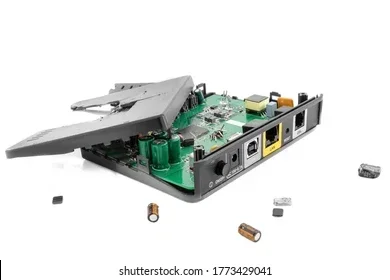
Router Overheating
Routers generate heat. When they overheat, performance drops fast. An overheated router may disconnect devices randomly, slow down speeds, or restart without warning.
Signs of overheating include:
- The router feels hot to the touch
- Devices disconnect at random times
- The router restarts on its own
- Speeds drop significantly after heavy use
Placing your router in a closed cabinet or stacking items on top of it traps heat and makes the problem worse.
Channel Overlap and Interference
Your router broadcasts on a specific channel. In apartment buildings or crowded neighborhoods, many routers use the same channel. This is called channel overlap, and it creates a crowded airwave environment.
The result? Ping spikes during gaming, slow downloads, and constant Wi‑Fi signal drops. Your router is essentially trying to shout over dozens of other routers.
Outdated Hardware Standards
Wi‑Fi standards have evolved significantly. Here is a quick comparison of common standards:
| Standard | Max Speed | Frequency | Common Issues |
|---|---|---|---|
| 802.11n (Wi‑Fi 4) | 600 Mbps | 2.4 GHz / 5 GHz | Limited range on 5 GHz, prone to interference |
| 802.11ac (Wi‑Fi 5) | 3.5 Gbps | 5 GHz | Struggles with many devices |
| 802.11ax (Wi‑Fi 6) | 9.6 Gbps | 2.4 GHz / 5 GHz | Requires compatible devices |
| 802.11be (Wi‑Fi 7) | 46 Gbps | 2.4 / 5 / 6 GHz | Very new, limited device support |
If your router uses an older standard, it may not handle the number of devices or speeds your ISP plan offers. Upgrading to a dual-band router or a Wi‑Fi 6 router can dramatically improve stability.
Firmware Bugs and Memory Leaks
Router manufacturers release firmware updates to fix bugs and improve performance. If you never update your router, you are leaving known issues unresolved. Some firmware bugs cause memory leaks, where the router slowly uses up all its available memory over time.
The symptom? Your connection gets worse and worse the longer the router runs. A simple restart temporarily fixes it, but the problem returns within hours or days. This is a classic sign of a firmware bug.
How to Fix Router-Related Internet Instability
Good news. Most router-related connection problems are fixable without calling a technician. Here are the steps that work.
Restart Your Router Regularly
This is the oldest trick in the book, and it works. Restarting your router clears the memory, refreshes the DNS cache, and reconnects to your ISP with a clean slate.
Try unplugging your router for 30 seconds every week. If you experience frequent drops, restart it whenever the problem appears. Many modern routers have a scheduled restart feature you can set in the admin panel.
Update Your Router Firmware
Log into your router’s admin panel (usually 192.168.1.1 or 192.168.0.1) and check for firmware updates. Manufacturers release these regularly to patch bugs and improve network stability.
Quick Tip: Turn on automatic updates if your router supports it. This ensures you never miss a critical patch that could be causing your connection timeout errors.
Reposition Your Router
Placement is one of the easiest and most impactful fixes. Follow these guidelines:
- Place the router in a central location in your home
- Keep it elevated on a shelf or table, not on the floor
- Avoid hiding it inside cabinets or behind furniture
- Keep it away from microwaves, baby monitors, and cordless phones
- Point the antennas vertically for horizontal coverage
Even moving your router a few feet can reduce wireless interference and strengthen the signal in weak spots.
Change Your Wi‑Fi Channel
If channel overlap is causing problems, switching to a less crowded channel can help. Use a free app like WiFi Analyzer to see which channels are busiest in your area.
For the 2.4 GHz band, channels 1, 6, and 11 are the best choices because they do not overlap with each other. For the 5 GHz band, there are many more channels available, so interference is less of an issue.
Adjust QoS Settings
QoS (Quality of Service) lets you prioritize certain types of traffic. If gaming or video calls keep dropping, you can tell your router to prioritize that traffic over downloads and background updates.
Look for QoS settings in your router admin panel under “Traffic Management” or “Bandwidth Control.” This simple tweak can eliminate ping spikes and make your connection feel much more stable.
Check Your Cables and Connections
Do not overlook the basics. A loose Ethernet cable, a damaged coaxial line, or a faulty port can cause network connectivity issues that look like router problems.
Try these checks:
- Ensure all cables are firmly plugged in
- Replace any cable that shows visible damage
- Try a different Ethernet port on your router
- Test with a wired connection to rule out Wi‑Fi issues
If your connection is stable on a wired ethernet connection but unstable on Wi‑Fi, the problem is almost certainly wireless, not your ISP.
Update Network Adapter Drivers
Sometimes the problem is not your router but your device. Outdated network adapter drivers can cause internet speed fluctuation and random disconnects. Keep your device drivers up to date, especially on laptops and desktop computers.
When to Replace Your Router
Not every router problem can be fixed with a tweak. Here are clear signs it is time for a new router.
Your Router Is More Than 5 Years Old
Technology moves fast. A router that was top-of-the-line five years ago likely cannot handle today’s bandwidth demands. If you are still using an 802.11n router in a household with multiple smart devices, streaming services, and remote workers, an upgrade will make a noticeable difference.
Frequent Hardware Failures
If your router needs constant restarts, overheats regularly, or shows physical signs of wear, the hardware is failing. No amount of firmware updates or repositioning will fix a dying router.
You Have Upgraded Your Internet Plan
Did your ISP recently increase your speed to 500 Mbps or 1 Gbps? Your old router might be the bottleneck capping your speeds. A modern Wi‑Fi 6 router can unlock the full potential of your new plan.
You Have Many Smart Home Devices
Smart thermostats, cameras, doorbells, and speakers all connect to your router. If you have 20 or more devices, an older router will struggle. Modern routers handle heavy device loads much better thanks to improved QoS settings and multi-user technology.
Expert Tips for a Stable Internet Connection
Beyond the fixes above, here are some pro-level tips to keep your connection rock solid.
Use a Mesh Wi‑Fi System for Large Homes
If your home is large or has multiple floors, a single router cannot cover everything evenly. A mesh Wi‑Fi system uses multiple nodes placed around your home to create seamless coverage. This eliminates dead zones and reduces Wi‑Fi signal drops in far rooms.
Schedule Bandwidth-Heavy Tasks
Large downloads and software updates consume a lot of bandwidth. Schedule these for off-peak hours when fewer devices are using the network. This reduces bandwidth congestion and keeps your connection smooth for everything else.
Monitor Your Network Regularly
Most modern routers come with companion apps that show real-time network health. Check these apps periodically for unusual activity, slow devices, or frequent reconnects. Early detection helps you catch problems before they become major disruptions.
Consider a Wired Backhaul
If you use multiple routers or access points, connecting them with Ethernet cables (wired backhaul) instead of wirelessly gives you a much more stable and faster connection between them. This is especially helpful for home offices and home theaters.
Common Mistakes That Make Router Problems Worse
Avoid these common mistakes that accidentally worsen your connection issues:
- Never restarting your router: Routers need regular restarts to clear memory and refresh connections.
- Ignoring firmware updates: Updates fix bugs that cause instability. Skipping them leaves known problems unresolved.
- Placing the router near metal objects: Metal blocks Wi‑Fi signals. Keep your router away from filing cabinets, refrigerators, and metal shelves.
- Using the wrong DNS settings: Default DNS servers from your ISP are often slow. Switching to Google DNS (8.8.8.8) or Cloudflare DNS (1.1.1.1) can improve speed and reliability.
- Overloading the router: Running too many devices on a single low-end router creates bandwidth congestion and connection timeout errors.
Conclusion
Can a router cause an unstable internet connection? The answer is a clear yes. From overheating and outdated firmware to poor placement and channel overlap, your router can sabotage your internet in many ways. The good news is that most of these problems are easy to identify and fix with simple steps.
Start by restarting your router, updating its firmware, and checking its placement. If the problem persists, try changing your Wi‑Fi channel, adjusting QoS settings, and testing with a wired connection. These steps resolve the majority of Wi‑Fi signal drops and internet speed fluctuation issues.
If your router is old, frequently failing, or simply cannot handle your household’s demands, do not hesitate to invest in a modern replacement. A good dual-band router or Wi‑Fi 6 router pays for itself in stable, fast connections every single day.
Take control of your network today. Apply the tips in this guide, and you will enjoy a much more reliable internet experience at home and at work.
Frequently Asked Questions
Can a bad router slow down my internet speed?
Yes, absolutely. An outdated or overloaded router cannot process data fast enough to match your ISP plan speeds. This creates a bottleneck that makes your internet feel slow even when the connection itself is stable.
How often should I restart my router?
Restarting your router once a week is a good habit. If you notice Wi‑Fi signal drops or slow speeds, a quick restart often fixes the problem immediately. Many modern routers also support scheduled automatic restarts.
Does router placement really affect internet stability?
Yes, placement has a huge impact. A router hidden behind furniture or placed in a corner cannot broadcast evenly. Central, elevated placement reduces wireless interference and strengthens your signal throughout your home.
Can neighbors’ Wi‑Fi networks cause my connection to drop?
They can. When multiple routers in your area use the same channel, channel overlap creates interference. This leads to ping spikes, slower speeds, and occasional disconnects. Switching to a less crowded channel usually fixes this.
Is it worth upgrading to a Wi‑Fi 6 router?
Yes, especially if you have many devices or high-speed internet. Wi‑Fi 6 routers handle heavy loads better, reduce bandwidth congestion, and provide more stable connections compared to older standards.
What is the difference between router issues and ISP issues?
A quick test helps. Connect a device directly to your modem with an Ethernet cable. If the connection is stable, your ISP is fine and the problem is your router. If the connection is still unstable, the issue likely lies with your ISP or the line entering your home.