Can I Connect A USB Device To 2 Computers Right Now
Yes, you can connect a USB device to 2 computers using several methods like USB switches, KVM switches, USB sharing software, and network-based solutions. This guide covers everything you need to know about USB device sharing between two PCs, including step-by-step instructions, pros and cons, and practical tips to avoid common mistakes.
Key Takeaways
- USB switches and KVM switches let you share a single USB device between two computers with the press of a button.
- USB sharing software like USB Network Gate enables remote access to USB devices over a network or internet connection.
- USB hubs and splitters work for simple tasks but have limitations when it comes to simultaneous access by two computers.
- Network-based USB sharing is ideal for printers and scanners that both computers need to access regularly.
- Avoid plugging the same USB device into two computers at the same time without a switch, as this can cause data corruption or damage.
- The best method depends on your device type, how often you need to switch, and your budget.
📑 Table of Contents
- Can I Connect A USB Device To 2 Computers?
- Why Would You Want to Share a USB Device Between Two Computers?
- Methods to Connect a USB Device to 2 Computers
- Comparison Table: Which Method Is Best for You?
- Quick Tips for Sharing USB Devices Safely
- Common Mistakes to Avoid When Sharing USB Devices
- Expert Insights on USB Device Sharing
- How to Choose the Right USB Sharing Solution
- Conclusion
Can I Connect A USB Device To 2 Computers?
Have you ever wanted to use one printer, external hard drive, or USB flash drive with two different computers? Maybe you work at two desks, or you share a workspace with someone else. The good news is that connecting a USB device to 2 computers is absolutely possible. You just need the right method and a little know-how.
In this guide, we will walk you through every way you can share a USB device between two PCs. We will cover hardware solutions, software options, and simple workarounds. Whether you want to share a printer, a webcam, or a storage drive, you will find the answer here.
Sharing USB devices used to be a real headache. But today, there are affordable and easy-to-use tools that make it simple. Let us dive in and explore your options.
Why Would You Want to Share a USB Device Between Two Computers?
There are many reasons why people want to connect one USB device to two computers. Let us look at the most common scenarios.
Saving Money on Peripherals
Not everyone needs two printers, two scanners, or two external drives. If you work in a small office or a shared home setup, buying duplicate devices can waste money. Sharing one USB device between two PCs is a smart and cost-effective choice.
Space-Saving Solutions
Desks get crowded fast. By sharing USB peripherals, you free up space and reduce cable clutter. This is especially helpful in compact home offices or co-working spaces.
Switching Between Work and Personal Use
Many people use one computer for work and another for personal tasks. You might want to use the same USB microphone, webcam, or printer with both machines. Sharing a device lets you stay productive without buying extras.
Collaborative Work Environments
In some setups, two people need access to the same USB device at different times. A shared USB scanner or label printer can serve an entire team without anyone needing their own unit.
Methods to Connect a USB Device to 2 Computers
There are several reliable ways to share a USB device between two computers. Each method has its own advantages and limitations. Let us break them down one by one.
Method 1: Use a USB Switch
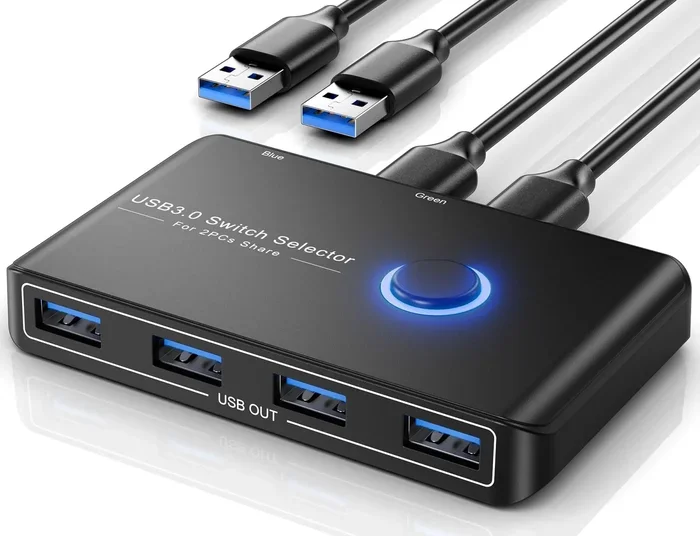
A USB switch is a hardware device that lets you connect one USB peripheral to two (or more) computers. You simply press a button or use software to switch the connection from one PC to the other.
USB switches are plug-and-play. You do not need to install complicated software in most cases. They work well with printers, external hard drives, scanners, and other storage devices.
Here is how a typical USB switch setup works:
- Connect the USB device to the USB switch box.
- Plug the switch into both computers using USB cables.
- Press the button on the switch to select which computer gets access.
- The active computer recognizes the device instantly.
USB switches come in different sizes. Some support only one device at a time, while others can handle multiple peripherals at once. Look for a switch that matches your needs and budget.
Method 2: Use a KVM Switch
A KVM switch (Keyboard, Video, Mouse) does more than just share USB devices. It lets you control two computers using one keyboard, one monitor, and one mouse. Most KVM switches also include USB ports for sharing peripherals like printers and external drives.
KVM switches are ideal if you want a complete shared workspace setup. They are popular among professionals who work with multiple computers but want a clean, organized desk.
Here are some key benefits of using a KVM switch:
- Share all your peripherals — keyboard, mouse, monitor, and USB devices — between two PCs.
- Hot-pluggable — many modern KVM switches let you switch computers without turning them off.
- Support for high-speed USB — look for USB 3.0 or USB-C KVM switches for fast data transfer.
- Built-in audio sharing — some models also let you share speakers and microphones.
KVM switches can be more expensive than simple USB switches, but they offer far more flexibility. If you work with two computers daily, a KVM switch is a worthwhile investment.
Method 3: USB Sharing Software
If you do not want to buy extra hardware, USB sharing software is a great option. This software lets you share a USB device over a local network or even the internet. One computer connects directly to the USB device, and the other computer accesses it remotely.
Popular USB sharing software options include USB Network Gate, VirtualHere, and Donglify. These tools work with a wide range of USB devices, including printers, dongles, cameras, and storage drives.
Here is a quick look at how USB sharing software works:
- Install the software on the computer that is physically connected to the USB device.
- Install the same software on the second computer.
- Share the USB device from the first computer through the software interface.
- The second computer sees the device as if it were connected locally.
One thing to keep in mind is that USB sharing software depends on your network speed. If you are transferring large files over a shared USB drive, a fast and stable network connection is essential. Also, latency can be a factor for real-time devices like webcams or audio interfaces.
Interestingly, computers play a huge role in modern medicine, from managing patient records to operating imaging equipment. The same principles of USB connectivity and device sharing apply in many professional settings, including healthcare technology environments. You can learn more about how computers are used in medicine to understand the broader impact of connectivity solutions.
Method 4: Network-Attached USB Devices
Some USB devices come with built-in network capabilities. For example, many modern printers support Wi-Fi or Ethernet connections. Instead of sharing a USB printer through cables or switches, you can connect it directly to your network.
This method works best for devices like printers and scanners that are designed for multi-user access. Once the device is on the network, any computer can send print jobs or scan documents without needing a physical USB connection.
Here are some popular network-attached USB devices:
- Network printers — connect via Wi-Fi or Ethernet and serve multiple computers.
- USB over IP adapters — these small devices let you share any USB device over a network.
- Network-attached storage (NAS) — shares external drives over the network instead of USB.
The main advantage of network-attached devices is convenience. You do not need to switch connections manually. Any computer on the same network can access the device whenever it needs to.
Method 5: USB Hubs and Manual Switching
A USB hub expands the number of USB ports on your computer. While a hub alone does not let two computers share one device, you can use a manual approach with a hub and USB cables.
This method involves unplugging the USB device from one computer and plugging it into another as needed. It is the simplest and cheapest option, but it is also the most inconvenient for frequent switching.
Here are some tips if you choose the manual USB hub approach:
- Use a high-quality USB hub to avoid connection issues.
- Always safely eject the device before unplugging it from one computer.
- Label your USB cables so you know which computer they belong to.
- Consider using a hub with a power adapter for devices that need more current.
This method works fine for occasional use. But if you need to switch between computers multiple times a day, a USB switch or KVM switch is a much better choice.
Comparison Table: Which Method Is Best for You?
| Method | Cost | Ease of Use | Speed | Best For |
|---|---|---|---|---|
| USB Switch | Low to Medium | Very Easy | Fast (USB speed) | Sharing one device between two PCs |
| KVM Switch | Medium to High | Easy | Fast (USB speed) | Full shared workspace setup |
| USB Sharing Software | Low (subscription) | Moderate | Depends on network | Remote sharing over a network |
| Network-Attached Device | Medium | Easy | Fast (network speed) | Printers and network-ready devices |
| Manual USB Hub | Very Low | Easy | Fast (USB speed) | Occasional, infrequent switching |
Quick Tips for Sharing USB Devices Safely
Sharing USB devices between computers can be smooth and safe if you follow a few simple guidelines. Here are some quick tips to keep in mind.
- Always eject the device properly before switching connections. Pulling out a USB drive without ejecting it can corrupt your files.
- Use high-quality USB cables. Cheap cables can cause connection drops, slow transfer speeds, and even damage your devices.
- Check compatibility before buying. Make sure your USB switch or KVM switch supports the speed and type of device you want to share. USB 3.0 devices need USB 3.0 switches for full performance.
- Keep your software updated. If you use USB sharing software, regular updates ensure security and stability.
- Do not power on both computers while the USB device is connected to both. This can cause electrical conflicts and potentially damage your hardware.
- Back up your data regularly. When sharing storage devices, always keep backups on a separate drive or cloud service.
Common Mistakes to Avoid When Sharing USB Devices
Even with the right tools, people make mistakes that can cause problems. Here are the most common pitfalls and how to avoid them.
Plugging the Same Device Into Two Computers Simultaneously
This is the number one mistake. Plugging a single USB flash drive into two computers at the same time without a proper switch can lead to data corruption. The computers may fight for access to the device, and your files can become unreadable.
Always use a USB switch, KVM switch, or sharing software to manage access properly.
Ignoring Power Requirements
Some USB devices need more power than others. A USB hub without its own power supply may not be able to run a powered external hard drive. Check the power requirements of your device before buying a hub or switch.
Using the Wrong USB Version
If you have a USB 3.0 device but your switch or hub only supports USB 2.0, you will get much slower speeds. Always match the USB version of your device with your sharing hardware.
Skipping Driver Installation
Some USB devices, especially specialized ones like audio interfaces or drawing tablets, need specific drivers. Make sure you install the correct drivers on both computers before attempting to share the device.
Expert Insights on USB Device Sharing
Sharing USB devices between computers has evolved a lot over the years. Here are some expert insights to help you get the best results.
Start with your needs. Before buying any hardware or software, think about how often you need to switch between computers and what type of device you want to share. A simple USB flash drive needs a different solution than a professional audio interface.
Invest in quality hardware. A cheap USB switch might save you money upfront, but it could cause connection issues and frustration later. Look for reputable brands with good reviews and solid warranties.
Consider your workflow. If you switch between computers dozens of times a day, a KVM switch with hot-plug support is the way to go. If you only switch once a week, a simple USB switch or even manual swapping will work fine.
Test before committing. Many USB sharing solutions come with trial versions of the software. Use these trials to make sure the setup works with your specific devices before purchasing.
How to Choose the Right USB Sharing Solution
Choosing the right method depends on several factors. Here is a simple guide to help you decide.
- Device type: Printers work best with network sharing. Storage devices work well with USB switches. Specialized devices like audio interfaces may need software-based sharing.
- Switching frequency: Frequent switching calls for a KVM switch or software solution. Occasional switching is fine with a manual USB switch.
- Distance between computers: If the computers are in different rooms or buildings, network-based sharing or USB over IP is your best bet.
- Budget: USB switches are affordable. KVM switches cost more. Software solutions usually involve a one-time or subscription fee.
- Speed requirements: For fast data transfer, stick with USB 3.0 or USB-C hardware and avoid network-based methods for large file transfers.
Take your time to evaluate your setup. The right solution will make your workflow smoother and save you both time and money.
Conclusion
So, can you connect a USB device to 2 computers? The answer is a clear yes. Whether you choose a USB switch, a KVM switch, USB sharing software, a network-attached solution, or a simple manual approach, there is a method that fits your needs.
The key is to understand your specific situation. Think about what device you want to share, how often you need to switch, and how much you are willing to spend. With the right setup, sharing USB devices between two computers is easy, safe, and convenient.
Start with the method that matches your workflow best. Try it out, and adjust as needed. Once you find the right solution, you will wonder how you ever managed without it.
Frequently Asked Questions
Can I plug the same USB flash drive into two computers at the same time?
No, you should never plug the same USB flash drive into two computers simultaneously without a proper switch or sharing solution. Doing so can corrupt your data and potentially damage the drive. Always use a USB switch or safely eject the device from one computer before connecting it to another.
What is the easiest way to share a USB printer between two computers?
The easiest way is to use a USB switch or connect the printer to a network. If your printer supports Wi-Fi or Ethernet, network sharing is the most convenient option. For USB-only printers, a simple USB switch lets you toggle between two computers quickly.
Do I need special software to share USB devices between computers?
It depends on the method you choose. Hardware solutions like USB switches and KVM switches do not require any software. However, if you want to share USB devices over a network remotely, you will need USB sharing software such as USB Network Gate or VirtualHere.
Will sharing a USB device slow down my computer?
Using a USB switch or KVM switch will not slow down your computer. The device connects directly to each computer when selected. However, if you use USB sharing software over a network, your transfer speeds will depend on your network speed and stability.
Can I share USB devices between a desktop and a laptop?
Absolutely. All the methods described in this article work with desktops and laptops. Whether you use a USB switch, KVM switch, or sharing software, the setup is the same regardless of whether one or both computers are laptops or desktops.
How much does a USB switch or KVM switch cost?
Basic USB switches cost between $15 and $40. KVM switches range from $30 for simple models to $200 or more for advanced setups with USB 3.0 support and multiple ports. USB sharing software typically costs between $20 and $50 per license. Prices vary based on features and brand.