Can I Convert Displayport To Hdmi Without Any Hassle
Yes, you can convert DisplayPort to HDMI without any hassle. With the right adapter or cable, you can connect your DisplayPort device to any HDMI display in just a few simple steps. This guide covers everything you need to know about display connectivity, signal conversion, and choosing the best adapter for your setup.
Have you ever stared at your computer and thought, “I really wish I could just plug this into my TV”? You are not alone. Many people own devices with a DisplayPort output but need to connect them to an HDMI display. The good news is that converting DisplayPort to HDMI is simpler than most people think. You do not need to be a tech expert to make it work. In this guide, we will walk you through everything step by step.
Whether you want to hook your laptop up to a monitor, connect a desktop to a television, or set up a home theater, understanding how display signal conversion works saves you time and money. We will cover adapters, cables, compatibility issues, and common mistakes. By the end of this article, you will feel confident making the connection yourself. Let us dive right in.
Key Takeaways
- Simple Conversion: You can easily convert DisplayPort to HDMI using an adapter or active converter cable.
- Active vs Passive Matters: Active adapters handle signal conversion, while passive ones only work in specific scenarios.
- 4K Support Is Possible: Many adapters support 4K HDMI output, but you need to check compatibility first.
- Audio Passthrough Works: Most modern adapters transmit both audio and video through the HDMI connection.
- Check Your DisplayPort Version: DisplayPort 1.2 and 1.4 offer different bandwidth and resolution support.
- Common Mistakes Exist: Using the wrong adapter type or ignoring signal direction causes most problems.
- Affordable Options Abound: You do not need to spend a lot to get a reliable DisplayPort to HDMI adapter.
📑 Table of Contents
- Understanding DisplayPort and HDMI Basics
- Active vs Passive Adapters for DisplayPort to HDMI
- How to Choose the Right DisplayPort to HDMI Adapter
- Step-by-Step Guide to Converting DisplayPort to HDMI
- Common Problems and How to Fix Them
- Expert Tips for the Best DisplayPort to HDMI Experience
- Does DisplayPort to HDMI Conversion Affect Quality?
- Frequently Asked Questions
- Conclusion
Understanding DisplayPort and HDMI Basics
Before you buy any adapter, it helps to understand what these two connection types actually do. Both DisplayPort and HDMI carry digital video and audio signals. They just use different connectors and slightly different technologies. Think of them like two different languages that can say the same thing with a translator.
DisplayPort is common on computers and graphics cards. It was designed by VESA, a group that sets display standards. HDMI is what you usually find on TVs, monitors, and projectors. It is the standard for home entertainment devices. Both support high-definition video, but they handle things a bit differently behind the scenes.
What DisplayPort Does
DisplayPort is a digital display interface developed by VESA. It is widely used on PCs, laptops, and professional monitors. The connector comes in different sizes, including the full-size DisplayPort and the smaller Mini DisplayPort. DisplayPort supports high resolutions and refresh rates, making it a favorite among gamers and creative professionals.
One key advantage of DisplayPort is its ability to daisy-chain multiple monitors from a single port. This means you can connect several displays in a chain using one output. It also supports higher bandwidth in newer versions, which allows for 4K and even 8K resolution at smooth frame rates.
What HDMI Does
HDMI stands for High-Definition Multimedia Interface. It has been around since the early 2000s and has become the most common audio-video connection in the world. You will find HDMI ports on almost every TV, monitor, projector, and streaming device. HDMI carries both uncompressed video and compressed or uncompressed audio through a single cable.
HDMI has gone through several versions over the years. HDMI 2.0 supports 4K at 60Hz, while HDMI 2.1 can handle even higher resolutions and refresh rates. When you connect a DisplayPort device to an HDMI display, the adapter must bridge these two different standards. That is where the right adapter becomes essential.
Active vs Passive Adapters for DisplayPort to HDMI
This is where most people get confused. Not all adapters are the same, and choosing the wrong type leads to frustration. The two main types are active adapters and passive adapters. They work in completely different ways, and each has its own use cases.
What Is an Active Adapter?
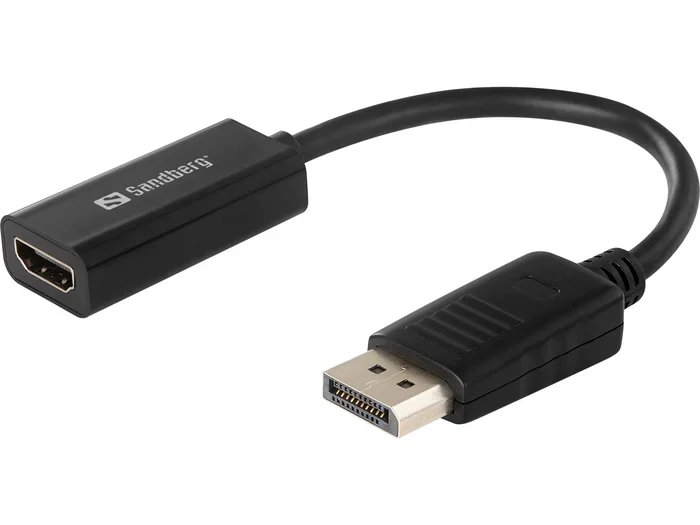
An active adapter contains internal electronics that convert the DisplayPort signal into an HDMI signal. It needs power to work, usually drawn from a USB port. Active adapters are the most reliable option for most users. They handle the signal conversion process on their own, which means they work with almost any DisplayPort source.
Active adapters are especially important when your graphics card uses a DisplayPort++ connector. This type of port can sometimes output a TMDS signal that passive adapters can read, but active adapters give you a much safer and more consistent experience. If you want plug-and-play simplicity, an active adapter is the way to go.
What Is a Passive Adapter?
A passive adapter does not contain any conversion electronics. It simply changes the physical connector shape without altering the signal. Passive adapters only work when the DisplayPort source is configured to output a native HDMI signal. This is called DP++ or dual-mode DisplayPort.
Not all graphics cards support DP++ mode. If your GPU does not, a passive adapter will not work at all. You will get no signal, and you might think something is broken. This is why many experts recommend active adapters for most users. They are more universally compatible and remove the guesswork.
Quick Comparison Table
| Feature | Active Adapter | Passive Adapter |
|---|---|---|
| Needs Power | Yes (USB) | No |
| Signal Conversion | Yes | No |
| Compatibility | High | Limited |
| Price Range | Moderate to High | Low |
| Reliability | Very High | Variable |
| Best For | Most Users | DP++ Sources Only |
How to Choose the Right DisplayPort to HDMI Adapter
Buying the right adapter does not have to be confusing. A few simple checks will help you find the perfect match for your setup. Let us walk through the key factors you should consider before making a purchase.
Check Your DisplayPort Version
DisplayPort comes in different versions, and each one supports different maximum resolutions and bandwidth. DisplayPort 1.2 can handle 4K at 60Hz, which is great for most users. DisplayPort 1.4 adds support for higher bandwidth, HDR, and even 8K in some cases. Check your device specifications to know what version you are working with.
Your adapter should support the resolution and refresh rate you need. A budget adapter might only support 1080p, while a premium one handles 4K or even 8K HDMI output. Always match the adapter capabilities to your display and source device for the best results.
Consider Audio Passthrough
If you are connecting your computer to a TV or external speakers, audio matters. Most modern DisplayPort to HDMI adapters support audio passthrough. This means the audio signal travels along with the video through the HDMI cable to your display. Check the product specifications to confirm this feature before buying.
Some older or very cheap adapters only transmit video and drop the audio. This can be annoying if you are watching movies or playing games. Look for adapters that explicitly mention audio support in their description. It makes a big difference in everyday use.
Cable Length and Build Quality
Adapter cables come in various lengths, from short six-inch cables to long fifteen-foot options. Choose a length that fits your workspace without creating clutter. Longer cables can sometimes lead to signal degradation, so aim for the shortest cable that meets your needs.
Build quality also matters. A well-built adapter with metal housing and gold-plated connectors lasts longer and provides a more stable connection. Cheap plastic adapters might work initially but can fail after a few months. Investing a little more in quality saves you from headaches later.
Compatibility with Your Devices
Not all adapters work with all devices. Some adapters work better with specific graphics cards or laptops. For example, adapters from brands like Cable Matters, UGREEN, and CableCreation have strong track records with both AMD and NVIDIA GPUs. Check user reviews and compatibility lists before purchasing.
Also consider the connector type on your device. Do you have a full-size DisplayPort or a Mini DisplayPort? Some adapters come with the right connector built in, while others require a separate adapter or dongle. Getting the right connector type the first time saves you from buying a second product.
Step-by-Step Guide to Converting DisplayPort to HDMI
Now that you have the right adapter, let us walk through the actual setup process. It is much simpler than you might expect. Follow these steps and you will be up and running in minutes.
- Identify your DisplayPort output. Look at your computer, laptop, or graphics card and find the DisplayPort connector. It is a rectangular port with a slight notch on one side.
- Choose your adapter type. Decide whether you need an active or passive adapter based on our guide above. For most users, an active adapter is the safest choice.
- Connect the adapter to the DisplayPort source. Plug the DisplayPort end of the adapter into your computer or graphics card. Push it in firmly until it clicks.
- Connect an HDMI cable to the adapter. Take a standard HDMI cable and plug one end into the adapter’s HDMI output. Plug the other end into your TV, monitor, or projector.
- Power on the adapter if needed. If you are using an active adapter, connect it to a USB port for power. Some adapters draw power directly from the DisplayPort connection and do not need a separate USB cable.
- Switch your display input. On your TV or monitor, use the input selector to choose the correct HDMI port. You should now see your computer screen mirrored or extended on the display.
- Adjust display settings. Go to your operating system display settings and configure resolution, refresh rate, and display mode (mirror or extend) to your preference.
That is it. You have successfully converted DisplayPort to HDMI without any hassle. The entire process usually takes less than five minutes once you have the right adapter.
Common Problems and How to Fix Them
Even with the right adapter, you might run into occasional issues. Most problems have simple solutions. Here are the most common issues and how to resolve them quickly.
No Signal on the Display
If your screen goes black or shows no signal, the first thing to check is the adapter type. Make sure you are using an active adapter if your graphics card does not support DP++ mode. Also check that all cable connections are firm and secure. A loose connection is the most common cause of no signal issues.
Try unplugging the adapter and plugging it back in. If that does not work, try a different USB port for power if your adapter requires it. Sometimes simply restarting your computer after connecting the adapter solves the problem.
No Audio Through HDMI
If you have video but no sound, your operating system might still be outputting audio through the wrong device. On Windows, right-click the speaker icon in your taskbar and select your HDMI display as the audio output device. On macOS, go to System Settings and choose the HDMI output under Sound preferences.
Some adapters do not support audio passthrough at all. If you have tried changing settings and still get no sound, your adapter might be the issue. Consider upgrading to an adapter that explicitly supports audio transmission.
Low Resolution or Flickering Screen
If your display looks blurry or flickers, the adapter might not support the resolution or refresh rate you have set. Go to your display settings and lower the resolution temporarily to see if the issue goes away. Then gradually increase it until you find the maximum supported resolution for your adapter.
Flickering can also be caused by a low-quality cable or a loose connection. Try using a shorter HDMI cable or a higher-quality adapter. A stable connection makes a huge difference in display quality.
Expert Tips for the Best DisplayPort to HDMI Experience
After helping hundreds of readers set up display connections, here are some expert insights that make a real difference in your experience.
Always buy from reputable brands. Cheap no-name adapters might seem like a bargain, but they often fail to deliver reliable performance. Brands like Cable Matters, UGREEN, and StarTech have proven track records with DisplayPort to HDMI conversion. Spending a few extra dollars on quality saves you from buying a replacement adapter.
Update your graphics drivers. Before setting up a new adapter, make sure your GPU drivers are up to date. Outdated drivers can cause compatibility issues with display signal conversion. A simple driver update often fixes strange display problems.
Test with the shortest cable first. When troubleshooting, use the shortest HDMI cable available. Longer cables can introduce signal loss, especially at higher resolutions. Once you confirm the connection works, you can switch to a longer cable if needed.
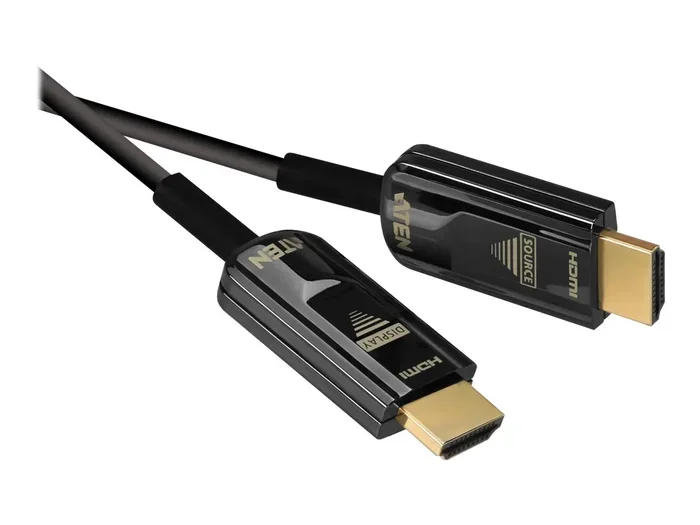
Consider a DisplayPort to HDMI cable instead of an adapter. Some manufacturers offer all-in-one cables with a DisplayPort connector on one end and an HDMI connector on the other. These cables contain built-in conversion electronics and can be more convenient than a separate adapter and cable setup.
Keep your firmware updated. Some monitors and TVs have firmware updates that improve HDMI compatibility. Check the manufacturer’s website for your display device and update if available. This simple step can resolve many connectivity issues.
Does DisplayPort to HDMI Conversion Affect Quality?
This is one of the most common questions people ask. The short answer is no, not in any noticeable way. A good quality adapter preserves the original video and audio quality from your DisplayPort source. You can enjoy 4K resolution, HDR content, and high refresh rates through a properly functioning adapter.
The key word here is “good quality.” A cheap, poorly made adapter might introduce minor signal issues or limit the maximum resolution. But a reputable active adapter from a trusted brand will deliver a clean, crisp picture and clear audio. The conversion process is digital, so there is no analog signal degradation involved.
For most everyday uses, you will not notice any difference between a native DisplayPort connection and a DisplayPort to HDMI connection through a quality adapter. Whether you are working, gaming, or watching movies, the experience remains excellent.
Frequently Asked Questions
Can I convert DisplayPort to HDMI without an adapter?
No, you need either an adapter or a converter cable to change the DisplayPort signal to HDMI. These two connectors use different signaling methods and physical designs. Without a conversion device, your DisplayPort output simply cannot connect directly to an HDMI input.
Does a DisplayPort to HDMI adapter support audio?
Most modern active adapters support audio passthrough along with the video signal. This means sound travels through the HDMI cable to your display or speakers. However, always check the product specifications before buying, as some budget adapters only transmit video and leave out the audio.
Can I get 4K resolution through a DisplayPort to HDMI adapter?
Yes, you can get 4K HDMI output through a quality adapter. Make sure your adapter supports 4K and that your DisplayPort source and HDMI display both support 4K resolution. DisplayPort 1.2 or higher is recommended for 4K at 60Hz. Check the adapter specifications to confirm 4K support before purchasing.
What is the difference between DisplayPort 1.2 and DisplayPort 1.4 for HDMI conversion?
DisplayPort 1.4 offers higher bandwidth than DisplayPort 1.2. This means DisplayPort 1.4 can support higher resolutions, refresh rates, and features like HDR more effectively. For most users converting to HDMI, DisplayPort 1.2 is sufficient for 4K at 60Hz. DisplayPort 1.4 gives you more headroom for future-proofing and higher-performance setups.
Why does my passive adapter not work with my graphics card?
Passive adapters only work when your graphics card supports DP++ mode, which allows it to output a native HDMI signal through the DisplayPort connector. Many modern GPUs support this, but not all of them do. If your GPU does not support DP++, you need an active adapter that performs the signal conversion internally.
Are expensive DisplayPort to HDMI adapters worth it?
Not always, but they often provide better build quality, more reliable signal conversion, and support for higher resolutions. A mid-range adapter from a reputable brand usually offers the best value. You do not need the most expensive option, but avoid the cheapest no-name adapters that may cause connectivity issues or limit your resolution.
Conclusion
Converting DisplayPort to HDMI does not have to be complicated. With the right adapter, a basic understanding of how signal conversion works, and a few simple steps, you can connect any DisplayPort device to any HDMI display in minutes. The key is choosing between an active and passive adapter, checking your device compatibility, and buying from a reputable brand.
Remember that DisplayPort to HDMI conversion is a digital process, so quality loss is minimal with a good adapter. Whether you are setting up a dual-monitor workstation, connecting your laptop to a TV for movie night, or building a gaming setup, the right adapter makes all the difference. Take your time, follow the steps in this guide, and enjoy a seamless display connection every time.
Start with the adapter that matches your needs, test your setup, and adjust as necessary. Once you see your DisplayPort source running smoothly on an HDMI display, you will wonder why you ever hesitated. Happy connecting, and enjoy your upgraded display setup.