Can I Plug A USB C Into A Thunderbolt 3 Port Easily
Yes, you can plug a USB-C cable into a Thunderbolt 3 port easily. Thunderbolt 3 uses the same USB-C connector shape, so they are physically compatible. However, not every USB-C cable delivers Thunderbolt 3 speeds. Using the right cable matters for data transfer, charging, and display output. This guide covers everything you need to know about USB-C and Thunderbolt 3 compatibility.
Have you ever sat down at your desk, plugged in a cable, and wondered if it was actually doing its job? You are not alone. Many people own devices with Thunderbolt 3 ports and a drawer full of USB-C cables. The question keeps popping up: can I plug a USB C into a Thunderbolt 3 port? The short answer is yes. But the full story is a bit more interesting than that.
Understanding how USB-C and Thunderbolt 3 work together can save you time, money, and frustration. You might buy the wrong cable and wonder why your external hard drive is not running at full speed. Or you might connect a monitor and get no signal. This guide breaks it all down in simple terms. By the end, you will know exactly what works, what does not, and how to get the best performance from your setup.
Key Takeaways
- USB-C fits into Thunderbolt 3 ports: The connector shape is identical, so physical compatibility is guaranteed.
- Speed depends on the cable: Not all USB-C cables support Thunderbolt 3 data rates up to 40Gbps.
- Charging works with standard USB-C: You can charge devices using regular USB-C cables through Thunderbolt 3 ports.
- Display output varies: Thunderbolt 3 ports support video output, but your cable and device must support it too.
- Docking stations work great: Most Thunderbolt 3 docks accept standard USB-C cables for connectivity.
- Check your cable rating: Look for the Thunderbolt logo or specification to ensure full compatibility.
- Adapters are widely available: You can use adapters to connect older devices to Thunderbolt 3 ports easily.
📑 Table of Contents
- What Is a Thunderbolt 3 Port?
- Can I Plug a USB-C Cable Into a Thunderbolt 3 Port?
- USB-C vs Thunderbolt 3 Cables: What Is the Difference?
- What Happens When You Plug USB-C Into Thunderbolt 3?
- Common Mistakes People Make
- Expert Tips for Getting the Best Performance
- Which Devices Use Thunderbolt 3 Ports?
- Future of USB-C and Thunderbolt Compatibility
- Final Thoughts
What Is a Thunderbolt 3 Port?
Before we dive into compatibility, let us talk about what Thunderbolt 3 actually is. Thunderbolt 3 is a hardware interface developed by Intel. It was introduced in 2015 and changed the way we connect peripherals. The port uses the USB-C connector shape, which is small, oval, and reversible.
Here are the key features of a Thunderbolt 3 port:
- Data transfer speed: Up to 40 gigabits per second (Gbps).
- Power delivery: Up to 100 watts of charging power.
- Display support: Can drive one 4K display at 120Hz or two 4K displays at 60Hz.
- Daisy chaining: You can connect up to six devices in a chain.
- Protocol support: Works with PCIe, DisplayPort, and USB protocols.
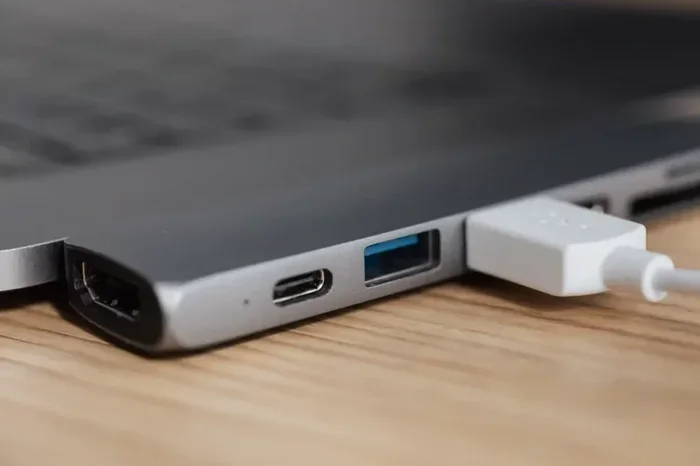
Thunderbolt 3 ports look exactly like standard USB-C ports. This similarity is both a blessing and a source of confusion. You cannot tell them apart just by looking at the port itself. You need to check the symbol next to the port or your device specifications.
How to Identify a Thunderbolt 3 Port
Look for a small lightning bolt icon next to the port. That is the easiest way to spot a Thunderbolt 3 port. Some devices also list Thunderbolt 3 in their product manual or on the manufacturer website. If you are unsure, check the specs of your laptop or desktop motherboard.
Can I Plug a USB-C Cable Into a Thunderbolt 3 Port?
This is the big question, and the answer is a clear yes. USB-C and Thunderbolt 3 share the same physical connector. That means any USB-C cable will physically fit into a Thunderbolt 3 port. You can plug it in without any force or adapters.
But here is the catch. Physical fit does not always mean full performance. A standard USB-C cable might limit your speed or power delivery. Think of it like plugging a garden hose into a fire hydrant. It fits, but you are not getting the full water pressure.
Why Does Cable Type Matter?
Not all USB-C cables are created equal. Some cables only support USB 2.0 speeds, which top out at 480 Mbps. Others support USB 3.1 or USB 3.2, reaching speeds of 10 Gbps or 20 Gbps. Thunderbolt 3 cables support up to 40 Gbps. So the cable you use directly impacts your connection quality.
When you plug a basic USB-C cable into a Thunderbolt 3 port, the port will negotiate the best connection it can. But if the cable cannot handle high speeds, you will be stuck with slower performance. This matters a lot if you are transferring large files or connecting external GPUs.
USB-C vs Thunderbolt 3 Cables: What Is the Difference?
People often use these terms interchangeably, but they are not the same thing. Understanding the difference helps you make better buying decisions.
USB-C Cables
A USB-C cable refers to the connector shape. It does not define the speed or capabilities. You can buy a USB-C cable that supports only charging or one that supports fast data transfer. The price range is huge too. A basic USB-C cable might cost just a few dollars, while a high-quality one can run you twenty dollars or more.
Here is what you need to know about standard USB-C cables:
- They fit into Thunderbolt 3 ports without any problem.
- They usually support charging at up to 60 watts.
- Data speeds vary widely depending on the cable quality.
- They do not carry the Thunderbolt logo on the connector.
Thunderbolt 3 Cables
Thunderbolt 3 cables are designed to handle the full bandwidth of the Thunderbolt 3 protocol. They support 40 Gbps data transfer and up to 100 watts of power delivery. These cables are thicker and often shorter than standard USB-C cables because of the extra wiring inside.
You can identify a Thunderbolt 3 cable by the lightning bolt icon on the connector. Some cables also print “Thunderbolt” on the housing. These cables work in both Thunderbolt 3 ports and standard USB-C ports.
Comparison Table
Here is a quick side-by-side comparison to make things clear:
- Connector Shape: Both use USB-C. Identical fit.
- Data Speed: USB-C cables range from 480 Mbps to 20 Gbps. Thunderbolt 3 cables support 40 Gbps.
- Power Delivery: USB-C cables typically handle up to 60W. Thunderbolt 3 cables handle up to 100W.
- Display Support: Thunderbolt 3 cables support more display configurations than standard USB-C.
- Price: Thunderbolt 3 cables cost more due to advanced technology.
- Compatibility: Thunderbolt 3 cables work in USB-C ports. Standard USB-C cables work in Thunderbolt 3 ports but with limited performance.
What Happens When You Plug USB-C Into Thunderbolt 3?
Now let us get into the practical side. What actually happens when you connect a USB-C device to a Thunderbolt 3 port? The experience depends on several factors.
Data Transfer Speeds
If you plug in a standard USB-C external hard drive, it will work. But the speed will match the cable and the device, not the Thunderbolt 3 port. If your USB-C cable only supports 10 Gbps, your transfer speed caps at 10 Gbps even though the port can do 40 Gbps.
For the fastest speeds, you need a Thunderbolt 3 cable and a Thunderbolt 3 device. This is especially important for professionals who work with large video files or run external SSDs.
Charging Your Devices
Charging works great with standard USB-C cables through Thunderbolt 3 ports. The port will deliver up to 100 watts of power if your cable and device support it. Most laptops charge just fine with a regular USB-C cable plugged into a Thunderbolt 3 port.
Quick tip: If you want the fastest charging speeds, use a cable rated for high-wattage power delivery. Look for cables that support USB Power Delivery (USB-PD) of 60W or 100W.
Connecting Monitors and Displays
Thunderbolt 3 ports can output video signals. You can connect a monitor using a USB-C to DisplayPort cable or a USB-C to HDMI adapter. Standard USB-C cables can carry video signals too, but the supported resolutions and refresh rates depend on the cable and your device.
If you want to drive a 4K display at high refresh rates, a Thunderbolt 3 cable gives you the best results. It handles the higher bandwidth needed for smooth, high-resolution video output.
Using Docking Stations and Hubs
Docking stations are one of the most popular uses for Thunderbolt 3 ports. You can plug a dock into the port and connect multiple peripherals at once. Keyboards, mice, external drives, and ethernet cables all connect through the dock.
Most docking stations work perfectly with standard USB-C cables. You do not always need a Thunderbolt 3 cable unless you are pushing the limits of data speed or daisy chaining multiple devices.
Common Mistakes People Make
Even though the connection seems simple, people run into issues more often than you might think. Here are some common mistakes to avoid.
Assuming All USB-C Cables Are Thunderbolt Cables
This is the number one mistake. Just because a cable has a USB-C connector does not mean it supports Thunderbolt speeds. Always check the cable specifications before buying. Look for the Thunderbolt logo or read the product listing carefully.
Using Damaged or Low-Quality Cables
A frayed or cheap cable can cause all sorts of problems. You might experience intermittent connections, slow transfer speeds, or no charging at all. Invest in a quality cable from a reputable brand. It makes a huge difference in reliability.
Ignoring Cable Length
Longer cables can reduce signal quality and speed. Thunderbolt 3 cables longer than 0.5 meters (about 1.6 feet) usually need active electronics to maintain full 40 Gbps speeds. For most desk setups, a shorter cable works perfectly and keeps your connection fast.
Not Checking Device Compatibility
Even if your cable is Thunderbolt 3 certified, your device needs to support it too. Plugging a Thunderbolt 3 cable into a USB-C-only port will not give you Thunderbolt speeds. Both ends of the connection need to support the protocol for full performance.
Expert Tips for Getting the Best Performance
Want to squeeze every bit of speed and reliability out of your Thunderbolt 3 setup? Follow these practical tips.
Buy Certified Cables
Look for cables that are Thunderbolt 3 certified. These cables have been tested to meet Intel’s specifications. They guarantee 40 Gbps data speeds and reliable power delivery. The extra cost is worth the peace of mind.
Keep Your Cables Short for Speed
For the fastest data transfer, use cables that are 0.5 meters or shorter. If you need a longer cable, make sure it is an active Thunderbolt 3 cable. Active cables have built-in chips that boost the signal over longer distances.
Label Your Cables
This sounds old-school, but it works. Label your Thunderbolt 3 cables and your standard USB-C cables. It saves you from grabbing the wrong one when you are in a hurry. A small piece of tape with a marker goes a long way.
Update Your Device Firmware
Sometimes slow speeds or connection issues come from outdated firmware. Check your laptop or device manufacturer for updates. Keeping your firmware current ensures the best compatibility with Thunderbolt 3 ports.
Use Quality Adapters When Needed
Need to connect an older device? Use a high-quality adapter. Cheap adapters can introduce signal loss and reduce performance. Stick with adapters from trusted brands to keep your connection stable.
Which Devices Use Thunderbolt 3 Ports?
Thunderbolt 3 has become very popular across many devices. Here are some common ones you might encounter:
- Apple MacBooks: Most MacBook Pro and MacBook Air models from 2016 onward feature Thunderbolt 3 ports.
- Windows Laptops: Many premium Windows laptops from Dell, HP, Lenovo, and Asus include Thunderbolt 3.
- Desktop PCs: Some desktop motherboards and PCIe expansion cards offer Thunderbolt 3 ports.
- External GPUs: These enclosures rely on Thunderbolt 3 for high-speed data transfer.
- Storage Devices: Professional-grade external SSDs often use Thunderbolt 3 for maximum speed.
If your device has a Thunderbolt 3 port, you have a lot of flexibility. You can connect USB-C devices, Thunderbolt devices, displays, and charging cables all through the same port. This versatility is one of the biggest reasons Thunderbolt 3 has become so popular.
Future of USB-C and Thunderbolt Compatibility
The technology keeps evolving. Thunderbolt 4 is now available, and it maintains full backward compatibility with Thunderbolt 3 and USB-C devices. USB4 is another protocol that uses the USB-C connector and shares many Thunderbolt features.
Going forward, the USB-C connector will likely remain the standard for charging, data transfer, and video output. The differences will live in the protocols and speeds supported by each cable and port. For now, knowing the basics puts you ahead of most users.
When you buy a new cable or device, always check the specifications. A few minutes of research can prevent hours of frustration. Look for Thunderbolt certification, USB-PD support, and the data speed ratings. These small details make a big difference in your daily workflow.
Final Thoughts
So, can I plug a USB C into a Thunderbolt 3 port? Absolutely yes. The physical connection is seamless and straightforward. Any USB-C cable will fit and work for basic tasks like charging and connecting peripherals. But if you want the full Thunderbolt 3 experience with maximum speeds, you need a Thunderbolt 3 certified cable and compatible devices on both ends.
The beauty of the Thunderbolt 3 ecosystem is its flexibility. You can mix and match cables, devices, and adapters to build a setup that fits your needs. Whether you are a casual user charging your phone or a professional editing 4K video on an external drive, understanding this compatibility helps you get the most out of your gear.
Take a few minutes to check your cables and devices today. You might discover that a simple cable swap unlocks faster speeds and a better workflow. Small changes like this add up to a much smoother experience every single day.
Frequently Asked Questions
Do all USB-C cables work with Thunderbolt 3 ports?
Yes, all USB-C cables physically fit into Thunderbolt 3 ports. However, standard USB-C cables may not support the full 40 Gbps data speed that Thunderbolt 3 offers. For the best performance, use a Thunderbolt 3 certified cable.
Can I charge my laptop using a USB-C cable in a Thunderbolt 3 port?
Absolutely. Thunderbolt 3 ports support USB Power Delivery, so you can charge your laptop with a standard USB-C cable. Just make sure the cable supports the wattage your laptop requires for optimal charging speed.
How do I know if my USB-C cable is Thunderbolt 3 certified?
Look for the Thunderbolt lightning bolt icon on the connector or the cable packaging. You can also check the product specifications online. Certified cables clearly state Thunderbolt 3 support and list their data transfer speeds.
Will a USB-C cable limit my Thunderbolt 3 speed?
Yes, if the cable does not support Thunderbolt 3, it will limit your speed to whatever the cable supports. For example, a USB 3.1 cable caps at 10 Gbps even if the Thunderbolt 3 port can do 40 Gbps.
Can I connect a Thunderbolt 3 device to a USB-C port?
You can plug it in, but it will not run at Thunderbolt speeds. The device will negotiate the best connection possible based on the port’s capabilities. Thunderbolt devices work best when connected to Thunderbolt ports.
Are Thunderbolt 3 cables more expensive than USB-C cables?
Generally yes. Thunderbolt 3 cables cost more because they contain more advanced wiring and support higher speeds and power delivery. However, the price difference has decreased over time, and many quality options are now available at reasonable prices.
=== CONCLUSION ===
Understanding the relationship between USB-C and Thunderbolt 3 is simpler than it seems. You can always plug a USB-C cable into a Thunderbolt 3 port. The physical connection just works. But to unlock the full potential of your Thunderbolt 3 port, invest in a certified Thunderbolt 3 cable and check your device compatibility.
Whether you are connecting external drives, docking stations, or monitors, knowing which cable to use makes a real difference. Your data transfers will be faster, your charging will be more efficient, and your overall experience will be smoother. Take control of your setup today and enjoy the full benefits of your Thunderbolt 3 ports.