Can You Connect A Wi Fi Extender To Any Router Easily
Yes, you can connect a Wi-Fi extender to almost any router, but compatibility and setup matter. Understanding your router’s features helps you get the best results from a wireless range extender. This guide walks you through everything step by step.
Have you ever walked into a room and lost your Wi-Fi signal completely? You are not alone. Dead zones plague homes and offices every single day. The walls, floors, and even furniture can block your wireless signal. A Wi-Fi extender seems like the perfect fix. But here is the big question: can you connect a Wi-Fi extender to any router?
The short answer is yes. In most cases, a wireless range extender works with virtually any router on the market today. But the full answer is a bit more nuanced. Not all extenders perform equally well with every router. Compatibility depends on several factors. These include your router’s age, the frequency bands it supports, and the type of extender you buy. This guide breaks it all down for you.
We will walk you through router compatibility, setup methods, placement tips, and common mistakes. By the end, you will know exactly how to boost your network signal and eliminate those annoying dead zones. Let us get started.
Key Takeaways
- Universal Compatibility: Most Wi-Fi extenders work with any standard router, but checking specs first saves time and frustration.
- Setup Is Simple: You can connect an extender using WPS, an Ethernet cable, or the manufacturer’s app in just a few minutes.
- Placement Matters: Where you put your extender directly affects signal strength and network performance.
- Speed Loss Is Real: Expect some bandwidth reduction when using a wireless repeater, especially on older models.
- Mesh Networks Are an Alternative: If extenders frustrate you, a mesh Wi-Fi system offers a smoother experience.
- Firmware Updates Help: Keeping your router and extender updated improves stability and security.
- Dual-Band Extenders Are Best: They handle both 2.4 GHz and 5 GHz frequencies for better coverage and speed.
📑 Table of Contents
- What Is a Wi-Fi Extender and How Does It Work?
- Can You Connect a Wi-Fi Extender to Any Router?
- How to Connect a Wi-Fi Extender to Any Router
- Best Practices for Placing Your Wi-Fi Extender
- Does a Wi-Fi Extender Slow Down Your Internet Speed?
- Wi-Fi Extender vs. Mesh Network: Which Is Better?
- Common Mistakes People Make When Using a Wi-Fi Extender
- Expert Tips for Getting the Most Out of Your Wi-Fi Extender
- Conclusion
What Is a Wi-Fi Extender and How Does It Work?
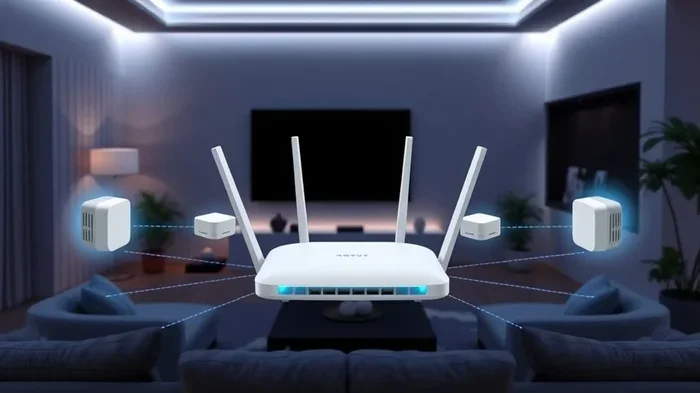
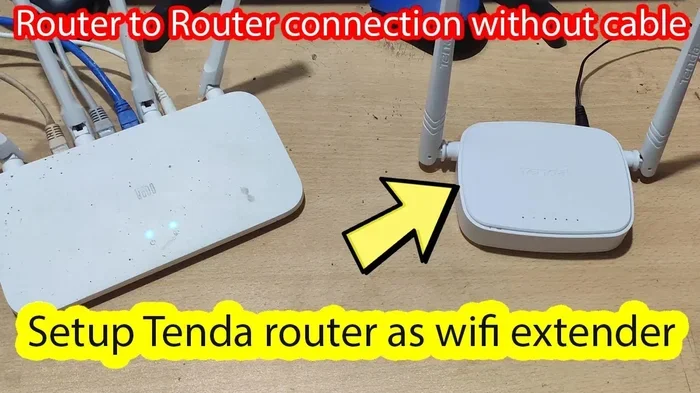
A Wi-Fi extender is a device that repeats your existing wireless signal. Think of it as a middleman between your router and the areas with weak coverage. It receives the signal from your router and rebroadcasts it to a wider area. This helps expand your Wi-Fi coverage without needing to buy a whole new router.
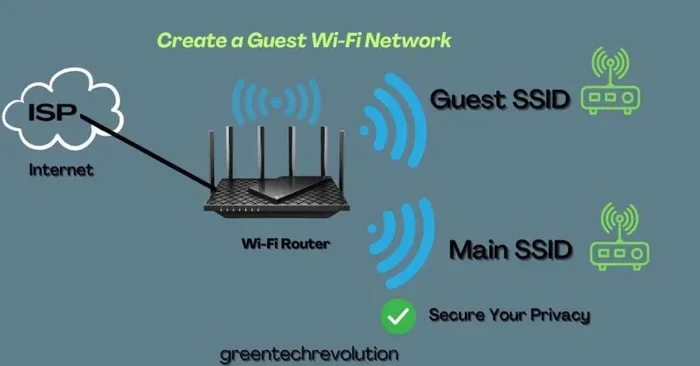
Most extenders connect to your router wirelessly. Some models also offer an Ethernet port for a wired connection. The wireless repeater picks up your router’s SSID (the name of your network) and creates a secondary network. Your devices then connect to this extended network. The process is simple, but the results can vary depending on your setup.
How a Wireless Range Extender Boosts Signal
Here is how the process works in plain terms:
- Your router sends out a wireless network signal.
- The extender picks up that signal from a nearby location.
- The extender amplifies the signal and rebroadcasts it.
- Your devices in far-away rooms now connect to the extended signal.
It sounds perfect, right? And it mostly is. But there is a catch. Extenders can reduce your internet speed slightly. This happens because the device has to receive and then retransmit data. We will talk more about speed later. For now, just know that an extender is one of the easiest and most affordable ways to improve your home network.
Can You Connect a Wi-Fi Extender to Any Router?
This is the question most people want answered. The good news is that Wi-Fi extenders are designed to be universal. They work with routers from brands like Netgear, TP-Link, Asus, Linksys, and many others. Almost any modern router will work with a standard extender. But there are a few things you need to check first.
Check Your Router’s Wireless Standards
Routers use different wireless standards. The most common ones are 802.11n, 802.11ac, and 802.11ax (also called Wi-Fi 6). Your wireless extender should match or exceed your router’s standard. For example, if your router supports 802.11ac, buy an extender that also supports 802.11ac or newer. This ensures the best bandwidth and performance.
Older routers that only support 802.11b or 802.11g may have trouble with newer extenders. In most cases, they still work, but you will not get the best speeds. Always check the specifications on both devices before purchasing.
Frequency Band Compatibility
Most modern routers operate on two frequency bands: 2.4 GHz and 5 GHz. Some also support the newer 6 GHz band. Your dual-band extender should match your router’s bands. Here is a quick look at how this works:
- 2.4 GHz band: Longer range, slower speeds, better wall penetration.
- 5 GHz band: Shorter range, faster speeds, less interference.
- Tri-band extenders: Add a second 5 GHz band for even better performance.
If your router is single-band (2.4 GHz only), a single-band extender will work fine. But if you have a dual-band router, get a dual-band extender. This ensures you get the full benefit of both frequency bands.
WPS and Setup Compatibility
Many routers and extenders support WPS (Wi-Fi Protected Setup). This feature lets you connect devices with the push of a button. Not all routers have WPS, though. If your router lacks a WPS button, you can still set up your extender using the manufacturer’s app or a web browser. Network extender setup is straightforward, and we will cover it in detail later.
How to Connect a Wi-Fi Extender to Any Router
Setting up a wireless signal booster is easier than most people think. You do not need to be a tech expert. There are three main ways to connect an extender to your router. Let us look at each one.
Method 1: WPS Push-Button Setup
This is the fastest method. If both your router and extender have a WPS button, follow these steps:
- Plug in your extender halfway between your router and the dead zone.
- Press the WPS button on your router.
- Within two minutes, press the WPS button on your extender.
- Wait for the lights on the extender to turn solid.
- Your extender is now connected and rebroadcasting your signal.
This method takes less than five minutes. It works with most routers made after 2010. If your router does not have a WPS button, try Method 2 or 3.
Method 2: Use the Extender’s Mobile App
Many popular extender brands offer a free app. Brands like Netgear, TP-Link, and Linksys all have their own apps. Here is how it works:
- Download the app on your smartphone or tablet.
- Plug in your extender and wait for it to power on.
- Open the app and follow the on-screen instructions.
- The app will search for your router and guide you through pairing.
- Once connected, the app lets you name your extended network and set a password.
The app method is very user-friendly. It works even if your router does not support WPS. You also get extra features like signal strength testing and parental controls through the app.
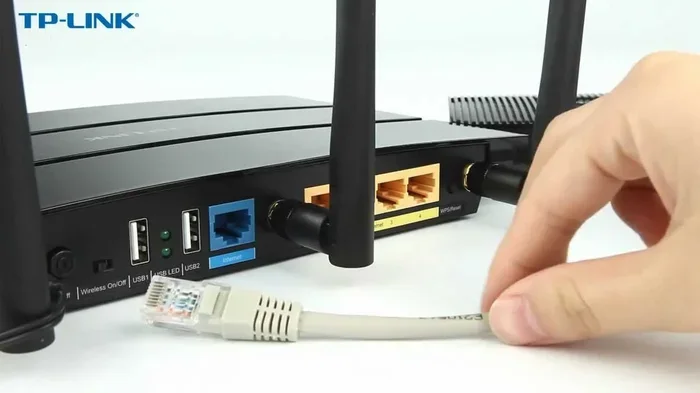
Method 3: Connect via Ethernet Cable
If you want the most stable connection, use an Ethernet cable. This method bypasses wireless interference entirely. Here is what to do:
- Connect one end of an Ethernet cable to your router’s LAN port.
- Connect the other end to the extender’s Ethernet port.
- Access the extender’s settings page through a web browser.
- Configure the extender to bridge mode or access point mode.
- Your extended network is now ready to use.
This method gives you the best network adapter performance. It is ideal for home offices or gaming setups where speed and stability matter most.
Best Practices for Placing Your Wi-Fi Extender
Where you place your extender makes a huge difference. A poorly placed extender can actually make your wireless coverage worse. Follow these tips for the best results.
Find the Sweet Spot
Place your extender roughly halfway between your router and the area with weak signal. It needs to be close enough to receive a strong signal from the router. But it also needs to be far enough to reach the dead zone. This is the balancing act of extender placement.
Do not place the extender in a closet or behind a thick wall. These locations block the signal before it even reaches the extender. An open area on a shelf or table works best.
Avoid These Common Placement Mistakes
- Too far from the router: The extender cannot pick up a strong enough signal to repeat.
- Too close to the router: The extended signal does not reach the dead zone.
- Near metal objects: Metal blocks wireless signals and weakens your connection.
- On the floor: Signals spread better when the extender is elevated.
- Near other electronics: Microwaves, baby monitors, and cordless phones can cause interference.
Test Your Signal After Setup
After setting up your wireless signal booster, walk around your home and test the signal. Use a speed test app on your phone. Check the signal strength in rooms where you previously had problems. Adjust the extender’s position if needed. Even moving it a few feet can make a big difference.
Does a Wi-Fi Extender Slow Down Your Internet Speed?
This is one of the most common concerns people have. The honest answer is: it depends. A wireless range extender does reduce your speed to some degree. But the amount of reduction varies based on several factors.
Why Speed Loss Happens
Your extender has to receive the signal from your router and then send it back out. This double process takes time. Think of it like a relay race. The runner has to catch the baton and then pass it on. This takes extra effort compared to a direct connection. The further the extender is from your router, the more speed loss you will experience.
How to Minimize Speed Loss
- Use a dual-band extender: It handles both frequencies efficiently, reducing bottlenecks.
- Connect via Ethernet when possible: A wired backhaul eliminates wireless speed loss entirely.
- Keep the extender close to the router: A strong incoming signal means less speed reduction.
- Choose an extender with dedicated backhaul channels: Premium models have a separate band just for communication with the router.
For most everyday tasks like browsing, streaming, and video calls, the speed loss is barely noticeable. You will only see a real difference with heavy tasks like large file downloads or competitive online gaming. In those cases, an Ethernet connection or a mesh network might be a better choice.
Wi-Fi Extender vs. Mesh Network: Which Is Better?
Many people wonder if a Wi-Fi extender is the right choice or if they should invest in a mesh network system. Both options expand your wireless coverage, but they work differently.
When to Choose a Wi-Fi Extender
- You need a quick and affordable fix for a small dead zone.
- Your router is relatively new and supports modern wireless standards.
- You do not want to replace your current router.
- You are okay with a slight reduction in speed.
When to Choose a Mesh Network
- Your home is large and has multiple dead zones.
- You want seamless roaming between access points.
- You need consistent speeds throughout the house.
- You are willing to invest more upfront for better long-term performance.
A mesh network uses multiple nodes that work together as one unified network. Unlike an extender, your devices stay connected to the strongest node without switching networks manually. Mesh systems are more expensive but offer a superior experience for larger homes.
Common Mistakes People Make When Using a Wi-Fi Extender
Even with the best extender, mistakes can ruin your experience. Here are the most common ones and how to avoid them.
Placing the Extender Too Far From the Router
This is the number one mistake. If the extender is too far away, it gets a weak signal from the router. It then rebroadcasts that weak signal, giving you poor coverage in the extended area. Always check the extender’s signal strength indicator before finalizing its position.
Not Updating Firmware
Both your router and extender need regular firmware updates. These updates fix bugs, improve security, and boost performance. Many people forget to update their devices after the initial setup. Make it a habit to check for updates every few months.
Using an Old or Incompatible Extender
Not all extenders are created equal. An old single-band extender on a modern dual-band router will hold back your performance. Always match your extender to your router’s capabilities. Check the router compatibility list on the extender’s packaging or product page before buying.
Ignoring the Default Network Name
Many extenders create a new network name with “_EXT” or “-EXT” appended to your router’s SSID. While this works, it can confuse your devices. Some modern extenders let you use the same SSID and password as your router. This creates a seamless experience where your devices switch between the router and extender automatically.
Expert Tips for Getting the Most Out of Your Wi-Fi Extender
Here are some pro tips that can take your setup to the next level:
- Restart both devices regularly: A simple restart clears cached data and refreshes connections.
- Use the 5 GHz band for streaming: It offers faster speeds for HD and 4K content.
- Use the 2.4 GHz band for smart home devices: IoT devices like smart bulbs and cameras work better on the longer-range 2.4 GHz band.
- Change the extender channel: If you experience interference, switching to a less crowded channel can help.
- Position the extender vertically: Antennas broadcast signal outward in a donut shape. A vertical position maximizes coverage.
- Keep your extender in a well-ventilated area: Overheating can degrade performance over time.
Conclusion
So, can you connect a Wi-Fi extender to any router? Yes, you absolutely can. Most modern extenders are designed to work with virtually any router, regardless of brand or model. You just need to check a few basics like wireless standards, frequency bands, and setup methods. With the right extender in the right spot, you can say goodbye to Wi-Fi dead zones for good.
Remember to place your extender strategically, keep your firmware updated, and choose the setup method that works best for your home. Whether you use WPS, a mobile app, or an Ethernet cable, the process is straightforward and takes just minutes. A wireless range extender is one of the simplest and most cost-effective ways to improve your home network and enjoy seamless internet speed in every room.
Now that you have all the information you need, go ahead and set up your extender. Your stronger, more reliable network signal is just a few steps away.
Frequently Asked Questions
Will any Wi-Fi extender work with my router?
Most Wi-Fi extenders work with any standard router. You should check that the extender supports the same wireless standard as your router, such as 802.11ac or Wi-Fi 6. Matching frequency bands also helps ensure the best performance and compatibility.
Can I connect two Wi-Fi extenders to one router?
Yes, you can connect multiple extenders to a single router. This is useful for large homes with several dead zones. However, each extender will reduce your speed slightly. Place them strategically to cover different areas without overlapping too much.
Do I need to reset my extender if I change routers?
It is a good idea to reset your extender when you switch routers. A factory reset clears old settings and lets you pair the extender with the new router from scratch. This prevents connection conflicts and ensures a smooth setup process.
Is a Wi-Fi extender the same as a wireless repeater?
Yes, the terms are used interchangeably. Both devices receive your router’s signal and rebroadcast it to expand coverage. Some brands use one term or the other, but the function is essentially the same. Look for features like dual-band support and easy setup when choosing either device.
Can I use a Wi-Fi extender with a mesh network system?
Generally, you should not mix a Wi-Fi extender with a mesh system. Mesh networks are designed to work as a unified system, and adding an extender can create conflicts. If you need more coverage, add another mesh node from the same brand instead.
How far should my Wi-Fi extender be from my router?
Place your extender about halfway between your router and the area with weak signal. It needs to be close enough to receive a strong signal but far enough to extend coverage. A good rule of thumb is to keep it within 30 to 50 feet of your router for the best results.