Can I Have 2 WiFi Adapters On One Computer Explained
Yes, you can have two WiFi adapters on one computer. This setup lets you connect to multiple wireless networks at the same time, boosting your internet connection and network performance. Whether you need a second wireless adapter for better WiFi connectivity or to bridge networks, this guide covers everything you need to know.
Have you ever wondered if your computer can handle more than one wireless connection at a time? The short answer is yes. You can absolutely have 2 WiFi adapters on one computer. Whether you want to boost your internet connection, connect to two separate networks, or improve your network performance, adding a second wireless adapter opens up new possibilities.
Many people run dual WiFi adapters without even realizing it. Some computers come with a built-in wireless network interface card, and then users add a USB WiFi adapter on top of that. Others install two internal cards for advanced networking setups. The process is simpler than most people think, and the benefits can be significant.
In this guide, I will walk you through everything you need to know. From setup steps to potential challenges, you will find practical advice that works. Let us dive in and explore how you can run two WiFi adapters on a single machine.
Key Takeaways
- Dual WiFi adapters work on one PC: Your computer can support two wireless adapters at the same time with the right setup and drivers.
- Two adapters boost connectivity: You can connect to multiple networks, combine bandwidth, or use one adapter as a reliable backup.
- USB and internal cards both work: Choose between a USB WiFi adapter or an internal network interface card based on your needs and computer type.
- Setup is straightforward: Install drivers, configure network settings, and manage connections through your operating system with ease.
- Watch for driver conflicts: The most common issue is conflicting wireless drivers or IP address clashes between adapters.
- Performance depends on your hardware: Better adapters mean faster speeds, stronger wireless signals, and fewer connectivity problems.
📑 Table of Contents
- What Is a WiFi Adapter and Why Would You Need Two?
- How to Set Up Two WiFi Adapters on Your Computer
- Benefits of Using Dual WiFi Adapters
- Potential Challenges and How to Overcome Them
- Comparison: Internal WiFi Card vs. USB WiFi Adapter
- Expert Tips for Optimizing Dual WiFi Adapter Performance
- Conclusion
What Is a WiFi Adapter and Why Would You Need Two?
Understanding Your Wireless Adapter
A WiFi adapter is a hardware component that lets your computer connect to a wireless network. Think of it as the bridge between your PC and your router. Every computer needs one to access WiFi.
Most laptops come with a built-in wireless adapter. Desktop computers often rely on either an internal network interface card or a USB WiFi adapter. These devices handle the radio signals that send and receive data from your wireless router.
When you add a second adapter, your computer gains the ability to manage two separate wireless connections. This means you can join two different networks at the same time. Each adapter works independently, handling its own connection and data flow.
Reasons You Might Need Two WiFi Adapters
Why would someone need two adapters on one machine? Here are the most common reasons:
- You want to connect to two different networks simultaneously
- You need a backup connection if your primary WiFi drops
- You are bridging two networks together for file sharing
- You are testing network configurations or running a hotspot
- You want to combine bandwidth from two separate internet sources
Each of these use cases is valid and common. Home users, IT professionals, and tech enthusiasts all benefit from running dual WiFi adapters. The key is understanding what you want to achieve before you start buying hardware.
How to Set Up Two WiFi Adapters on Your Computer
Choosing the Right Adapters for Your Setup
Before you start, you need the right hardware. You have two main options: a USB WiFi adapter and an internal wireless card.
A USB WiFi adapter is the easiest option. You plug it into a USB port, install the driver, and you are good to go. These are portable and work with most computers. They are ideal if you already have a built-in wireless adapter and just need a second one.
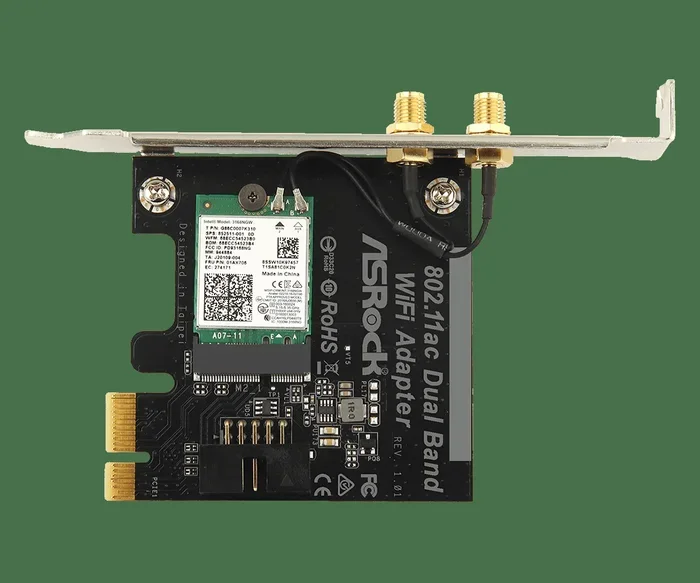
An internal network interface card requires opening your computer case. You install it into a PCIe slot on your motherboard. This option offers better performance and a more permanent solution. It also frees up a USB port for other devices.
Quick Tips for Choosing:
- Pick adapters that support the latest WiFi standards (WiFi 5 or WiFi 6)
- Make sure your computer has enough slots or USB ports
- Check driver compatibility with your operating system
- Consider the WiFi range and speed you need
Step-by-Step Installation Process
Setting up two WiFi adapters is not complicated. Follow these steps:
- Install the first adapter if it is not already built in
- Install the second adapter (USB or internal)
- Install drivers for each adapter from the manufacturer’s website
- Restart your computer after both adapters are installed
- Go to your network settings and configure each adapter separately
- Assign each adapter to a different network
Your computer should now recognize both adapters. You can see them in your network settings panel. Each one will show up as a separate network connection option.
Common Mistakes to Avoid During Setup:
- Skipping driver updates for one of the adapters
- Connecting both adapters to the same network (this causes IP conflicts)
- Forgetting to disable one adapter when not in use
- Ignoring signal interference between two adapters on the same channel
Configuring Your Dual WiFi Adapter Setup
Once both adapters are installed, you need to configure them properly. Here is how:
- Open your network settings panel
- Click on the first adapter and connect to Network A
- Click on the second adapter and connect to Network B
- Assign static IP addresses if needed to avoid conflicts
- Set different DNS servers for each connection if required
Your computer can now maintain two active WiFi connections. You can choose which connection handles your traffic or let the system manage both. This flexibility is one of the biggest advantages of having dual WiFi adapters.
Benefits of Using Dual WiFi Adapters
Improved Network Reliability
Having two WiFi adapters means you have a backup connection. If one adapter loses signal or disconnects, the other keeps you online. This is especially useful for work-from-home setups where a dropped connection can be costly.
You can set one adapter as your primary connection and the other as a failover. Some network tools let you automate this switchover so you barely notice any interruption. It is like having a safety net for your internet access.
Increased Bandwidth and Speed
In some configurations, you can combine the bandwidth of two adapters. This is called link aggregation or bonding. While it requires specific software and compatible hardware, the result is faster overall speeds.
Keep in mind that not all setups support bonding. You need two adapters on different networks or two separate internet sources. If both adapters connect to the same router, you will not see a speed boost. Make sure your internet plan and hardware can actually deliver the extra throughput before expecting miracles.
Running Multiple Networks Simultaneously
Dual WiFi adapters let you stay on two different networks at once. For example, you could be connected to your home WiFi while also joining a guest network. This is useful for testing, development, or isolating sensitive traffic.
Expert Insight: Networking professionals often use dual adapters to segment traffic. One adapter handles general internet use, while the other manages a secure or isolated network. This adds a layer of security and control that single-adapter setups simply cannot match.
Potential Challenges and How to Overcome Them
Driver Conflicts and Compatibility Issues
The biggest challenge with running two WiFi adapters is driver conflicts. Both adapters need their own drivers, and sometimes these drivers interfere with each other. This can cause one or both adapters to stop working.
To avoid this:
- Always download the latest drivers from the manufacturer’s website
- Use adapters from reputable brands with good driver support
- Check for driver updates regularly
- If conflicts arise, try uninstalling and reinstalling one adapter’s drivers
Most driver issues are easy to fix. The key is staying proactive about updates and using quality hardware from trusted manufacturers.
IP Address Conflicts
When two adapters connect to different networks, they each get their own IP address. But if both adapters accidentally connect to the same network, you may face an IP conflict. This causes connectivity issues for both adapters.
The fix is simple:
- Make sure each adapter connects to a different network
- Assign static IP addresses if needed
- Use different subnets for each adapter’s network
Taking a few minutes to plan your IP setup saves hours of troubleshooting later. It is one of those small steps that makes a big difference.
Signal Interference
Two WiFi adapters in one computer can interfere with each other. They both use radio frequencies, and if they operate on the same channel, performance can drop. This is especially true for USB WiFi adapters placed close together on the same desk.
Quick Tips to Reduce Interference:
- Set each adapter to a different WiFi channel
- Use one adapter on 2.4 GHz and the other on 5 GHz
- Place your computer away from other wireless devices
- Update your adapter firmware regularly
System Resource Usage
Running two WiFi adapters uses more of your computer’s resources. Your CPU and memory handle the data processing for both connections. On older or low-end computers, this might cause slowdowns.
Most modern computers handle dual adapters without any issues. If you notice performance drops, try closing unnecessary programs or upgrading your hardware. A little monitoring goes a long way in keeping things smooth.
Comparison: Internal WiFi Card vs. USB WiFi Adapter
Choosing between an internal network interface card and a USB WiFi adapter depends on your needs. Here is a side-by-side look:
| Internal WiFi Card | USB WiFi Adapter |
|---|---|
| Installed inside the computer | Plugs into a USB port |
| Better performance and speed | Easy to plug and play |
| Requires opening the computer case | No installation needed |
| Frees up USB ports | Uses a USB port |
| More permanent solution | Portable and removable |
| Higher cost | Lower cost |
| Better for desktop PCs | Better for laptops and portability |
Both options work great as a second wireless adapter. Choose based on your needs, budget, and computer type. If you are on a tight budget or need something temporary, a USB adapter is your best bet. If you want maximum performance and a permanent setup, go with an internal card.
Expert Tips for Optimizing Dual WiFi Adapter Performance
Keep Your Drivers Updated
Outdated drivers are the number one cause of WiFi adapter problems. Check for updates every few months. Manufacturers release driver updates that fix bugs, improve stability, and boost performance. Setting a quarterly reminder to check for updates keeps everything running smoothly.
Use Quality Hardware
Cheap WiFi adapters often have poor range and slow speeds. Invest in a quality adapter from a trusted brand. Look for adapters that support WiFi 5 or WiFi 6 for the best results. Spending a little more upfront saves you from frustration later.
Monitor Your Network Traffic
Use network monitoring tools to keep an eye on both connections. You can see which adapter is handling more traffic and adjust your settings accordingly. This helps you balance the load and avoid bottlenecks. Free tools like Windows Task Manager or third-party apps make this easy.
Secure Your Connections
When you have two active WiFi connections, security matters even more. Make sure both networks use strong encryption (WPA3 or WPA2). Avoid connecting to open or public networks without a VPN. Your data is only as secure as your weakest connection.
Common Mistakes People Make with Dual WiFi Adapters:
- Forgetting to update drivers for both adapters
- Connecting both adapters to the same network without planning
- Ignoring signal interference issues
- Using low-quality or incompatible hardware
- Not setting static IP addresses when needed
- Overlooking security settings on both connections
Conclusion
So, can I have 2 WiFi adapters on one computer? Absolutely yes. Whether you choose a USB WiFi adapter or an internal network interface card, running dual WiFi adapters is entirely possible and quite beneficial.
You get better connectivity, a backup connection, and the ability to manage multiple networks at once. The setup process is straightforward, and the challenges are easy to overcome with the right approach.
Start with quality hardware, keep your drivers updated, and configure each adapter carefully. You will enjoy a more reliable and flexible network setup in no time. Give it a try and see the difference for yourself.
Frequently Asked Questions
Will having two WiFi adapters slow down my computer?
Not usually. Most modern computers handle dual WiFi adapters without any noticeable slowdown. The extra resource usage is minimal compared to what your computer already handles daily. If you have an older or low-end machine, you might see a slight impact, but it is rarely significant.
Can I connect both adapters to the same network?
Yes, but it is not recommended. Connecting both adapters to the same network can cause IP address conflicts and connectivity issues. It is better to connect each adapter to a different network or use one as a backup. This ensures both adapters work properly without interfering with each other.
Do I need special software to manage two WiFi adapters?
No, your operating system handles most of the management. Windows, macOS, and Linux all support multiple network adapters natively. You can switch between connections in your network settings. For advanced features like bandwidth bonding, you may need third-party software, but basic dual adapter use requires no extra tools.
What is the best WiFi adapter to use as a second adapter?
The best second adapter depends on your needs. For most users, a USB WiFi adapter from a reputable brand like TP-Link, ASUS, or Netgear works great. Look for WiFi 5 or WiFi 6 support, good range, and positive user reviews. If you need maximum performance, an internal WiFi card is the better choice.
Can I use one WiFi adapter for work and another for personal use?
Yes, this is a very popular use case. You can connect one adapter to your work network and the other to your personal network. This keeps your traffic separated and adds a layer of security. It also prevents work-related network issues from affecting your personal internet use.
Do I need to be a tech expert to set up dual WiFi adapters?
No, you do not need to be a tech expert. The setup process is straightforward and follows simple steps. Most people can complete the installation in under 30 minutes. If you run into issues, online tutorials and manufacturer support can help. Basic computer skills are all you need to get started.