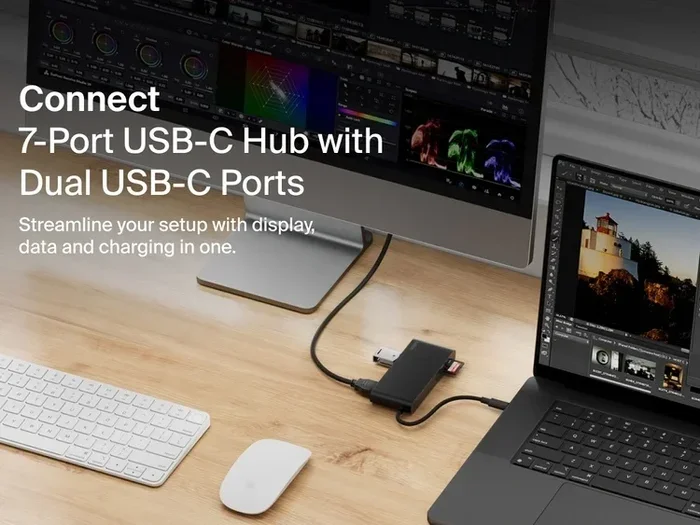
Can I Use A USB Hub With USB C And What You Should Know
Yes, you absolutely can use a USB hub with USB C. A USB C hub expands your single port into multiple connections for drives, monitors, and chargers. Whether you need a USB C hub for work or travel, this guide covers everything you should know about compatibility, speed, power delivery, and choosing the right hub for your setup.
You just bought a sleek laptop with only one or two USB C ports. You want to plug in your external hard drive, a mouse, a flash drive, and maybe even a monitor. But wait. Can you use a USB hub with USB C? The short answer is yes. The full answer is a bit more interesting, and it could save you money, frustration, and a lot of wasted time.
USB C has become the standard connector for most modern devices. Phones, tablets, and laptops all use it now. But one port just is not enough when you are juggling multiple peripherals. That is where a USB C hub comes in. It gives you extra ports so you can connect everything at once. Let us walk through exactly how this works, what to watch out for, and how to pick the right one for your needs.
Key Takeaways
- Full Compatibility: You can use a USB hub with USB C on most modern laptops, tablets, and phones.
- Speed Matters: USB 3.0, 3.1, and Thunderbolt 3 hubs offer different data transfer speeds you need to understand.
- Power Delivery Is Key: Look for a USB C hub that supports pass-through charging so your device charges while you work.
- Active vs. Passive Hubs: Active hubs need power; passive hubs draw from your device. Choose based on your needs.
- Check Your Ports: Not all USB C ports are created equal. Verify your port supports data transfer, not just charging.
- Brand Reputation Counts: Cheap hubs can cause overheating, data loss, and slow speeds.
- Docking Stations vs. Hubs: Know the difference so you buy the right accessory for your workflow.
📑 Table of Contents
- What Is a USB C Hub and How Does It Work
- Can You Use a USB Hub With USB C
- Types of USB C Hubs You Should Know About
- Benefits of Using a USB C Hub
- Common Problems and How to Fix Them
- How to Choose the Right USB C Hub
- USB Hub vs. USB C Dock: What Is the Difference
- Expert Tips for Getting the Most From Your USB C Hub
- Frequently Asked Questions
- Final Thoughts
What Is a USB C Hub and How Does It Work
A USB C hub is a small adapter that plugs into your device’s USB C port and gives you additional ports. Think of it like a power strip for your computer. Instead of one port, you suddenly have several. Most hubs add USB-A ports, HDMI or DisplayPort outputs, SD card slots, and Ethernet jacks.
Here is how it works in simple terms. Your laptop has one USB C port. The hub plugs into that port. Now you can connect a keyboard, a mouse, a printer, and an external hard drive all at the same time. The hub acts as a port multiplier. It shares the connection your laptop provides and splits it among all the devices you attach.
Some hubs are passive, meaning they draw power from your device. Others are active hubs, which have their own power source. Passive hubs work great for basic tasks like connecting a flash drive or a mouse. Active hubs handle more demanding devices like external hard drives or multiple monitors.
USB C vs USB A: What Is the Difference
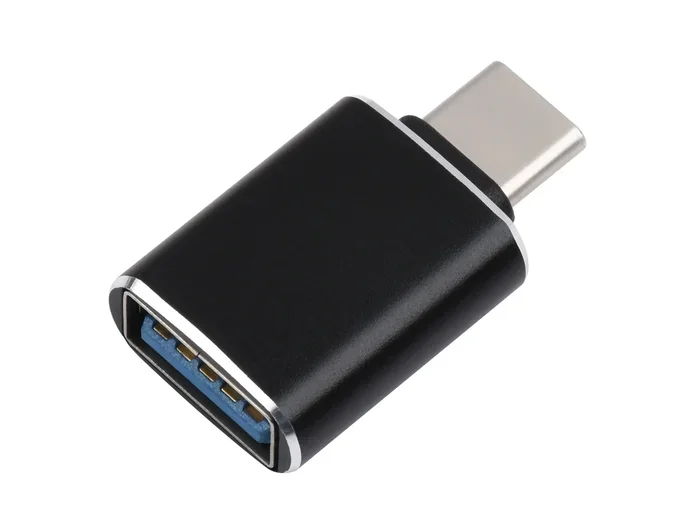
USB C is the newer, smaller, reversible connector. USB A is the older, bigger rectangular port you have probably seen forever. USB C supports faster speeds and more power delivery than older USB standards. A USB C hub lets you connect older USB A devices to your new USB C laptop. This makes it a bridge between old and new technology.
Can You Use a USB Hub With USB C
Yes, you can use a USB hub with USB C. This is one of the most common questions people ask, and the answer is a reassuring yes. Almost every USB C hub on the market works with any device that has a USB C port. That includes MacBooks, Windows laptops, iPads, Android phones, and even some Chromebooks.
But here is the part many people miss. Not all USB C ports are the same. Your device might have a USB C port that only charges. It might not support data transfer at all. Before buying a USB hub for USB C, check your device specifications. Look for terms like USB 3.0, USB 3.1, USB 3.2, USB4, or Thunderbolt 3. These mean your port supports data transfer, not just power.
Compatibility Across Devices
Most modern devices work perfectly with a USB C hub. Apple MacBooks use USB C and work great with hubs. Windows laptops from Dell, HP, Lenovo, and others use USB C too. Even the iPad Pro and Samsung Galaxy Tab S series support USB C hubs. Android phones with USB C can use smaller hubs for OTG (on-the-go) connections.
There are a few exceptions. Very old laptops with USB C that only support USB 2.0 will work with hubs but at much slower speeds. Some budget devices use USB C only for charging and do not support data. Always double-check your device manual or the manufacturer’s website before purchasing.
Thunderbolt 3 and Thunderbolt 4 Hubs
If your laptop has a Thunderbolt 3 or Thunderbolt 4 port, you have even more options. Thunderbolt ports are fully compatible with USB C hubs. They also support Thunderbolt docking stations, which offer faster speeds and more bandwidth. Thunderbolt hubs can handle two or more 4K displays at the same time. They are perfect for professionals who need serious connectivity.
Types of USB C Hubs You Should Know About
Not all hubs are the same. Different types serve different needs. Understanding the options helps you make a smart purchase.
Basic USB C Hubs
A basic USB C hub adds a few extra ports. You might get two or three USB-A ports, an HDMI output, and an SD card reader. These hubs are compact, affordable, and great for everyday use. They cost between $15 and $40. They work well for students, casual users, and anyone who needs a few extra connections.
USB C Docking Stations
A docking station is like a hub on steroids. It offers more ports, better build quality, and often its own power supply. Docking stations support multiple monitors, fast data transfer, and Ethernet connections. They are ideal for office setups and remote workers. You plug one cable into your laptop and instantly get access to everything you need.
Thunderbolt Docks
Thunderbolt docks are the premium option. They offer the fastest speeds and the most features. Thunderbolt 3 supports up to 40 Gbps data transfer. Thunderbolt 4 raises the bar even higher. These docks cost more, typically between $150 and $400, but they deliver top performance for demanding workflows.
Portable vs. Desktop Hubs
Portable hubs are small and lightweight. They fit in your laptop bag easily. They do not need external power. Desktop hubs are larger and offer more ports. They usually come with a power adapter. If you travel often, go with a portable hub. If you work at a desk all day, a desktop hub with its own power supply is a better choice.
Benefits of Using a USB C Hub
Using a USB C hub comes with several real advantages. Let us look at why so many people are making the switch.
More Ports, More Productivity
The biggest benefit is obvious. You get more ports. That means you can connect your monitor, keyboard, mouse, external drive, and Ethernet cable all at once. No more unplugging and replugging devices every time you switch tasks. A hub keeps everything connected and ready to go.
Faster Data Transfer Speeds
Modern USB C hubs support USB 3.0, USB 3.1, and USB 3.2 standards. These offer transfer speeds from 5 Gbps to 20 Gbps. That means you can move large files in seconds. A 10 GB video file transfers in under two seconds on a USB 3.1 hub. Compare that to USB 2.0, where the same file takes over a minute.
Charge Your Device While Using Peripherals
Many USB C hubs support USB power delivery, also called PD. This means your laptop charges while you use the hub. You plug the hub into your laptop, connect your power adapter to the hub, and everything works. Your device gets charged, and all your peripherals stay connected. This feature is called pass-through charging, and it is a game changer.
One Cable Solution
A good hub reduces cable clutter. Instead of five or six cables plugged into your laptop, you have one cable going to the hub. Everything else connects to the hub. Your desk stays cleaner, your bag stays organized, and your setup looks professional.
Common Problems and How to Fix Them
Using a USB C hub is usually smooth. But sometimes issues pop up. Here are the most common problems and how to solve them.
Hub Not Recognized by Device
If your device does not recognize the hub, try a few things first. Unplug the hub and plug it back in. Try a different USB C port on your device. Restart your computer. If that does not work, check if you need a driver update. Most hubs work plug-and-play, but some require software updates.
Slow Data Transfer Speeds
If your hub is slow, check what USB standard it supports. A USB 3.0 hub will be slower than a USB 3.1 or USB 3.2 hub. Also, check your device’s port. If your laptop only supports USB 3.0, a USB 3.2 hub will still run at USB 3.0 speeds. The slowest link in the chain determines your actual speed.
Overheating Issues
Some hubs get warm during heavy use. This is normal, especially with active hubs. But if the hub gets too hot to touch, unplug it. Cheap hubs with poor build quality are more likely to overheat. Buy from reputable brands and avoid ultra-cheap no-name options.
Power Delivery Problems
If your device does not charge through the hub, the hub might not support pass-through charging. Check the hub’s specifications for power delivery ratings. A hub that supports 60W or 100W PD will charge most laptops. Lower-powered hubs may only charge phones or tablets.
How to Choose the Right USB C Hub
Buying the right hub depends on what you need. Here are the key factors to consider before you spend your money.
Check Your Device’s USB C Port
First, figure out what your USB C port supports. Look at your device specs. Does it support USB 3.0, USB 3.1, USB 3.2, USB4, or Thunderbolt? This tells you the maximum speed your hub can deliver. Buying a fast hub for a slow port will not give you faster speeds.
Count the Ports You Need
Make a list of what you connect daily. Do you need an HDMI port for a monitor? How many USB-A devices do you use? Do you need an Ethernet port or an SD card reader? Choose a hub that matches your list. Do not pay for ports you will never use, but make sure you do not miss any essentials.
Consider Power Delivery
If you want to charge your laptop through the hub, make sure it supports USB PD. Check the wattage. Most laptops need at least 60W. Some gaming laptops need 100W. The hub should match or exceed your laptop’s charging requirements.
Build Quality and Brand Reputation
Not all hubs are built the same. Cheap hubs from unknown brands often use low-quality chips and materials. They may overheat, disconnect randomly, or damage your device. Stick with well-known brands like Anker, Satechi, CalDigit, OWC, or Ugreen. Read reviews before you buy. A good hub lasts years and protects your investment.
Size and Portability
If you travel, pick a compact hub. Portable hubs weigh a few ounces and fit in your pocket. Desktop hubs are larger but offer more features. Think about where and how you will use the hub most often. That should guide your decision.
Price vs. Features
Basic hubs cost $15 to $30. Mid-range hubs with more features run $30 to $70. Premium Thunderbolt docks can cost $150 to $400. Set a budget based on what you actually need. You do not need a $300 dock if you only need a few extra USB ports and an HDMI output.
USB Hub vs. USB C Dock: What Is the Difference
People use these terms interchangeably, but they are different. A USB hub is a simple device that adds ports. It does not have its own power supply (usually). A USB C dock or docking station is more advanced. It has its own power brick, more ports, and often supports multiple displays. Hubs are great for on-the-go use. Docks are better for permanent desk setups.
Here is a quick comparison to help you decide.
- USB C Hub: Small, no extra power, fewer ports, affordable, great for travel
- USB C Dock: Larger, has its own power supply, more ports, supports multiple monitors, better for office use
Expert Tips for Getting the Most From Your USB C Hub
Here are some tips from people who use USB C hubs every day.
Always use the cable that comes with the hub. Third-party cables may not support the full speed or power delivery. If you need a replacement, buy a high-quality USB C cable rated for the speeds you need.
Update your device drivers regularly. Sometimes a simple driver update fixes connection issues with your hub. Check your laptop manufacturer’s website for the latest updates.
Do not daisy-chain hubs. Plugging one hub into another can cause power and speed issues. Each hub should connect directly to your device for best results.
Keep your hub in a ventilated area. Even though hubs are small, they can get warm. Do not bury yours under papers or in a closed bag while it is working hard.
Test your speeds after setup. Use a free speed test tool to check your hub’s data transfer rate. This helps you confirm you are getting the speeds you paid for.
Frequently Asked Questions
Can I Use Any USB C Hub With My Laptop?
Most USB C hubs work with any laptop that has a USB C port supporting data transfer. Check your laptop specs to confirm your port is not charging-only. Thunderbolt ports are fully compatible with all USB C hubs and offer the best performance.
Will a USB C Hub Slow Down My Data Transfer?
A hub can slow speeds if it supports an older USB standard. A USB 3.0 hub caps your speed at 5 Gbps even if your device supports faster speeds. Always match the hub’s standard to your device’s capability for the best results.
Can I Charge My Laptop Through a USB C Hub?
Yes, if your hub supports USB Power Delivery (PD) and has a pass-through charging port. Look for hubs rated at 60W or 100W PD. This lets your laptop charge while all your peripherals stay connected through the hub.
Do USB C Hubs Work With iPads and Android Phones?
Yes. Many iPads with USB C and Android phones support USB C hubs. They work great for connecting flash drives, keyboards, and cameras. However, some phone features like fast charging may be limited when using a hub. Check your device manual for details.
Is a USB C Hub the Same as a Docking Station?
No. A USB C hub is smaller and usually does not have its own power supply. A docking station is larger, has its own power brick, and supports more features like multiple monitors. Hubs are great for portability. Docks are ideal for a permanent desk setup.
Can I Connect Multiple Monitors to a USB C Hub?
It depends on the hub. Basic hubs usually support one external monitor. Thunderbolt hubs and docks can support two or more 4K displays. Check the hub’s specifications for the number and resolution of supported monitors before you buy.
Final Thoughts
Can I use a USB hub with USB C? Absolutely. A USB C hub is one of the most useful accessories you can own. It turns one port into many. It boosts your productivity. It keeps your desk tidy. And it works with almost every modern device.
The key is choosing the right hub for your needs. Consider your device’s USB C capabilities. Think about which ports you use most. Decide whether you need pass-through charging. Pick a reputable brand with solid reviews. Do these things, and you will have a seamless, fast, and reliable setup that makes your daily work easier.
Do not let a single USB C port hold you back. Get a USB hub with USB C today and experience the difference. Your workflow will thank you.