Can I Use Carplay Without Usb Heres Everything You Need
Yes, you can use CarPlay without a USB cable. Wireless CarPlay lets you connect your iPhone to your cars infotainment system using Bluetooth and Wi-Fi. This guide covers everything from setup steps to adapters that make older cars wireless-ready.
Have you ever been driving and realized your USB cable is frayed or missing? Its frustrating. You want to use Apple CarPlay, but the cord is nowhere to be found. So can you use CarPlay without USB? The short answer is yes. You absolutely can. And the good news is that wireless CarPlay has come a long way in recent years.
More cars are shipping with wireless CarPlay built right in. Even older vehicles can get wireless support with a simple adapter. In this article, well walk through everything you need to know about using CarPlay without a USB cable. Well cover how it works, what you need, setup steps, and common problems you might run into.
Whether you have a brand-new sedan or an older truck, this guide has you covered. Lets dive in and get you connected without a single wire.
Key Takeaways
- Wireless CarPlay exists: You can ditch the USB cable and still enjoy all your favorite CarPlay features on the road.
- Not all cars support it natively: Older vehicles may need a wireless CarPlay adapter to go cable-free.
- Setup is simple: Connecting wirelessly takes just a few taps on your iPhone and your cars infotainment screen.
- Adapters are affordable: A CarPlay wireless adapter can retrofit wireless capability into almost any car.
- Connection issues are common: Most CarPlay not working problems have easy fixes you can do at home.
- Wireless has trade-offs: Slight latency and battery drain are the main downsides compared to a wired USB connection.
📑 Table of Contents
- What Is CarPlay and Why Go Wireless?
- Can You Actually Use CarPlay Without a USB Cable?
- What You Need for Wireless CarPlay
- Step-by-Step Guide to Setting Up CarPlay Without USB
- Troubleshooting Common CarPlay Connection Issues
- Wireless CarPlay vs USB CarPlay: Which Is Better?
- Can You Use CarPlay Without a USB Cable on Android?
- Expert Tips for the Best Wireless CarPlay Experience
- Final Thoughts
What Is CarPlay and Why Go Wireless?
Understanding Apple CarPlay Basics
Apple CarPlay is a smart system that mirrors your iPhone onto your cars infotainment screen. Once connected, you can access maps, music, messages, and phone calls safely. The system uses Siri voice commands so you keep your eyes on the road.
CarPlay has been around since 2014. At first, it only worked with a USB cable. You had to plug your iPhone in every time you got in the car. It worked fine, but it wasnt always convenient. Cables get tangled. They wear out. And sometimes the port is hard to reach.
Wireless CarPlay changed all of that. Instead of a physical USB cable, it uses Bluetooth and Wi-Fi to connect your iPhone to the car. The experience is nearly identical, but without the cord. You just tap a button on your screen and youre good to go.
Why People Want to Ditch the USB Cable
There are several reasons drivers prefer going wireless. First, its more convenient. No fumbling with a cable in the dark or in a hurry. Second, USB ports can wear out over time. A loose connection means CarPlay keeps disconnecting. Going wireless eliminates that problem entirely.
Third, wireless CarPlay often charges your iPhone faster through the cars built-in wireless charging pad. And fourth, a clutter-free console just looks better. No cables hanging around the dashboard means a cleaner, more modern feel inside your car.
But not every car supports wireless CarPlay out of the box. And thats where things get interesting. Lets explore exactly how CarPlay works without a USB connection.
Can You Actually Use CarPlay Without a USB Cable?
Wireless CarPlay vs Wired CarPlay
The core CarPlay experience is the same whether you use a cable or go wireless. You still get your apps, navigation, music, and calls. The difference is how the connection happens. Wired CarPlay uses a lightning or USB-C cable plugged into your cars USB port. Wireless CarPlay uses Bluetooth for the initial handshake and Wi-Fi for data transfer.
Both methods support the same CarPlay features. You can use Siri, send voice-dictated texts, get turn-by-turn directions, and stream Spotify or Apple Music. Theres no feature that is exclusive to wired or wireless. Its the same great experience either way.
However, there are small differences. Wireless CarPlay may have a slight delay when launching apps. The audio stream can also be slightly lower in quality compared to a wired USB connection. For most drivers, these differences are barely noticeable. But audiophiles and tech enthusiasts might prefer the wired setup for its reliability.
How Wireless CarPlay Works
Wireless CarPlay uses two wireless technologies. Bluetooth handles the initial pairing between your iPhone and the cars infotainment system. Once paired, Wi-Fi takes over for the heavy lifting. Data transfers, like streaming music or loading maps, happen over Wi-Fi because its faster than Bluetooth.
Your iPhone and the car need to be on the same Wi-Fi network for this to work smoothly. Most modern cars create a dedicated Wi-Fi hotspot for CarPlay. When you get in the car, your iPhone detects it and offers the wireless CarPlay option. You tap connect, and within seconds, your screen mirrors to the dashboard.
Heres the cool part. Your iPhone can even remember your car. So when you get in and sit down, CarPlay connects automatically. No tapping, no cables. It just works. This seamless experience is why so many people are switching to wireless CarPlay.
What You Need for Wireless CarPlay
Compatible Cars and Infotainment Systems
Not every car supports wireless CarPlay natively. Most vehicles from 2019 onward offer wireless support as an option or standard feature. Popular brands like BMW, Mercedes-Benz, Audi, Honda, and Toyota have widely adopted wireless CarPlay in their newer models.
To check if your car supports wireless CarPlay, look at your owners manual or check the infotainment settings. If you see a wireless CarPlay option in the connection menu, youre all set. If you only see a USB option, your car likely needs a wireless CarPlay adapter.
Here are some quick ways to check compatibility:
- Check your cars manual for wireless CarPlay or wireless smartphone integration.
- Look in the infotainment settings for a CarPlay or smartphone menu.
- Visit the manufacturers website and search for your cars model year.
- Ask your dealer if your specific trim level supports wireless CarPlay.
CarPlay Wireless Adapters and Accessories
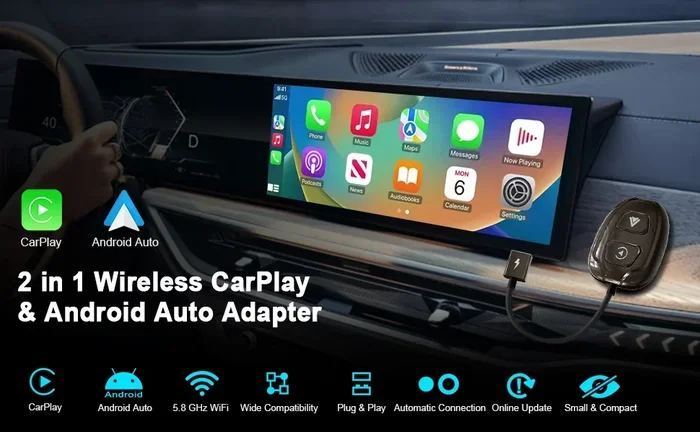
If your car doesnt support wireless CarPlay natively, dont worry. You have options. A CarPlay wireless adapter is a small device that plugs into your cars USB port and creates a wireless CarPlay connection. These adapters are affordable and work with almost any car that has a USB port.
Some popular wireless CarPlay adapters include brands like Carlinkit, AA Wireliss, and Vodos. They typically cost between 50 and 150 dollars. Installation is usually plug-and-play. You connect the adapter to your USB port, pair it with your iPhone, and wireless CarPlay is ready to go.
When choosing an adapter, look for these features:
- Bluetooth 5.0 or higher for a stable connection.
- Wi-Fi 5 or Wi-Fi 6 support for fast data transfer.
- iPhone compatibility with your specific iOS version.
- Easy setup without needing extra apps or software.
- Compact design that stays hidden behind the dashboard.
Keep in mind that some adapters may cause slight delays or connection drops. Reading reviews and buying from reputable brands helps you avoid the worst ones. A good adapter makes your old car feel brand new.
Step-by-Step Guide to Setting Up CarPlay Without USB
Setting Up on iPhone
Setting up wireless CarPlay on your iPhone is straightforward. Heres how to do it step by step:
- Make sure your iPhone is updated to the latest iOS version. Wireless CarPlay requires iOS 12 or later, but newer versions work better.
- Open Settings on your iPhone and tap General.
- Tap CarPlay from the list of options.
- Make sure CarPlay is turned on. Toggle the switch to enable it.
- Get in your car and start the engine.
- On your cars infotainment screen, navigate to the smartphone or CarPlay settings menu.
- Select Wireless CarPlay if prompted.
- Your iPhone should appear on the screen. Tap on it to connect.
- Confirm the connection on both your iPhone and the cars screen.
Thats it. Within about 30 seconds, your CarPlay interface should appear on your dashboard. From there, you can use maps, music, messages, and more just like you would with a wired connection.
Setting Up on the Car Side
The car setup process varies depending on your make and model. Most modern infotainment systems have a similar flow. You go to Settings, then Connections or Smartphone, and then select CarPlay. Choose the wireless option and follow the prompts.
Some cars let you set CarPlay to connect automatically every time you start the engine. This is a great feature if you use CarPlay daily. Once its set up, you never have to think about it again. Just get in the car and go.
If you are using a wireless CarPlay adapter, the setup is even simpler. Plug the adapter into the USB port, download the adapters companion app if needed, and follow the on-screen instructions. Most adapters connect automatically once they are paired with your iPhone.
Troubleshooting Common CarPlay Connection Issues
Why CarPlay Keeps Disconnecting
Wireless CarPlay connections can sometimes drop or fail to connect. This is more common than with wired connections, but the fixes are usually simple. Here are the most common reasons your CarPlay connection might be unstable:
- Wi-Fi interference: Other devices on the same Wi-Fi network can slow down CarPlay. Try turning off other connected devices in the car.
- Outdated software: An old iOS version or car firmware can cause compatibility issues. Always keep both updated.
- Bluetooth conflicts: If you have multiple Bluetooth devices connected, CarPlay might struggle. Disconnect devices you are not using.
- Distance from the adapter: If you are using a wireless CarPlay adapter, make sure your iPhone is close to it. The adapter should be within a few feet of your phone.
- Background apps: Too many apps running in the background can slow down the CarPlay connection. Close apps you are not using.
Quick Fixes for Wireless CarPlay Problems
When CarPlay is not working, try these quick fixes before digging deeper:
- Toggle Bluetooth and Wi-Fi off and on. This resets the wireless connection and often fixes temporary glitches.
- Restart your iPhone. A simple reboot clears up most software hiccups that affect CarPlay.
- Restart the cars infotainment system. Most systems have a restart option in the settings menu. If not, turning the car off and back on usually works.
- Forget the car in your iPhones Bluetooth settings and re-pair it from scratch.
- Check for updates. Go to Settings on your iPhone and look for any pending iOS or CarPlay updates.
These steps resolve the vast majority of CarPlay connection problems. If none of them work, the issue might be hardware-related. In that case, a wireless CarPlay adapter or a visit to a dealer can help.
Wireless CarPlay vs USB CarPlay: Which Is Better?
Both wireless and wired CarPlay have their strengths. Heres a side-by-side look at how they compare:
- Convenience: Wireless wins hands down. No cables, no fumbling, no worn-out ports.
- Reliability: Wired CarPlay is generally more stable. Wireless connections can occasionally drop, especially in older cars.
- Audio quality: Wired CarPlay delivers slightly better audio quality because the data transfer is direct. Wireless uses compression over Wi-Fi, which can introduce minor quality loss.
- Charging: Wired CarPlay charges your iPhone while you drive. Wireless CarPlay may or may not charge your phone, depending on your cars wireless charging capability.
- Setup time: Wireless CarPlay connects faster once its set up. Wired requires plugging in every time.
- Cost: Wired CarPlay is free since it uses a cable you already have. Wireless CarPlay may require buying an adapter for older cars.
For most everyday drivers, wireless CarPlay is the better choice. The convenience factor alone makes it worth it. If you are an audiophile who cares deeply about sound quality or if you frequently drive in areas with poor Wi-Fi signals, wired CarPlay might be the safer bet.
Can You Use CarPlay Without a USB Cable on Android?
Apple CarPlay is designed exclusively for iPhones. If you have an Android phone, you will need Android Auto instead. However, the wireless setup process for Android Auto is very similar to wireless CarPlay. You pair your phone with the cars infotainment system over Bluetooth and Wi-Fi, and the interface mirrors to your dashboard.
Some wireless CarPlay adapters also support Android Auto. So even if your car only has wired CarPlay, an adapter might let you use Android Auto wirelessly. Always check the adapters compatibility list before purchasing.
Expert Tips for the Best Wireless CarPlay Experience
Here are some pro tips to get the most out of wireless CarPlay:
- Keep your iPhone charged. Wireless CarPlay uses more battery than normal because it constantly streams data over Wi-Fi. Plug your phone into a wireless charger if your car supports it.
- Use a dedicated Wi-Fi band. Some cars let you choose between 2.4 GHz and 5 GHz Wi-Fi for CarPlay. The 5 GHz band is faster and less congested, which means smoother performance.
- Restart your connection weekly. A quick restart of both your iPhone and the cars infotainment system keeps everything running smoothly.
- Organize your CarPlay apps. Only keep the apps you actually use on your CarPlay home screen. Fewer apps means faster load times and a cleaner interface.
- Update everything regularly. iOS updates, car firmware updates, and adapter firmware updates all improve CarPlay stability and performance.
Following these tips will give you a seamless wireless CarPlay experience every time you get behind the wheel. Its like having a personal digital assistant built right into your dashboard.
Final Thoughts
So can I use CarPlay without USB? Absolutely. Wireless CarPlay is a game-changer for drivers who want convenience and a cleaner cockpit. Whether your car supports it natively or you need a wireless CarPlay adapter, the setup is easy and the experience is fantastic.
You get all the same CarPlay features without the hassle of a cable. Navigation, music, calls, and messages all work seamlessly over Bluetooth and Wi-Fi. The small trade-offs in audio quality and occasional connection drops are more than worth the daily convenience.
If your car doesnt support wireless CarPlay yet, a simple adapter can bring your vehicle into the modern age. Its an affordable upgrade that makes a big difference. Try it out and you will wonder how you ever drove with a cable in the first place.
Go ahead and cut the cord. Your driving experience will be better for it.
Frequently Asked Questions
Can I use CarPlay without a USB cable on any car?
Not every car supports wireless CarPlay natively. Vehicles from 2019 and newer are more likely to have it built in. Older cars can still enjoy wireless CarPlay by using a wireless CarPlay adapter that plugs into the USB port and creates a wireless connection.
Does wireless CarPlay charge my iPhone?
It depends on your car. Some vehicles with wireless CarPlay also have wireless charging pads that charge your iPhone automatically. If your car does not have wireless charging, your iPhone battery may drain slightly faster because CarPlay uses Wi-Fi and data streaming.
Is wireless CarPlay slower than wired CarPlay?
Wireless CarPlay may have a tiny bit of latency compared to wired. App launches and map loading can be slightly slower. However, for everyday use like navigation and music, the difference is barely noticeable. Audio quality is also slightly compressed over wireless, but most drivers wont hear the difference.
What is the best wireless CarPlay adapter?
Popular and reliable options include Carlinkit, AA Wireless, and Vodos. Look for adapters that support Bluetooth 5.0, Wi-Fi 5 or higher, and are compatible with your iOS version. Reading recent reviews helps you pick the best one for your setup.
Can I use CarPlay wirelessly with Android Auto?
Apple CarPlay is for iPhones only. Android phones use Android Auto, which also supports wireless connections. Some wireless CarPlay adapters are dual-purpose and work with both CarPlay and Android Auto, but always check compatibility before buying.
Why does my wireless CarPlay keep disconnecting?
Common causes include Wi-Fi interference, outdated software, Bluetooth conflicts, or a faulty adapter. Try toggling Bluetooth and Wi-Fi off and on, restarting both your iPhone and the cars infotainment system, and updating all software. If the problem persists, a wireless CarPlay adapter replacement may be needed.
=== CONCLUSION ===
Using CarPlay without a USB cable is not only possible, its becoming the standard. Wireless CarPlay offers the same great features as wired CarPlay with the added bonus of convenience. Whether your car has native wireless support or you need a CarPlay wireless adapter, the setup process is quick and straightforward.
Remember the key points from this guide. Check your cars compatibility, invest in a quality adapter if needed, and follow the setup steps carefully. Troubleshoot connection issues with the simple fixes we covered. And keep your system updated for the best experience.
Now that you know how to use CarPlay without a USB cable, you can enjoy a cleaner, more modern driving experience every day. Cut the cord and enjoy the ride.