Can Usb Draw Too Much Power And Damage Your Devices
Yes, a USB device can draw too much power and cause real damage to your gadgets. When a USB port sends more current than a device can handle, it may lead to overheating, port failure, or even permanent hardware issues. Understanding USB power limits and using the right cables keeps your devices safe and running smoothly.
Key Takeaways
- USB power draw depends on the port type: USB 2.0, USB 3.0, and USB-C all have different power limits.
- Overloading a USB port can damage devices: Too much current causes overheating and port failure.
- USB-C Power Delivery changes the game: It allows devices to negotiate safe power levels.
- Cheap cables are a hidden risk: Poor quality cables can cause excess power draw and overheating.
- Overcurrent protection saves devices: Most modern devices have built-in safeguards against power surges.
- Using the wrong USB wall charger matters: Always match the charger output to your device needs.
- Watch for warning signs: Heat, slow charging, and unusual behavior signal potential USB power issues.
📑 Table of Contents
How USB Power Delivery Actually Works
USB ports are everywhere. They are in your laptop, phone charger, car console, and even your TV remote. But most people never think about how much power a USB port actually provides. The truth is, every USB connection has strict limits on how much electricity it can safely send.
When you plug a device into a USB port, the device tells the port how much power it needs. This process is called USB power management. The port then delivers the requested amount of USB voltage and USB amperage. If the device asks for more power than the port can provide, the port simply cannot deliver it. The device will either charge slowly or not charge at all.
But what happens when things go wrong? Can a USB device accidentally pull more power than it should? The short answer is yes. And when that happens, the results can range from minor annoyance to serious USB port damage. Let us break this down step by step.
Understanding USB Voltage and Amperage
Every USB port has two key power specs: voltage and amperage. Voltage is the electrical pressure. Amperage is the flow rate. Together, they determine how much power reaches your device. Think of it like water flowing through a hose. Voltage is the water pressure. Amperage is how much water flows through.
Here are the standard power limits for common USB types:
| USB Type | Voltage | Max Amperage | Max Power (Watts) |
|---|---|---|---|
| USB 2.0 | 5V | 0.5A | 2.5W |
| USB 3.0 | 5V | 0.9A | 4.5W |
| USB BC 1.2 | 5V | 1.5A | 7.5W |
| USB-C (Basic) | 5V | 3A | 15W |
| USB-C PD (Up to) | 20V | 5A | 100W |
As you can see, the USB power supply varies a lot depending on the port type. A basic USB 2.0 port gives out very little power. A modern USB-C port with Power Delivery can give out a lot more. This is why USB device compatibility matters so much.
The Role of USB Controllers
Inside every USB port is a small controller chip. This chip manages the USB power draw from connected devices. It acts like a traffic cop. It makes sure each device gets the right amount of electricity. It also prevents any single device from hogging all the available power.
When a USB peripheral connects, the controller and the device talk to each other. They agree on a safe power level. This negotiation process is a key part of USB power delivery. If this negotiation fails, the device might try to pull more power than the port can handle. That is when trouble starts.
Can USB Draw Too Much Power?
The short answer is yes. A USB device can draw more power than a port is designed to provide. But it does not usually happen by accident. There are specific reasons why this occurs, and understanding them helps you prevent damage.
Most of the time, a device will only draw the power it needs. Your phone, for example, asks for about 2.4 watts when charging slowly. It asks for more when you are using it while charging. The USB power management system handles this automatically. But sometimes, things go wrong.
What Triggers Excessive Power Draw
Several factors can cause a USB device to pull too much power. Here are the most common triggers:
- Faulty charging circuits: A damaged battery or charging chip inside a device can cause it to pull excess current. This is one of the most common reasons for USB port overload.
- Cheap or counterfeit cables: Low quality USB data cables often lack proper resistors. These resistors are what tell the port how much power to send. Without them, the port may send full power regardless of what the device needs.
- Using the wrong charger: A high-wattage USB wall charger paired with a device that cannot handle it can cause problems. The charger can push more power than the device is designed to accept.
- Short circuits in the cable: A damaged USB cable can create a short circuit. This sends a rush of unregulated power to your device. It is one of the fastest ways to cause USB port damage.
- Hub overload: Plugging too many devices into a single USB hub can exceed the hub’s power budget. This is a very common device charging issue that people overlook.
Quick Tips to Monitor USB Power Usage
You do not need expensive tools to keep an eye on your USB power draw. Here are some simple things you can do right now:
- Check your cable quality: Always use cables from reputable brands. Look for proper certification marks on the cable.
- Feel the port and cable: If a USB port or cable feels warm during charging, unplug it. Mild warmth is normal. Hot to the touch is not.
- Watch your charging speed: If a device charges very slowly or stops charging altogether, the USB power supply may be struggling.
- Use a USB power meter: These small devices plug between your cable and port. They show you real-time voltage, amperage, and wattage. They are cheap and very useful.
- Avoid daisy-chaining hubs: Plugging one USB hub into another can create power delivery problems. Each hub reduces the available power for your devices.
What Happens When USB Devices Pull Too Much Power
When a device pulls more power than a USB port can safely provide, several things can happen. Some are minor. Others can cause lasting damage. Let us look at what happens in real-world situations.
Common Symptoms of USB Power Overload
Your devices will usually give you warning signs before serious damage occurs. Here is what to watch for:
- Port stops working: The USB port suddenly stops recognizing any device. This often means the internal fuse has blown to protect the motherboard.
- Device charges very slowly: The port is limiting power output because it detects a problem. This is a form of overcurrent protection kicking in.
- Unusual heat: The USB port, cable, or device itself becomes uncomfortably hot during charging. Heat is a clear sign of excess power flow.
- Burning smell: This is a serious warning sign. If you smell something burning near a USB port, unplug everything immediately.
- Device shuts down unexpectedly: Your phone or tablet may suddenly turn off while connected to a USB port. This indicates a power conflict.
- Slow USB charging speed: The device charges much slower than it should. This happens when the port reduces power to protect itself.
Common Mistakes That Lead to USB Damage
Many people accidentally put their devices at risk without realizing it. Here are the most common mistakes:
- Using a USB port to power high-draw devices: Things like external hard drives, cooling pads, and some webcams need a lot of power. Plugging them into a weak USB 2.0 port can cause problems.
- Ignoring warning signs: People often ignore a warm port or slow charging. By the time they pay attention, the damage may already be done.
- Mixing and matching cables: Using a thin, cheap cable for a high-power device is a recipe for trouble. The cable cannot handle the current and overheats.
- Charging in risky environments: Charging devices on soft surfaces like beds or couches can block ventilation. This traps heat and increases the risk of USB port short circuit damage.
USB Power Standards and Their Limits
Understanding USB power standards is one of the best ways to protect your devices. Each USB generation has its own power delivery rules. These rules set the maximum amount of electricity a port can safely provide.
USB 2.0 vs USB 3.0 Power Delivery
USB 2.0 is the older standard. It was designed for data transfer, not for powering heavy devices. A USB 2.0 port delivers 5 volts at 0.5 amps. That is only 2.5 watts of power. This is enough for a mouse or keyboard. It is not enough for a tablet or external drive.
USB 3.0 improved on this. It delivers 5 volts at 0.9 amps, or 4.5 watts. This is still not a lot of power, but it is better than USB 2.0. Most modern laptops have a mix of USB 2.0 and USB 3.0 ports. Knowing which is which helps you avoid USB port overload.
USB-C Power Delivery Explained
USB-C is the newest and most versatile USB standard. It supports a feature called USB-C Power Delivery, or USB PD. This feature allows devices to negotiate the exact amount of power they need.
With USB PD, a port can deliver up to 100 watts of power. That is enough to charge a laptop. The key difference is negotiation. Instead of pushing a fixed amount of power, the port and device communicate. They agree on a safe power level. This makes USB-C power delivery much safer than older USB standards.
However, USB PD only works with compatible devices and cables. If you use a non-PD cable with a PD port, the power delivery will default to a lower level. This is a safety feature, not a flaw. It prevents excess power from reaching your device.
How to Protect Your Devices from USB Power Issues
Protecting your devices from USB power draw problems is easier than you might think. A few simple habits can save you from expensive repairs or replacements.
Using the Right USB Cables and Chargers
The right cable makes all the difference. Here is what to look for when choosing a USB cable:
- Check the amperage rating: Good cables clearly state their amperage. A 3-amp cable is suitable for fast charging. A 1-amp cable is fine for low-power devices.
- Look for certifications: USB-IF certification means the cable meets safety standards. MFi certification is Apple’s equivalent. Both are good signs of quality.
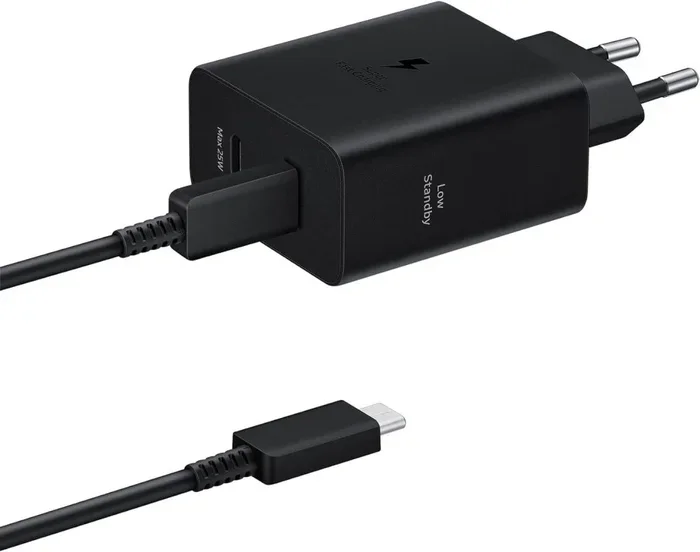
- Match the charger to the device: A USB wall charger should match your device’s power needs. A 65-watt charger is great for a laptop. It is overkill for a smartwatch.
- Avoid ultra-cheap cables: Cables that cost less than a few dollars often lack proper safety features. They may not have the right resistors to regulate USB amperage.
Expert Insights on USB Power Management
According to hardware engineers, most USB power issues come from one of three sources. First, cheap cables that do not regulate power properly. Second, using ports beyond their rated capacity. Third, ignoring firmware updates that improve USB power management in your devices.
One common question is whether a USB power bank can cause problems. The answer is usually no. Quality power banks have built-in safety circuits. They limit the USB power draw to safe levels. But cheap, no-name power banks may not have these protections. Always buy from reputable brands.
Another important tip is to keep your device firmware up to date. Many manufacturers release updates that improve how their devices handle USB peripheral power. These updates can fix power negotiation bugs and improve overall safety.
Comparing USB Power Solutions
Not all USB power supply options are created equal. Here is a quick comparison of popular options:
| Power Solution | Max Power Output | Best For | Risk Level |
|---|---|---|---|
| Standard USB 2.0 Port | 2.5W | Mice, keyboards, flash drives | Low |
| USB 3.0 Port | 4.5W | Phones, small peripherals | Low |
| USB-C Basic Port | 15W | Phones, tablets | Low to Medium |
| USB-C PD Charger | Up to 100W | Laptops, monitors, cameras | Medium (needs PD-compatible device) |
| USB Hub (Powered) | Varies | Multiple peripherals | Medium (hub quality matters) |
| USB Hub (Unpowered) | Limited | Low-power devices only | High for power-hungry devices |
As the table shows, your choice of USB power supply directly affects safety. Using an unpowered hub with high-draw devices is one of the fastest ways to cause USB port damage.
When to Worry About USB Power Draw
Most of the time, USB power draw stays within safe limits. But there are moments when you should pay closer attention. Knowing when to worry helps you act before permanent damage occurs.
Signs Your USB Port May Be Damaged
Here are the red flags that suggest your USB port has been damaged by excess power:
- The port is physically damaged: Look for bent or broken pins inside the port. This often happens when too much current flows through the connection.
- The port no longer charges any device: If multiple devices fail to charge on the same port, the port itself may be dead.
- Intermittent connection: The port works sometimes but not others. This can indicate internal damage from a previous power surge.
- Discoloration around the port: If the plastic around the port is brown or black, heat damage has occurred. This is a serious sign of USB port short circuit.
- Burning or melting smell: Unplug everything immediately. Do not use the port again until it has been inspected by a professional.
Final Thoughts on USB Power Safety
USB technology has come a long way. Modern devices have built-in overcurrent protection that helps prevent damage from excess power draw. But these protections are not foolproof. They can fail, especially if the USB cable or charger is of poor quality.
The best approach is prevention. Use quality cables. Match your charger to your device. Avoid overloading ports. And pay attention to warning signs like heat or slow charging. These simple habits will keep your devices safe and extend their lifespan.
Understanding USB power draw does not require an engineering degree. It just requires a little awareness and the right habits. Your devices will thank you for it.
Conclusion
So, can USB draw too much power and damage your devices? The answer is yes. But with the right knowledge and precautions, you can prevent most problems. The key is understanding your USB power standards, using quality cables and chargers, and watching for warning signs of USB port overload.
Remember, most modern devices have built-in protections. But those protections are only as good as the equipment you use with them. A cheap cable or the wrong charger can bypass those protections and put your devices at risk.
Take a few minutes today to check your cables and chargers. Make sure they are in good condition and from reputable sources. Your devices will last longer, charge faster, and stay safe from USB power draw issues. A little prevention goes a long way when it comes to protecting your gear.
Frequently Asked Questions
Can a USB port be damaged by too much power draw?
Yes, a USB port can be damaged if a device pulls more power than the port can handle. This usually happens with faulty cables, cheap chargers, or when too many high-power devices are connected to one port. The port may blow a fuse or suffer permanent damage.
What is USB Power Delivery and how does it prevent damage?
USB Power Delivery is a smart system that lets devices negotiate the right amount of power before charging begins. Instead of forcing a fixed power level, the port and device communicate to agree on a safe amount. This prevents excess power from reaching your device and reduces the risk of USB port damage.
How can I tell if my USB cable is drawing too much power?
Signs of excess USB power draw include a cable that gets very hot, slow charging speeds, or a device that shuts down unexpectedly. Using a USB power meter is the best way to check the actual voltage and amperage flowing through your cable. If the readings exceed your device’s rated limits, replace the cable.
Is it safe to use a USB hub to charge multiple devices at once?
It depends on the hub. A powered USB hub has its own power supply and can safely charge multiple devices. An unpowered hub draws all its power from a single computer port. This can lead to USB port overload and slow charging. Always check the hub’s power rating before connecting multiple devices.
Does USB-C draw more power than older USB types?
USB-C can support much higher power levels than older USB types. With USB-C Power Delivery, it can deliver up to 100 watts. However, it also has built-in negotiation features that prevent excess power draw. The risk of damage is lower with USB-C as long as you use certified cables and chargers.
What should I do if my USB port gets hot during charging?
Mild warmth is normal during charging. But if the port is hot to the touch, unplug the device immediately. Let it cool down before trying again. Check your cable and charger for damage. If the problem continues, the port may have sustained USB port damage and should be inspected by a professional.