Can You Connect Serial To USB And Yes It Really Works
You can absolutely connect serial to USB using a simple adapter or converter cable. This bridge lets modern computers talk to older RS-232 devices without any hassle. Whether you work with industrial equipment, Arduino boards, or legacy hardware, a serial-to-USB solution solves the problem fast. Plug in the adapter, install the driver, and your device shows up as a virtual COM port. This guide walks you through every step with clear, practical advice.
Have you ever found an old device sitting in a drawer and wondered if you could still use it? Maybe it is a piece of industrial equipment, a lab instrument, or even an old router with a serial console port. The problem is clear. Your computer has USB ports, but that device has a serial connector. They do not match. So the big question is simple. Can you connect serial to USB and make it work?
The short answer is yes. It really works, and it is way easier than most people think. A serial-to-USB adapter acts as a bridge between old and new technology. You plug one end into the serial device and the other into your computer. Within minutes, your PC recognizes the connection. The device shows up as a virtual COM port. You can send and receive data just like you would with any modern peripheral. This is not magic. It is smart engineering that has been around for decades.
In this guide, we will walk through everything you need to know. We will cover the different types of adapters, how drivers work, common setup steps, and troubleshooting tips. By the end, you will feel confident connecting any serial device to your computer through USB. Let us get into it.
Key Takeaways
- A serial to USB adapter is a simple bridge that connects old RS-232 devices to modern computers with USB ports.
- You need the right driver for your adapter chip, such as FTDI or Prolific, to make it work properly.
- Virtual COM ports let your PC treat the adapter like a traditional serial port, so existing software works without changes.
- Baud rate, data bits, and stop bits must match on both the adapter and the device for reliable communication.
- Common problems like no response or garbled data are usually easy to fix with driver updates or correct settings.
- These adapters work with many devices including Arduino, Raspberry Pi, industrial sensors, and medical equipment.
- USB-to-serial cables cost under $20 in most cases, making them an affordable solution for legacy hardware.
📑 Table of Contents
- What Is Serial Communication and Why Does It Still Matter?
- How Does a Serial to USB Adapter Work?
- Step-by-Step Guide to Connecting Serial Devices via USB
- Common Problems and How to Fix Them
- Popular Uses for Serial to USB Connections
- How to Choose the Right Serial to USB Adapter
- Expert Tips for Reliable Serial Connections
- Final Thoughts
What Is Serial Communication and Why Does It Still Matter?
Before we dive into the how-to, let us quickly understand what serial communication actually is. Serial data transmission sends information one bit at a time over a single wire. This is different from parallel communication, which sends multiple bits at once. Serial communication has been around since the early days of computing. It was the standard way computers talked to modems, printers, and other peripherals for many years.
The RS-232 standard is the most common serial protocol you will encounter. It defines the electrical signals, connector types, and data format for serial communication. You have probably seen a DB9 connector before. That is the classic 9-pin serial port on older computers and equipment. Even though USB has replaced serial ports on most modern machines, RS-232 devices are still widely used in factories, labs, and embedded systems.
Why Serial Devices Are Still in Use
There are many reasons why serial devices have not gone away. First, they are reliable. A simple serial connection is hard to break and easy to debug. Second, many industrial devices were built to last 20 or 30 years. Third, serial communication is straightforward. There is no complex handshake or software layer to worry about. The device sends data, and the receiver gets it. That simplicity is why serial remains popular in certain fields.
Here are some common places you will still find serial devices in use:
- Industrial automation equipment like PLCs and sensors
- Medical devices such as patient monitors and diagnostic tools
- Network equipment including switches and routers with serial consoles
- Embedded systems like Arduino and Raspberry Pi boards
- Laboratory instruments such as oscilloscopes and spectrum analyzers
- Point-of-sale systems and older cash registers
- Telecommunications gear like cell tower controllers
As you can see, serial devices are everywhere. They are not just old junk collecting dust. They are active tools that people rely on every day. And that is exactly why knowing how to connect serial to USB is such a valuable skill.
How Does a Serial to USB Adapter Work?
A serial-to-USB adapter does one job really well. It converts RS-232 serial signals into USB data that your computer understands. Inside the adapter, there is a small chip that handles this conversion. The two most common chip manufacturers are FTDI and Prolific. Both make excellent adapter chips, and their drivers are widely supported across operating systems.
When you plug the adapter into your computer, the operating system sees it as a USB device. The driver software then creates a virtual COM port. This virtual port acts exactly like a real serial port. Software that expects a COM port, like PuTTY or a terminal emulator, can communicate through it without any changes. That is the beauty of this design. Your old software works perfectly with new hardware.
Types of Serial to USB Adapters
Not all adapters are the same. There are a few different types you should know about before you buy one. Each type fits a different situation and device.
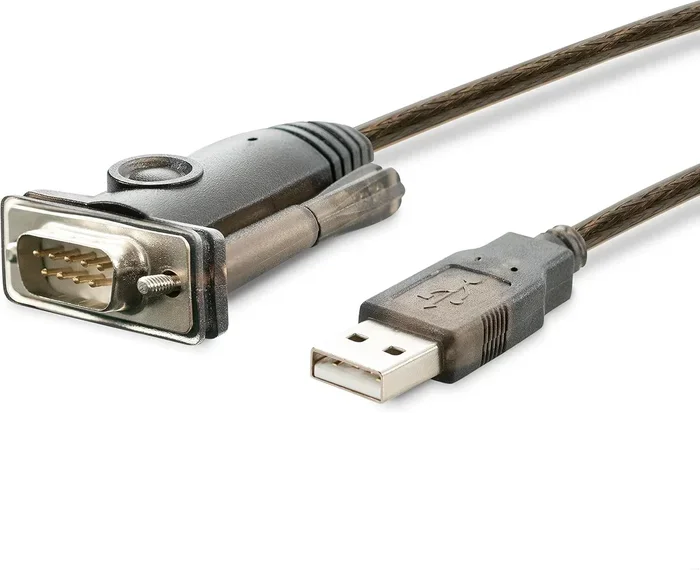
USB-to-Serial Cables. These are the most common type. One end has a USB plug for your computer. The other end has a DB9 or DB25 serial connector. You plug the cable directly into your device. They are simple, affordable, and work great for most setups.
USB-to-Serial Breakout Boards. These are popular in the maker and hobbyist community. They expose the individual serial pins so you can wire them to custom circuits. Arduino users and electronics hobbyists love these boards. They often include voltage level shifters to convert between RS-232 voltage levels and TTL logic levels.
USB-to-RS-485/RS-422 Adapters. These are specialized adapters for industrial environments. RS-485 and RS-422 use different signaling standards than RS-232. They support longer cable runs and better noise immunity. If you work with industrial equipment, you might need one of these instead of a standard RS-232 adapter.
Serial Servers or Device Servers. These are network-connected devices that provide serial ports over Ethernet. They are not direct USB adapters, but they solve a similar problem. They let you connect serial devices to a network and access them from any computer. These are common in server rooms and industrial control systems.
Step-by-Step Guide to Connecting Serial Devices via USB
Now let us get practical. Here is exactly how to connect a serial device to your computer using a USB adapter. Follow these steps and you will be up and running in no time.
Step 1: Gather Your Equipment
Before you start, make sure you have everything you need. You will need a serial-to-USB adapter or cable. You will need the serial device you want to connect. And you will need a computer with a USB port. That is it. No special tools or technical skills required.
Here is a quick checklist:
- Serial-to-USB adapter or cable (RS-232 DB9 or DB25 on one end, USB on the other)
- The serial device you want to connect
- A computer with an available USB port
- The correct driver for your adapter chip (usually FTDI or Prolific)
- A terminal emulator program like PuTTY, Tera Term, or screen (for Linux/Mac)
Step 2: Install the Driver
This is the step most people skip or get wrong. You need the right driver for your adapter chip. Most modern operating systems like Windows 10 and 11, macOS, and Linux will install a basic driver automatically when you plug in the adapter. However, for best results, download the latest driver from the manufacturer’s website.
For FTDI-based adapters, visit the FTDI website and download the VCP driver. For Prolific adapters, grab the Prolific driver from their site. Installing the driver takes about two minutes. After installation, restart your computer if prompted.
Step 3: Connect the Adapter to Your Device
Plug the serial end of the adapter into your device. Make sure the pins line up correctly. For DB9 connectors, the pin layout is standard across most devices. If you are using a breakout board, double-check your wiring. The TX pin on the adapter connects to the RX pin on your device, and vice versa. The ground pins must also connect.
Quick tip: Always connect the ground wire first. This helps prevent static discharge that could damage your device. Then connect TX and RX. Finally, connect the USB end to your computer.
Step 4: Find the Virtual COM Port
Once the adapter is plugged in, your computer assigns it a virtual COM port number. On Windows, you can find this by going to Device Manager and expanding the Ports section. You will see your adapter listed with a COM number like COM3 or COM5. On macOS, the device shows up in the /dev directory as something like /dev/cu.usbserial. On Linux, it appears as /dev/ttyUSB0 or /dev/ttyACM0.
Write down this COM port number. You will need it in the next step.
Step 5: Configure Your Terminal Software
Open your terminal emulator program. In PuTTY, for example, select Serial as the connection type. Enter the COM port number you found in the previous step. Now you need to match the serial settings to your device. These settings include baud rate, data bits, stop bits, parity, and flow control.
Common default settings for many devices are 9600 baud, 8 data bits, 1 stop bit, no parity, and no flow control. However, always check your device’s manual or documentation. Using the wrong baud rate is the number one reason people think their connection is not working when it actually is.
Step 6: Test the Connection
Open the connection in your terminal software. You should see a blank screen if everything is working. Try sending a command or character to your device. If the device responds, congratulations. Your serial-to-USB connection is live. If you see garbled text, the baud rate is probably wrong. If you see nothing at all, check your wiring and make sure the device is powered on.
Common Problems and How to Fix Them
Even with the right adapter and correct settings, you might run into issues. Do not worry. Most problems have simple solutions. Here are the most common ones and how to fix them.
No Response from the Device
If your terminal shows nothing when you type a command, check a few things first. Make sure the device is powered on. Check that the TX and RX wires are connected correctly. They are often swapped by accident. Also verify that you are using the right COM port number. Sometimes Windows assigns a different port after a reboot.
Quick tip: Try swapping the TX and RX wires. This fixes the problem more often than you would think. The transmit pin on the adapter needs to connect to the receive pin on the device.
Garbled or Gibberish Text
If you see random characters instead of readable output, your baud rate is almost certainly wrong. Go back to your terminal settings and match the baud rate to your device. Also double-check the data bits, stop bits, and parity settings. Even one wrong setting will cause garbled output.
Device Not Showing Up in Device Manager
If your computer does not recognize the adapter at all, the driver is probably the issue. Uninstall the current driver and reinstall it from the manufacturer’s website. Try a different USB port. Avoid USB hubs if possible. Plug the adapter directly into your computer. On some systems, you may need to restart the computer after installing the driver.
Intermittent Connection Drops
If the connection works sometimes but drops randomly, the cable or adapter might be faulty. Try a different cable. Also check the baud rate. Higher baud rates like 115200 are more sensitive to cable length and quality. Use a shorter cable if possible. Some cheap adapters also have poor signal quality. Investing in a well-known brand like FTDI can solve this problem.
Popular Uses for Serial to USB Connections
People use serial-to-USB adapters for all kinds of projects and tasks. Here are some of the most popular use cases that show just how versatile these little adapters are.
Arduino and Microcontroller Projects
Many Arduino boards have a built-in USB-to-serial converter. But if you are working with raw microcontroller chips or older development boards, you need an external adapter. A serial-to-USB cable lets you upload code and monitor serial output from your Arduino or ESP32 projects. It is an essential tool for any maker or hobbyist.
Networking and Router Configuration
Network administrators often use serial console cables to configure routers and switches. Modern laptops do not have serial ports, so a USB-to-serial adapter is the go-to solution. You connect the adapter to the router’s console port and use a terminal program to access the device. This is how many IT professionals set up and troubleshoot network equipment every day.
Industrial and Manufacturing Equipment
Factory floors are full of older equipment with serial ports. PLCs, sensors, scales, and barcode scanners often communicate over RS-232. A serial-to-USB adapter lets technicians connect this equipment to modern laptops for configuration, monitoring, and data collection. It is a cost-effective way to extend the life of expensive industrial hardware.
Retro Computing and Vintage Hardware
Collectors and hobbyists who work with vintage computers love serial-to-USB adapters. Old computers like the Commodore, Amiga, or classic Macintosh often used serial ports for peripherals. With a USB adapter, you can connect these machines to modern displays, storage, or network equipment. It opens up a world of possibilities for retro computing enthusiasts.
How to Choose the Right Serial to USB Adapter
Not all adapters are created equal. Choosing the right one depends on your specific needs. Here are the key factors to consider before you buy.
Chipset Quality
The chipset inside the adapter matters a lot. FTDI chips are considered the gold standard. They are reliable, well-supported, and work across all major operating systems. Prolific chips are also widely used but have had some driver issues in the past. For critical or professional use, go with an FTDI-based adapter. The small price difference is worth the reliability.
Connector Type
Make sure the adapter has the right connector for your device. Most devices use a DB9 male connector. Some older equipment uses DB25. If you are working with RS-485 or RS-422 devices, you need an adapter with the correct terminal block or connector. Check your device specifications before purchasing.
Voltage Levels
This is an important detail that many people overlook. RS-232 uses voltage levels of plus or minus 3 to 15 volts. TTL serial, which is common on microcontrollers, uses 3.3 or 5 volts. If you connect an RS-232 device directly to a TTL device without proper level shifting, you can damage the equipment. Some adapters include built-in voltage conversion. Make sure yours does if you are working with mixed voltage systems.
Cable Length and Build Quality
For short connections under six feet, any adapter will work. For longer runs or harsh environments, choose a well-built adapter with good shielding. Industrial-grade adapters cost more but hold up much better in factory settings. They also handle electrical noise better, which means fewer connection errors.
Expert Tips for Reliable Serial Connections
Here are some expert tips that will save you time and frustration when working with serial-to-USB connections.
- Always match your serial settings. Baud rate, data bits, stop bits, parity, and flow control must be identical on both ends of the connection.
- Use the shortest cable possible. Longer cables pick up more electrical noise and can cause data errors.
- Label your COM ports. On Windows, you can assign a static COM port number in Device Manager. This prevents the port number from changing after reboots.
- Keep your drivers updated. Outdated drivers cause more problems than people realize. Check the manufacturer’s website every few months.
- Test with a known-good device first. If you are troubleshooting, connect the adapter to a device you know works. This helps you isolate whether the problem is with the adapter or the target device.
- Use a USB extension cable if needed. This keeps the adapter away from sources of electrical interference inside your computer case.
Final Thoughts
Connecting serial to USB is one of those simple solutions that saves hours of frustration. Whether you are a hobbyist working with Arduino, a technician maintaining industrial equipment, or an IT professional configuring network gear, a serial-to-USB adapter is an essential tool. The adapters are affordable, easy to use, and widely available. You can find a quality one for under $20 at most electronics retailers or online stores.
The key to success is understanding the basics. Know your connector type, match your serial settings, install the right driver, and use a terminal emulator to test the connection. Once you have done this a couple of times, it becomes second nature. You will wonder how you ever lived without one.
So yes, you can absolutely connect serial to USB. And yes, it really works. Grab an adapter, follow the steps in this guide, and bring your old devices into the modern era. You will be glad you did.
Frequently Asked Questions
Do I need to install drivers for a serial to USB adapter?
Most of the time, yes. Modern operating systems may install a generic driver automatically, but for best performance, download the official driver from the adapter manufacturer. FTDI and Prolific are the two main chipset makers, and their websites have the latest drivers available for free.
Can I use a serial to USB adapter on a Mac or Linux computer?
Absolutely. Serial-to-USB adapters work on macOS and Linux just as well as on Windows. On macOS, the adapter shows up as a serial device in the /dev directory. On Linux, it typically appears as /dev/ttyUSB0 or /dev/ttyACM0. You may need to install the FTDI or Prolific driver for Linux, but most distributions include them by default.
What is the difference between RS-232 and TTL serial?
RS-232 uses higher voltage levels, typically plus or minus 3 to 15 volts, for longer-distance communication. TTL serial uses lower voltage levels of 3.3 or 5 volts and is common on microcontrollers and embedded systems. Never connect RS-232 directly to TTL devices without a level shifter, or you risk damaging the equipment.
How do I know which baud rate to use?
The baud rate must match the setting on your device. Common default baud rates are 9600, 19200, 38400, 57600, and 115200. Check your device’s manual or documentation for the correct setting. If you are unsure, start with 9600 baud as it is the most common default.
Can I connect multiple serial devices to one USB port?
Not directly through a single adapter. Each serial-to-USB adapter creates one virtual COM port. If you need to connect multiple serial devices, you will need a separate adapter for each device. Alternatively, you can use a USB hub to connect multiple adapters to one computer.
Why does my serial device work with the adapter sometimes but not always?
Intermittent issues are usually caused by incorrect serial settings, a loose cable connection, or a poor-quality adapter. Check that your baud rate and other settings match exactly. Make sure all connectors are firmly seated. If the problem persists, try a different adapter, preferably one with an FTDI chipset for better reliability.
=== CONCLUSION ===
Connecting serial to USB is simple, affordable, and incredibly useful. Whether you are reviving old equipment or integrating legacy devices into a modern setup, a serial-to-USB adapter is the solution you need. The process is straightforward. Pick the right adapter, install the driver, match your settings, and test the connection. You will be communicating with your serial device in minutes.
Do not let outdated hardware sit unused any longer. With the right serial to USB adapter, you can bring old devices back to life and keep them working alongside modern technology. The knowledge you gained from this guide will serve you well in many projects and professional tasks. Start connecting today and experience how easy it really is.