Can I Use My Usb C Port To Hdmi For Display Connection
Yes, you can use your USB C port to HDMI for a display connection with the right adapter or cable. Most modern laptops, tablets, and phones support USB-C video output through a feature called DisplayPort Alt Mode. This guide covers everything you need to know about choosing the right USB-C to HDMI adapter, setting up your external monitor, and avoiding common mistakes.
This is a comprehensive guide about Can I Use My Usb C Port To Hdmi.
Key Takeaways
- USB-C to HDMI works on most devices: Laptops, phones, and tablets with USB-C ports can connect to HDMI displays using an adapter or cable.
- DisplayPort Alt Mode is the key technology: This protocol allows USB-C ports to carry video signals to external monitors.
- Not all USB-C ports support video: Some ports only handle power or data, so check your device specs before buying an adapter.
- Thunderbolt 3 and 4 ports always support video: These universal ports handle charging, data, and display output through one cable.
- 4K and even 8K resolution is possible: The right adapter and cable can deliver high-quality video to your TV or monitor.
- You can charge and display at the same time: Many USB-C hubs let you power your device while outputting video to a screen.
[FEATURED_IMAGE_PLACEHOLDER]
Can I Use My Usb C Port To Hdmi For Display Connection
Have you ever looked at your laptop or phone and thought, “I wish I could just plug it straight into my TV or monitor”? The good news is that you probably can. USB-C to HDMI connections are everywhere now, and they make it super easy to share your screen on a bigger display. Whether you want to give a presentation, stream a movie, or extend your workspace, a USB-C video output setup can do the job.
But here is the thing. Not every USB-C port works the same way. Some ports handle video, data, and power all at once. Others only charge your device or transfer files. So before you rush out and grab an adapter, it helps to understand what you are working with. This guide walks you through everything you need to know about using your USB-C port for HDMI display connections. You will learn how it works, which devices support it, and how to pick the right USB-C adapter for your needs.
We will also cover common mistakes people make, share some quick tips, and answer the most frequently asked questions. By the end, you will feel confident setting up your own display connection in minutes.
What Is USB-C to HDMI and How Does It Work
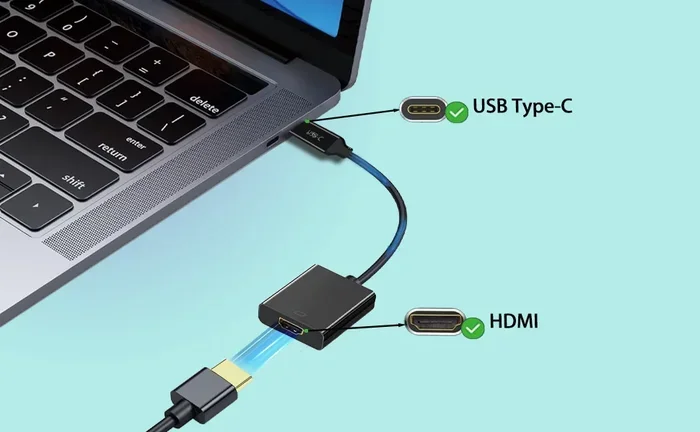
A USB-C to HDMI adapter is a small device that bridges your USB-C port and an HDMI cable. It takes the digital signal from your device and converts it into a format your TV or monitor can read. Think of it as a translator between two different languages. Your laptop speaks USB-C, and your TV speaks HDMI. The adapter makes them understand each other.
The magic behind this is something called DisplayPort Alt Mode. This is a protocol built into many modern USB-C ports. It allows the port to carry a video signal directly through the USB-C connector. Without Alt Mode, your USB-C port can only handle power and data. With Alt Mode, it can also send high-quality video to an external display.
How DisplayPort Alt Mode Works
DisplayPort Alt Mode is a standard that lets USB-C ports transmit video signals. When your device supports this mode, it means the port can output video without needing extra hardware inside your laptop or phone. The adapter or cable does the heavy lifting on the other end.
Here is what happens in simple terms:
- Your device sends a video signal through the USB-C port using Alt Mode.
- The USB-C adapter or cable receives that signal.
- The adapter converts the signal into HDMI format.
- The HDMI cable carries the signal to your TV or monitor.
- Your display shows your screen on the bigger monitor.
This whole process happens in seconds. You plug in the adapter, connect the HDMI cable, and your external display lights up. It really is that simple.
Which Devices Support USB-C to HDMI
Most modern devices with USB-C ports can output video through HDMI. But not all of them. The key is to check whether your device supports video output over USB-C. Here is a breakdown of common devices that typically work.
Laptops and Computers
The vast majority of laptops made after 2018 come with USB-C ports that support video output. Brands like Dell, HP, Lenovo, Apple, Microsoft, and ASUS almost always include USB-C video output in their laptops. Even many budget-friendly models now feature this capability.
Apple MacBooks are a great example. Every MacBook made since 2015 uses USB-C or Thunderbolt ports, and all of them support video output. Windows laptops from major brands follow the same pattern. If your laptop has a USB-C port and it can charge while connected to a monitor, there is a very good chance it supports HDMI output too.
Smartphones and Tablets
Many Android phones and tablets now use USB-C and support USB-C display output. Samsung Galaxy phones, Google Pixel devices, and OnePlus phones all typically allow you to connect to a TV or monitor. Apple iPhones still use Lightning, but the new USB-C iPhones (iPhone 15 and later) can also output video through USB-C to HDMI adapters.
iPads with USB-C ports, like the iPad Pro and iPad Air, also support external display connections. This makes them great portable monitors or presentation tools.
Game Consoles and Other Devices
Some handheld gaming devices like the Steam Deck and Nintendo Switch (with the USB-C dock) also use USB-C for video output. Portable monitors and docking stations often rely on USB-C to HDMI connections too.
| Device Type | Typically Supports USB-C to HDMI? | Notes |
|---|---|---|
| Modern Laptops (2018+) | Yes | Check for DisplayPort Alt Mode support |
| MacBook (2015+) | Yes | All models support video output |
| Android Phones (USB-C) | Most do | Check manufacturer specs |
| iPhone 15+ | Yes | USB-C models support video out |
| iPad Pro / Air (USB-C) | Yes | Supports external monitors |
| Older Devices (pre-2017) | Maybe not | Older USB-C ports may lack Alt Mode |
How to Choose the Right USB-C to HDMI Adapter
Not all USB-C to HDMI adapters are created equal. Some are cheap and work fine for basic tasks. Others support high resolutions and multiple displays. Choosing the right one depends on what you need. Here is what to look for.
Check Your Port Type
Before buying anything, check what kind of USB-C port your device has. There is a big difference between a standard USB-C port and a Thunderbolt 3 or Thunderbolt 4 port. Thunderbolt ports always support video output and offer faster data transfer. Standard USB-C ports may or may not support video, depending on the device manufacturer.
Look for a small lightning bolt icon next to your USB-C port. That means it is a Thunderbolt port and will definitely support HDMI output. If there is no lightning bolt, check your device manual or the manufacturer website to confirm video output support.
Resolution and Refresh Rate
If you want to connect to a 4K monitor or TV, make sure your adapter supports 4K resolution at 60Hz. Some cheap adapters only handle 1080p or 4K at 30Hz, which can look choppy. For gaming or video editing, you want the smoothest possible experience.
Here are the common resolution options you will see in adapters:
- 1080p at 60Hz: Great for everyday work and presentations.
- 4K at 30Hz: Fine for movies and static content.
- 4K at 60Hz: Smooth and clear. Best for most users.
- 8K at 60Hz: Rare and expensive. Only needed for professional use.
Does It Charge While You Display?
One of the best features of a good USB-C hub is pass-through charging. This means you can plug your charger into the hub, connect your HDMI cable to the monitor, and your device will charge while displaying. Without pass-through charging, your battery will drain while you use the external display.
If you plan to work at a desk for long hours, get a hub or adapter that supports charging. Look for one with a USB-C power delivery port built in. Many USB-C docking stations offer this feature along with extra USB ports and an SD card reader.
Build Quality and Brand
Cheap adapters from unknown brands can be hit or miss. They might overheat, disconnect randomly, or fail to support the resolution you need. Stick with reputable brands like Anker, Belkin, CalDigit, Satechi, or Cable Matters. These brands test their products thoroughly and offer warranties. A quality USB-C cable adapter might cost a bit more, but it will save you frustration in the long run.
Quick Tips for Choosing the Right Adapter
- Always check if your device supports DisplayPort Alt Mode before buying.
- Go for 4K at 60Hz if you want a clear and smooth picture.
- Choose a hub over a simple adapter if you need extra ports.
- Read user reviews before purchasing. Real-world feedback is gold.
- Make sure the adapter is compatible with your specific device model.
Common Mistakes People Make with USB-C to HDMI
Even though setting up a USB-C to HDMI connection is straightforward, people still run into problems. Most of these issues come from simple mistakes that are easy to avoid.
Assuming All USB-C Ports Support Video
This is the number one mistake. Not every USB-C port can output video. Some ports on certain laptops are designed only for charging or data transfer. Before you buy an adapter, confirm that your specific USB-C port supports video output. Check the manufacturer’s website or your device manual.
Using the Wrong Cable or Adapter
Not all HDMI cables are the same. A standard HDMI cable might work for 1080p, but it may not handle 4K resolution. Similarly, a basic USB-C cable may not carry video signals. You need a cable or adapter specifically designed for USB-C video output.
Ignoring Driver and Software Updates
Sometimes the problem is not the adapter at all. Your device might need a software update to properly output video through USB-C. Always keep your operating system and display drivers up to date. On Windows, go to Settings and check for updates. On macOS, use System Preferences and Software Update.
Plugging in the Wrong Way
USB-C connectors are reversible, which is great. But some adapters have specific orientations for the HDMI side. Make sure the HDMI cable is fully seated in the adapter. A loose connection can cause flickering or no signal at all.
Not Testing the Setup Before a Big Presentation
Never wait until the day of an important meeting or presentation to try your setup for the first time. Test your USB-C to HDMI connection days in advance. This gives you time to troubleshoot if something does not work.
Setting Up Your USB-C to HDMI Connection Step by Step
Setting up a USB-C display connection is quick and easy. Follow these steps and you will be up and running in no time.
Step 1: Check Your Device Compatibility
Confirm that your device has a USB-C port that supports video output. Look for DisplayPort Alt Mode or Thunderbolt support in your device specifications.
Step 2: Get the Right Adapter or Cable
Buy a USB-C to HDMI adapter or a USB-C HDMI cable that matches your needs. Consider resolution, charging support, and extra ports if you use a hub.
Step 3: Connect the Adapter
Plug the adapter into your device’s USB-C port. Make sure it clicks in securely.
Step 4: Connect the HDMI Cable
Plug one end of the HDMI cable into the adapter and the other end into your TV or monitor.
Step 5: Switch Your Display Input
On your TV or monitor, switch the input source to HDMI. Use the remote or the monitor’s menu button to select the correct HDMI port.
Step 6: Configure Display Settings
On your laptop, go to display settings and choose how you want the external monitor to work. You can mirror your screen, extend it, or use only the external display.
Expert Insights on Optimizing Your USB-C Display Setup
According to display technology experts, the best USB-C to HDMI setups use a single cable solution that handles video, data, and power. Thunderbolt docking stations are the gold standard for this. They eliminate cable clutter and give you a clean, efficient workspace.
Experts also recommend keeping your adapter firmware updated. Some adapters receive performance improvements through software updates. Check the manufacturer’s website periodically for the latest firmware.
For the best image quality, use a high-speed HDMI cable rated for the resolution you need. A Premium High Speed HDMI Cable certified for 4K will handle everything from 1080p to 4K without any issues. Avoid ultra-cheap cables that do not meet HDMI certification standards.
Benefits of Using USB-C to HDMI for Display
There are many reasons to use a USB-C to HDMI connection for your display needs. Here are the biggest benefits.
- Simplicity: One cable connects your device to your monitor. No dongles or complicated setups.
- Versatility: USB-C handles video, data, and power through a single port. You get a lot of functionality in a tiny connector.
- Portability: A small adapter fits easily in your laptop bag. You can set up an external display anywhere you go.
- Speed: USB-C and Thunderbolt connections offer fast data transfer and smooth video output with no lag.
- Future-Proof: USB-C is becoming the standard connector across devices. Investing in USB-C accessories means your setup will stay relevant for years.
- Cost-Effective: A good USB-C adapter costs much less than buying a new monitor with USB-C input.
Key Takeaways
- USB-C to HDMI works on most modern devices: Laptops, phones, and tablets with USB-C ports can connect to HDMI displays using the right adapter.
- DisplayPort Alt Mode enables video output: This built-in protocol lets USB-C ports carry video signals to external monitors and TVs.
- Check your device specs before buying: Not all USB-C ports support video. Confirm compatibility to avoid wasted money.
- Thunderbolt 3 and 4 always support video: If your device has a Thunderbolt port, you are guaranteed HDMI output support.
- 4K at 60Hz is achievable with the right gear: Invest in a quality adapter or cable for the best picture quality.
- Pass-through charging is a game-changer: Use a hub that charges your device while you display on an external screen.
Conclusion
So, can you use your USB-C port to HDMI for display connection? Absolutely. With the right USB-C to HDMI adapter or cable, you can connect almost any modern device to a TV, monitor, or projector. The key is understanding your device’s capabilities and choosing the right accessory for your needs.
Remember to check for DisplayPort Alt Mode support, pick an adapter that matches your resolution needs, and always test your setup before an important moment. Whether you are working from home, giving a presentation, or just watching a movie on a bigger screen, a USB-C display connection makes it all possible.
The world of connectivity is moving toward USB-C, and that is great news for all of us. One small adapter opens up a world of possibilities. So go ahead, plug in, and enjoy your bigger screen.
FAQs
Can any USB-C port connect to HDMI?
No, not every USB-C port supports video output. Some USB-C ports are designed only for charging or data transfer. Check your device specifications to confirm that your USB-C port supports DisplayPort Alt Mode or Thunderbolt before buying an adapter.
Do I need a special cable or just an adapter?
You can use either a USB-C to HDMI adapter with a separate HDMI cable, or a combined USB-C HDMI cable that has the adapter built into one end. Both work great. A combined cable is more convenient, while a separate adapter gives you more flexibility with cable length.
Can I use USB-C to HDMI for 4K gaming?
Yes, but you need a high-quality adapter or cable that supports 4K at 60Hz. For the best gaming experience, use a Thunderbolt 3 or Thunderbolt 4 connection, which offers the bandwidth needed for smooth 4K gameplay without lag or stuttering.
Will my USB-C to HDMI adapter charge my laptop while I use it?
Many USB-C hubs and adapters support pass-through charging, which means you can charge your laptop while using an external display. Look for an adapter with a dedicated power delivery port. A simple adapter without this feature will not charge your device while in use.
Why does my external monitor show no signal when I connect via USB-C to HDMI?
This usually happens for a few reasons. Your USB-C port might not support video output, the adapter might be faulty, or the HDMI cable might not be fully seated. Try unplugging and replugging everything, and make sure you have selected the correct HDMI input on your monitor or TV.
Can I connect multiple monitors using USB-C to HDMI?
Yes, but it depends on your device. Some laptops support multiple external displays through USB-C ports. You can use a USB-C docking station with multiple HDMI outputs or connect adapters to different USB-C ports. Check your device’s display settings to see how many external monitors it can support simultaneously.
Frequently Asked Questions
What is Can I Use My Usb C Port To Hdmi?
Can I Use My Usb C Port To Hdmi is an important topic with many practical applications.