Can You Connect Thunderbolt To Hdmi Without Any Hassle
Can You Connect Thunderbolt To HDMI without any hassle? Yes, you can! With the right adapter or docking station, connecting your Thunderbolt device to an HDMI display is simple and straightforward. This guide covers everything you need to know about Thunderbolt to HDMI connections, from basic adapters to advanced docking solutions.
Can You Connect Thunderbolt To HDMI without any hassle? The short answer is yes. Whether you are trying to hook up your laptop to a TV, set up a dual monitor workspace, or share your screen in a conference room, the connection process is simpler than you might think. With the right adapter or cable, your Thunderbolt device can send high-quality video and audio to any HDMI display. In this guide, we walk you through every step, so you never have to guess or fiddle with cables again.
Can You Connect Thunderbolt To HDMI easily? Absolutely. Thunderbolt ports are designed to carry both data and video signals, which makes them incredibly versatile. However, because Thunderbolt and HDMI use different connectors and protocols, you usually need a simple adapter or active cable to make the connection work. This article breaks down exactly what you need, which options work best, and how to avoid common pitfalls.
By the end of this guide, you will know everything about connecting Thunderbolt to HDMI. You will understand the different types of Thunderbolt ports, the best adapters on the market, and how to troubleshoot any issues that come up. Let us dive right in.
Key Takeaways
- Direct Connection Is Not Possible: Thunderbolt and HDMI use different connectors, so you need an adapter or dock to bridge the gap.
- Multiple Options Exist: You can use a USB-C to HDMI adapter, a Thunderbolt docking station, or a dedicated Thunderbolt-to-HDMI cable depending on your needs.
- Thunderbolt 4 Offers Better Performance: Thunderbolt 4 supports two 4K displays at 60Hz, while Thunderbolt 3 supports one 4K at 60Hz.
- Certified Adapters Matter: Always buy certified adapters and cables from reputable brands for the best signal quality and reliability.
- Common Issues Are Easy to Fix: Most problems like no signal, low resolution, or missing audio have simple solutions.
- Audio Requires Separate Setup: HDMI carries both video and audio, but you must select HDMI as your audio output device in your system settings.
📑 Table of Contents
Understanding Thunderbolt and HDMI Technologies
Before you grab an adapter, it helps to understand what these two technologies are and how they work together. Both Thunderbolt and HDMI are standards for transmitting audio and video signals, but they do it in different ways.
What Is Thunderbolt?
Thunderbolt is a hardware interface developed by Intel in partnership with Apple. It combines data transfer, video output, and power delivery into a single cable. The most common versions you will encounter are Thunderbolt 3 and Thunderbolt 4. Both use the USB-C connector, which is the small, oval-shaped port you see on many modern laptops and tablets.
Thunderbolt 3 can transfer data at up to 40 gigabits per second and support one 4K display at 60Hz. Thunderbolt 4 raises the bar with guaranteed support for two 4K displays or one 8K display. This makes Thunderbolt an excellent choice for professionals who need high-bandwidth video output. The Thunderbolt port is also reversible, so you never have to worry about plugging it in the wrong way.
One of the biggest advantages of Thunderbolt is that it carries both data and video over the same cable. You can connect an external hard drive, charge your laptop, and output video to a monitor all at the same time. This is why Thunderbolt has become the go-to standard for professionals, creators, and anyone who wants a clean, efficient workspace.
What Is HDMI?
HDMI stands for High-Definition Multimedia Interface. It is the most widely used standard for connecting devices to displays like TVs, monitors, and projectors. HDMI cables carry both uncompressed video and compressed or uncompressed audio through a single cable. You will find HDMI ports on almost every television, monitor, and home theater system.
There are several HDMI versions, including HDMI 1.4, HDMI 2.0, and HDMI 2.1. Each version supports different maximum resolutions and refresh rates. HDMI 2.0 can handle 4K at 60Hz, while HDMI 2.1 supports up to 8K at 60Hz or 4K at 120Hz. When you are connecting Thunderbolt to HDMI, the HDMI version on your display matters for the best picture quality. Always check what HDMI version your display supports before buying an adapter.
Can You Connect Thunderbolt To HDMI Directly?
The honest answer is: it depends on your setup. Thunderbolt and HDMI use completely different connectors and signaling protocols. You cannot plug a Thunderbolt cable directly into an HDMI port and expect it to work. However, with the right intermediary device, the connection becomes seamless.
Native Compatibility
Some devices offer built-in compatibility. For example, certain Thunderbolt docks come with HDMI ports built right in. When you plug your Thunderbolt cable into the dock, the dock handles the signal conversion automatically. This is the easiest way to connect Thunderbolt to HDMI without buying a separate adapter.
Apple MacBooks with Thunderbolt ports are a great example. You can use a Thunderbolt dock with an HDMI output to mirror or extend your display to a TV or external monitor. The process is plug-and-play on most modern operating systems, including macOS and Windows. Windows laptops with Thunderbolt ports work the same way, making this a universal solution across platforms.
When You Need an Adapter
If your device does not have a dock with a built-in HDMI port, you will need an adapter. An adapter takes the Thunderbolt or USB-C signal and converts it to an HDMI signal. There are two main types: active adapters and passive adapters.
Active adapters have their own chip to handle the signal conversion. They work reliably with most devices and support higher resolutions like 4K and even 8K. Passive adapters simply reroute the pins and work best with devices that already support HDMI output over USB-C natively. For most users, an active adapter is the safer and more versatile choice.
When shopping for an adapter, look for one that explicitly states it supports your desired resolution and refresh rate. Not all adapters are created equal, and some budget options may only support 1080p or 4K at 30Hz. Investing in a quality HDMI adapter ensures you get the best picture and audio every time.
The Best Ways to Connect Thunderbolt to HDMI
There are several practical methods to get your Thunderbolt device talking to an HDMI display. Each method has its own advantages depending on your needs and budget.
Using a USB-C to HDMI Adapter
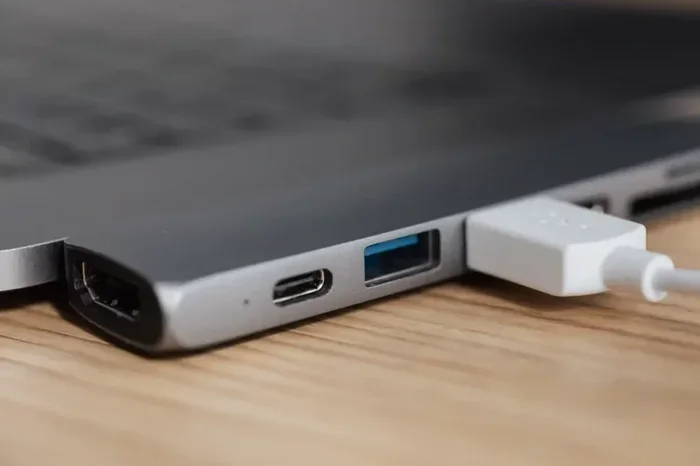
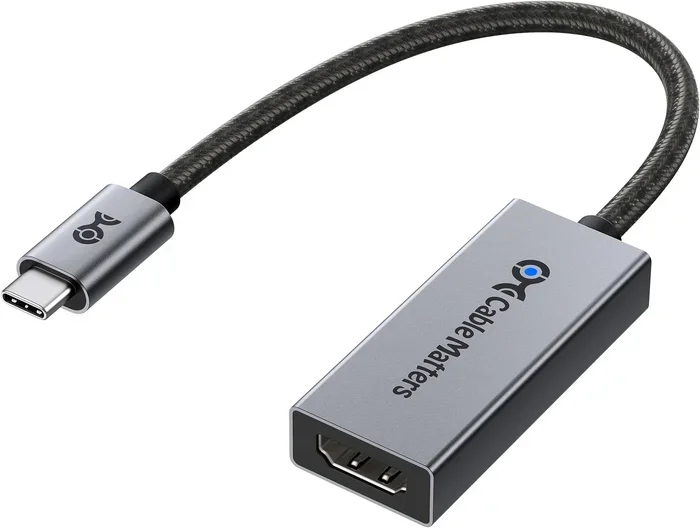
This is the simplest and most affordable option. A USB-C to HDMI adapter plugs into your Thunderbolt or USB-C port on one end and has an HDMI output on the other end. You then connect a standard HDMI cable from the adapter to your display. These adapters are small, portable, and inexpensive. They work great for occasional use, like connecting your laptop to a hotel TV or a conference room projector.
Look for adapters that support 4K resolution at 60Hz for the best picture quality. Some adapters also support audio pass-through, which means your sound comes through the HDMI cable automatically. Popular brands like Anker, Cable Matters, and Belkin offer reliable USB-C to HDMI adapters at reasonable prices.
Using a Thunderbolt Docking Station
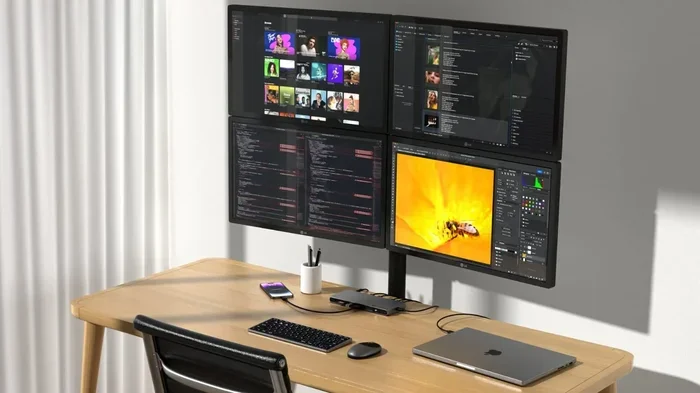
A docking station is a hub that connects to your Thunderbolt port and offers multiple outputs, including HDMI, USB ports, Ethernet, and charging passthrough. Docks are ideal for people who work at a desk and need to connect to multiple peripherals and displays simultaneously.
Many Thunderbolt docks now include HDMI 2.0 or even HDMI 2.1 ports. This means you can output 4K or even 8K video to your display while also charging your laptop and connecting other devices. Docks are more expensive than simple adapters, but they offer much more versatility. Brands like CalDigit, OWC, and Dell make excellent Thunderbolt docking stations that are built to last.
Using a Thunderbolt Cable with Built-in HDMI
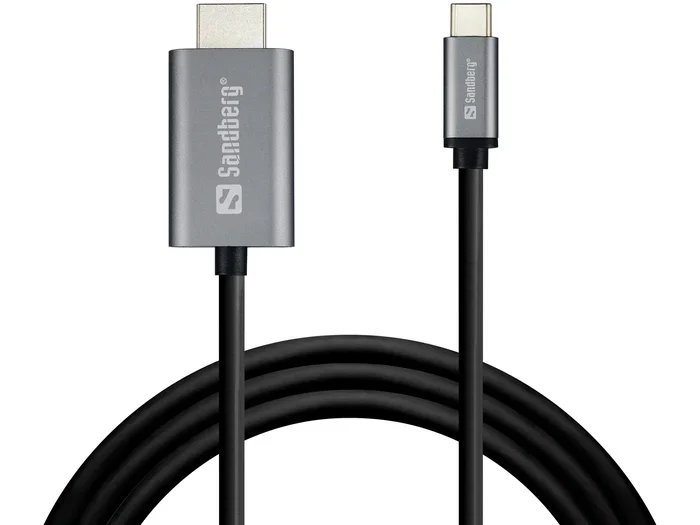
Some manufacturers now make Thunderbolt cables that have an HDMI connector on one end. These are sometimes called Thunderbolt-to-HDMI cables or active Thunderbolt cables. They handle the conversion internally, so you do not need a separate adapter. These cables are convenient but can be more expensive than standard adapters. They also tend to be shorter than standard Thunderbolt cables, which may limit your setup flexibility.
These cables work well for permanent setups where you want a clean, cable-free desk. If you are setting up a home office or a conference room presentation station, a dedicated Thunderbolt-to-HDMI cable can save you the hassle of carrying extra adapters.
Comparison Table
| Method | Pros | Cons | Best For |
|---|---|---|---|
| USB-C to HDMI Adapter | Affordable, portable, easy to use | One port used, easy to lose | Occasional connections, travel |
| Thunderbolt Docking Station | Multiple ports, charging passthrough, reliable | Expensive, bulky | Desk setups, professionals |
| Thunderbolt-to-HDMI Cable | Clean setup, no extra adapter needed | Pricier, limited length options | Permanent setups, clean desks |
Thunderbolt 3 vs Thunderbolt 4: HDMI Connections Compared
If you are shopping for adapters or docks, you may wonder whether Thunderbolt 3 and Thunderbolt 4 make a difference for HDMI connections. The short answer is yes, there are some important differences to consider.
Thunderbolt 3 was the first version to use the USB-C connector and introduced 40Gbps data transfer speeds. It supports one 4K display at 60Hz or two 4K displays at 30Hz. Thunderbolt 4 guarantees support for two 4K displays at 60Hz or one 8K display. It also has stricter certification requirements, which means better compatibility across devices.
When it comes to connecting Thunderbolt to HDMI, Thunderbolt 4 gives you more flexibility and better performance. If you plan to use multiple HDMI displays or need higher refresh rates, Thunderbolt 4 is the way to go. However, Thunderbolt 3 adapters and docks still work perfectly fine for most everyday use cases. Here is a quick comparison:
- Thunderbolt 3: Supports one 4K at 60Hz or two 4K at 30Hz. Data transfer at 40Gbps. Works with most active adapters.
- Thunderbolt 4: Supports two 4K at 60Hz or one 8K. Data transfer at 40Gbps with guaranteed performance. Better multi-display support.
Quick Tips: Always check the specifications of your adapter or dock to confirm the maximum resolution and refresh rate it supports. Not all USB-C to HDMI adapters are created equal, and some may only support 1080p or 4K at 30Hz. For the best resolution support, choose an adapter that matches or exceeds your display’s native capabilities.
Common Problems and How to Fix Them
Even with the right adapter, you might run into issues when trying to connect Thunderbolt to HDMI. Here are the most common problems and how to solve them quickly.
No Signal on the HDMI Display
If your external monitor shows no signal, the first thing to check is the physical connection. Make sure the adapter is fully seated in the Thunderbolt port and the HDMI cable is securely connected to both the adapter and the display. Try unplugging everything and plugging it back in.
If that does not work, try a different HDMI cable or a different port on your display. Sometimes the issue is with the cable or the display input, not the adapter. Also, make sure your display is set to the correct input source, such as HDMI 1 or HDMI 2. This sounds obvious, but it is one of the most common reasons for a no-signal issue.
Low Resolution or Flickering Display
If your image looks blurry or flickers, your adapter might not support the resolution you are trying to use. Check the adapter specifications and make sure it supports your display’s native resolution. Lower the resolution in your display settings as a quick test to see if that fixes the issue.
Flickering can also be caused by a faulty cable or a loose connection. Try a different HDMI cable or a different adapter to rule out hardware issues. Some older Thunderbolt 3 adapters struggle with 4K at 60Hz and work better at 4K at 30Hz or 1080p. If you are using a Windows laptop, updating your graphics drivers can also resolve flickering and resolution problems.
No Audio Over HDMI
Sometimes you get video but no sound. This is a common issue that is easy to fix. On most operating systems, you need to select HDMI as the audio output device. On Windows, right-click the speaker icon in your taskbar, choose your playback device, and select the HDMI output. On macOS, go to System Settings, then Sound, and choose the HDMI display as your output.
Common Mistakes: Many people assume audio will automatically come through HDMI. It does not always. Always check your audio output settings after connecting a new display. This is especially important on Windows laptops, where the system sometimes defaults to internal speakers even after you plug in an external display.
Expert Tips for the Best Thunderbolt to HDMI Experience
Getting the best results from your Thunderbolt to HDMI setup is all about choosing the right equipment and settings. Here are some expert-backed tips that make a real difference in your daily workflow.
Buy Certified Adapters and Cables
Not all adapters are created equal. Cheap, uncertified adapters may not support the resolutions and refresh rates you need. Look for adapters that are certified by the Thunderbolt certification program or from reputable brands. Spending a little more on a quality adapter saves you from frustration later.
Expert Insight: Brands like CalDigit, Anker, Belkin, and Cable Matters are known for producing reliable Thunderbolt adapters and docks. They invest in proper signal conversion chips and rigorous testing. A certified adapter ensures your signal conversion is clean and reliable, which means fewer headaches and better performance over time.
Check Your Device Display Settings
Once connected, your operating system should automatically detect the external display. If it does not, go to your display settings and look for an option to detect or add a display. On Windows, this is in Settings > System > Display. On macOS, it is in System Settings > Displays.
You can choose to mirror your display (show the same image on both screens) or extend it (use the external display as additional workspace). Extending your display is especially useful for productivity and multitasking. You can drag windows between screens, spread your workspace across two monitors, or use one screen for presentations while working on the other.
Consider Your Cable Length
Longer cables can sometimes cause signal degradation, especially at higher resolutions like 4K or 8K. If you need a cable longer than 6 feet, consider using an active HDMI cable, which has built-in signal boosting. For the adapter or dock itself, keep the Thunderbolt cable as short as practical to maintain the best signal quality.
Quick Tips: Always use high-quality HDMI cables rated for the resolution you need. A cheap HDMI 1.4 cable may not support 4K at 60Hz even if your adapter does. Look for cables labeled “Premium High Speed HDMI” for the best results. Good cable quality ensures your audio and video signals stay strong and clear from your device to the display.
Keep Your Drivers and Firmware Updated
Sometimes display issues are caused by outdated drivers or firmware. Check for updates to your graphics drivers, Thunderbolt drivers, and your docking station firmware. Manufacturers regularly release updates that improve compatibility and fix bugs. On Windows, you can check for driver updates through Device Manager or your laptop manufacturer’s support website. On macOS, system updates usually include the latest Thunderbolt and display drivers.
Keeping your compatible devices up to date is one of the simplest ways to prevent connection issues. It only takes a few minutes and can save you hours of troubleshooting down the road.
Conclusion
Can You Connect Thunderbolt To HDMI without any hassle? Yes, you absolutely can. Whether you use a simple USB-C to HDMI adapter, a full-featured Thunderbolt docking station, or a dedicated Thunderbolt-to-HDMI cable, the process is straightforward and reliable. The key is choosing the right method for your specific needs and ensuring your equipment supports the resolutions and features you want.
Remember to check compatibility before you buy, invest in certified adapters for the best performance, and do not forget to check your audio and display settings after connecting. With the right setup, your Thunderbolt device will deliver stunning video and audio to any HDMI display in seconds. The whole process takes less than a minute once you have the right gear.
Now that you know how easy it is to connect Thunderbolt to HDMI, there is no reason not to set up your external display today. Grab the right adapter, plug it in, and enjoy your expanded workspace or big-screen experience. Whether you are a professional who needs dual monitors for work or a home user who wants to stream movies on your TV, the connection is simple and reliable.
Start with a quality adapter or dock, follow the tips in this guide, and you will be up and running in no time. Connecting Thunderbolt to HDMI is one of the easiest ways to get more screen real estate and better audio from your favorite devices. Try it today and see the difference for yourself.
Frequently Asked Questions
Do I need a special cable to connect Thunderbolt to HDMI?
You do not necessarily need a special cable, but you do need an adapter or a dock that converts the Thunderbolt signal to HDMI. A standard USB-C to HDMI adapter works perfectly for most setups. If you want a cable-only solution, look for a Thunderbolt cable with a built-in HDMI connector. These are available from most major accessory brands and are a great option for clean, permanent setups.
Can I connect Thunderbolt 3 to an HDMI 2.0 monitor?
Yes, you can. Thunderbolt 3 supports 4K at 60Hz, which is the same resolution that HDMI 2.0 can handle. Just make sure your adapter or dock supports HDMI 2.0 and 4K at 60Hz to get the best results. Many modern USB-C to HDMI adapters are fully compatible with HDMI 2.0 displays. Always check the adapter specifications before purchasing to confirm the resolution and refresh rate support.
Will connecting Thunderbolt to HDMI damage my devices?
No, it will not. Using a quality adapter or dock is completely safe. Thunderbolt and HDMI are both standard protocols designed to work together through adapters. Just avoid cheap, uncertified adapters, as they may not have proper signal conversion and could potentially cause issues with your display or device. Stick with reputable brands and certified products for peace of mind.
Can I use a Thunderbolt to HDMI connection for gaming?
Yes, you can, but your experience depends on your adapter and display. For smooth gaming, you need an adapter that supports high refresh rates and low latency. Thunderbolt 4 adapters with HDMI 2.1 support can handle 4K at 120Hz, which is great for gaming. Check the adapter specifications carefully before buying for a gaming setup. Also, make sure your display supports the refresh rate you need for the best gaming experience.
Why is there no sound when I connect Thunderbolt to HDMI?
This is a common issue and usually easy to fix. Your operating system may still be set to output audio through your laptop speakers instead of the HDMI display. Go to your sound settings and select the HDMI output as your default audio device. On Windows, this is in the Sound settings under Output. On macOS, it is in the Sound preferences. Once you switch the audio output, your sound should come through the HDMI display immediately.
Can I connect multiple HDMI displays using Thunderbolt?
Yes, but it depends on your Thunderbolt version and your docking setup. Thunderbolt 4 supports two 4K displays natively. You can achieve this by using a Thunderbolt dock with multiple HDMI ports or by daisy-chaining compatible displays. Thunderbolt 3 supports two 4K displays at 30Hz or one 4K display at 60Hz. Check your dock or adapter specifications for exact multi-display support. If you need more than two displays, consider using a multi-stream transport capable dock or adapter.