Can You Get A USB C To HDMI Adapter To Connect Your Devices
A USB C to HDMI adapter lets you connect your laptop, tablet, or phone to a TV or monitor with ease. These small but powerful adapters carry both video and audio through a single cable. Whether you are presenting at work or streaming movies at home, a USB C to HDMI setup makes it simple and reliable.
Have you ever sat down with your laptop and a big TV screen, ready to share something important, only to realize you do not have the right cable? That frustrating moment is why USB C to HDMI adapters exist. These small gadgets bridge the gap between modern devices and traditional displays. If you have ever wondered whether you can get a USB C to HDMI adapter and how it actually works, you are in the right place.
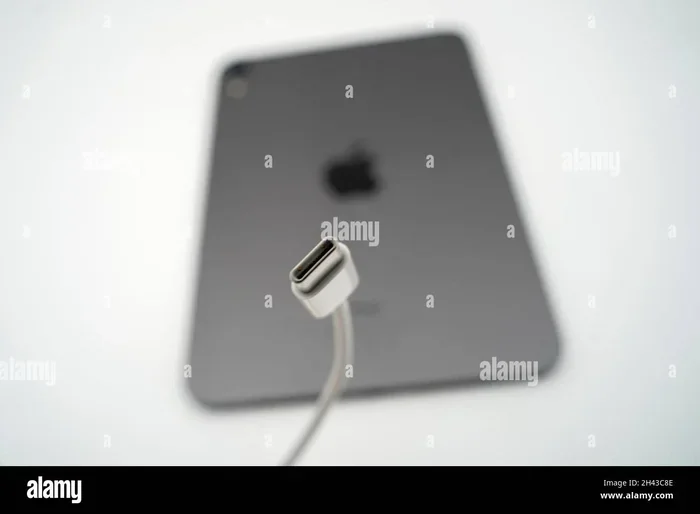
The world of connectivity has changed fast. Most new laptops, tablets, and even smartphones now use the USB C port. But many TVs, projectors, and monitors still rely on HDMI cables. A USB C to HDMI adapter solves this problem in seconds. You just plug one end into your device and the other into your screen. That is it. No complicated setup, no extra software, no headaches.
In this guide, we will walk you through everything you need to know. We will cover how these adapters work, what to look for when buying one, the best options on the market, and how to troubleshoot common issues. By the end, you will feel confident choosing the right USB C to HDMI adapter for your needs.
Key Takeaways
- Universal Compatibility: Most modern laptops, tablets, and phones use USB C, making these adapters widely useful.
- Easy Setup: USB C to HDMI adapters are mostly plug and play, requiring no extra software.
- 4K Support: Many adapters support 4K resolution, giving you sharp and clear visuals.
- Choose Wisely: Not all adapters are the same, so check for Thunderbolt 3, bandwidth, and device compatibility before buying.
- Common Issues Are Fixable: Most problems like no signal or flickering can be solved with simple troubleshooting steps.
- Value for Money: Good USB C to HDMI adapters are affordable and save you from buying a new monitor or TV.
📑 Table of Contents
- What Is a USB C to HDMI Adapter?
- Why You Need a USB C to HDMI Adapter
- How to Choose the Right USB C to HDMI Adapter
- Top USB C to HDMI Adapters You Can Buy
- Common Problems with USB C to HDMI Adapters and How to Fix Them
- Expert Tips for Getting the Best Performance
- USB C to HDMI vs. Other Connection Options
- Final Thoughts
What Is a USB C to HDMI Adapter?
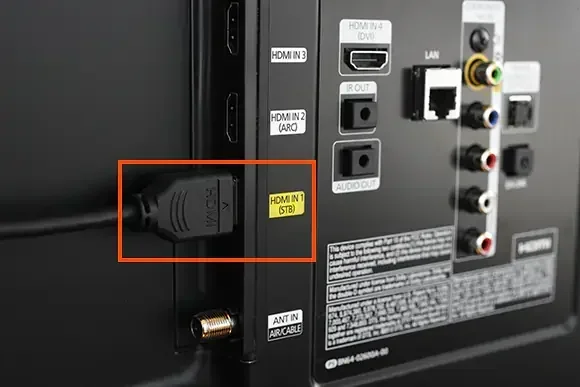
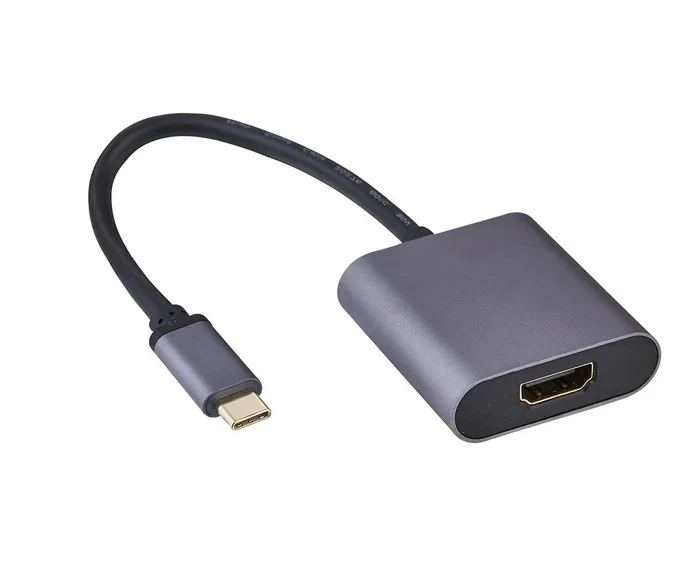
A USB C to HDMI adapter is a small device that converts the USB C signal from your laptop or phone into an HDMI signal that a display can understand. Think of it as a translator between two different languages. Your device speaks USB C, and your TV or monitor speaks HDMI. The adapter makes them understand each other.
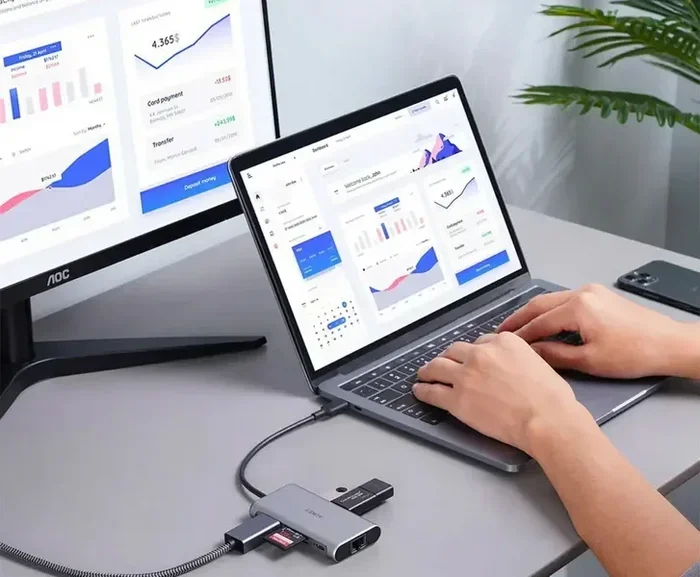
These adapters come in different shapes and sizes. Some are small dongles that plug directly into your device. Others are larger docking stations with extra ports for charging, USB drives, and Ethernet connections. The basic idea remains the same. You send video and audio from your device through a single cable to a bigger screen.
How Does It Work?
The USB C port on your device can carry many types of data. It can handle power charging, file transfers, and video signals. When you use a USB C to HDMI adapter, it takes the video and audio data from the USB C port and converts it into an HDMI output. This process happens almost instantly. You plug it in, and your screen lights up.
Most modern adapters use something called DisplayPort Alt Mode over USB C. This is a standard that allows video signals to pass through USB C cables. It is built into many devices, so you do not need any drivers or special software. Just plug and play.
Why You Need a USB C to HDMI Adapter
There are many reasons why a USB C to HDMI adapter has become an essential accessory. Let us look at the most common ones.
1. Presentations at Work or School
Many modern laptops have dropped the HDMI port entirely. If you need to present on a projector or a big screen, a USB C to HDMI adapter saves the day. You simply plug it in, and your laptop screen mirrors to the display. No fumbling with cables or adapters. Just a clean and simple connection.
2. Streaming and Gaming on a Bigger Screen
Watching movies or playing games on a small laptop screen is okay, but it is not the same as a big TV. With a USB C to HDMI adapter, you can stream Netflix, play console-quality games, or browse the web on your TV. The experience feels much more immersive and enjoyable.
3. Connecting Multiple Devices
If you work from home, you might use a laptop as your main computer but want a second monitor for productivity. A USB C to HDMI adapter lets you connect your laptop to an external monitor in seconds. You get more screen space, better multitasking, and a setup that feels like a proper workstation.
4. Device Compatibility
Not all devices play nice with every operating system. Some devices run on a proprietary operating system that may limit how third-party accessories work. If you run into compatibility issues, it helps to understand the strengths and weaknesses of your device’s software. You can read about the advantages and disadvantages of proprietary operating systems to get a clearer picture of why some adapters work better on certain devices than others.
How to Choose the Right USB C to HDMI Adapter
Not all adapters are created equal. Buying the first one you see online can lead to disappointment. Here is what you should look for before making a purchase.
Check for Thunderbolt 3 or Thunderbolt 4 Support
Thunderbolt 3 and Thunderbolt 4 are advanced versions of the USB C port. They offer higher bandwidth and better performance. If your device supports Thunderbolt, look for an adapter that is Thunderbolt compatible. This ensures you get the best video quality and the fastest data transfer speeds. A Thunderbolt-enabled USB C to HDMI adapter can handle 4K and even 8K resolution smoothly.
Resolution and Refresh Rate
Think about what you need the adapter for. If you are just browsing the web or watching videos, 1080p is fine. But if you are a gamer or a designer, you want 4K support at a high refresh rate. Check the adapter specifications carefully. Some cheap adapters only support 1080p at 30Hz, which looks a bit choppy. A good adapter supports 4K at 60Hz or higher.
Build Quality and Portability
Adapters come in all shapes. Some are tiny and portable, perfect for traveling. Others are larger docking stations with multiple ports. If you carry your laptop around often, a compact dongle-style adapter is a great choice. If you keep your setup at a desk, a docking station with extra USB ports and charging support might be better.
Audio Support
Most people forget about audio, but it matters. A good USB C to HDMI adapter should carry both video and sound through the same cable. You do not want to need a separate audio cable. Check the product description to make sure the adapter supports audio output.
Device Compatibility
Before buying, make sure the adapter works with your specific device. Most adapters work with Windows laptops, MacBooks, and Android phones. But some devices have quirks. Always check the manufacturer’s compatibility list. If you are dealing with complex connectivity setups, especially in business environments, understanding how different networks and devices communicate can help. You can explore the advantages and disadvantages of using a value added network for electronic commerce communication to learn more about how different connection types work together.
Top USB C to HDMI Adapters You Can Buy
The market is full of options, which can make choosing hard. Here are some of the best and most popular USB C to HDMI adapters that users love.
1. Apple USB C Digital AV Multiport Adapter. This is the go-to choice for MacBook users. It supports HDMI output, USB C charging, and a standard USB port. It is reliable, well-built, and works flawlessly with macOS.
2. Anker USB C to HDMI Adapter. Anker makes affordable and high-quality adapters. Their USB C to HDMI model supports 4K at 60Hz and is compact enough to carry in your pocket. It works with most laptops and tablets.
3. Satechi USB C to HDMI Adapter with Ethernet. This adapter adds an Ethernet port, which is great for users who need a wired internet connection. It supports 4K output and is perfect for office setups where Wi-Fi is not stable.
4. Ugreen USB C to HDMI Adapter. Ugreen offers solid performance at a budget-friendly price. It supports 4K at 30Hz and comes in a sleek, small design. It is a great option for everyday use.
5. CalDigit USB C to HDMI Dock. If you need more than just an adapter, this dock is a great choice. It offers HDMI output, multiple USB ports, and charging support. It is perfect for users who want a full workstation setup from a single USB C to HDMI hub.
Common Problems with USB C to HDMI Adapters and How to Fix Them
Even the best adapters can sometimes cause issues. Here are the most common problems and how to solve them.
No Signal on the Display
If your TV or monitor shows nothing, do not panic. First, check that the adapter is fully plugged in. Sometimes it feels connected but is not seated properly. Try unplugging it and plugging it back in firmly. If that does not work, try a different HDMI cable or a different port on your TV.
Flickering or Distorted Image
A flickering screen usually means the adapter is not getting enough power or the resolution is set too high. Try lowering the resolution on your device to 1080p and see if the problem goes away. Also, make sure your USB C cable can handle video output. Not all USB C cables support video signals. Only use cables that are rated for data and video transfer.
No Audio Through HDMI
If you get video but no sound, check your device audio settings. Make sure the HDMI output is set as the default audio device. On Windows, go to Sound Settings and select the HDMI output. On Mac, go to Sound Preferences and choose the HDMI display as the output source.
Adapter Not Recognized by Device
Sometimes your device simply does not detect the adapter. This can happen if the adapter is not compatible with your device. Try restarting your device with the adapter plugged in. If that does not work, check for firmware or software updates. On some devices, you may need to install a driver or update your operating system for the adapter to work properly.
Expert Tips for Getting the Best Performance
Want to get the most out of your USB C to HDMI adapter? Follow these expert tips.
- Use high-quality cables. Cheap HDMI cables can cause signal loss and poor image quality. Invest in good cables that support the resolution you need.
- Keep your adapter cool. Some adapters get warm during use, especially when running 4K content. Do not cover them with papers or cloth. Let air circulate around them.
- Update your device software. Keeping your operating system up to date ensures the best compatibility with adapters and peripherals.
- Avoid cheap no-name adapters. They might save you a few dollars, but they often cause frustration. Stick to trusted brands like Anker, Satechi, or Ugreen.
- Check your device specs. Not every USB C port supports video output. Some ports are charging-only. Check your device manual to confirm your USB C port supports DisplayPort Alt Mode.
- Use a docking station for permanent setups. If you use an external monitor every day, a docking station is better than a simple adapter. It provides more ports, better power delivery, and a more stable connection.
USB C to HDMI vs. Other Connection Options
There are several ways to connect your device to a display. Let us compare the most common options.
- USB C to HDMI: Simple, affordable, and widely compatible. Best for most users who need a quick and easy connection.
- Wireless Display (Miracast/AirPlay): No cables needed, but can have lag and lower image quality. Good for casual use but not ideal for gaming or presentations.
- USB C to DisplayPort: Offers excellent video quality but requires a DisplayPort monitor. Less common than HDMI in homes and offices.
- Docking Stations: More expensive but offer multiple ports and charging support. Best for professionals who need a full setup.
For most people, a USB C to HDMI adapter is the best choice. It is simple, reliable, and works with almost any display. If you need more ports or features, a docking station is a great upgrade.
Final Thoughts
A USB C to HDMI adapter is one of those small accessories that makes a huge difference. Whether you are a student presenting a project, a professional working with dual monitors, or a movie lover wanting a bigger screen, this little gadget delivers big value. It is affordable, easy to use, and compatible with a wide range of devices.
The key is to choose the right adapter for your needs. Check for resolution support, build quality, and device compatibility before you buy. Stick with trusted brands and avoid the cheapest options on the market. With the right USB C to HDMI adapter, you can turn any TV or monitor into an extension of your device in seconds.
So yes, you absolutely can get a USB C to HDMI adapter. And now that you know what to look for, you are ready to find the perfect one for your setup. Happy connecting!
Frequently Asked Questions
Do USB C to HDMI adapters work with all devices?
Most modern devices with a USB C port work with these adapters. However, some devices may have limitations. Always check your device specifications to confirm it supports video output through USB C before buying an adapter.
Can I use a USB C to HDMI adapter for gaming?
Yes, you can. Look for an adapter that supports 4K at 60Hz or higher for the best gaming experience. Keep in mind that wireless options may introduce lag, so a wired adapter is always better for gaming.
Do I need to install drivers for a USB C to HDMI adapter?
Most adapters are plug and play and do not require any drivers. However, some adapters may need a software update or driver installation for full compatibility. Check the manufacturer’s website for instructions.
Can I charge my device while using a USB C to HDMI adapter?
It depends on the adapter. Some simple dongles do not support charging while in use. Docking stations and multiport adapters usually have a separate charging port so you can power your device while using the HDMI output.
What is the difference between USB C and Thunderbolt 3?
Thunderbolt 3 uses the same USB C connector but offers much faster data transfer speeds and higher bandwidth. A Thunderbolt 3 adapter can handle 4K and even 8K video more smoothly than a standard USB C adapter.
Can I connect multiple monitors with a single USB C to HDMI adapter?
A single adapter usually supports one monitor output. If you need multiple monitors, you will need a docking station with multiple HDMI ports or a multi-display adapter designed for that purpose.
=== CONCLUSION ===
A USB C to HDMI adapter is a simple yet essential tool for anyone who uses modern devices with traditional displays. It bridges the gap between new technology and older screens, giving you flexibility and convenience. Whether you work from home, study, or just want to enjoy content on a bigger screen, the right adapter makes everything easier.
Choose your adapter carefully, check for compatibility, and invest in quality. With the tips and recommendations in this guide, you are well equipped to make the best choice. A great connection is just one plug away.