Can You Go From USB C To USB A Without Losing Speed
Yes, you can go from USB C to USB A without losing speed, but only if you use the right adapter or cable. The USB C to USB A connection is backward compatible, meaning older USB-A devices still work with newer USB-C laptops and phones. However, your speed depends on the adapter quality, the USB standard you use, and the capabilities of both devices.
Have you ever plugged your shiny new USB-C laptop into an older USB-A device and wondered if you would lose speed? This is a question a lot of people ask. The good news is that you can go from USB C to USB A without a huge speed hit. But there are some important things you need to know first.
The world of USB connectors can feel confusing. You have USB-C on one side and USB-A on the other. They look different. They have different shapes. And they were built for different eras of technology. But they can work together. The key is understanding how they connect and what you need to make it fast.
In this guide, we will walk through everything you need to know about going from USB C to USB A. We will cover speed, adapters, cables, and common mistakes. By the end, you will know exactly how to get the best performance every time you plug in a USB-A device to your USB-C port.
Key Takeaways
- USB-C to USB-A adapters preserve speed: When you use a quality adapter, your data transfer rates stay the same as the original USB-C connection.
- Not all adapters are equal: Cheap adapters can bottleneck your speed and cause slow file transfers or charging issues.
- USB standards matter: USB 3.0, USB 3.1, and USB 3.2 all offer different speed caps that affect your USB C to USB A performance.
- Cable quality is critical: A good USB cable with proper shielding ensures you do not lose speed when connecting USB C to USB A.
- Thunderbolt adds extra speed: Thunderbolt 3 and 4 USB-C ports can deliver much faster speeds through a compatible USB-C to USB-A adapter.
- Common mistakes slow you down: Using damaged cables or wrong adapters is the top reason people experience speed loss.
📑 Table of Contents
What Are USB-C and USB-A Connectors?
A Quick Look at USB-A
USB-A is the classic rectangular connector you have seen for years. It is the flat, wide plug that goes into almost every computer, charger, and hub. USB-A has been around since the late 1990s. It was the standard connector for a long time. Many printers, external hard drives, and keyboards still use USB-A today.
USB-A comes in different versions. USB 2.0 is the oldest and slowest. USB 3.0 introduced blue inserts and much faster speeds. USB 3.1 and USB 3.2 pushed the limits even further. But no matter the version, USB-A always has the same rectangular shape.
A Quick Look at USB-C
USB-C is the newer, smaller, and reversible connector. You can flip it either way when plugging it in. That alone makes it a huge upgrade over USB-A. USB-C supports faster data transfer rates and more power delivery. It is now the standard on most modern laptops, phones, and tablets.
USB-C is not just a connector shape. It is also a standard that can support different protocols. These include USB 3.0, USB 3.1, USB 3.2, Thunderbolt 3, Thunderbolt 4, and USB4. This versatility is what makes USB-C so powerful. But it also means that not every USB-C port is the same.
How Do They Compare?
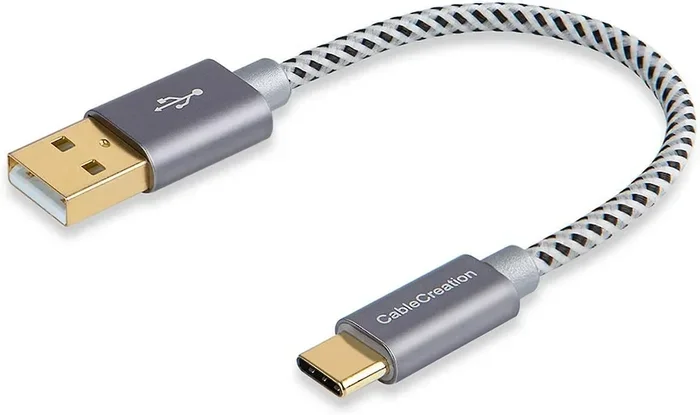
The main difference between USB-C and USB-A is the shape and the technology inside. USB-C is smaller, reversible, and supports newer standards. USB-A is larger, has a fixed orientation, and is older. But both can carry data and power. That is why you can connect them with an adapter or a cable that has USB-C on one end and USB-A on the other.
| Feature | USB-A | USB-C |
|---|---|---|
| Shape | Rectangular, one-way | Oval, reversible |
| Max Speed (USB 3.2 Gen 2) | 10 Gbps | 10 Gbps or higher |
| Power Delivery | Up to 15W (USB 3.0) | Up to 240W (USB PD) |
| Common Devices | Older printers, flash drives | Modern laptops, phones |
| Reversible | No | Yes |
| Backward Compatible | Yes (with adapters) | Yes (with adapters) |
Can You Go From USB C to USB A Without Losing Speed?
The short answer is yes. You can go from USB C to USB A without losing speed, but only under the right conditions. If you use a high-quality adapter or cable, your data transfer speed will stay the same. The adapter does not slow things down by itself. The problem starts when you use a cheap or low-quality adapter.
When you connect a USB-C device to a USB-A device, the speed is determined by the slowest part of the chain. This means if your USB-C port supports USB 3.2 Gen 2 at 10 Gbps but your USB-A port only supports USB 2.0 at 480 Mbps, your speed drops to 480 Mbps. The adapter just passes the signal along. It does not magically boost it.
How USB-C to USB-A Adapters Work
A USB-C to USB-A adapter is a small device that bridges the two connector types. It takes the USB-C signal from your laptop or phone and converts it so it can plug into a USB-A port. The adapter has internal wiring that maps the pins correctly. A good adapter does this without adding any delay or reducing the bandwidth.
Most adapters are plug-and-play. You do not need to install any drivers. Just plug the adapter into your USB-C port, then plug your USB-A device into the other end. Your computer should recognize the device right away. If it does not, try a different adapter or check the cable.
When You Might Lose Speed
You can lose speed in a few situations. First, if the adapter itself is poorly made, it may not support the full speed of the USB standard. Second, if your USB-A device only supports an older USB standard, that becomes the bottleneck. Third, if the cable is too short or too long without proper shielding, signal degradation can slow things down.
Another reason for speed loss is using a USB-C to USB-A cable that only supports USB 2.0. These cables are common and cheap. They work fine for charging and basic tasks. But if you are transferring large files, they will be painfully slow. Always check what USB standard your cable and adapter support before buying.
Quick Tip: Look for adapters and cables that explicitly state they support USB 3.0, USB 3.1, or USB 3.2. If it does not mention a USB standard, it is probably a USB 2.0 cable, and your speed will be limited.
Factors That Affect Your Transfer Speed
Going from USB C to USB A is not just about the adapter. Several factors play a role in how fast your data moves. Understanding these factors helps you troubleshoot slow connections and choose the right gear.
1. The USB Standard of Your Devices
The USB standard is the biggest factor. USB 2.0 maxes out at 480 Mbps. USB 3.0 reaches 5 Gbps. USB 3.1 hits 10 Gbps. And USB 3.2 Gen 2×2 can go up to 20 Gbps. If either your USB-C device or your USB-A device only supports USB 2.0, your transfer speed will be capped at 480 Mbps no matter what adapter you use.
Here is a simple way to think about it. The data transfer speed is like water flowing through a pipe. The narrowest part of the pipe determines the flow rate. If your USB-C port is a wide pipe but your USB-A port is narrow, the water slows down at the narrow part.
2. Cable and Adapter Quality
Not all USB cables and adapters are built the same. A well-made USB-C to USB-A cable has proper shielding and high-quality copper wiring. This ensures the signal stays strong and fast. A cheap cable with thin wiring and no shielding can cause signal loss, especially over longer distances.
When shopping for adapters, look for brands that are known for quality. Brands like Anker, Belkin, and Cable Matters make reliable USB-C to USB-A adapters. Avoid the cheapest options you find online. They might work, but they often limit your speed or fail after a few months.
3. Device Capabilities and Port Limitations
Your device matters too. Some laptops have USB-C ports that only support charging and basic USB 2.0 speeds. Others have Thunderbolt 3 or Thunderbolt 4 ports that support much faster speeds. If you plug a USB-A device into a USB-C port that only supports USB 2.0, you will get USB 2.0 speeds regardless of what adapter you use.
Check your device specifications to know what your USB-C port can do. Look for terms like SuperSpeed USB, USB 3.2, or Thunderbolt. These terms tell you the port supports faster speeds. If you see only USB 2.0, that is your speed limit.
Expert Insight: According to the USB Implementers Forum, the USB-C connector itself does not define a speed. The speed depends on the USB standard the port supports. A USB-C port can support USB 2.0, USB 3.0, USB 3.1, USB 3.2, or USB4. Always check the port specification, not just the connector shape.
4. File Size and Transfer Method
The type of file you are transferring also matters. Large files like video files benefit the most from faster USB standards. Small files like documents do not show much difference between USB 2.0 and USB 3.2. The overhead of starting and stopping transfers can eat up the speed advantage for small files.
Also, the file system matters. FAT32 has a 4 GB file size limit. ExFAT and NTFS do not. If you are using a USB-A flash drive formatted as FAT32, you might run into issues with large files, which can slow down or stop your transfer entirely.
Best USB-C to USB-A Adapters and Cables
Choosing the right adapter or cable makes a big difference. Here are some of the best options available right now. All of these support high-speed data transfer and are built to last.
| Product | Type | USB Standard | Max Speed | Price Range |
|---|---|---|---|---|
| Anker USB-C to USB-A Adapter | Adapter | USB 3.2 | 10 Gbps | $10-$15 |
| Cable Matters USB-C to USB-A Cable | Cable | USB 3.2 Gen 1 | 5 Gbps | $8-$12 |
| Belkin USB-C to USB-A Adapter | Adapter | USB 3.0 | 5 Gbps | $12-$18 |
| Sabrent USB-C to USB-A Adapter | Adapter | USB 3.2 | 10 Gbps | $9-$14 |
| UGREEN USB-C to USB-A Cable | Cable | USB 3.2 Gen 2 | 10 Gbps | $10-$16 |
| JSAUX USB-C to USB-A Adapter | Adapter | USB 3.0 | 5 Gbps | $7-$11 |
When choosing between an adapter and a cable, think about your needs. An adapter is great if you already have a USB-A cable you like. A cable with USB-C on one end and USB-A on the other is more convenient if you do not want to carry extra pieces. Both options work well as long as they support the right USB standard.
Quick Tip: If you need to connect multiple USB-A devices to your USB-C laptop, consider a USB-C hub with built-in USB-A ports. This gives you more ports and often better performance than using multiple adapters.
Common Mistakes People Make
Even with the right adapter, people make mistakes that slow down their USB C to USB A connections. Here are the most common ones and how to avoid them.
Using a USB 2.0 Adapter Without Knowing It
The biggest mistake is buying an adapter or cable without checking the USB standard. Many USB-C to USB-A cables on the market only support USB 2.0. They look the same as USB 3.0 or USB 3.2 cables, but they are much slower. Always check the packaging or product description for the USB standard. If it says USB 2.0, keep looking.
Ignoring Cable Length
Longer cables can cause signal degradation. A 3-foot USB-C to USB-A cable will generally perform better than a 10-foot cable of the same standard. If you need a longer cable, look for one with active signal boosting or better shielding. This helps maintain speed over longer distances.
Plugging Into the Wrong Port
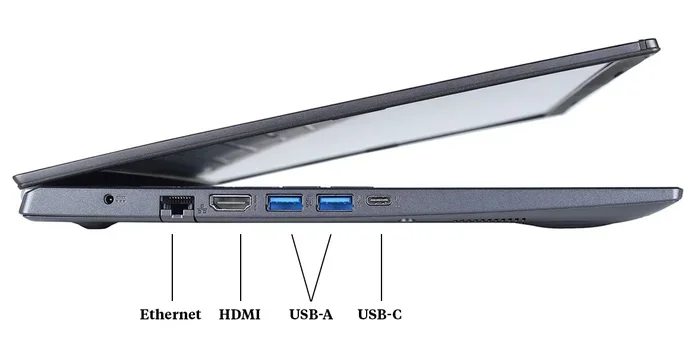
Not all USB-C ports on your laptop are the same. Some ports are for charging only. Others support data transfer and video output. If you plug a USB-A device into a charging-only USB-C port, it will not work for data transfer at all. Check your laptop manual or look for icons next to the ports to know which ones support data.
Using Damaged or Worn Cables
A damaged cable is a slow cable. Frayed ends, bent connectors, and exposed wires all affect performance. If your USB-C to USB-A cable looks worn out, replace it. A new cable is cheap and will almost always solve slow transfer issues.
Common Mistakes to Avoid:
- Assuming all USB-C cables are the same speed
- Buying the cheapest adapter without checking reviews
- Ignoring the USB standard printed on the packaging
- Using a cable that is too long for your setup
- Plugging into a charging-only USB-C port instead of a data port
Expert Tips for Getting the Most Out of Your Connection
Want to make sure you are getting the fastest possible speed when you go from USB C to USB A? Here are some expert tips that make a real difference.
Tip 1: Check Both Ends. Before you buy anything, check the USB standard supported by both your USB-C device and your USB-A device. The speed will be limited by the slower of the two. If both support USB 3.2, you can get up to 10 Gbps. If one only supports USB 2.0, you are stuck at 480 Mbps.
Tip 2: Invest in Quality Gear. A good USB-C to USB-A adapter or cable costs between $8 and $20. This small investment can save you from frustratingly slow transfers. Look for adapters with metal housings and braided cables. These last longer and perform better.
Tip 3: Keep Your Drivers Updated. Even though most USB-C to USB-A adapters are plug-and-play, outdated drivers can sometimes cause issues. Make sure your operating system is up to date. On Windows, go to Device Manager and check for any USB-related updates. On Mac, system updates usually include the latest driver support.
Tip 4: Use a Powered USB Hub If Needed. Some USB-A devices, like external hard drives, need more power than a single USB-C port can provide through an adapter. In these cases, use a powered USB hub. The hub provides its own power and ensures your device gets the energy it needs to work at full speed.
Tip 5: Format Your USB-A Drive Correctly. If you are using a USB-A flash drive or external drive, make sure it is formatted as exFAT or NTFS. These file systems support large files and work well with both Windows and Mac. FAT32 is outdated and can cause problems with files over 4 GB.
Expert Insight: According to tech reviewers at Wirecutter and Tom’s Hardware, the best approach for USB-C to USB-A connections is to use a single high-quality adapter rather than chaining multiple adapters together. Every connection point in the chain introduces potential signal loss. Fewer connections mean better speed and reliability.
Frequently Asked Questions
Can You Go From USB C to USB A Without Losing Speed?
Yes, you can go from USB C to USB A without losing speed if you use a high-quality adapter or cable that supports the same USB standard as your devices. The adapter itself does not reduce speed. The speed is determined by the USB standard of the devices you are connecting. If both devices support USB 3.2, your transfer speed will stay at 10 Gbps through the adapter.
Is USB-C to USB-A Backward Compatible?
Yes, USB-C to USB-A connections are backward compatible. This means you can plug a USB-A device into a USB-C port using an adapter, and it will work. The reverse is also true. You can plug a USB-C device into a USB-A port using a USB-C to USB-A cable. The connection works in both directions as long as the devices support the same or compatible USB standards.
Why Is My USB-C to USB-A Transfer So Slow?
Slow transfers usually happen for a few reasons. First, your adapter or cable might only support USB 2.0 speeds. Second, your USB-A device might only support an older USB standard. Third, the cable might be too long or damaged. Fourth, the USB-C port on your device might be a charging-only port that does not support data transfer. Check each of these factors to find and fix the problem.
Do I Need a Driver for a USB-C to USB-A Adapter?
Most USB-C to USB-A adapters do not need a driver. They are plug-and-play, which means you just plug them in and they work. However, some advanced adapters with extra features like Ethernet or SD card readers might need a driver. Check the manufacturer’s website for driver downloads if your adapter is not recognized by your computer.
Can I Use a USB-C to USB-A Adapter for Charging?
Yes, you can use a USB-C to USB-A adapter for charging. However, the charging speed depends on the power delivery capabilities of both the adapter and the devices. USB-A ports typically support up to 15W of power. If your device supports faster charging through USB-C Power Delivery, using a USB-A port will limit the charging speed. For the fastest charging, use a USB-C to USB-C cable directly.
What Is the Difference Between USB 3.0, USB 3.1, and USB 3.2?
These are all different names for versions of the USB standard that support SuperSpeed data transfer. USB 3.0 was the first, with speeds up to 5 Gbps. USB 3.1 renamed it to USB 3.1 Gen 1 and introduced USB 3.1 Gen 2 at 10 Gbps. USB 3.2 then introduced USB 3.2 Gen 1 (5 Gbps), Gen 2 (10 Gbps), and Gen 2×2 (20 Gbps). The names changed, but the underlying technology kept improving. When buying adapters or cables, look for the speed rating rather than the USB version number.
Conclusion
Going from USB C to USB A is something millions of people do every day. Whether you are connecting an old flash drive to a new laptop or plugging in a USB-A printer to a USB-C desktop, the connection works. And with the right adapter or cable, you do not have to sacrifice speed.
The key takeaway is simple. Can you go from USB C to USB A without losing speed? Yes, you can. But you need to use quality gear and make sure both devices support the same USB standard. A cheap USB 2.0 adapter will hold you back. A well-made USB 3.2 adapter will keep your speeds fast and reliable.
Check your devices, invest in good adapters and cables, and avoid the common mistakes we covered. With these steps, your USB C to USB A connections will work just as well as any direct USB-C connection. You will transfer files quickly, charge devices efficiently, and never worry about compatibility again.
Now that you know the ins and outs of USB-C to USB-A connections, you are ready to make smart choices about your accessories. Pick the right adapter, grab a quality cable, and enjoy fast, reliable connections every time you plug in a USB-A device to your USB-C port.