Can You Load Wii U Games From Usb Directly And Easily
Yes, you can load Wii U games from USB, but it requires the right setup and compatible hardware. This guide walks you through everything you need to know about using a USB drive to play Wii U games, including device compatibility, step-by-step setup, and common troubleshooting tips. Whether you want to free up internal storage or prefer the convenience of USB loading, you will find all the answers here.
Can you load Wii U games from USB directly and easily? This is a question many Wii U owners ask themselves. The short answer is yes. But the full answer involves a bit of setup, compatible hardware, and some know-how. If you have been struggling with limited internal storage on your Wii U, loading games from a USB drive can be a real game changer. It lets you store and play your favorite titles without constantly deleting and reinstalling games.
In this guide, we will walk you through everything you need to know about loading Wii U games from USB. We will cover what equipment you need, how to set things up, which games work best, and how to troubleshoot common problems. Whether you are a casual player or a dedicated Wii U fan, this guide has something useful for you. Let us dive right in and make your USB loading experience as smooth as possible.
Key Takeaways
- USB Loading Is Possible: You can load Wii U games from a USB drive with the right tools and setup.
- Compatibility Matters: Not all Wii U games support USB loading, and your drive must meet specific requirements.
- Formatting Is Essential: Your USB drive must be formatted correctly to work with the Wii U console.
- Homebrew Software Is Required: You need homebrew applications like USB Loader GX or Wii U USB Helper to load games from USB.
- External Hard Drives Work Best: Larger games benefit from external hard drives with sufficient storage space.
- Common Issues Have Simple Fixes: Most problems with USB loading can be resolved with basic troubleshooting steps.
📑 Table of Contents
- Understanding How Wii U USB Loading Works
- What You Need to Load Wii U Games From USB
- Setting Up Your USB Drive for Wii U Games
- Compatible Wii U Games for USB Loading
- Step-by-Step Guide to Loading Wii U Games From USB
- Common Problems When Loading Wii U Games From USB
- Tips and Best Practices for USB Loading
- USB Loading vs. Internal Storage: Which Is Better?
- Expert Insights on Wii U USB Loading
- Key Takeaways
- Conclusion
Understanding How Wii U USB Loading Works
The Wii U console has limited internal storage. The basic model comes with only 8 GB, and even the deluxe version offers just 32 GB. With modern Wii U games being quite large, filling up that space happens fast. This is where USB loading comes into play. By connecting an external storage device, you can expand your available space dramatically.
But how does it actually work? The Wii U does not natively support running games directly from a USB drive out of the box. You need to install homebrew software on your console. Homebrew refers to custom software that runs on your Wii U without using official Nintendo channels. Once you have homebrew set up, you can use USB loading tools to read game files stored on your USB device.
What Is USB Loading for Wii U?
USB loading means storing Wii U game files on an external drive and running them from there. Instead of installing games to the console’s internal memory, you keep them on the USB device. When you want to play, the homebrew app reads the game files from the drive and launches them. This process saves internal storage and lets you carry your game library with you.
There are a few important things to understand about this process. First, you still need a way to get the game files onto your USB drive. This usually involves dumping game discs or downloading digital game files. Second, the USB drive must be formatted in a way the Wii U can read. And third, you need a homebrew application that supports USB game loading.
What You Need to Load Wii U Games From USB
Before you start, make sure you have everything you need. Gathering the right equipment upfront saves you time and frustration later. Here is a list of what you will need for a successful setup.
USB Drive Requirements
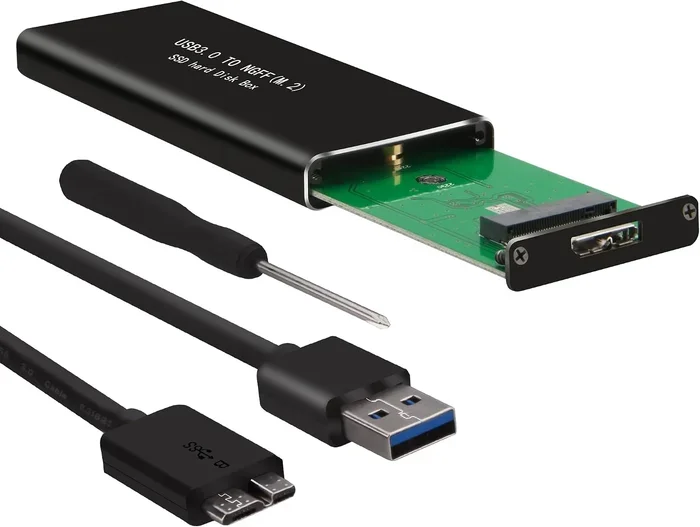
Not just any USB drive will work with the Wii U. The console has specific requirements for external storage devices. Here are the key specs to look for:
- USB 2.0 or USB 3.0: Both work, but USB 3.0 offers faster load times.
- Capacity: A drive with at least 500 GB is recommended. Some Wii U games exceed 10 GB each.
- External Hard Drive or Flash Drive: Both options work, but external hard drives are better for large game libraries.
- No Powered Hub Required: Plug the drive directly into the Wii U USB port whenever possible.
- FAT32 or exFAT Format: The drive must be formatted to one of these file systems.
Homebrew Software You Will Need
To load games from USB, you need homebrew software installed on your Wii U. The two most popular options are:
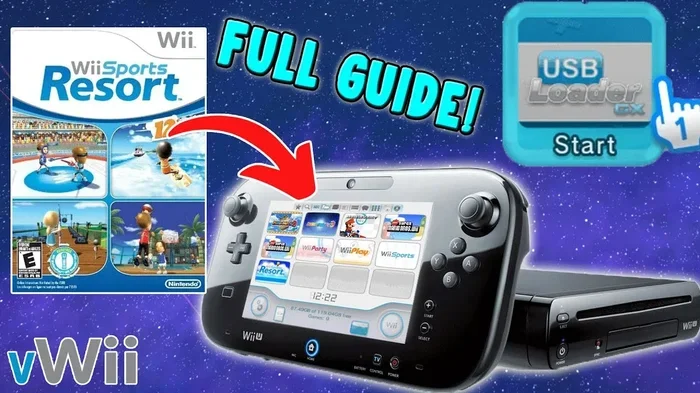
- USB Loader GX: A classic homebrew app that supports USB loading of Wii and Wii U games.
- Wii U USB Helper: A Windows-based tool that helps you download and prepare Wii U game files for USB loading.
You will also need a way to install homebrew on your console. This usually involves exploiting a vulnerability in the Wii U system menu. The process varies depending on your console firmware version, so always check the latest instructions before proceeding.
Setting Up Your USB Drive for Wii U Games
Setting up your USB drive is the most important step. If you skip or rush this part, you may run into problems later. Follow these steps carefully to ensure a smooth setup.
Step 1: Format the USB Drive
Start by connecting your USB drive to a computer. You need to format it to a file system the Wii U can read. FAT32 is the most widely compatible format, but it has a 4 GB file size limit. If your games are larger than 4 GB, use exFAT instead.
To format your drive, right-click on it in your computer’s file manager and select Format. Choose FAT32 or exFAT from the file system dropdown. Click Start and wait for the process to finish. Remember that formatting erases all data on the drive, so back up any important files first.
Step 2: Install Homebrew on Your Wii U
Next, you need to install homebrew on your Wii U console. This step depends on your system firmware and whether you have access to the Haxchi or Coldboot Haxchi exploit. The general process involves:
- Launch the homebrew channel or exploit on your Wii U.
- Use the Homebrew Launcher to access custom applications.
- Install USB Loader GX or another USB loading homebrew app.
- Configure the app to recognize your USB drive.
Each of these steps has its own nuances, so follow detailed guides specific to your console version. Rushing through the installation can lead to errors or even brick your console, so take your time.
Step 3: Transfer Game Files to the USB Drive
Once your USB drive is formatted and homebrew is installed, it is time to move your game files. Create a folder on the root of your USB drive called wiiu. Inside that folder, create another folder called title. Place your game files in the appropriate subfolders based on the homebrew app you are using.
You can use Wii U USB Helper on your PC to download and prepare game files. This tool lets you search for games, download the necessary files, and organize them properly for USB loading. Simply select the games you want, choose your output folder, and let the tool do the work.
Compatible Wii U Games for USB Loading
Not all Wii U games support USB loading equally. Some games work perfectly, while others may have issues or not work at all. Understanding which games are compatible helps you plan your USB game library.
Games That Work Well
Most Wii U disc-based games work well with USB loading. Popular titles like Super Mario 3D World, The Legend of Zelda: Breath of the Wild, and Splatoon 2 are known to run smoothly from USB. Digital games purchased from the Nintendo eShop also work, provided you have the game files properly prepared.
Here are some examples of Wii U games that load well from USB:
- Super Mario 3D World – Runs great from USB with no reported issues.
- The Legend of Zelda: Breath of the Wild – Large file size benefits from USB loading.
- Mario Kart 8 – Loads quickly and plays without problems.
- Donkey Kong Country: Tropical Freeze – Fully compatible with USB loading.
- Super Smash Bros. for Wii U – Works well from external storage.
Games With Known Issues
Some games may have compatibility issues when loaded from USB. These problems can range from minor glitches to complete failure to launch. Always check compatibility lists before adding a game to your USB library. Games that require constant online connectivity or have heavy DRM protections may not work as expected.
Keep in mind that the Wii U homebrew scene is constantly evolving. New updates and fixes are released regularly, so a game that had issues last month might work perfectly now. Stay updated with the latest homebrew releases for the best experience.
Step-by-Step Guide to Loading Wii U Games From USB
Now that your USB drive is set up and your games are transferred, let us walk through the actual process of loading a game from USB. This guide assumes you have homebrew installed and your drive properly formatted.
Step 1: Connect the USB Drive
Plug your USB drive into one of the Wii U’s USB ports. The console has two USB ports on the back. If you are using a powered USB hub, connect the hub to the console first, then attach your drive to the hub. Avoid using unpowered hubs, as they may not provide enough power for external hard drives.
Step 2: Launch the Homebrew App
From the Wii U Menu, launch your homebrew channel. Select the USB loading app you installed, such as USB Loader GX. The app should automatically detect your USB drive and display the games stored on it.
Step 3: Select and Launch Your Game
Browse through the list of available games on your USB drive. Select the game you want to play and press the launch button. The game will load from the USB drive and start. Depending on the size of the game and the speed of your USB drive, loading times may vary.
Step 4: Enjoy Your Game
Once the game launches, you can play it just like you would from the internal storage. Your save data is stored on the Wii U console itself, not on the USB drive. This means you can safely remove the USB drive after shutting down the console, and your save progress will be intact.
Common Problems When Loading Wii U Games From USB
Even with the best setup, you may encounter some issues. Here are the most common problems and how to fix them.
USB Drive Not Recognized
If your Wii U does not detect the USB drive, the first thing to check is the connection. Try a different USB port on the console. Make sure the drive is properly plugged in and not using a USB hub. If you are using a large external hard drive, try connecting it directly to the console without a hub.
Another common cause is incorrect formatting. Double-check that your drive is formatted to FAT32 or exFAT. If you recently reformatted the drive, make sure the game files are in the correct folder structure.
Games Won’t Launch
If a game fails to launch, it could be a compatibility issue. Not all games work perfectly with USB loading. Check online forums and compatibility lists to see if other users have reported problems with the specific game you are trying to load.
Also, make sure your game files are complete and not corrupted. Redownloading the game files using Wii U USB Helper can often fix this issue. Outdated homebrew software can also cause launch failures, so always keep your apps up to date.
Slow Load Times
USB loading can sometimes result in slower load times compared to internal storage. This is especially true with older USB 2.0 drives. Upgrading to a USB 3.0 external hard drive can significantly improve load speeds.
Fragmentation of files on your USB drive can also slow things down. Periodically reorganize your drive and defragment it if possible. Keeping your drive less than 80% full also helps maintain good performance.
Tips and Best Practices for USB Loading
To get the most out of your USB loading setup, follow these expert tips. They will help you avoid common pitfalls and keep your game library running smoothly.
Use a High-Quality External Drive
Invest in a reliable external hard drive from a reputable brand. Cheap, no-name drives are more likely to fail or cause compatibility issues. Look for drives that are specifically rated for console use and offer solid read speeds.
Keep Backups of Your Game Files
Always keep backup copies of your game files on your computer or a separate drive. If your USB drive fails or gets corrupted, you do not want to lose your entire game library. A simple backup saves you from starting over.
Update Your Homebrew Software Regularly
The homebrew community releases updates frequently. These updates often include compatibility fixes and performance improvements. Check for updates to your USB loading apps regularly and install them as soon as they become available.
Organize Your USB Drive Properly
Keep your game files well organized on the USB drive. Use clear folder names and avoid clutter. A well-organized drive makes it easier to find games and reduces the chance of file conflicts.
Safely Remove the USB Drive
Always shut down your Wii U properly before removing the USB drive. Pulling the drive out while the console is running can corrupt game files or damage the drive. A safe shutdown protects both your console and your storage device.
USB Loading vs. Internal Storage: Which Is Better?
Both USB loading and internal storage have their advantages. Here is a quick comparison to help you decide which approach works best for you.
| Feature | USB Loading | Internal Storage |
|---|---|---|
| Storage Space | Expandable up to several TB | Limited to 8 GB or 32 GB |
| Load Times | Slightly slower on USB 2.0 | Fastest possible |
| Convenience | Drive can be removed and reused | Games are always available |
| Setup Complexity | Requires homebrew installation | No extra setup needed |
| Game Compatibility | Most games work, some have issues | All games work natively |
| Cost | Requires purchasing external drive | No additional cost |
For most users, USB loading is the better choice. The ability to expand storage and carry your game library makes it incredibly practical. Internal storage is simpler but severely limited by the Wii U’s built-in capacity. If you have more than a handful of games, USB loading is almost a necessity.
Expert Insights on Wii U USB Loading
Experienced Wii U homebrew users share a few insights that can help you get the most from USB loading. These tips come from years of community testing and real-world use.
Start with a small library. Do not try to load every game at once. Start with a few titles you play most often. This lets you test your setup and troubleshoot any issues before committing a large library to USB storage.
Use a dedicated drive for Wii U games. Sharing a USB drive between multiple devices can cause file system conflicts. A drive dedicated to your Wii U will perform better and last longer.
Keep your Wii U system menu updated. Nintendo occasionally releases system updates that can affect homebrew compatibility. Stay informed about updates and their potential impact on your USB loading setup.
Join the community. The Wii U homebrew community is active and helpful. Forums and online groups can provide solutions to specific problems and keep you informed about the latest developments in USB loading technology.
Key Takeaways
- USB Loading Is Possible: You can load Wii U games from USB with the right homebrew software and properly formatted drive.
- Hardware Requirements Are Specific: Use a USB 2.0 or 3.0 drive formatted to FAT32 or exFAT with enough capacity for your game library.
- Homebrew Software Is Essential: Apps like USB Loader GX and Wii U USB Helper are necessary for USB game loading.
- Most Games Work Well: The majority of Wii U titles run smoothly from USB, though some may have compatibility issues.
- Troubleshooting Is Straightforward: Most common problems have simple solutions, from checking connections to updating software.
- Best Practices Save Time: Following setup tips and keeping backups ensures a reliable and enjoyable USB loading experience.
- USB Loading Beats Internal Storage: For users with large game libraries, USB loading is the practical and cost-effective choice.
Can You Load Wii U Games From USB FAQs
Do I need a special USB drive to load Wii U games?
You do not need a special drive, but it must meet certain requirements. The drive should be formatted to FAT32 or exFAT and have enough storage for your games. USB 3.0 drives offer faster load times, but USB 2.0 drives work too. Any reliable external hard drive or large flash drive will work as long as it meets these basic criteria.
Is it legal to load Wii U games from USB?
Loading games you own from USB is generally considered legal in many regions, similar to making a backup copy of a game you purchased. However, downloading copyrighted game files without owning the original game is illegal. Always ensure you own the games you are loading and follow the laws in your country.
Can I use a USB flash drive instead of an external hard drive?
Yes, you can use a USB flash drive. However, flash drives typically have smaller capacities and may be slower than external hard drives. For a few small games, a flash drive works fine. For a large game library, an external hard drive is a better choice because of its higher capacity and often better performance.
Will loading games from USB damage my Wii U console?
No, loading games from USB will not damage your console when done correctly. The process uses standard USB connections and homebrew software. The only risk comes from improper setup or using unreliable hardware. Always follow trusted guides and use quality equipment to keep your console safe.
Can I play Wii games from USB on the Wii U?
Yes, many Wii games can also be loaded from USB on the Wii U. Homebrew apps like USB Loader GX support both Wii and Wii U game formats. This means you can use the same USB setup to play your entire collection of Wii and Wii U titles from one external drive.
What should I do if my games keep crashing when loaded from USB?
Game crashes often result from corrupted files or outdated homebrew software. Try redownloading the game files using Wii U USB Helper. Also, update your homebrew apps to the latest versions. If the problem persists, check online forums for game-specific fixes. Sometimes a simple reformat of the USB drive resolves persistent issues.
Conclusion
Loading Wii U games from USB is absolutely possible and surprisingly straightforward once you have the right setup. With a properly formatted USB drive, the right homebrew software, and a bit of patience, you can expand your Wii U storage and enjoy your favorite games without limitations. The process may seem intimidating at first, but following the steps in this guide makes it manageable for users of all skill levels.
Remember that USB loading opens up a world of convenience. You can carry your entire game library on a single drive, switch between games instantly, and free up your console’s internal storage. The key is to take your time with the setup, use quality hardware, and stay updated with the latest homebrew developments.
If you have been wondering whether can you load Wii U games from USB directly and easily, the answer is a resounding yes. Start with the basics, follow the steps carefully, and soon you will be enjoying your Wii U games from USB with confidence. Happy gaming!