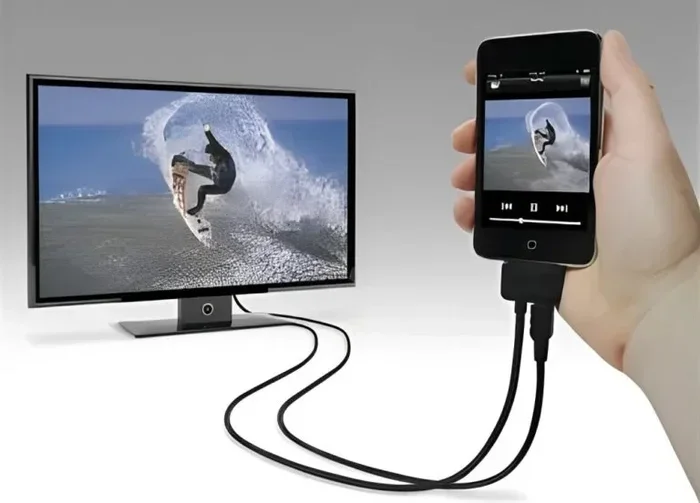
Can You Plug Your Phone Into A Tv With Hdmi And Watch
Yes, you can plug your phone into a TV with HDMI and enjoy a bigger, sharper display for movies, games, and presentations. Whether you have an Android or iPhone, the right HDMI cable or adapter makes screen mirroring easy and reliable. This guide covers everything from MHL adapters to USB-C connections, so you can set up your phone to TV setup in minutes.
Have you ever wanted to watch something on your phone but wished the screen was bigger? Maybe you’re traveling and the hotel TV has no smart features. Or perhaps you want to share photos with a group on a larger display. Whatever the reason, plugging your phone into a TV with HDMI is a game changer. It opens up a world of possibilities for media sharing, gaming, presentations, and more.
The good news is that it is simpler than most people think. You do not need to be tech savvy to make it work. With the right cable connection and a basic understanding of your phone’s ports, you can go from smartphone display to high definition TV screen in just a few minutes. This guide walks you through everything you need to know about connecting your phone to a TV using an HDMI cable.
We will cover what you need, how to set it up, common problems you might face, and even some wireless alternatives if HDMI does not work for your device. By the end, you will feel confident about making your own phone to TV connection. Let us dive in.
Key Takeaways
- HDMI connection is possible: Most modern phones can connect to a TV using the right HDMI cable or adapter for a wired phone to TV setup.
- You need the right adapter: MHL, SlimPort, and USB-C to HDMI adapters are the most common options depending on your phone model.
- Wired connections offer stability: A wired connection delivers better video output and audio transfer without lag compared to wireless streaming.
- Compatibility matters: Not all phones support mobile connectivity via HDMI, so check if your device is among the compatible devices before buying accessories.
- Wireless alternatives exist: If HDMI doesn’t work, casting and screen mirroring over Wi-Fi are solid backup options for media sharing.
- Setup is simple: With the right cable connection and a few minutes, you can transform your smartphone display into a high definition TV experience.
📑 Table of Contents
- How HDMI Connection Works With Your Phone
- What You Need To Connect Your Phone To A TV
- Step-by-Step Guide To Plugging Your Phone Into A TV
- Common Problems And How To Fix Them
- Wireless Alternatives Worth Considering
- Tips for the Best Phone-to-TV Experience
- Final Thoughts on Plugging Your Phone Into A TV With HDMI
How HDMI Connection Works With Your Phone
HDMI stands for High-Definition Multimedia Interface. It is a standard cable connection that carries both video output and audio transfer through a single cable. When you plug your phone into a TV using HDMI, the TV essentially becomes an extension of your phone’s screen. Everything you see on your smartphone display appears on the TV in high definition.
The concept behind mobile connectivity via HDMI is straightforward. Your phone sends a digital signal through the cable, and the TV receives and displays it. There is no compression or lag in most cases, which makes HDMI one of the best ways to share your smartphone display on a larger screen.
Why Use HDMI Over Other Methods?
You might wonder why you should bother with HDMI when wireless options like casting and screen mirroring exist. Here is the deal. A wired connection gives you a stable, lag-free experience. You do not have to worry about Wi-Fi drops or buffering. The video output is crisp and consistent.
HDMI also supports the best possible audio transfer quality. You get theater-like sound without any additional setup. For media sharing during parties or presentations, this reliability matters a lot. You do not want your connection dropping in the middle of a movie or a slideshow.
Understanding MHL and SlimPort Technology
Before HDMI became universal on phones, manufacturers used technologies like MHL (Mobile High-Definition Link) and SlimPort. These are adapter standards that allow phones with micro USB or USB-C ports to output high definition video to a TV through HDMI.
MHL was widely adopted by Samsung, Sony, and other Android brands. It lets you connect your phone to a TV using a special HDMI cable that powers your phone while transmitting video output and audio. SlimPort works similarly but is an open standard, meaning it does not require licensing fees from phone makers.
Today, most new phones use USB-C ports, and the need for MHL has decreased. However, if you have an older phone, checking for MHL support is a smart first step. You can usually find this information on the manufacturer’s website or in your phone’s settings under mobile connectivity options.
What You Need To Connect Your Phone To A TV
Setting up a phone to TV connection via HDMI requires a few things. The good news is that most of these items are affordable and easy to find. Let us break down what you need.
1. The Right HDMI Cable
Any standard HDMI cable will work for most setups. Look for a cable that is long enough to reach from your phone to the TV. A 6-foot cable covers most rooms comfortably. Make sure the cable supports high definition resolution, ideally 1080p or 4K.
Not all HDMI cables are created equal, but for basic phone to TV use, a standard High Speed HDMI cable does the job. You do not need to spend extra on premium cables unless you are aiming for 4K resolution or special features like Ethernet connectivity.
2. The Correct Adapter
The adapter you need depends on your phone’s port type. Here is a quick look at the options:
- USB-C to HDMI Adapter: This is the most common option for modern phones. Plug it into your phone’s USB-C port, connect the HDMI cable to the adapter, and you are good to go.
- Micro USB to HDMI Adapter (MHL): If you have an older Android phone with a micro USB port, you need an MHL-compatible adapter. Check if your phone supports MHL before buying one.
- Lightning to HDMI Adapter (for iPhones): Apple iPhones do not support MHL. Instead, you need Apple’s own Lightning to Digital AV Adapter or a certified third-party alternative.
3. A TV with an HDMI Port
Almost every TV made in the last 15 years has at least one HDMI port. Check the back or side of your TV for a small rectangular port labeled “HDMI.” If your TV has multiple HDMI ports, note which one you are using so you can easily switch to it.
4. Optional: A Power Source
Some adapters draw power from your phone, which can drain your battery quickly during long streaming sessions. Consider plugging your phone into a wall charger while using the HDMI connection. This keeps your battery healthy and ensures uninterrupted media sharing.
Step-by-Step Guide To Plugging Your Phone Into A TV
Now that you have everything you need, let us walk through the setup process. Follow these steps and you will be watching your favorite content on the big screen in no time.
Step 1: Check Your Phone’s Compatibility
Before you buy any adapter or cable connection, confirm that your phone can output video via HDMI. Most Android phones made after 2015 support some form of video output through USB-C or micro USB. iPhones require the Lightning to HDMI adapter.
You can usually find this information in your phone’s user manual or on the manufacturer’s support page. Searching for your phone model plus “HDMI output” will give you quick answers about compatible devices.
Step 2: Gather Your Equipment
Collect your HDMI cable, the correct adapter, and your TV remote. Make sure your TV is turned on and set to the right input source. Having everything ready before you start makes the process smooth and frustration-free.
Step 3: Connect the Adapter to Your Phone
Plug the adapter into your phone’s charging port. If you are using a USB-C to HDMI adapter, it should fit snugly. For MHL adapters, make sure the micro USB connector is fully inserted. A loose connection can cause display issues or no signal at all.
Step 4: Connect the HDMI Cable
Take your HDMI cable and plug one end into the adapter. Then plug the other end into one of your TV’s HDMI ports. The connection should click in place. If it feels loose, try a different HDMI port on your TV.
Step 5: Switch Your TV to the Correct Input
Use your TV remote to change the input source to the HDMI port you used. Most TVs have an “Input” or “Source” button on the remote. Cycle through the options until you see your phone’s screen on the TV.
Step 6: Adjust Display Settings (If Needed)
Once connected, your smartphone display should appear on the TV. If the image looks too small, too large, or stretched, go to your phone’s display settings and look for options like “Cast,” “HDMI output,” or “Screen resolution.” Adjusting these settings ensures the best high definition viewing experience.
Common Problems And How To Fix Them
Even with the right equipment, you might run into issues when setting up your phone to TV connection. Here are the most common problems and simple fixes.
No Signal on the TV
If your TV shows “No Signal,” the first thing to check is the HDMI cable connection. Unplug both ends and plug them back in firmly. Try a different HDMI port on your TV. Also, make sure your adapter is properly seated in your phone’s port.
Sometimes the issue is as simple as the TV being on the wrong input. Double-check that you have selected the correct HDMI source using your TV remote.
Poor Video Quality or Flickering
Flickering or blurry video output often means your HDMI cable is damaged or of low quality. Try a different cable. Also, check if your phone’s screen resolution is set correctly. A mismatched resolution can cause display issues on your TV.
No Audio Through the TV
If you see the video but hear no sound, go to your phone’s sound settings. Look for the audio output option and select HDMI or the TV as the output device. Some phones default to playing audio through their own speakers even when connected via HDMI connection.
Phone Battery Drains Quickly
Using your phone as a video output device takes a lot of power. To prevent battery drain, keep your phone plugged into a charger while using the HDMI cable. This is especially important during long streaming sessions or when sharing media sharing content for extended periods.
Adapter Not Recognized by Phone
If your phone does not recognize the adapter, it might not be compatible. Cheap, uncertified adapters are a common culprit. Always buy adapters from reputable brands or directly from your phone manufacturer. Check online reviews before purchasing to avoid compatibility headaches.
Wireless Alternatives Worth Considering
Not every situation calls for a wired connection. If you do not have the right adapter or HDMI cable, wireless options can save the day. These methods use your home Wi-Fi network to mirror your smartphone display on the TV.
Chromecast and Google Cast
Google Chromecast is a popular device that plugs into your TV’s HDMI port and connects to your Wi-Fi network. You can then cast content from your phone directly to the TV. This works great for streaming apps like YouTube, Netflix, and Spotify. The setup is simple and the experience is smooth for most users.
Apple AirPlay
If you have an iPhone and an Apple TV, AirPlay lets you mirror your screen wirelessly. It is built right into iOS, so you do not need any extra apps. Just make sure both your iPhone and Apple TV are on the same Wi-Fi network, and you can start screen mirroring instantly.
Smart TV Built-In Features
Many modern smart TVs come with built-in casting features. Samsung TVs use AllShare, LG TVs use Screen Share, and other brands have their own versions. These allow you to cast your smartphone display to the TV without any extra hardware. The quality varies, but for casual media sharing, they work well.
When to Stick With HDMI
Despite the convenience of wireless options, HDMI still wins in certain situations. For gaming, HDMI offers lower latency and a more responsive phone to TV experience. For presentations where reliability is critical, a wired connection eliminates the risk of Wi-Fi interference. And for the best possible video output quality, HDMI delivers a consistent, high-quality high definition signal every time.
Tips for the Best Phone-to-TV Experience
Getting your phone to TV setup right is about more than just plugging in a cable. A few small tweaks can make a big difference in your viewing experience.
- Use a high-quality HDMI cable: A well-made cable ensures stable video output and clear audio transfer. Look for cables rated for 4K if your TV supports it.
- Keep your phone cool: Extended streaming or gaming through HDMI can cause your phone to heat up. Remove thick cases and avoid direct sunlight during long sessions.
- Update your phone’s software: Software updates often improve mobile connectivity and fix bugs related to HDMI connection issues. Keep your phone updated for the best experience.
- Use the right input on your TV: Some TVs have multiple HDMI ports labeled HDMI 1, HDMI 2, etc. Make sure you switch to the correct one to see your phone’s screen.
- Experiment with display settings: Your phone may have a “Mirror display” or “Extend display” option. Try both to see which works best for your situation.
Expert Insight: According to tech reviewers, the most common mistake people make when setting up a phone to TV connection is buying the wrong adapter. Always double-check your phone’s port type and supported standards before purchasing any accessory. A quick check on the manufacturer’s website can save you time and money.
Final Thoughts on Plugging Your Phone Into A TV With HDMI
Plugging your phone into a TV with HDMI is one of the most useful tricks you can learn for your digital life. Whether you want to watch movies, share photos, give a presentation, or play games on a bigger screen, the HDMI connection delivers a reliable and high-quality experience. The setup is straightforward, the equipment is affordable, and the results are impressive.
Remember that not every phone supports HDMI output the same way. Check your device’s compatibility, get the right adapter and HDMI cable, and follow the steps in this guide. If HDMI does not work for your situation, wireless casting and screen mirroring are excellent alternatives for media sharing.
The beauty of modern mobile connectivity is that you have options. You can choose a wired connection for the best performance or go wireless for convenience. Either way, enjoying your smartphone display on a high definition TV is easier than ever. So grab your cable connection accessories and start watching your favorite content on the big screen today.
The world of phone to TV connectivity is vast and growing. New adapter technologies and HDMI cable standards continue to improve the experience. Staying informed about your options ensures you always get the best video output and audio transfer from your setup. Keep exploring, keep experimenting, and enjoy the bigger picture.
Frequently Asked Questions
Can I plug any phone into a TV with HDMI?
Most modern phones can connect to a TV via HDMI, but you need the right adapter for your phone’s port type. Android phones with USB-C need a USB-C to HDMI adapter, while older models with micro USB may require an MHL-compatible adapter. iPhones need Apple’s Lightning to Digital AV adapter. Always check your phone’s specifications first to confirm compatible devices and supported video output standards.
Do I need a special HDMI cable for phone-to-TV connections?
No, you do not need a special HDMI cable for most setups. A standard High Speed HDMI cable handles phone to TV connections just fine. The key is the adapter, not the cable itself. However, if you want 4K resolution or plan to use the setup frequently for streaming and media sharing, a premium cable connection with better shielding can improve reliability.
Why is there no sound when I connect my phone to TV via HDMI?
This is a common issue with HDMI connection setups. Usually, the fix is simple. Go to your phone’s sound settings and change the audio output to HDMI or the connected TV. Some phones default to playing audio through their own speakers even after establishing the wired connection. A quick toggle in the sound settings restores audio transfer to your TV.
Can I use HDMI to charge my phone while watching on TV?
It depends on the adapter you use. Some MHL adapters and USB-C to HDMI adapters pass through charging power, allowing you to plug in a charger while the phone to TV connection is active. This is helpful during long streaming sessions. Check your adapter’s specifications to confirm whether it supports pass-through charging alongside mobile connectivity features.
Is HDMI better than wireless casting for phone-to-TV?
HDMI offers a more stable and lag-free wired connection compared to wireless casting or screen mirroring. For gaming and presentations, HDMI delivers better responsiveness and consistent high definition quality. Wireless methods are more convenient and require fewer accessories, but they can suffer from Wi-Fi interference and slight delays. Choose based on your needs for media sharing and streaming reliability.
What is the difference between MHL and SlimPort adapters?
Both MHL and SlimPort are technologies that enable video output from phones to TVs via HDMI. MHL is a licensed standard supported by many Android manufacturers, while SlimPort is an open standard that does not require licensing fees. The main difference lies in compatibility and how the adapter handles power delivery. Check your phone’s manual to see which standard it supports for the best cable connection experience.
=== CONCLUSION ===
Plugging your phone into a TV with HDMI and watching your favorite content on a bigger screen is easier than you think. With the right adapter, a reliable HDMI cable, and a few simple steps, you can turn any TV into a powerful display for your smartphone display. Whether you are at home, in a hotel room, or presenting to a group, the HDMI connection gives you a stable, high-quality phone to TV experience.
Remember to check your phone’s compatibility first, invest in quality accessories, and troubleshoot common issues using the tips in this guide. If HDMI is not an option, wireless casting and screen mirroring offer solid alternatives for media sharing and streaming. The key is finding the method that works best for your needs and your device.
Now that you know how to make the connection, give it a try. You might be surprised at how much more enjoyable your content becomes on a bigger screen. Happy watching, and enjoy your high definition phone to TV setup!