Can Usb 3 0 Transfer 4k Video Files Without Issues
Yes, USB 3.0 can transfer 4K video files without issues, but several factors affect performance. USB 3.0 offers speeds up to 5 Gbps, which is plenty for most 4K workflows. However, your cable quality, port type, and storage device all play a role. Understanding these details helps you avoid frustrating transfer failures or slowdowns. This guide covers everything you need to know about moving 4K files over USB 3.0 reliably.
Have you ever tried moving a massive 4K video file from one device to another and waited forever? Or worse, seen the transfer fail midway through? You are not alone. Many content creators and video editors run into this exact problem every day. The question can USB 3.0 transfer 4K video files reliably comes up constantly in forums and tech communities.
The short answer is yes. USB 3.0 absolutely handles 4K video transfer without major issues. But the full answer involves understanding a few important details. Not all USB 3.0 setups are created equal. Your cable, your port, your storage drive, and even your file system all influence how smoothly the transfer goes. This article breaks down everything you need to know.
Whether you are a filmmaker moving raw footage, a content creator backing up projects, or simply someone who wants to copy 4K clips from a camera to an external drive, this guide has you covered. We will walk through speeds, compatibility, common problems, and proven solutions. By the end, you will know exactly how to get your 4K files moving fast and safely over USB 3.0.
Key Takeaways
- USB 3.0 handles 4K video transfer: The 5 Gbps bandwidth is more than enough for most 4K file sizes.
- Cable quality matters a lot: A cheap or damaged USB 3.0 cable can bottleneck your transfer speeds significantly.
- USB 3.0 vs USB 2.0 is a huge difference: USB 2.0 will struggle badly with large 4K files.
- Storage device speed is critical: Even with fast USB 3.0, a slow HDD will limit your transfer rate.
- USB-C and USB 3.0 are different things: Make sure your port and cable both support SuperSpeed USB.
- File system choice affects compatibility: Use exFAT or NTFS for large 4K video files across devices.
- Practical tips prevent problems: Close background apps, use direct ports, and verify your hardware setup first.
📑 Table of Contents
- Understanding USB 3.0 Speed and Bandwidth
- USB 3.0 vs USB 2.0 for 4K Video Transfer
- Does USB 3.0 Support 4K Video Without Issues?
- File System and Compatibility Considerations
- Common Problems When Transferring 4K Video Over USB 3.0
- Best Practices for Smooth 4K Video Transfers
- Can USB 3.0 Transfer 4K Video From Cameras and Phones?
- Future-Proofing Your USB 3.0 Setup
- Conclusion
Understanding USB 3.0 Speed and Bandwidth
To answer whether USB 3.0 can handle 4K video, you first need to understand what USB 3.0 actually offers. USB 3.0 is also known as SuperSpeed USB. It was introduced back in 2008 and became the standard for fast data transfer. The key spec to remember is the maximum theoretical bandwidth.
USB 3.0 provides a maximum transfer rate of 5 gigabits per second, or about 625 megabytes per second. In real-world conditions, you typically see speeds between 300 and 450 megabytes per second. That is still very fast for most tasks. But how does this compare to 4K video file sizes?
How Big Are 4K Video Files?
4K video files are large. A single minute of 4K footage at 30 frames per second can range from 200 megabytes to over 400 megabytes, depending on the codec and bitrate. A 10-minute clip could easily be 3 to 4 gigabytes. A full hour of raw 4K footage can exceed 100 gigabytes.
Here is a quick breakdown of typical 4K file sizes:
- 1 minute of 4K H.264 video: roughly 200 to 350 megabytes
- 1 minute of 4K ProRes footage: around 500 megabytes to 1 gigabyte
- 10 minutes of 4K H.265 video: approximately 2 to 4 gigabytes
- 1 hour of raw 4K footage: can exceed 100 gigabytes
Now let us compare that to USB 3.0 speeds. At 450 megabytes per second, you could transfer a 30 gigabyte 4K file in roughly one minute. A 100 gigabyte project might take around 4 minutes. These are excellent numbers. This is why USB 3.0 remains a solid choice for 4K video workflows.
USB 3.0 vs USB 2.0 for 4K Video Transfer
The difference between USB 3.0 and USB 2.0 for 4K video is dramatic. USB 2.0 maxes out at 480 megabits per second, which is about 60 megabytes per second in practice. That means transferring a 30 gigabyte 4K file over USB 2.0 would take more than 8 minutes. Over USB 3.0, the same file takes about one minute.
But it goes beyond just speed. USB 2.0 often struggles with large sequential file transfers. You may encounter timeouts, disconnects, or corrupted files when moving 4K footage. USB 3.0 handles large files much more reliably because of its superior data transfer protocol and higher bandwidth.
Real-World Speed Comparison
| Factor | USB 2.0 | USB 3.0 |
|---|---|---|
| Theoretical Max Speed | 480 Mbps | 5 Gbps |
| Real-World Speed | 25 to 60 MB/s | 300 to 450 MB/s |
| 10GB 4K File Transfer Time | 3 to 6 minutes | 25 to 35 seconds |
| 100GB 4K Project Transfer Time | 25 to 60 minutes | 4 to 5 minutes |
| Reliability with Large Files | Poor | Good |
| Power Delivery | 2.5W | 4.5W |
As you can see, USB 3.0 is the clear winner for 4K video file transfer. If you are still using USB 2.0 ports for large video projects, upgrading to USB 3.0 will transform your workflow. The time savings alone make it worth it.
Does USB 3.0 Support 4K Video Without Issues?
Here is where things get nuanced. Yes, USB 3.0 supports 4K video transfer, but the phrase “without issues” depends on several factors. Let us look at what can go wrong and how to prevent it.
Cable Quality and Length
Not all USB 3.0 cables are equal. A cheap, poorly shielded cable can cause data errors during large file transfers. This is especially true for long USB 3.0 cables. Signals degrade over distance. A cable longer than 3 meters (about 10 feet) may experience speed drops or connection drops.
Quick Tips for Choosing the Right Cable:
- Always use a cable rated for USB 3.0 or SuperSpeed USB
- Keep cable length under 3 meters for best performance
- Look for cables with braided shielding and gold-plated connectors
- Avoid cheap no-name cables from unknown brands
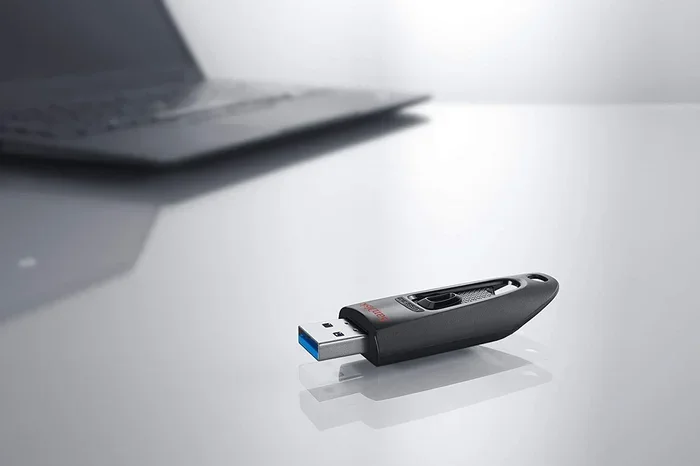
- Check that the cable supports the USB 3.0 specification (blue insert inside the Type-A port)
Port Type and Connector
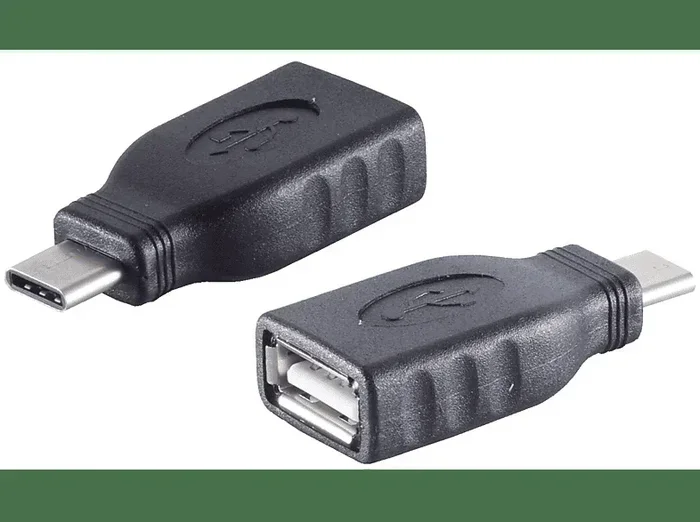
USB 3.0 ports come in different shapes. The traditional Type-A port is the rectangular one you see on desktops and laptops. But many modern devices use USB Type-C connectors. These are smaller, reversible, and often support faster USB 3.1 or USB 3.2 standards.
Here is an important distinction. USB-C is a connector shape, not a speed standard. A USB-C port can support USB 2.0, USB 3.0, USB 3.1, or even USB 4.0. Always check the specifications of your port to confirm it supports SuperSpeed USB transfer rates.
Common Mistakes to Avoid:
- Assuming all USB-C ports support USB 3.0 speeds
- Using an adapter that downgrades the connection to USB 2.0
- Plugging into a hub that does not pass through USB 3.0 speeds
- Ignoring the blue color indicator inside USB 3.0 Type-A ports
Storage Device Speed
Your storage device is just as important as the USB connection. If you plug a slow 5400 RPM hard drive into a USB 3.0 port, the drive itself becomes the bottleneck. The USB 3.0 connection can handle much more than the drive can deliver.
For the best 4K video transfer experience, use a solid-state drive or a fast external SSD. These drives can sustain read/write speeds of 400 to 1000 megabytes per second, which fully utilizes USB 3.0 bandwidth. Traditional spinning hard drives top out around 100 to 150 megabytes per second, which is still fine for 4K but leaves performance on the table.
File System and Compatibility Considerations
One often overlooked factor in 4K video transfer is the file system format. The file system determines how your storage device organizes data and which devices can read it. Choosing the wrong file system can cause compatibility issues or even prevent transfers entirely.
Which File System Should You Use?
For 4K video files, you need a file system that supports large files and works across different operating systems. Here are the most common options:
- exFAT: Works on Windows, macOS, and Linux. Supports files larger than 4 gigabytes. This is the best choice for cross-platform 4K video workflows.
- NTFS: Windows native format. Supports large files but requires third-party software on macOS for full write access.
- APFS: macOS native format. Not readable on Windows without additional software.
- FAT32: Universal compatibility but has a 4 gigabyte file size limit. Not suitable for large 4K files.
If you work across both Windows and Mac computers, format your external drive as exFAT. It removes the file size limitations and works seamlessly on both platforms. This is the go-to choice for most video editors and content creators.
Common Problems When Transferring 4K Video Over USB 3.0
Even with the right hardware, you can run into trouble. Understanding these common issues helps you troubleshoot faster and avoid frustration.
Transfer Speeds Drop Suddenly
This is one of the most common complaints. You start copying a 4K file and the speed is great, then it drops to a crawl. Several factors can cause this:
- The storage drive is using SLC caching and has exhausted its cache
- Your computer is performing background tasks that consume bandwidth
- The USB cable is too long or poorly shielded
- The port is sharing bandwidth with other connected devices through a hub
- Thermal throttling on the storage device during sustained writes
Expert Insight: Try transferring files directly from the source drive to the destination drive without a hub in between. If speeds improve, the hub was the bottleneck. Also, close unnecessary applications and browser tabs during large transfers.
Transfer Fails or Files Become Corrupted
Corrupted video files are every creator’s nightmare. If your 4K transfer fails or files arrive damaged, check these things first:
- Verify your USB cable is fully seated in both ports
- Try a different USB port on your computer
- Scan the storage drive for errors before starting the transfer
- Ensure the drive has enough free space for the entire transfer
- Use a reliable file transfer tool instead of simple drag and drop for very large projects
Device Not Recognized by Computer
Sometimes your external drive or camera simply does not show up. This can happen with USB 3.0 connections for several reasons:
- Outdated USB drivers on your computer
- Power delivery issues, especially with bus-powered external drives
- A faulty USB port or cable
- Incompatible file system that the operating system cannot read
Quick Fix: Try plugging the device into a different port. If that does not work, update your USB drivers through your device manager or system settings. A powered USB hub can also solve power delivery problems for external drives.
Best Practices for Smooth 4K Video Transfers
Getting the most out of your USB 3.0 setup for 4K video is straightforward. Follow these practices and you will have a reliable, fast workflow.
1. Invest in Quality Hardware
Buy reputable USB 3.0 cables and drives from trusted brands. The extra cost is worth the reliability and consistent speeds. Look for cables that are USB-IF certified and drives that have solid reviews for sustained write speeds.
2. Use Direct Connections
Avoid USB hubs whenever possible for large 4K transfers. Plug your external drive directly into a USB 3.0 port on your computer. This ensures you get the full bandwidth without sharing it with other devices.
3. Verify Your Transfer
After copying large 4K files, always verify the transfer. Many file transfer tools offer a verify or checksum option. This confirms that every file arrived intact and uncorrupted. It takes a little extra time but saves you from discovering corrupted footage later.
4. Organize Your Files Before Transferring
Create a clear folder structure for your 4K projects before you start copying. Name your folders by date, project name, or shoot location. This makes it much easier to find files later and keeps your external drives organized.
5. Keep Your System Updated
Regularly update your operating system and USB drivers. Manufacturers often release updates that improve USB 3.0 compatibility and fix known transfer issues. A simple update can sometimes solve mysterious transfer problems.
Can USB 3.0 Transfer 4K Video From Cameras and Phones?
Yes, USB 3.0 works well for transferring 4K video from cameras and phones too. Many modern cameras have USB 3.0 micro-B or Type-C ports that support direct computer connection. You can pull 4K footage straight from the camera to your editing workstation without removing the memory card.
For smartphones, USB 3.0 transfer is also possible. Many Android phones now use USB-C connectors that support SuperSpeed USB. iPhones with Lightning connectors are limited to USB 2.0 speeds, but newer iPhones with USB-C support much faster transfer rates.
When transferring from a camera, make sure the camera is set to the correct USB mode. Some cameras default to PTP (Picture Transfer Protocol), which is slower than Mass Storage mode. Switch to Mass Storage or USB Mass Storage for the fastest 4K transfer speeds.
Quick Tips for Camera and Phone Transfers
- Use the manufacturer’s recommended USB cable for best compatibility
- Turn off the camera or phone screen during transfer to save power
- Avoid using the device while a large transfer is in progress
- For phones, consider using a dedicated USB 3.0 adapter if your computer only has USB-C ports
- Format your memory cards regularly to prevent transfer errors
Future-Proofing Your USB 3.0 Setup
USB technology continues to evolve. USB 3.1, USB 3.2, and USB4 all build on the foundation of USB 3.0. The good news is that USB 3.0 remains widely supported and perfectly capable of handling 4K video for the foreseeable future.
If you are building a new setup, consider getting devices and cables that support USB 3.2 or USB4. These are backward compatible with USB 3.0, so your existing drives and cables will still work. You get the benefit of faster speeds when you upgrade your other equipment later.
For now, USB 3.0 is more than sufficient for most 4K video workflows. The 5 Gbps speed cap handles 4K files with ease. Focus on getting quality cables, fast storage drives, and a clean setup, and you will not have problems.
Conclusion
So, can USB 3.0 transfer 4K video files without issues? The answer is a confident yes. USB 3.0 provides more than enough bandwidth for 4K video transfer at speeds that will save you significant time compared to older standards. The key is ensuring your entire setup supports the right speeds. Use a quality USB 3.0 cable, connect directly to a SuperSpeed port, and pair it with a fast external drive.
Pay attention to file system compatibility, especially if you work across different operating systems. Format your drives as exFAT for the smoothest cross-platform experience. And always verify your transfers for large 4K projects to catch any issues early.
By following the tips and practices outlined in this guide, you can build a reliable and efficient workflow for moving 4K video files over USB 3.0. Your editing process will be faster, your files will arrive intact, and you will spend less time waiting and more time creating. Start applying these strategies today and notice the difference in your 4K video transfer experience.
Frequently Asked Questions
Can USB 3.0 handle 4K video editing directly from an external drive?
Yes, USB 3.0 can handle basic 4K video editing directly from an external drive, especially if you use a fast SSD. However, for smooth playback and editing of multiple 4K streams, an internal drive or a Thunderbolt connection may perform better. USB 3.0 works well for most single-stream 4K editing tasks and proxy workflows.
Why is my USB 3.0 transfer speed so slow for 4K files?
Slow speeds usually come from a bottleneck somewhere in your setup. Check your cable quality, make sure you are plugged into a true USB 3.0 port, and verify that your external drive is fast enough. Background applications, USB hubs, and long cables can all reduce your transfer speed significantly.
Is USB 3.0 the same as USB-C?
No, USB 3.0 and USB-C are not the same thing. USB 3.0 refers to the data transfer standard and speed. USB-C refers to the physical connector shape. A USB-C port can support USB 3.0, USB 3.1, USB 3.2, or even USB 2.0 speeds. Always check the specifications to confirm the speed standard your port supports.
What is the maximum file size USB 3.0 can transfer?
USB 3.0 itself does not limit file size. The limitation comes from the file system on your storage drive. exFAT supports files up to 16 exabytes, which is more than enough for any 4K video project. Avoid FAT32 if you work with files larger than 4 gigabytes.
Do I need a special cable for USB 3.0 4K transfers?
You need a cable that is specifically rated for USB 3.0 or SuperSpeed USB. These cables have a blue insert inside the Type-A connector and support the 5 Gbps bandwidth. A standard USB 2.0 cable will work but will severely limit your transfer speed for large 4K files.
Can I use a USB 3.0 hub for 4K video transfers?
Yes, you can use a USB 3.0 hub, but choose a powered hub with a dedicated USB 3.0 controller. Passive or cheap hubs may share bandwidth between ports, which can slow down your 4K transfers. For the best results, connect your external drive directly to your computer whenever possible.