Can You Put A Wifi Card In Any Pc And Expect It To Work
Yes, you can put a wifi card in any PC, but it must match your motherboard slot, your operating system, and your wireless needs. Whether you choose a PCIe card or a USB adapter, the right choice depends on your PC model, speed requirements, and budget. This guide walks you through every compatibility factor, installation step, and common mistake so you can get wireless working fast.
Key Takeaways
- Not every wifi card fits every PC: You need the right slot type, such as PCIe or M.2, and your motherboard must support it.
- Driver support matters just as much as hardware: A card may physically fit but fail if your operating system lacks the right driver.
- USB wifi adapters are the easiest plug-and-play option: They work in almost any PC without opening the case.
- Wireless standards like WiFi 5 and WiFi 6 affect speed: Choose a card that matches or exceeds your internet plan and router capability.
- Antenna design and placement impact signal strength: Internal cards with good antennas outperform cheap adapters in weak signal areas.
- Installation is simple for most users: A PCIe wifi card takes about 10 minutes to install with basic tools.
- Always check your PC’s wireless needs first: Speed, range, and budget should guide your choice before you buy anything.
📑 Table of Contents
- Can You Put A Wifi Card In Any Pc And Expect It To Work?
- What Is A Wifi Card And How Does It Work?
- Can You Put A Wifi Card In Any Pc: The Compatibility Factors
- Types Of Wifi Cards Available For PCs
- How To Install A Wifi Card In Your PC
- Common Mistakes People Make When Adding A Wifi Card
- Expert Insights: What Professionals Recommend
- Final Thoughts: Can You Put A Wifi Card In Any Pc And Expect It To Work?
Can You Put A Wifi Card In Any Pc And Expect It To Work?
Let us start with the big question. Can you put a wifi card in any PC and expect it to work? The short answer is yes, but with some important caveats. A wifi card will not magically make every PC wireless-ready without a few checks. Your motherboard needs the right slot. Your operating system needs the right driver. And your wireless needs need to match the card you choose.
Many people assume that any wifi card will work in any computer. That is not entirely true. A card might physically fit into a slot but still fail to work properly. Or it might work at slow speeds because it uses an older wireless standard. This guide breaks down everything you need to know about can you put a wifi card in any PC so you avoid wasted money and frustrating setup sessions.
Whether you are building a new desktop, upgrading an old laptop, or just trying to add wireless to a PC that only has ethernet, this article has you covered. We will look at the different types of wifi cards, how installation works, what compatibility factors matter most, and how to troubleshoot when things go wrong. By the end, you will know exactly what to buy and how to install it.
What Is A Wifi Card And How Does It Work?
Before we dive into compatibility, let us quickly cover the basics. A wifi card is a small hardware device that lets your PC connect to a wireless network. It sends and receives radio signals between your computer and a wireless router. Without one, your PC relies on a wired ethernet connection or has no internet access at all.
There are two main types of wifi cards you will encounter:
- Internal PCIe wifi cards: These slide directly into a PCIe slot on your motherboard. They usually come with small antennas that you mount inside or outside your PC case.
- USB wifi adapters: These plug into any available USB port. They are external devices that do not require opening your computer.
Both types do the same job. They connect your PC to a wireless router using radio frequencies. The difference lies in how they connect to your system and how much performance they offer. Internal PCIe cards generally deliver better speeds and stronger signals. USB adapters are more convenient and portable.
How Wifi Standards Affect Performance
Wifi cards follow different standards, also called wireless protocols. The most common ones you will see today are:
- WiFi 5 (802.11ac): Offers speeds up to about 3.5 Gbps. This is still very capable for most home internet plans.
- WiFi 6 (802.11ax): Offers speeds up to about 9.6 Gbps. It handles multiple devices better and works well in crowded areas.
- WiFi 6E: An extension of WiFi 6 that uses the 6 GHz band for less interference.
- WiFi 7 (802.11be): The newest standard with even faster speeds and lower latency.
When you ask yourself can you put a wifi card in any PC, you also need to think about which standard you need. A WiFi 6 card will not make your internet faster than your plan allows. But it will give you the best possible wireless performance if your router supports it too.
Can You Put A Wifi Card In Any Pc: The Compatibility Factors
Here is where most people get tripped up. The phrase “any PC” is tricky. Your PC might accept a wifi card physically, but several other factors determine whether it will actually work. Let us walk through them one by one.
Motherboard Slot Compatibility
The first thing to check is whether your motherboard has the right slot. Most desktop PCs use PCIe slots. A standard wifi card uses a PCIe x1 slot, which is the smallest PCIe slot you will find on most motherboards.
But not all motherboards are the same. Some older boards may only have PCI slots, not PCIe. A modern PCIe wifi card will not fit into an old PCI slot. You would need an adapter, or you would need to choose a different type of wifi card.
Laptops are a different story. Most laptops do not have replaceable wifi cards soldered onto the motherboard. Some do allow you to swap the card, but you need to check your specific model. The card usually uses a Mini PCIe or M.2 key E slot in a laptop.
Operating System And Driver Support
Even if a wifi card fits physically, it needs software to work. That software is called a driver. Every operating system, whether Windows, macOS, or Linux, needs drivers that match the wifi card.
Here is a common problem. You buy a cheap wifi card, plug it in, and Windows does not recognize it. Or it recognizes it but the internet connection keeps dropping. This usually happens because the driver is outdated or missing. Always check the manufacturer’s website for the latest driver before you buy a card.
Mac users face even more limitations. Apple uses specific wifi cards in their computers. A third-party PC wifi card will not work in a Mac. If you are on macOS, you need to stick with Apple-compatible cards or use a USB wifi adapter that macOS supports.
Wireless Band And Antenna Considerations
Wifi cards operate on different frequency bands. The two most common are:
- 2.4 GHz band: Longer range but slower speeds. It also suffers more interference from other devices like microwaves and Bluetooth devices.
- 5 GHz band: Faster speeds but shorter range. It is less crowded and better for high-bandwidth activities like streaming and gaming.
Many modern wifi cards are dual-band, meaning they support both 2.4 GHz and 5 GHz. Some even support the 6 GHz band with WiFi 6E. When you are deciding can you put a wifi card in any PC, think about which bands your router supports and which bands you need for your daily tasks.
Antenna design also matters. Cards with external antennas usually perform better than those with internal antennas. If you live far from your wireless router or your signal is weak, a card with high-gain antennas can make a big difference.
Types Of Wifi Cards Available For PCs
Not all wifi cards are created equal. The market offers several categories, and each serves a different purpose. Understanding these will help you pick the right one.
Budget Wifi Cards
Budget wifi cards cost between $10 and $30. They usually support WiFi 5 or basic WiFi 6. They work fine for browsing, email, and light streaming. But they may struggle with heavy gaming or large file transfers. If you just need basic wireless connectivity, a budget card can be a solid choice.
Mid-Range Wifi Cards
Mid-range cards cost between $30 and $70. They typically support WiFi 6 and offer dual-band or tri-band connectivity. They deliver reliable speeds for most households. If your internet plan is between 100 Mbps and 500 Mbps, a mid-range card will serve you well.
High-End Wifi Cards
High-end cards cost $70 and above. They support WiFi 6E or WiFi 7. They offer the fastest speeds, the best range, and the lowest latency. These are ideal for gamers, content creators, and anyone who needs the absolute best wireless performance. They also tend to have better antenna designs and more advanced features like beamforming and MU-MIMO.
USB Wifi Adapters
USB adapters are a separate category. They range from budget models at $10 to high-end models at $100 or more. They are the easiest to install because you simply plug them into a USB port. They work in almost any PC, regardless of what slots are available inside the case.
Here is a quick comparison of the main options:
| Type | Price Range | Installation | Performance | Best For |
|---|---|---|---|---|
| PCIe Internal Card | $20 – $150 | Moderate (opens PC case) | High | Desktop PCs, gaming, heavy use |
| USB Wifi Adapter | $10 – $100 | Easy (plug and play) | Medium to High | Any PC, laptops, portable use |
| Budget Card | $10 – $30 | Easy to moderate | Basic | Light browsing, budget builds |
| High-End Card | $70 – $200+ | Moderate | Excellent | Gaming, streaming, power users |
How To Install A Wifi Card In Your PC
Installing a wifi card is easier than most people think. Whether you choose an internal PCIe card or a USB adapter, the process is straightforward. Let us walk through both methods.
Installing An Internal PCIe Wifi Card
Follow these steps to install an internal wifi card in a desktop PC:
- Turn off your PC and unplug it from the wall. This is essential for safety.
- Open your PC case. Most cases use screws or thumb screws on the side panel. Remove the panel to access the motherboard.
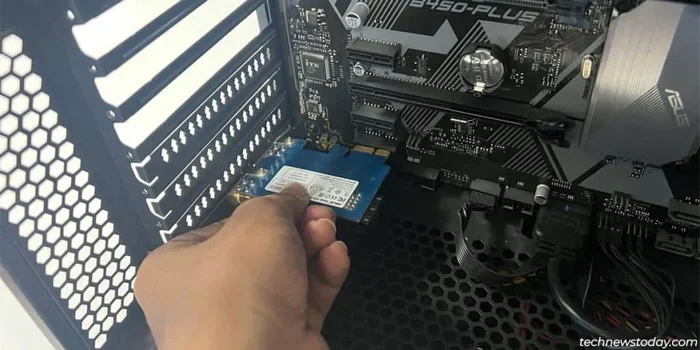
- Find an available PCIe x1 slot. These are the smallest slots on the motherboard. They are usually located near the bottom of the board.
- Remove the metal bracket covering the slot opening on the back of your PC case. This gives the card’s ports and antennas room to connect.
- Align the wifi card with the PCIe slot and press it in firmly. It should seat snugly without forcing.
- Secure the card with the screw that held the bracket in place.
- Attach the antennas if your card came with external ones. Plug them into the connectors on the card.
- Close the case and plug your PC back in.
- Turn on your PC and install the drivers from the manufacturer’s website or the included CD.
That is it. In about 10 minutes, you should have a working wireless connection.
Installing A USB Wifi Adapter
USB adapters are even simpler:
- Plug the adapter into any available USB port on your PC.
- Wait for Windows (or your operating system) to recognize the device.
- Install the driver if prompted. You can usually download the latest driver from the manufacturer’s website.
- Connect to your wireless network just like you would with any other wifi connection.
USB adapters are great because they do not require opening your PC. They are also easy to move between computers if you need wifi on multiple devices.
Common Mistakes People Make When Adding A Wifi Card
Even with the right card, mistakes during setup can cause problems. Here are the most common errors and how to avoid them.
Buying The Wrong Card Type
The biggest mistake is buying a card without checking your motherboard. You might order a PCIe card only to discover your PC has no free PCIe slots. Or you might buy a card that needs WiFi 6 support when your router only supports WiFi 5. Always double-check before you purchase.
Skipping Driver Updates
Many people install the card, plug it in, and assume it will work immediately. But outdated drivers are the number one cause of wifi card problems. Always download the latest driver from the manufacturer’s website. Do not rely on the driver included on the CD or the one Windows installs automatically.
Ignoring Antenna Placement
If your card has external antennas, do not just leave them lying inside the case. Position them vertically or at angles for the best signal. Placing them near metal objects or other electronics can cause interference and weaken your connection.
Choosing A Card Based On Price Alone
A cheap card might seem like a great deal. But if you need fast speeds or strong range, a budget card will disappoint you. Match the card to your needs. If you game or stream 4K video, invest in a better card.
Forgetting To Check Wireless Standards
Your wifi card is only as fast as the weakest link in your wireless setup. If your card supports WiFi 6 but your router only supports WiFi 5, you will be limited to WiFi 5 speeds. Make sure your router and card use compatible standards for the best results.
Expert Insights: What Professionals Recommend
Networking professionals often recommend a few best practices when adding a wifi card to any PC:
- Match your card to your router: If you have a WiFi 6 router, get a WiFi 6 card. This ensures you get the full speed benefit.
- Prioritize PCIe over USB when possible: Internal PCIe cards offer lower latency and more stable connections than USB adapters.
- Consider your usage: If you only browse the web, a budget card is fine. If you game or work from home, invest in a high-end card with better antennas.
- Keep drivers updated: Manufacturers release driver updates that fix bugs and improve performance. Check for updates every few months.
- Use a USB extension cable for USB adapters: This lets you position the adapter away from your PC case for better signal reception.
These tips come from real-world experience. They can save you a lot of troubleshooting time and help you get the best performance from your new wifi card.
Final Thoughts: Can You Put A Wifi Card In Any Pc And Expect It To Work?
So, can you put a wifi card in any PC and expect it to work? Yes, but with the right preparation. You need a compatible slot on your motherboard. You need driver support for your operating system. And you need a card that matches your wireless needs and budget.
The good news is that adding a wifi card is one of the easiest and most affordable PC upgrades you can do. Whether you choose an internal PCIe card or a simple USB adapter, the process is quick and the results are immediate. You go from a wired-only connection to a fast, reliable wireless one in less than 15 minutes.
Do not let compatibility worries stop you. Check your PC first, pick the right card, install the drivers, and you will be online in no time. The key is to do a little homework before you buy. Match the card to your slot, your operating system, and your wireless needs. When you do that, the answer to can you put a wifi card in any PC becomes a confident yes.
Take action today. Check your PC’s available slots, decide what wireless speed you need, and pick the best wifi card for your setup. You will wonder why you did not upgrade sooner.
Frequently Asked Questions
Can I use any PCIe wifi card in my desktop PC?
Most desktop PCs have a PCIe x1 slot available for a wifi card. However, you should check your motherboard manual to confirm the slot type and available space. Some older motherboards only have PCI slots, which are not compatible with modern PCIe wifi cards.
Do I need to install drivers after adding a new wifi card?
Yes, drivers are essential. While Windows may install a basic driver automatically, you should always visit the manufacturer’s website and download the latest driver. Updated drivers improve performance, fix bugs, and ensure your card works at its full potential.
Will a USB wifi adapter work in any PC?
USB wifi adapters are the most universal option. They work in virtually any PC with a USB port, whether it is a desktop or a laptop. The only requirement is that your operating system supports the adapter’s driver.
Can I put a wifi card in a laptop?
Some laptops allow you to replace the internal wifi card, but many have the card soldered to the motherboard. Check your laptop model to see if it has a replaceable card slot, usually a Mini PCIe or M.2 Key E slot. If not, a USB wifi adapter is your best option.
Does the wifi card brand matter for performance?
Yes, the brand and model matter. Reputable brands like Intel, TP-Link, ASUS, and Netgear offer better driver support, more reliable performance, and faster speeds. Cheap, no-name cards may work but often have weaker signals and more connection issues.
Can an old PC benefit from a new wifi card?
Absolutely. Adding a modern wifi card to an old PC can dramatically improve your wireless speed and range. As long as the PC has a compatible slot and your operating system supports the card, even older computers can enjoy fast wifi connectivity.