Can You Receive Calls On Wifi Calling And How It Works
Yes, you can receive calls on wifi calling using your phone’s internet connection instead of a cellular tower. This guide explains how wifi calling works, how to set it up, and why it’s a game-changer for call quality and coverage. Whether you’re at home, traveling, or in a dead zone, wifi calling keeps you connected.
Have you ever been in a basement or a remote area and your phone signal drops to nothing? It is frustrating. You need to make a call, but your cellular network just won’t cooperate. This is where wifi calling comes in.
Can you receive calls on wifi calling? The short answer is yes. You can use your home or office wifi network to make and receive phone calls. It works even when your cellular signal is weak or nonexistent. In this article, we will explain exactly how it works, how to set it up, and why it is such a useful feature.
Whether you use an iPhone or an Android device, wifi calling can transform your phone experience. Let us dive in and explore everything you need to know.
Key Takeaways
- Can You Receive Calls On Wifi Calling? Yes, it uses your internet connection to make and receive calls.
- Setup is simple: Most phones have built-in wifi calling settings that are easy to configure.
- Better call quality: Wifi calling reduces dropped calls and improves voice clarity in weak signal areas.
- Carrier support matters: Not all carriers or plans support wifi calling equally.
- Works internationally: You can make and receive calls abroad without extra roaming charges.
- Emergency calls: Wifi calling can route 911 calls, but location accuracy may vary.
📑 Table of Contents
What Is Wifi Calling?
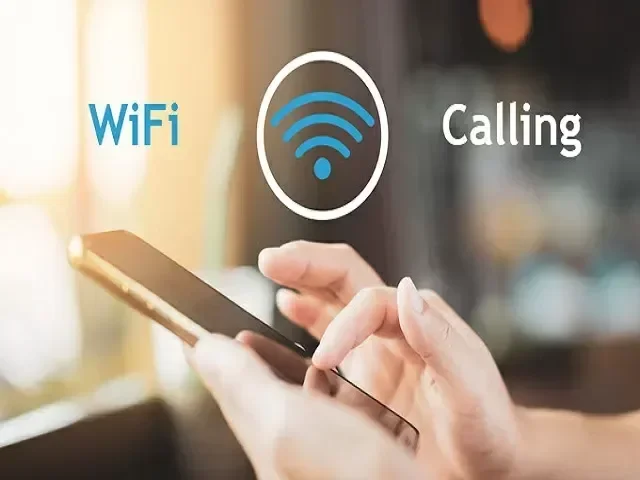
Wifi calling is a feature that lets you use a wifi network to make and receive phone calls. Instead of relying on cell towers, your phone sends call data over the internet. Think of it like a VoIP (Voice Over Internet Protocol) call, but built right into your phone’s dialer.
Most modern smartphones support this feature. Carriers like AT&T, Verizon, T-Mobile, and many others offer wifi calling at no extra cost. You do not need a special app or extra hardware. Your phone handles everything on its own.
The main benefit is simple. Wifi calling gives you better coverage in areas where cellular signals are weak. It also improves call quality in many cases. Your voice sounds clearer and the connection stays more stable.
Can You Receive Calls On Wifi Calling?
The answer is a definite yes. When wifi calling is turned on, your phone can receive incoming calls over a wifi network. This works in several different scenarios. Let us break them down.
How Calls Are Routed Through Wifi
When someone calls your phone number, the call reaches your carrier first. If your phone is connected to wifi, the carrier sends the call data over the internet to your device. Your phone receives it just like a regular call. You see the caller ID, you can answer or decline, and the conversation flows normally.
This process is called seamless handoff. Your phone switches between cellular and wifi without you even noticing. If you walk from your house with strong wifi into an area with good cell signal, the call continues without dropping.
When Wifi Calling Works Best For Receiving Calls
There are specific situations where wifi calling shines for receiving calls:
- Inside buildings with thick walls: Concrete and metal block cell signals. Wifi passes through easily.
- Rural areas with weak towers: If the nearest cell tower is far away, wifi calling keeps you connected.
- Basements and underground spaces: These are notorious for dead zones. Wifi calling solves this problem.
- During network congestion: When too many people use the same cell tower, calls can drop. Wifi calling avoids this entirely.
How Does Wifi Calling Work?
Understanding how wifi calling works helps you use it more effectively. The technology behind it is not as complicated as it sounds.
The Technology Behind Wifi Calling
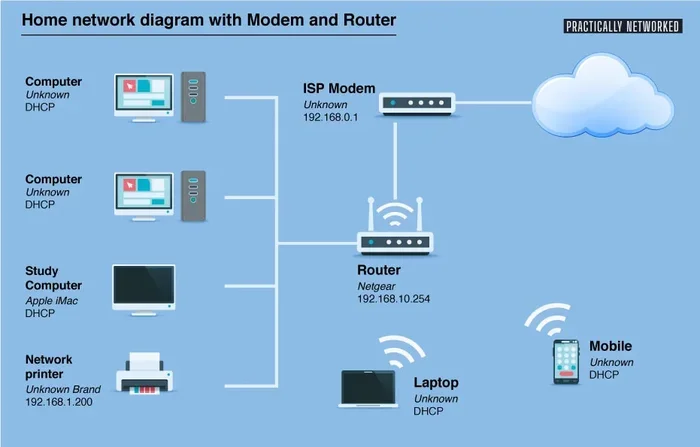
When you enable wifi calling, your phone connects to your router using the internet. Your carrier assigns your phone a virtual location based on the wifi network. The call data is compressed, sent over the internet, and then decompressed on your device.
This all happens in milliseconds. You do not need to do anything special during a call. The phone handles the entire process behind the scenes.
Here is a simple way to think about it. Regular calls travel through cell towers like radio waves. Wifi calling travels through your internet router like data from a website. Both reach your phone, but the path is different.
Wifi Calling vs Regular Cellular Calls
There are some key differences between wifi calling and regular cellular calls:
- Signal source: Wifi uses your router. Cellular uses nearby towers.
- Call quality: Wifi calling often sounds clearer because internet data is less prone to interference.
- Coverage: Wifi calling works anywhere you have internet. Cellular only works near a tower.
- Data usage: Wifi calling uses very little data, usually less than 1 MB per minute.
- Cost: Most carriers include wifi calling for free with your existing plan.
Setting Up Wifi Calling To Receive Calls
Setting up wifi calling is quick and easy. Here is how to do it on both iPhone and Android devices.
On iPhone
Follow these steps to enable wifi calling on your iPhone:
- Open the Settings app.
- Tap Phone.
- Select Wifi Calling.
- Toggle on Wifi Calling On This iPhone.
- Follow any prompts to register your address for emergency services.
Once enabled, your iPhone will automatically receive calls over wifi when the cellular signal is weak. You will see “Wifi Calling” appear in the status bar during a call.
On Android
Here is how to set up wifi calling on most Android phones:
- Open the Settings app.
- Go to Network & Internet or Connections (varies by brand).
- Tap Mobile Network or SIM Card.
- Look for Wifi Calling and toggle it on.
- Enter your address for emergency location services if prompted.
Some Android brands like Samsung and Google Pixel may have slightly different menu paths, but the process is very similar. The key is finding the wifi calling setting in your phone’s network menu.
Quick Tips For Setup
- Check with your carrier first: Some carriers require you to activate wifi calling on their end before your phone can use it.
- Update your phone: Make sure your device software is up to date for the best wifi calling experience.
- Restart after setup: A quick reboot helps your phone recognize the new settings.
Benefits Of Receiving Calls On Wifi Calling
Can you receive calls on wifi calling and why does it matter? There are many real-world benefits that make this feature essential for many people.
Improved Call Quality
One of the biggest advantages of wifi calling is clearer audio. Because internet connections are more stable than weak cell signals, your calls sound better. There is less static, less echo, and fewer interruptions. If you have ever struggled to hear someone on a regular call, wifi calling can be a lifesaver.
Coverage In Dead Zones
Many homes and offices have areas where the cell signal is very weak or completely absent. These are called dead zones. Wifi calling eliminates this problem entirely. As long as you have a working wifi router, you can receive calls anywhere in your home or office.
International Calling Made Easy
If you travel abroad frequently, wifi calling is incredibly useful. You can call and receive calls using wifi without paying expensive international roaming fees. Your carrier may still charge for international calls, but the rates are often much lower than standard roaming charges. Some carriers even offer free international wifi calling to certain countries.
Battery Life Savings
When your phone struggles to find a cell signal, it uses more battery power. It keeps searching for a tower. With wifi calling, your phone does not work as hard to maintain a connection. This can extend your battery life, especially in areas with poor cellular coverage.
Common Issues And How To Fix Them
While wifi calling is generally reliable, you may run into occasional issues. Here are the most common problems and how to solve them.
Calls Not Routing Through Wifi
If your calls are not using wifi even though it is turned on, try these steps:
- Make sure your phone is actually connected to wifi.
- Check that wifi calling is enabled in your settings.
- Restart your phone and router.
- Verify that your carrier supports wifi calling on your plan.
Poor Call Quality Over Wifi
If your calls sound choppy or you hear delays, your wifi connection may be the issue. Try these fixes:
- Move closer to your router: Distance weakens the wifi signal.
- Reduce network congestion: Too many devices on the same network can slow things down.
- Switch to a 5GHz band: This offers faster speeds and less interference than 2.4GHz.
- Check your internet speed: A minimum of 1 Mbps upload speed is recommended for smooth calls.
Emergency Call Limitations
One important thing to know about wifi calling is that emergency calls like 911 may not always transmit your exact location. Your phone registers your address during setup, but if you move to a different location, the accuracy can drop. Always make sure your registered address is correct in your wifi calling settings.
Does Wifi Calling Use Data?
A common question is whether wifi calling eats up your data. The answer is that it uses very little data when connected to wifi. Most calls use less than 1 megabyte per minute. This is a tiny amount of data.
However, if you are using wifi calling on a public wifi network or a metered connection, it still uses data. The good news is that the amount is so small that it is unlikely to make any noticeable difference in your data usage.
If you are on a cellular network and wifi calling is off, your phone uses the cellular network for calls, which does not count against your data plan. But when wifi calling is on and you are connected to wifi, the call data flows through your internet connection, not your cellular data.
Expert Insights On Wifi Calling
Telecommunications experts widely agree that wifi calling is one of the most useful features on modern smartphones. Carriers have invested heavily in this technology because it reduces network congestion and improves customer satisfaction.
According to industry reports, wifi calling adoption has grown significantly in recent years. More than 70 percent of smartphones now support the feature natively. This means the vast majority of users can take advantage of it without buying any additional equipment.
Experts also recommend keeping wifi calling enabled at all times. Even if you have a strong signal, having it on as a backup ensures you never miss a call. Your phone will automatically switch between cellular and wifi based on signal strength and network conditions.
Key Takeaways
- Can You Receive Calls On Wifi Calling: Yes, your phone receives calls over a wifi network when cellular signal is weak or unavailable.
- Setup is quick: Enabling wifi calling takes less than a minute on both iPhone and Android devices.
- Call quality improves: Internet-based calls are often clearer and more stable than weak cellular connections.
- Carrier support is key: Check with your carrier to confirm wifi calling is supported on your plan.
- Emergency location matters: Keep your registered address updated for accurate 911 routing.
- Minimal data usage: Wifi calling uses very little bandwidth, making it efficient and cost-effective.
Conclusion
Can you receive calls on wifi calling? Absolutely. It is one of the most practical and underused features on your smartphone. Wifi calling keeps you connected in dead zones, improves call quality, saves battery, and even helps when you travel internationally.
The setup process is simple. Both iPhone and Android users can enable it in just a few taps. Once turned on, your phone handles everything automatically. You do not need to think about it or change how you make calls.
If you have not tried wifi calling yet, now is the perfect time. Turn it on, make a test call, and experience the difference. You will wonder how you ever managed without it. Stay connected, stay clear, and let wifi calling do the heavy lifting for you.
Frequently Asked Questions
Can you receive calls on wifi calling without internet?
No, wifi calling requires an active internet connection. Without wifi, your phone cannot route calls over the internet. Make sure you are connected to a working wifi network for this feature to work properly.
Is wifi calling free to receive calls?
Yes, most carriers include wifi calling at no extra cost. You do not pay additional fees for making or receiving calls over wifi. However, international wifi calling rates may vary, so check with your carrier if you travel often.
Can I receive wifi calls on multiple devices?
Some carriers and devices support receiving wifi calls on other devices like tablets or laptops. Apple’s FaceTime and certain carrier apps allow this. Check with your carrier to see if your plan supports multi-device wifi calling.
Does wifi calling work when roaming internationally?
Yes, wifi calling works internationally in many cases. You can receive calls on your home number while abroad using wifi. This can save you from expensive roaming charges. However, not all carriers support international wifi calling, so confirm with your provider first.
Why does my phone not show the wifi calling option?
If your phone does not show the wifi calling setting, your carrier may not support it on your plan. Your device may also be too old or not compatible. Contact your carrier to confirm support and ask about enabling the feature on their end.
Can emergency services track my location during wifi calls?
Wifi calling can route emergency calls, but location accuracy may not be as precise as with cellular calls. Your phone uses your registered address for 911 routing. Always keep this address up to date in your wifi calling settings for the best accuracy.