Can I Charge My Dell Laptop With Usb C And How Fast It Works
Yes, you can charge your Dell laptop with USB C — and it is faster and more convenient than you might think. Many modern Dell laptops, including the XPS, Inspiron, and Latitude lines, fully support USB-C charging with the right charger and cable. This guide covers everything you need to know about USB-C power delivery, charging speeds, compatible devices, and common mistakes to avoid.
If you have ever been in a situation where your Dell laptop charger is missing or broken, you have probably wondered whether you can just plug in a USB-C cable and get going. The short answer is yes. But the full picture is a little more nuanced. Not all Dell laptops charge the same way, and not every USB-C charger works equally well. In this article, we will walk through everything you need to know about charging your Dell laptop with USB C. We will cover which models support it, how fast it works, what gear you need, and the mistakes that trip most people up.
By the end of this guide, you will feel confident about choosing the right USB-C charger for your Dell laptop. Whether you own a sleek Dell XPS or a dependable Dell Inspiron, this article has practical advice you can use right away. Let us get into it.
Key Takeaways
- USB-C charging works on most modern Dell laptops: XPS, Inspiron, and Latitude models support it natively.
- Charging speed depends on wattage: Higher wattage USB-C chargers charge faster than lower-powered ones.
- Not all Dell laptops support USB-C charging: Older models may need a traditional barrel charger.
- Use certified USB-C cables and chargers: Cheap or uncertified accessories can damage your laptop or charge slowly.
- USB Power Delivery (PD) is the key standard: It ensures safe and efficient power transfer between your charger and Dell laptop.
- Thunderbolt 3 and 4 ports also support charging: These offer the fastest USB-C charging speeds available.
- Avoid common mistakes: Using wrong wattage, low-quality cables, or incompatible adapters can lead to slow charging or no charging at all.
📑 Table of Contents
- Understanding USB-C Charging for Dell Laptops
- Which Dell Laptops Support USB-C Charging?
- How Fast Can You Charge a Dell Laptop With USB-C?
- What You Need to Charge Your Dell Laptop With USB-C
- Common Mistakes When Charging Dell Laptops With USB-C
- Expert Tips for Best USB-C Charging Results
- Comparison: USB-C vs. Traditional Dell Chargers
- Final Thoughts on Charging Your Dell Laptop With USB-C
Understanding USB-C Charging for Dell Laptops
USB-C has become the go-to connector for laptops, phones, and tablets. It is small, reversible, and surprisingly powerful. But understanding how USB-C charging works with Dell laptops starts with a few basics.
What Is USB-C Charging?
USB-C charging means using a USB Type-C port and cable to deliver electrical power to your laptop. Unlike the old barrel-shaped chargers, USB-C uses a standardized connector that works across many devices. You can plug a USB-C cable into your Dell laptop and connect it to a wall adapter, a docking station, or even a portable power bank.
The real magic behind USB-C charging is a protocol called USB Power Delivery, often shortened to USB PD. This standard lets devices negotiate the right amount of power automatically. Your Dell laptop tells the charger how much wattage it needs, and the charger responds accordingly. This prevents overloading and keeps your battery safe.
How USB Power Delivery Works on Dell Laptops
USB Power Delivery is not just one fixed speed. It scales up and down depending on what your laptop demands. Most Dell laptops that support USB-C charging work with USB PD profiles that range from 45 watts to 130 watts or more.
Here is how the process works in simple terms:
- You plug a USB-C cable into your Dell laptop.
- The cable connects to a USB-C power adapter or a USB-C dock with power delivery.
- The laptop and charger communicate through the cable.
- The charger sends the exact wattage your laptop needs.
- Your battery starts charging at the agreed-upon speed.
This negotiation happens in milliseconds. You do not need to do anything special. Just plug in, and your Dell laptop takes care of the rest.
Which Dell Laptops Support USB-C Charging?
Not every Dell laptop can charge through USB-C. Support depends on the model, age, and hardware design. Here is a breakdown of the most common Dell laptop lines and their USB-C charging capabilities.
Dell XPS Series
The Dell XPS lineup is one of the most USB-C-friendly series Dell offers. Models like the XPS 13, XPS 15, and XPS 17 all support USB-C charging through one or more Thunderbolt 3 or Thunderbolt 4 ports. These laptops can charge at speeds up to 100 watts or more using a compatible USB-C charger.
If you own a Dell XPS, you are in luck. You can use a USB-C power delivery charger as your primary charger or as a backup. Many XPS owners love the convenience of carrying just one USB-C cable and a compact charger for travel.
Dell Inspiron and Vostro Series
Most Dell Inspiron and Vostro models released after 2019 include at least one USB-C port that supports charging. However, the wattage support may be lower than XPS models. Some Inspiron laptops charge over USB-C at 45 watts or 65 watts, which is enough for normal use but may charge slower than the original Dell charger.
If you have an older Inspiron model, check your specs before relying on USB-C charging. Some budget Inspiron laptops only use USB-C for data transfer, not power delivery.
Dell Latitude and Precision Series
Dell Latitude business laptops and Precision workstations often include robust USB-C charging support. Many Latitude models charge at 65 to 130 watts via USB-C, making them great candidates for USB-C dock charging in office setups. Precision mobile workstations with Thunderbolt 4 ports can also charge efficiently through USB-C.
For business users, USB-C charging simplifies the workspace. You can connect to a single docking station and charge your laptop, monitor, and peripherals through one cable connection.
Older Dell Models Without USB-C Charging
If your Dell laptop is from before 2018, it likely does not support USB-C charging. Older models rely on traditional barrel chargers with a round connector. In these cases, you cannot charge your laptop through USB-C no matter what charger you use. Always check your laptop’s specifications or the port shape before assuming USB-C charging is supported.
How Fast Can You Charge a Dell Laptop With USB-C?
Speed is one of the biggest questions people ask about charge Dell laptop with USB C. The answer depends on several factors, including the charger wattage, cable quality, and your laptop model.
USB-C Charging Speed Compared to Traditional Chargers
A standard Dell barrel charger typically delivers 65 watts or 90 watts. A good USB-C charger can match or exceed these speeds. Here is a quick comparison:
- 65W USB-C charger: Charges most Dell Inspiron and Latitude laptops at a similar rate to the original Dell 65W adapter.
- 90W USB-C charger: Works well for XPS 15 and some Latitude models. Charges faster than a 65W charger on supported laptops.
- 100W USB-C charger: Supports fast charging on XPS 13 and XPS 15. Can fully charge a depleted battery in roughly 1.5 to 2 hours.
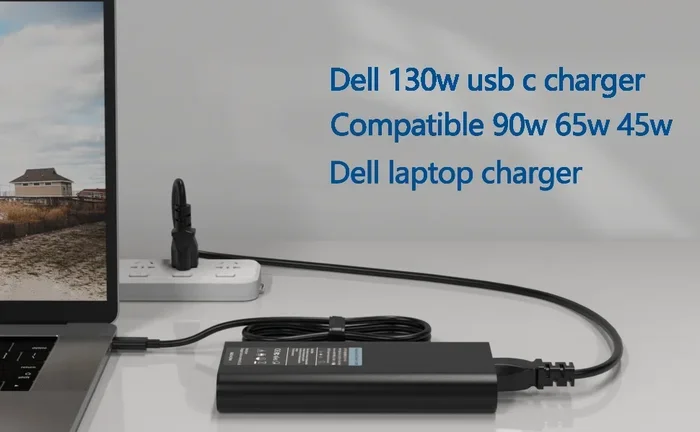
- 130W USB-C charger: Ideal for high-performance Dell XPS and Precision models. Delivers the fastest USB-C charging speeds available.
In general, USB-C charging is just as fast as traditional Dell chargers when you match the wattage. The convenience factor makes it a popular choice for people who want fewer cables and adapters.
Wattage Matters for Fast Charging
Wattage is the single most important factor for charging speed. A higher wattage charger delivers more power, which means faster charging. But here is the catch: your laptop will only draw the power it supports. Using a 130W charger on a Dell XPS 13 that supports 65W will not make it charge any faster. It will simply deliver 65W safely.
On the other hand, using a charger with too low wattage can result in slow charging. If your Dell laptop normally uses a 90W charger and you plug in a 45W USB-C charger, the battery may charge very slowly or not at all while you use the laptop heavily.
What You Need to Charge Your Dell Laptop With USB-C
Setting up USB-C charging for your Dell laptop is simple, but you need the right gear. Using the wrong equipment can lead to slow charging, no charging, or even damage over time.
Choosing the Right USB-C Cable
Not all USB-C cables are created equal. A cheap cable might handle data transfer just fine but fail to deliver enough power for charging. Here is what to look for:
- USB-C to USB-C cable: You need a cable with USB-C connectors on both ends. This is the standard for Dell laptop charging.
- E-marked cables: These cables support higher wattage and data speeds. Look for cables rated for 60W or 100W power delivery.
- Cable length: Shorter cables (about 1 to 2 feet) tend to deliver power more efficiently than very long cables.
- Certified cables: Choose cables with USB-IF certification or from reputable brands like Anker, Belkin, or Cable Matters.
A good USB-C cable is one of the most overlooked parts of the charging equation. Even with a powerful charger, a low-quality cable will limit your charging speed.
USB-C Chargers and Power Adapters
When shopping for a USB-C charger for Dell, focus on these key specs:
- Wattage rating: Match it to your laptop’s power needs (65W, 90W, 100W, or 130W).
- USB PD support: The charger must support USB Power Delivery protocol.
- GaN technology: Gallium Nitride (GaN) chargers are smaller, cooler, and more efficient than traditional silicon chargers. They are an excellent choice for travel.
- Multiple port options: Some USB-C chargers include extra USB-A ports for charging your phone or tablet simultaneously.
Popular choices include the Dell OEM USB-C charger, Anker GaN chargers, and Apple USB-C chargers (which work great with Dell laptops despite the brand name). The key is ensuring the charger supports the right wattage and USB PD.
Common Mistakes When Charging Dell Laptops With USB-C
Even with the right equipment, people make mistakes that slow down their charging or cause problems. Here are the most common ones to avoid.
Using Incompatible Chargers
Not every USB-C charger works with every Dell laptop. Some chargers only output 18W or 30W, which is not enough for most Dell laptops. Before buying a charger, verify that it supports the wattage your Dell laptop requires. Using an underpowered charger will result in extremely slow charging or no charging at all while the laptop is under load.
Ignoring Cable Quality
A USB-C cable that is damaged, too thin, or not rated for power delivery will ruin your charging experience. Frayed cables, loose connections, and unbranded cables are the top culprits for slow or intermittent charging. Replace damaged cables immediately and invest in quality options.
Charging Through a Low-Power USB Port
Plugging your Dell laptop into a standard computer USB port or a low-power USB-C hub will not charge the battery effectively. These ports typically deliver only 5W to 15W, which is far below what a laptop needs. Always use a dedicated wall charger or a powered docking station for reliable USB-C charging.
Using Non-USB PD Chargers
Some USB-C chargers use proprietary charging protocols that are not compatible with Dell USB Power Delivery. For example, some older Qualcomm Quick Charge adapters use a different communication protocol. Always choose a charger that explicitly supports USB PD for best results with your Dell laptop.
Expert Tips for Best USB-C Charging Results
Want to get the most out of USB-C charging with your Dell laptop? These expert-backed tips will help you maximize speed, battery health, and convenience.
Keep Your Firmware and Drivers Updated
Dell regularly releases firmware updates that improve USB-C charging compatibility and performance. Check Dell Support Assistant on your laptop or visit Dell’s support website for the latest updates. Updated firmware ensures your laptop communicates properly with USB-C chargers and docks.
Use a USB-C Dock for All-in-One Charging
A quality USB-C docking station with power delivery lets you charge your laptop while connecting to external monitors, keyboards, and storage. Look for docks that support at least 65W or 90W pass-through charging. This setup is perfect for home offices and workspaces where you want a clean, cable-free desk.
Avoid Charging Through Your Laptop While Using It Heavily
If you are running demanding applications like video editing or gaming, your laptop draws more power than the charger can supply. This causes the battery to drain even while plugged in. For the best charging experience, reduce your workload or use a higher-wattage charger when performing intensive tasks.
Store Your Laptop Between 20% and 80%
Lithium-ion batteries last longer when they are not constantly charged to 100% or drained to 0%. If you use USB-C charging daily, try to keep your battery level between 20% and 80%. This simple habit extends your battery lifespan significantly over months and years.
Consider a GaN Charger for Travel
Gallium Nitride (GaN) chargers are smaller, lighter, and more energy-efficient than traditional chargers. A 65W or 100W GaN charger fits easily in a laptop bag and charges your Dell laptop just as fast as a bulkier traditional adapter. They are a game-changer for frequent travelers who want to simplify their carry-on setup.
Comparison: USB-C vs. Traditional Dell Chargers
To help you decide which charging method is best for your needs, here is a side-by-side comparison of USB-C charging versus traditional Dell barrel chargers.
| Feature | USB-C Charging | Traditional Barrel Charger |
|---|---|---|
| Connector Type | USB Type-C (reversible) | Round barrel plug |
| Charging Speed | Fast (45W to 130W) | Fast (65W to 130W) |
| Compatibility | Works with many devices | Dell-specific only |
| Portability | Compact GaN chargers available | Bulky adapters |
| Cable Reversibility | Yes, reversible connector | No, specific orientation |
| Docking Support | Yes, through USB-C docks | Limited or none |
| Older Model Support | No (2018 and newer) | Yes, all models |
| Cost | Varies, often more options | Usually OEM-specific pricing |
As you can see, USB-C charging offers more versatility and convenience for most users. Traditional barrel chargers still have a place for older Dell laptops, but for modern machines, USB-C is the clear winner.
Final Thoughts on Charging Your Dell Laptop With USB-C
Charging your Dell laptop with USB-C is not only possible for most modern models but also incredibly convenient. Whether you use a Dell XPS, Inspiron, Latitude, or Precision, USB-C charging gives you flexibility, speed, and fewer cables to manage. The key is choosing the right USB-C charger, using a quality USB-C cable, and matching the wattage to your laptop’s requirements.
By avoiding common mistakes like using low-powered chargers, cheap cables, or incompatible adapters, you can enjoy fast and safe USB-C charging every day. Keep your firmware updated, invest in a good GaN charger for travel, and consider a USB-C docking station for your workspace setup.
With the right approach, USB-C charging becomes second nature. You will never have to hunt for a proprietary Dell charger again. Your laptop, your cable, your convenience.
Frequently Asked Questions
Can I charge any Dell laptop with a USB-C charger?
No, not every Dell laptop supports USB-C charging. Most Dell laptops released after 2018 with USB-C ports do support it, but older models rely on traditional barrel chargers. Always check your laptop’s specifications or look for a lightning bolt icon next to the USB-C port, which indicates it supports power delivery.
How fast does USB-C charge a Dell laptop compared to the original charger?
USB-C charging is just as fast as the original Dell charger when the wattage matches. A 90W USB-C charger will charge a Dell laptop that requires 90W at the same speed as the OEM charger. Using a lower-wattage charger will result in slower charging.
Can I use a phone USB-C charger to charge my Dell laptop?
Most phone chargers output only 18W to 27W, which is not enough to charge a Dell laptop effectively. While your laptop may show a charging indicator, the battery will likely drain faster than it charges if you are using the laptop at the same time. Use a charger rated for at least 45W or higher for reliable Dell laptop charging.
Do I need a special USB-C cable to charge my Dell laptop?
Yes, you need a USB-C cable rated for power delivery. Standard USB-C cables designed only for data transfer may not handle the wattage needed for laptop charging. Look for cables rated at 60W or 100W with USB-IF certification for the best results.
Is it safe to leave my Dell laptop charging overnight with a USB-C charger?
Yes, it is safe. Modern Dell laptops and USB-C chargers have built-in safety mechanisms that prevent overcharging. Once your battery reaches 100%, the charging stops automatically. However, for long-term battery health, it is a good habit to unplug your laptop once it is fully charged.
Can I charge my Dell laptop through a USB-C hub or docking station?
Yes, many USB-C hubs and docking stations support power delivery pass-through, which means they can charge your Dell laptop while also providing data and display connections. Make sure the dock or hub supports at least the same wattage as your Dell laptop requires for optimal charging speed.