Can I Connect Airpods To Windows 11 Without Any Trouble
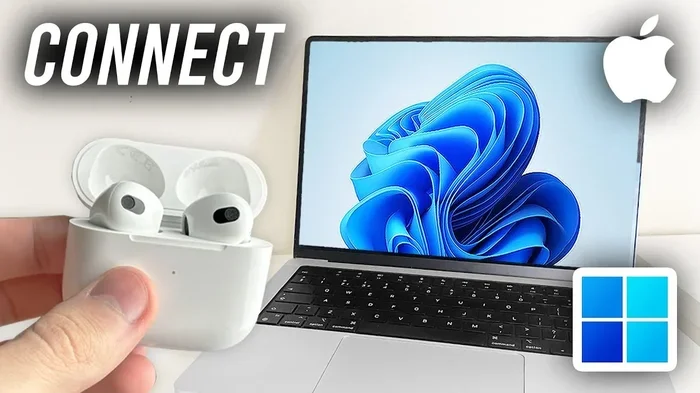
Yes, you can connect Airpods to Windows 11 without any hassle. The process is simple and works for all Airpods models, including Airpods Pro and Airpods Max. You just need to put your Airpods in pairing mode and use the Windows 11 Bluetooth settings to complete the connection. This guide walks you through every step, from initial pairing to fixing common connection issues.
If you own a pair of Airpods and just switched to a Windows 11 laptop, you might be wondering whether your favorite earbuds will work. The good news is that you can connect Airpods to Windows 11 without pulling your hair out. Apple designed Airpods to work seamlessly with its ecosystem, but they also support standard Bluetooth protocols. This means your Airpods can pair with any device that has Bluetooth, including Windows 11 PCs.
Whether you use Airpods Pro, Airpods Max, or the regular Airpods, the connection process is straightforward. Windows 11 has built-in Bluetooth support, so you do not need any special software to get started. However, there are a few quirks you should know about. Some features that work perfectly on macOS may not function the same way on Windows 11. This guide covers everything you need to know about connecting Airpods to Windows 11 without any trouble.
In this article, you will learn the exact pairing steps, how to fix common connection problems, which features work and which do not, and tips to get the best audio experience. By the end, you will feel confident using your Airpods with your Windows 11 machine every single day.
Key Takeaways
- Easy Pairing: Connecting Airpods to Windows 11 takes just a few clicks through Bluetooth settings.
- All Models Work: Every Airpods variant, including Airpods Pro and Airpods Max, pairs with Windows 11.
- Troubleshooting Is Simple: Most connection issues can be fixed by resetting your Airpods or updating Bluetooth drivers.
- Limited Features: Some Airpods features like Active Noise Cancellation and Spatial Audio are not fully supported on Windows 11.
- Third-Party Apps Help: Apps like Bluetooth Toolbox and Airpods Connect enhance the Windows experience.
- Battery Tracking: You can check Airpods battery levels on Windows 11 using the Bluetooth settings or add-on tools.
- Microphone Works: Your Airpods microphone functions for calls and voice recordings on Windows 11.
📑 Table of Contents
How to Connect Airpods to Windows 11
Pairing your Airpods with a Windows 11 PC is a quick process. You do not need to be a tech expert to get it done. Follow these simple steps and you will be listening to music or taking calls in minutes.
Put Your Airpods in Pairing Mode
First, you need to make your Airpods visible to other devices. The method depends on your Airpods model. For regular Airpods, open the charging case lid while the Airpods are inside. Press and hold the small button on the back of the case until the LED light starts flashing white. That white flash means your Airpods are ready to be found.
If you have Airpods Pro, the process is the same. Open the case, hold the button on the back, and wait for the flashing white light. For Airpods Max, press and hold the noise control button on the top right ear cup for about five seconds until the LED flashes white.
Add Airpods Through Windows 11 Bluetooth Settings
Now that your Airpods are in pairing mode, it is time to connect them to your Windows 11 PC. Click on the Start menu and go to Settings. Select Bluetooth and devices from the left sidebar. Make sure Bluetooth is turned on. Click the Add device button at the top of the screen.
A new window will pop up. Choose Bluetooth from the list of options. Your Windows 11 PC will start searching for nearby devices. You should see your Airpods appear in the list. Click on them and wait for the connection to complete. That is it. Your Airpods are now connected to Windows 11.
What to Do When Airpods Won’t Connect to Windows 11
Sometimes things do not go as smoothly as you hope. Maybe your Airpods keep disconnecting, or they simply will not show up in the Bluetooth list. Do not worry. This happens more often than you think, and there are easy fixes for it.
Check Your Bluetooth Drivers
Outdated or corrupted Bluetooth drivers are one of the most common reasons for connection problems on Windows 11. To check your drivers, right-click on the Start button and select Device Manager. Expand the Bluetooth section and look for your Bluetooth adapter. Right-click on it and choose Update driver. Select Search automatically for drivers and let Windows do the work.
If updating does not help, you can try uninstalling the driver and restarting your PC. Windows will automatically reinstall the driver when it boots back up. This simple trick fixes many Bluetooth issues on Windows 11.
Reset Your Airpods
Sometimes the problem is on the Airpods side. Resetting your Airpods can clear any cached connection data that might be causing issues. For regular Airpods, put them back in the case, close the lid, and wait 30 seconds. Then open the lid, go to Settings on your iPhone or iPad, tap Bluetooth, find your Airpods, and tap Forget This Device. Then try pairing again with Windows 11.
For Airpods Pro, the reset process is slightly different. Place both Airpods in the case, close the lid, wait 30 seconds, then open the lid. Press and hold the button on the back of the case for 15 seconds until the LED flashes amber and then white. Your Airpods are now reset and ready for a fresh connection.
Restart Your Windows 11 PC
This might sound too simple, but restarting your PC can resolve many Bluetooth glitches. A reboot clears temporary files, refreshes system services, and often fixes minor software bugs that interfere with Bluetooth connections. Try this before moving on to more complex troubleshooting steps.
- Do not keep your Airpods in the case while trying to pair. The case lid must be open.
- Do not pair your Airpods with another device at the same time. Disconnect them from other devices first.
- Do not ignore Windows updates. Some updates include important Bluetooth fixes.
Airpods Sound Quality and Features on Windows 11
Now that you know how to connect Airpods to Windows 11, let us talk about what you can actually expect in terms of performance. The audio experience is good, but not perfect. Understanding what works and what does not will help you set realistic expectations.
Audio Codecs and Sound Performance
Airpods use Apple’s custom Bluetooth audio codec when connected to Apple devices. On Windows 11, your Airpods fall back to the standard SBC codec. This means you will not get the same high-quality audio experience as you do on a Mac or iPhone. The sound is still clear and pleasant, but you may notice a slight difference in audio richness and detail.
For most casual listening, the SBC codec works just fine. You can stream music, watch videos, and take calls without any major issues. If you are an audiophile who demands the absolute best sound quality, you might notice the difference. But for everyday use, the audio quality from Airpods on Windows 11 is more than acceptable.
Microphone and Call Quality
Your Airpods microphone works on Windows 11 for calls, voice recordings, and video chats. The mic quality is decent and handles most communication needs well. During a Zoom meeting or a Teams call, your voice will come through clearly to the other person.
However, the microphone does not have the same noise cancellation capabilities on Windows 11 as it does on Apple devices. The built-in wind and noise reduction features are optimized for Apple’s ecosystem, so you might pick up a bit more background noise during calls. Still, for most work-from-home setups, the microphone quality is perfectly fine.
Airpods Battery Life and Controls on Windows 11
Using Airpods on Windows 11 raises some questions about battery monitoring and control options. Let us break down what you can expect.
Checking Airpods Battery Levels
Windows 11 does not show Airpods battery levels natively in the Bluetooth settings. This is one of the features that Apple keeps locked to its own ecosystem. However, there is a workaround. When your Airpods are connected, open the Windows 11 notification center and look for the Bluetooth device card. It sometimes shows battery information there.
For a more reliable solution, you can download a free third-party app like Bluetooth Toolbox or Eara. These apps display the battery levels of your Airpods, Airpods Pro, and even the charging case right on your Windows 11 desktop. They are lightweight and easy to use.
Touch Controls and Gestures
The touch controls on your Airpods work differently on Windows 11 compared to Apple devices. On a Mac, you can tap the stem of your Airpods Pro or Airpods Max to play music, skip tracks, or activate Siri. On Windows 11, basic controls like play, pause, and volume adjustment work through the standard Windows audio controls.
You can adjust volume using the taskbar volume slider or your keyboard media keys. Skipping tracks and activating Siri do not work the same way on Windows 11. Some third-party apps can add more control options, but they are not always reliable. For the most part, you will use your PC’s built-in controls to manage audio playback.
Airpods Pro and Airpods Max on Windows 11
You might be wondering if the premium Airpods models work any differently on Windows 11. The short answer is yes, they connect the same way, but some features are limited.
Active Noise Cancellation Limitations
Airpods Pro and Airpods Max feature Active Noise Cancellation (ANC) that works beautifully on Apple devices. On Windows 11, the ANC hardware is still active, but you cannot toggle it on or off from your PC. There is no native Windows setting to control ANC levels.
Some third-party apps claim to offer ANC control on Windows, but results vary. The ANC will work at whatever level it was last set to on an Apple device. If you want full control over ANC, you will need to use the ANC toggles on your iPhone or iPad before switching to your Windows 11 PC.
Spatial Audio Support
Spatial Audio on Airpods creates an immersive surround sound experience that is especially great for movies and Apple Music content. Unfortunately, Windows 11 does not support the spatial audio format used by Airpods. You will not get the same spatial audio experience on your PC that you get on your Apple devices.
Some Windows 11 apps and media players support Dolby Atmos, which can create a similar spatial effect, but it will not sync with your Airpods specifically. For the full spatial audio experience, Apple devices remain the best choice.
Tips for the Best Airpods Experience on Windows 11
Getting the most out of your Airpods on Windows 11 requires a few extra steps. These tips will help you optimize your experience and avoid frustration.
Keep Your Bluetooth Drivers Updated
Regular driver updates can improve Bluetooth stability and audio quality on Windows 11. Go to Settings, then Windows Update, and check for updates regularly. Microsoft frequently releases driver updates that fix Bluetooth connectivity issues. Keeping your system up to date ensures the smoothest possible connection with your Airpods.
Use Third-Party Apps for Enhanced Control
While Windows 11 does not offer full Airpods integration, several third-party apps can fill the gaps. Apps like Airpods Connect and Bluetooth Toolbox provide battery monitoring, custom controls, and better device management. These free tools make using Airpods on Windows 11 much more convenient.
Keep Your Airpods Charged
Low battery can cause connection drops and audio glitches. Make it a habit to check your Airpods battery before important calls or listening sessions. Keeping the charging case topped up ensures your Airpods are always ready to go when you need them on your Windows 11 PC.
Avoid Interference from Other Devices
Bluetooth operates on the 2.4 GHz frequency band, which many other devices also use. Wi-Fi routers, microwaves, and even USB 3.0 ports can cause Bluetooth interference. If you experience connection drops, try moving your PC away from other wireless devices or switching your Wi-Fi to the 5 GHz band.
Airpods Features on Windows 11 vs macOS
| Feature | Windows 11 | macOS |
|---|---|---|
| Pairing Process | Manual Bluetooth pairing | Automatic via iCloud |
| Sound Quality | Standard SBC codec | Custom Apple codec |
| Battery Monitoring | Limited, needs third-party apps | Built-in and native |
| ANC Control | Not natively supported | Full control |
| Spatial Audio | Not supported | Fully supported |
| Microphone | Works for calls | Works with noise reduction |
| Touch Controls | Basic controls only | Full gesture support |
| Siri Integration | Not available | Fully integrated |
Final Thoughts
So, can you connect Airpods to Windows 11 without any trouble? Absolutely. The process is simple, fast, and works across all Airpods models. Once paired, your Airpods will connect automatically whenever Bluetooth is turned on, making the experience feel almost seamless.
Yes, there are some limitations. You will not get the full Apple ecosystem experience on Windows 11. Features like ANC control, Spatial Audio, and Siri integration are not available. The sound quality is slightly different due to the codec limitations. But for everyday listening, calls, and media consumption, Airpods on Windows 11 work really well.
The key is to set realistic expectations and use the right tools to fill in the gaps. Keep your drivers updated, try a third-party app for battery monitoring, and enjoy your Airpods on your Windows 11 PC. With the steps outlined in this guide, you can connect Airpods to Windows 11 and start using them right away.
Do not let the lack of Apple ecosystem integration stop you from enjoying your Airpods on a Windows machine. Millions of people use Airpods with Windows PCs every day without any major issues. Follow this guide, troubleshoot any problems that come up, and you will be good to go.
Frequently Asked Questions
Can I Connect Airpods To Windows 11 Without Third-Party Software?
Yes, you can connect Airpods to Windows 11 using only the built-in Bluetooth settings. No third-party software is required for basic pairing and audio playback. However, if you want features like battery monitoring or advanced controls, third-party apps can be helpful.
Why Do My Airpods Keep Disconnecting From Windows 11?
Frequent disconnections usually happen due to outdated Bluetooth drivers, interference from other devices, or low battery. Try updating your drivers, moving closer to your PC, and ensuring your Airpods are fully charged. Resetting your Airpods can also resolve persistent disconnection issues.
Do Airpods Work for Gaming on Windows 11?
Airpods can work for gaming on Windows 11, but there is some audio latency due to the Bluetooth connection. For casual gaming, the latency is usually not noticeable. However, competitive gamers who need instant audio feedback may find Bluetooth headphones too slow. For the best gaming experience, a wired connection or a gaming-specific wireless headset is recommended.
Can I Use Airpods Microphone for Voice Chat on Windows 11?
Yes, the Airpods microphone works perfectly fine for voice chat on Windows 11. Apps like Discord, Zoom, and Microsoft Teams all support Airpods as an input device. The call quality is clear, though it lacks the advanced noise cancellation available on Apple devices.
Is It Safe to Leave Airpods Connected to Windows 11 All the Time?
Yes, it is safe to leave your Airpods connected to Windows 11 at all times. Windows 11 manages Bluetooth connections efficiently and will not drain your Airpods battery significantly when they are in the case. However, if you notice battery drain, you can disconnect them manually through the Bluetooth settings.
Which Airpods Model Works Best With Windows 11?
All Airpods models work with Windows 11, but the standard Airpods (third generation) and Airpods Pro offer the best balance of compatibility and performance. Airpods Max also connect well but are bulkier for PC use. Every model pairs the same way through Windows 11 Bluetooth settings.