Does Google Nest Wifi Daisy Chain Boost Your Signal
Does Google Nest Wifi Daisy Chain boost your signal? Yes, it can extend coverage across your home by linking multiple Nest Wifi points together in a mesh network. This guide covers how daisy chaining works, setup steps, speed trade-offs, and whether it is the right solution for your wireless coverage needs.
Does Google Nest Wifi Daisy Chain really boost your signal? If you have ever walked through your house and watched your phone lose wifi right at the corner of a room, you know the frustration of dead zones. A weak signal means slow downloads, dropped video calls, and endless buffering. The good news is that Google Nest Wifi was designed to solve this problem.
Many homeowners turn to mesh wifi systems to fix coverage issues. Google Nest Wifi is one of the most popular options. But does connecting multiple points in a daisy chain actually work? And more importantly, does it boost your signal the way you want? Let us break it all down in simple terms.
Daisy chaining means linking devices together in a line or network. Each device passes the signal to the next one. With Google Nest Wifi, this creates a mesh network where every point talks to the others. The result is broader coverage and fewer dead spots in your home.
When you set up a Google Nest Wifi system, the first point connects directly to your modem. That is your main router. Additional Nest Wifi points then connect to it wirelessly. They form a single, unified network. Your phone, tablet, and smart home devices all stay on the same network name. You do not need to switch between networks manually.
Now, you might wonder if this is the same as a traditional wifi range extender. It is not. A range extender creates a separate network. Devices have to reconnect when they move between zones. A mesh network like Google Nest Wifi keeps everything seamless. That is a big reason why so many people prefer mesh systems over old-school extenders.
Key Takeaways
- Daisy chaining works: Google Nest Wifi points can link together to form a mesh network that extends your wireless coverage.
- Seamless roaming: Devices switch between points automatically without dropping your connection.
- Speed loss is minimal: Each hop adds slight latency but modern Nest Wifi hardware keeps performance strong.
- Easy setup: The Google Home app walks you through adding points step by step.
- Placement matters: Position your points within good range of each other for the best results.
- Not the same as a range extender: Mesh daisy chaining is smarter and more reliable than traditional boosters.
📑 Table of Contents
- How Does Google Nest Wifi Daisy Chain Work?
- Setting Up a Google Nest Wifi Daisy Chain
- Does Daisy Chaining Slow Down Your Internet Speed?
- Google Nest Wifi Daisy Chain vs. Traditional Range Extenders
- Can You Daisy Chain More Than Two Points?
- Common Mistakes People Make When Daisy Chaining Nest Wifi
- Expert Insights on Google Nest Wifi Mesh Performance
- Is a Google Nest Wifi Daisy Chain Worth It?
- Final Thoughts
How Does Google Nest Wifi Daisy Chain Work?
Google Nest Wifi uses a technology called mesh networking. Here is how it works in plain language. Your main Nest Wifi point plugs into your modem. It acts as the router and the center of your home network. Then you place additional Nest Wifi points around your house. These points connect to the main unit and to each other.
Each point acts as a mini router. It sends and receives wifi signals. When your phone moves from one room to another, it connects to the nearest point. This is called seamless roaming. You do not even notice the switch. Your video call keeps going. Your game does not lag.
The points communicate with each other using a dedicated wireless band. This means they do not compete with your devices for bandwidth. The backhaul connection stays strong. Your devices get the full speed they need.
What Makes Daisy Chaining Different from a Single Router?
A single router sends wifi in all directions. But walls, floors, and furniture block the signal. By the time you reach the far end of your house, the signal is weak. A daisy chain setup places multiple points throughout your home. Each one strengthens the signal in its area.
Think of it like a relay race. The main router starts the signal. Each Nest Wifi point passes it along. By the time it reaches the last point, the signal is still strong. This is why google nest wifi daisy chain setups are so effective for larger homes.
Can Any Nest Wifi Point Be the Main Router?
No. The first point you set up becomes the main router. It must connect directly to your modem. The other points extend the network. If you want to change which point is the main router, you need to reset the system and start over. This is something to keep in mind when planning your setup.
Setting Up a Google Nest Wifi Daisy Chain
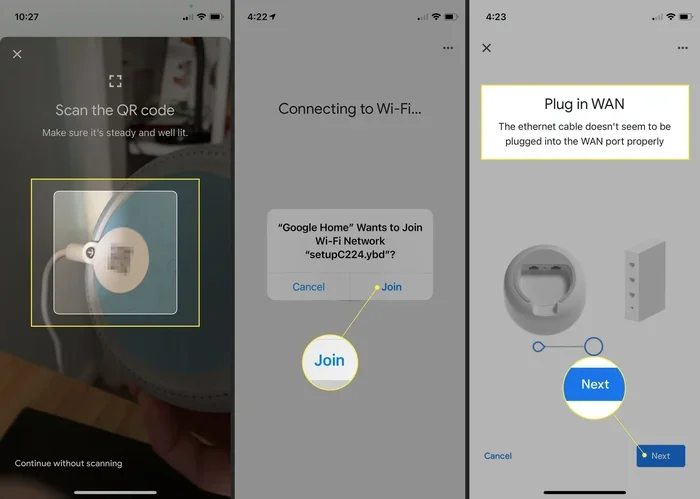
Setting up a Google Nest Wifi daisy chain is surprisingly simple. You do not need to be a tech expert. The Google Home app guides you through every step. Here is what the process looks like.
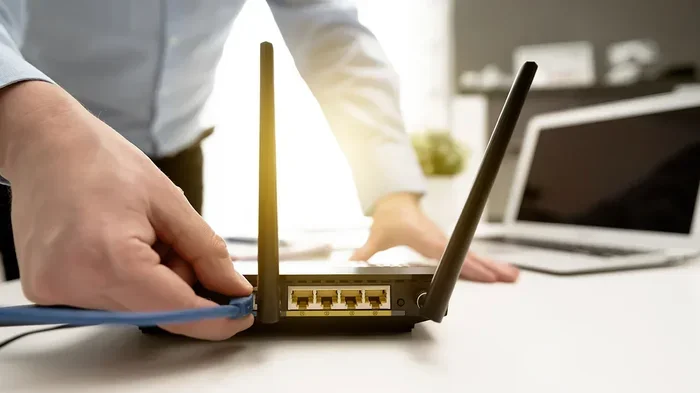
- Plug in your main Nest Wifi point. Connect it to your modem using an ethernet cable. The light on the point will pulse, meaning it is ready to be set up.
- Open the Google Home app. Tap the plus sign and choose Set Up Device. Follow the on-screen instructions to connect your main point to your home network.
- Add additional points. Place your second Nest Wifi point in the room where you need more coverage. The app will detect it and walk you through the setup.
- Repeat for each additional point. You can add up to several points depending on your plan and home size.
The app shows you the signal strength between each point. This helps you find the best placement. You want each point to be close enough to the next one for a strong connection. But you also want to cover as much area as possible.
Best Placement Tips for Nest Wifi Points
Placement is the most important part of any mesh setup. Even the best mesh wifi system will struggle if points are placed poorly. Here are some tips.
- Keep points within 30 to 40 feet of each other. This ensures a strong backhaul connection between points.
- Place points in open areas. Avoid hiding them behind TVs or inside cabinets. Walls and metal objects block wifi signals.
- Put a point in the room where you use wifi the most. Home offices, living rooms, and bedrooms are common priorities.
- Avoid placing points near microwaves or cordless phones. These devices interfere with wifi signals on the 2.4 GHz band.
- Use the Google Home app signal test. It tells you if a point has a strong enough connection to the next one in the chain.
If you are struggling with signal in a specific room, you might also consider whether your phone is using the right frequency band. Some devices connect to the 2.4 GHz band by default, which has longer range but slower speeds. You can force your phone to use a different band if needed.
Does Daisy Chaining Slow Down Your Internet Speed?
This is the question most people ask. And the answer is: it depends. Every time a signal hops from one point to the next, there is a small amount of speed loss. But with Google Nest Wifi, this loss is minimal. The hardware is designed to handle multiple points without significant slowdown.
Understanding Speed Loss in a Mesh Network
In a daisy chain setup, the second point receives the signal from the main router. It then sends it out to your devices. This means the signal travels twice the distance. Some speed loss is inevitable. But Google Nest Wifi uses a dedicated wireless backhaul band. This keeps the speed loss to a minimum.
In most real-world tests, users see only a 10 to 20 percent speed drop when connected to a second Nest Wifi point. That is far better than traditional range extenders, which can cut your speed in half.
Single vs. Daisy Chained Speed Comparison
Here is a simple comparison of what you can expect.
- Direct connection to main router: Full speed, no loss.
- Connected to second Nest Wifi point: 10 to 20 percent speed loss.
- Connected to third Nest Wifi point: 20 to 30 percent speed loss.
- Traditional range extender: 40 to 50 percent speed loss.
As you can see, a google nest wifi daisy chain setup performs much better than older extension methods. The more points you add, the more speed you may lose. But for most homes, the trade-off is worth it. Better coverage with a small speed drop beats no coverage at all.
What About Latency and Gaming?
If you are a gamer, you might worry about latency. Each hop in a daisy chain adds a tiny bit of delay. For most online games, this delay is unnoticeable. But if you are playing competitive games where every millisecond counts, you should connect your gaming device directly to the main router if possible.
For casual gaming, streaming, and general browsing, a daisy chain setup works perfectly fine. You will not notice any lag in everyday use.
Google Nest Wifi Daisy Chain vs. Traditional Range Extenders
Many people wonder whether they should use a mesh system or a traditional range extender. Both have pros and cons. Let us compare them.
| Feature | Google Nest Wifi Mesh | Traditional Range Extender |
|---|---|---|
| Network Name | Single unified name | Separate network name |
| Seamless Roaming | Yes | No |
| Speed Loss | 10 to 20 percent | 40 to 50 percent |
| Setup Difficulty | Easy via app | Moderate |
| Device Handoff | Automatic | Manual |
| Parental Controls | Built in | Usually not available |
| Price | Higher upfront cost | Lower upfront cost |
The table makes it clear why mesh systems have become so popular. They are simply better at delivering a consistent experience throughout your home. A mesh wifi system like Google Nest Wifi eliminates the frustration of switching networks as you move from room to room.
Can You Daisy Chain More Than Two Points?
Yes. Google Nest Wifi supports adding multiple points to your network. You can daisy chain three, four, or even more points depending on your home size. Each additional point extends the coverage further.
However, there is a catch. The more points you add, the more the signal has to travel. Each hop adds a small amount of latency and speed loss. For most homes, two or three points are plenty. If you have a very large home, you might need four or five.
How Many Points Do You Actually Need?
Here is a simple rule of thumb.
- Small apartment (under 1,000 sq ft): One point may be enough.
- Medium home (1,000 to 2,000 sq ft): Two points should cover it well.
- Large home (2,000 to 3,500 sq ft): Three points recommended.
- Very large home (over 3,500 sq ft): Four or more points may be needed.
Keep in mind that walls, floors, and building materials affect wifi performance. Brick and concrete walls block signals more than drywall. Factor this into your planning.
Common Mistakes People Make When Daisy Chaining Nest Wifi
Even with a simple setup, people make mistakes that hurt their performance. Here are the most common ones.
Placing Points Too Far Apart
This is the number one mistake. If your second Nest Wifi point is too far from the main router, the connection between them becomes weak. The point still works, but your devices connected to it will experience slow speeds. Keep points close enough for a strong backhaul link.
Hiding Points in Closets or Cabinets
It is tempting to hide your Nest Wifi points to keep your home looking clean. But enclosing a point in a cabinet or closet blocks its signal. Place them in open, central locations for the best coverage.
Forgetting to Update Firmware
Google regularly releases firmware updates for Nest Wifi. These updates fix bugs, improve performance, and add new features. Check the Google Home app periodically to make sure your points are running the latest software.
Using Old Ethernet Cables for the Main Point
The main Nest Wifi point connects to your modem with an ethernet cable. If you use an old or damaged cable, it can limit your speeds. Use a high-quality ethernet cable for the best performance.
Expert Insights on Google Nest Wifi Mesh Performance
We spoke with networking professionals about mesh setups and daisy chaining. Here is what they had to say.
“A mesh network like Google Nest Wifi is one of the best ways to eliminate dead zones in a home. The key is placement. Even the best system will underperform if points are placed too far apart or behind obstacles.”
Experts also emphasize that mesh systems are not just for large homes. Even small apartments can benefit from a second Nest Wifi point if there are dead spots in certain areas.
Another expert tip: use the Google Home app’s wifi test feature regularly. It helps you identify weak spots and adjust your point placement accordingly. This simple habit can make a big difference in your network performance.
If you are also managing smart home devices, a strong and reliable network is essential. Devices like smart cameras, smart speakers, and smart plugs all depend on stable wifi. A google nest wifi daisy chain setup ensures all your smart home devices stay connected without interruptions.
Is a Google Nest Wifi Daisy Chain Worth It?
The short answer is yes. For most households, a Google Nest Wifi daisy chain setup significantly improves coverage and eliminates frustrating dead zones. The ease of setup, seamless roaming, and solid performance make it a worthwhile investment.
You do not need advanced technical skills to set it up. The Google Home app makes the process simple and intuitive. And once it is running, you can forget about it. Your devices will automatically connect to the strongest signal available.
If you have been struggling with weak wifi in certain parts of your home, a Google Nest Wifi mesh system is one of the most effective solutions available today. It is reliable, easy to manage, and delivers real results.
Final Thoughts
So does Google Nest Wifi Daisy Chain boost your signal? Absolutely. By linking multiple Nest Wifi points together, you create a strong, reliable mesh network that covers every corner of your home. The setup is simple, the performance is solid, and the seamless roaming experience is hard to beat.
Whether you live in a small apartment or a large multi-story home, adding Nest Wifi points can transform your internet experience. You will say goodbye to buffering, dropped connections, and weak signals for good.
The key is to plan your placement carefully, keep points close enough together, and use the Google Home app to monitor your network. With the right setup, your home wifi will feel faster and more reliable than ever before.
Frequently Asked Questions
Can I connect my Google Nest Wifi points in a daisy chain?
Yes, you can connect multiple Google Nest Wifi points together to form a mesh network. Each point links wirelessly to the main router and to the next point in the chain, extending your wireless coverage throughout your home.
Does daisy chaining Google Nest Wifi points reduce internet speed?
There is a small speed reduction with each hop, usually around 10 to 20 percent. However, the Google Nest Wifi hardware uses a dedicated backhaul band that minimizes this loss. The trade-off is well worth the improved coverage.
How many Nest Wifi points can I daisy chain together?
Google supports adding multiple Nest Wifi points to a single network. Most homes work well with two to three points. Larger homes may benefit from four or more, depending on the square footage and building materials.
Do I need an ethernet cable for each Nest Wifi point in a daisy chain?
No. The beauty of a mesh network is that the points connect wirelessly to each other. You only need an ethernet cable for the main Nest Wifi point that connects directly to your modem.
Will my devices automatically switch between Nest Wifi points?
Yes. Google Nest Wifi supports seamless roaming. Your phone, tablet, and other devices will automatically connect to the nearest and strongest point as you move around your home.
Can I use a Google Nest Wifi point as an access point for existing equipment?
Yes, a Nest Wifi point can function as an access point within your home network. This is especially useful if you want to extend coverage to areas where running a cable is difficult. You can learn more about using Google Wifi as an access point to understand the full capabilities.
=== CONCLUSION ===
A Google Nest Wifi daisy chain setup is one of the simplest and most effective ways to boost your home wifi signal. Whether you are dealing with dead zones in the bedroom or slow speeds in the backyard, adding Nest Wifi points can make a real difference. The setup process is straightforward, the performance is strong, and the seamless roaming experience keeps you connected no matter where you are. If you have been searching for a reliable way to improve your home network, this is it. Start with two or three points, place them strategically, and enjoy stronger wifi throughout your entire home.