How Do Cox Panoramic Wifi Pods Work And What To Expect
Cox Panoramic Wifi Pods are small devices that work with your existing Cox router to expand your home Wi-Fi coverage. They create a seamless mesh network that eliminates dead zones and keeps your internet fast in every room. Setting them up is simple, and they work automatically to route traffic to the strongest signal. Most users see a big improvement in wifi performance without needing any technical skills. If you have a large home or spotty coverage, these pods are a smart and affordable solution.
Key Takeaways
- Easy Setup: Cox Panoramic Wifi Pods plug into any wall outlet and connect to your main router with minimal effort.
- Seamless Mesh Network: The pods work together to create one unified network name, so your devices switch automatically as you move around your home.
- Eliminates Dead Zones: Pods extend your wifi coverage to basements, garages, and far rooms where the signal used to drop.
- No Speed Compromise: Unlike older range extenders, these pods maintain near-full internet speeds throughout your home.
- Self-Healing Network: If one pod loses connection, the others reroute traffic to keep your devices online.
- Affordable Add-On: Pods are a cost-effective way to boost coverage without buying a whole new router system.
- Works with Cox Panoramic Wifi Gateway: The pods are designed specifically for Cox internet equipment and work best when paired with the Panoramic Wifi gateway.
📑 Table of Contents
- What Are Cox Panoramic Wifi Pods?
- How Do Cox Panoramic Wifi Pods Work?
- Setting Up Your Cox Panoramic Wifi Pods
- What To Expect From Cox Panoramic Wifi Pods
- Common Issues and How To Fix Them
- Cox Panoramic Wifi Pods vs Traditional Range Extenders
- How Many Pods Do You Need?
- Do Cox Panoramic Wifi Pods Work Without a Cox Internet Plan?
- Are Cox Panoramic Wifi Pods Worth It?
- Final Thoughts
What Are Cox Panoramic Wifi Pods?
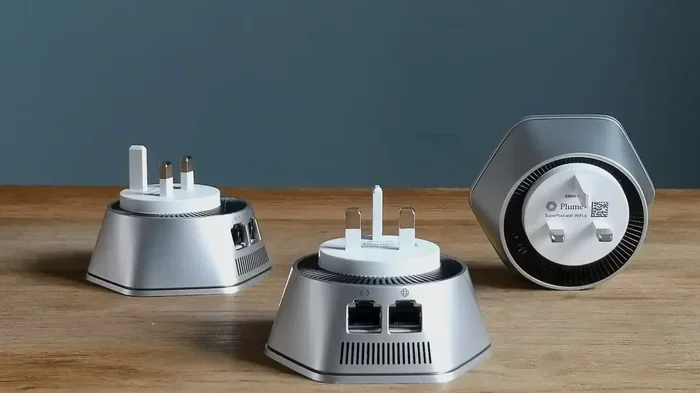
Cox Panoramic Wifi Pods are small, compact devices designed to boost your home wifi signal. They work alongside your Cox Panoramic Wifi Gateway to fill in the gaps where your wifi struggles to reach. Think of them as tiny helpers that carry your internet signal to every corner of your house.
If you have ever walked into a room and lost your wifi connection, you know how frustrating that can be. Dead zones in your home can make streaming, gaming, and video calls a real pain. These pods solve that problem without requiring you to buy a brand new router or modem.
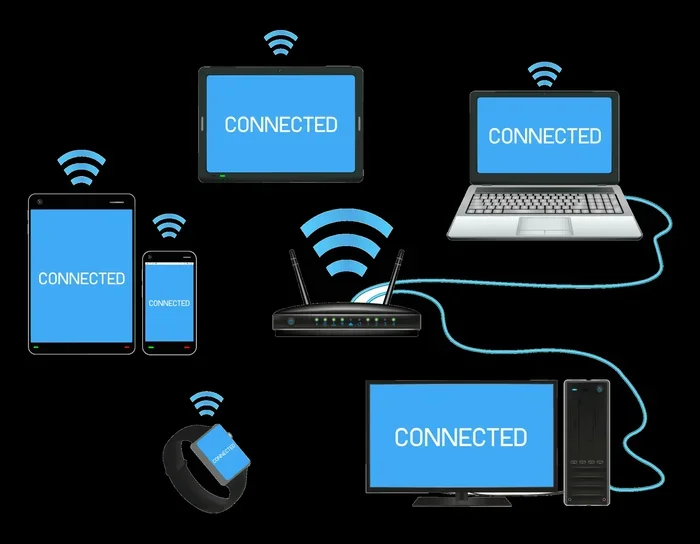
The pods are part of Cox’s mesh wifi system. A mesh network uses multiple devices working together to blanket your home with strong, reliable internet. Each pod acts as a mini access point that talks to your main gateway and to each other. The result is one smooth, unified network across your entire home.
You do not need to be a tech expert to use them. Cox designed these pods for everyday users. Just plug them in, and they do the rest. The setup process is straightforward, and the pods manage themselves once they are connected.
How Do Cox Panoramic Wifi Pods Work?
The way these pods work is actually pretty simple. They connect wirelessly to your Cox Panoramic Wifi Gateway. Once connected, they receive the wifi signal from the gateway and rebroadcast it to areas of your home that need better coverage.
Each pod creates a new node in your mesh network. A node is simply a connection point in the network. The more nodes you have, the wider your coverage area becomes. The pods talk to each other in the background to figure out the best path for your data to travel.
Here is how the process works step by step:
- Step 1: Your Cox gateway sends out the main wifi signal from its location in your home.
- Step 2: The nearest pod receives that signal through a wireless backhaul connection.
- Step 3: The pod amplifies the signal and sends it out to the surrounding area.
- Step 4: Your devices connect to the pod with the strongest signal, not just the closest one.
- Step 5: All pods share information with each other to optimize your network performance.
This whole process happens automatically. You do not need to configure anything manually. The pods use smart technology to decide which pod should handle each device. This is what makes a mesh system so much better than a traditional range extender.
Understanding the Backhaul Connection
Backhaul is the connection between your gateway and the pods. Cox Panoramic Wifi Pods use a dedicated wireless frequency for this backhaul connection. This means the pods do not slow down your main wifi signal while sending data back and forth.
Some older wifi extenders use the same radio for both receiving and sending data. This can cut your speed in half. Cox pods avoid this problem by using separate channels for communication. That is why you get better performance compared to basic extenders.
If you want to learn more about how wifi signals travel and what affects them, you might find this article on adding an antenna to your wifi router helpful for understanding signal strength and range.
Setting Up Your Cox Panoramic Wifi Pods
Setting up your pods is designed to be as easy as possible. Cox keeps the process simple so that anyone can do it at home. You do not need any special tools or technical knowledge.
Here is what you need to do before you start:
- Make sure your Cox Panoramic Wifi Gateway is powered on and working properly.
- Have the Cox Wifi app installed on your smartphone or tablet.
- Identify the areas in your home where the wifi signal is weak.
- Choose wall outlet locations for each pod that are within range of the gateway.
Once you have everything ready, follow these steps:
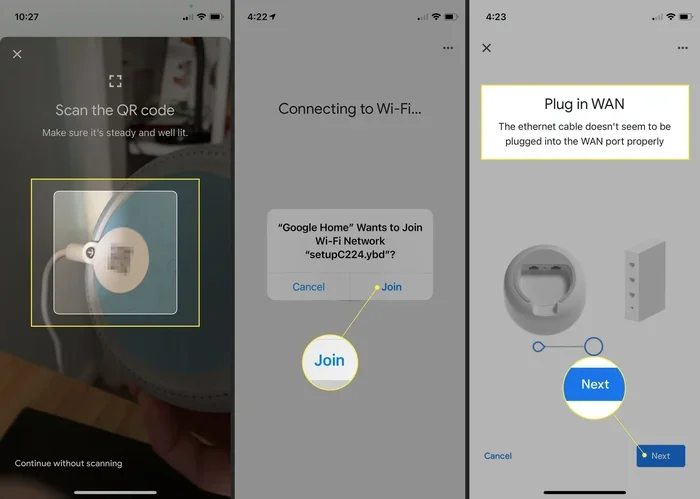
- Plug the first pod into a wall outlet near the edge of your current wifi coverage.
- Open the Cox Wifi app on your phone.
- Select the option to add a new pod to your network.
- Wait for the app to detect the pod and connect it automatically.
- Move the pod to its final location once it is paired.
- Repeat the process for any additional pods you want to add.
The whole setup usually takes less than 10 minutes per pod. The app guides you through each step with clear instructions. If something goes wrong, the app will tell you what to do next.
Best Practices for Pod Placement
Where you place your pods matters a lot. Good placement means better coverage and faster speeds. Here are some tips to get the most out of your setup:
- Place pods halfway between your gateway and the dead zone. If you put a pod too far from the gateway, it may not get a strong enough signal to rebroadcast.
- Keep pods away from thick walls and metal objects. These materials block wifi signals and reduce performance.
- Do not hide pods inside cabinets or behind furniture. They need open space to send and receive signals effectively.
- Place pods at about waist height. Wall outlets at this level tend to give the best coverage throughout the room.
- Avoid placing pods near microwaves or cordless phones. These devices can interfere with wifi signals on the 2.4 GHz band. If you want to learn more about managing wifi frequency bands, check out this guide on forcing your phone to use 2.4 GHz wifi.
A good rule of thumb is to test your wifi signal in different rooms before placing the pods. Walk around your home with your phone and note where the signal gets weak. Those are the spots where your pods will make the biggest difference.
What To Expect From Cox Panoramic Wifi Pods
Now that you know how they work and how to set them up, let us talk about what you can actually expect. Understanding the real-world performance helps you set realistic expectations.
Coverage Improvement
The main benefit of these pods is better coverage. Most users notice a significant reduction in dead zones after adding one or two pods to their setup. Basements, second floors, and back bedrooms that previously had weak or no signal should see a big improvement.
The exact coverage area depends on your home size and layout. A single pod typically extends coverage by about 1,000 to 1,500 square feet. Larger homes may need two or three pods for full coverage. Cox recommends placing pods no more than two rooms apart for the best results.
Speed Performance
One concern people often have is whether pods will slow down their internet speed. The answer is mostly no. Cox Panoramic Wifi Pods are designed to maintain good speeds throughout your home.
However, there are a few factors that can affect speed:
- Distance from the gateway: The farther a pod is from the main gateway, the weaker the backhaul signal can become.
- Number of connected devices: More devices sharing the same pod means less speed per device.
- Wall thickness and materials: Thick concrete or brick walls can reduce signal strength between pods.
- Interference from other devices: Baby monitors, Bluetooth devices, and neighboring wifi networks can cause interference.
In most homes, you will see only a small speed reduction when connected to a pod compared to connecting directly to the gateway. For most activities like browsing, streaming, and video calls, the difference is barely noticeable.
If you want to understand how different wifi technologies affect performance, you might enjoy reading about whether a laptop can do everything a desktop can, which covers how device capabilities impact your internet experience.
Seamless Roaming
One of the best features of the Cox mesh system is seamless roaming. This means your devices automatically connect to the pod with the strongest signal as you move around your home.
Imagine you are watching a movie on your tablet in the living room. You walk into the kitchen, and your tablet switches to the nearest pod without dropping the connection. You do not have to manually switch networks or reconnect. The system handles everything for you.
This is a big advantage over traditional range extenders. With older extenders, you often had to connect to a separate network name when you moved to a different area of your home. The mesh system eliminates that hassle completely.
Common Issues and How To Fix Them
While Cox Panoramic Wifi Pods work well for most people, you might run into some issues. Here are the most common problems and how to solve them.
Pod Not Connecting
If a pod will not connect during setup, try these steps:
- Make sure the pod is plugged into a working wall outlet.
- Move the pod closer to the gateway and try again.
- Restart the Cox Wifi app and try pairing once more.
- Check that your gateway firmware is up to date.
- Reset the pod by holding the reset button for 10 seconds.
Slow Speeds on Connected Devices
If your devices are slow even when connected to a pod, try these fixes:
- Move the pod to a more central location in your home.
- Reduce the number of devices connected to that pod.
- Restart the pod by unplugging it for 30 seconds.
- Check if any large downloads or uploads are running in the background.
- Make sure your Cox internet plan provides enough speed for your household needs.
Intermittent Connection Drops
If your connection keeps dropping, the pod might be too far from the gateway or too close to a source of interference. Try moving the pod to a different outlet. Also, check if any new electronics in your home might be causing the issue.
For more tips on keeping your wifi connection stable, you might want to read about connecting your wifi-only iPad to your iPhone, which covers device-to-device wifi sharing and connectivity troubleshooting.
Cox Panoramic Wifi Pods vs Traditional Range Extenders
It is helpful to understand how these pods compare to traditional wifi range extenders. Many people have used extenders in the past and know the frustration they can cause.
| Feature | Cox Panoramic Wifi Pods | Traditional Range Extenders |
|---|---|---|
| Network Name | One unified network name | Often requires a separate network name |
| Seamless Roaming | Yes, automatic device switching | No, manual reconnection needed |
| Speed Impact | Minimal speed loss | Can cut speed in half |
| Setup Process | Simple app-based setup | Often complicated manual setup |
| Self-Optimization | Yes, pods adjust automatically | No, requires manual configuration |
| Backhaul Technology | Dedicated wireless backhaul | Shared radio for backhaul and client traffic |
| Appearance | Small, compact, and discreet | Often bulky and noticeable |
The table shows why Cox pods are a better choice for most households. They offer a smoother experience with less hassle. If you are tired of dealing with a traditional extender, upgrading to a mesh pod system is well worth it.
How Many Pods Do You Need?
The number of pods you need depends on the size and layout of your home. Here is a general guide:
- Small homes (up to 1,500 sq ft): One pod is usually enough to cover any weak spots.
- Medium homes (1,500 to 3,000 sq ft): Two pods should provide full coverage throughout the house.
- Large homes (3,000 to 5,000 sq ft): Three or more pods may be needed for complete coverage.
- Multi-story homes: Place at least one pod on each floor for best results.
Cox allows you to add multiple pods to your network. You can purchase them directly from Cox or through their online portal. The pods are designed to work together, so adding more later is easy if you find you need additional coverage.
Keep in mind that adding too many pods in a small space can sometimes cause interference. It is best to space them out evenly and follow the placement tips mentioned earlier. Each pod should be far enough apart to avoid competing with each other for the same wireless channel.
Do Cox Panoramic Wifi Pods Work Without a Cox Internet Plan?
Cox Panoramic Wifi Pods are designed to work specifically with Cox internet service and the Cox Panoramic Wifi Gateway. They are not standalone devices that you can use with any internet provider.
The pods communicate directly with the Cox gateway using proprietary technology. This integration ensures smooth performance and easy management through the Cox Wifi app. If you switch internet providers in the future, you would need to return the pods or check if they are compatible with your new setup.
This is an important consideration if you are thinking about adding pods to your home. Make sure you are a Cox internet subscriber before purchasing additional pods. You can contact Cox customer service to confirm compatibility and pricing.
Are Cox Panoramic Wifi Pods Worth It?
For most Cox internet customers, the answer is yes. These pods offer a simple and effective way to improve your home wifi coverage without spending a fortune on new equipment.
Here are some reasons why they are worth considering:
- They are affordable. Pods are available at a reasonable price point, especially compared to buying a whole new mesh system from another brand.
- They are easy to set up. No technical knowledge is required. The Cox app walks you through everything.
- They are reliable. Cox designed them to work perfectly with their own equipment.
- They are low maintenance. Once set up, the pods manage themselves and update automatically.
- They come with customer support. If you have any issues, Cox support can help you troubleshoot.
If you live in a smaller apartment or a home where your current wifi already reaches everywhere, you might not need pods. But for larger homes, homes with thick walls, or homes with persistent dead zones, these pods can be a game changer.
Many users report that adding even one pod completely transformed their wifi experience. Streaming in the backyard, working from a home office in the basement, and video calling from any room became possible after adding pods to their setup.
Final Thoughts
Cox Panoramic Wifi Pods are a practical and effective solution for improving your home wifi coverage. They work by creating a mesh network that extends your signal to every room and eliminates frustrating dead zones. The setup is simple, the performance is solid, and the price is reasonable for what you get.
If you are a Cox internet customer dealing with weak wifi in parts of your home, these pods are definitely worth trying. They work seamlessly with your existing equipment and require almost no ongoing maintenance. The automatic roaming and self-optimizing features mean you can set them and forget them.
Start with one or two pods and see how much your wifi improves. You can always add more later if needed. With Cox Panoramic Wifi Pods, you get the freedom to use your internet anywhere in your home without worrying about signal strength or connection drops.
Frequently Asked Questions
How many Cox Panoramic Wifi Pods can I add to my network?
Cox allows you to add multiple pods to your network, but the exact number depends on your plan and equipment. Most homes work well with one to three pods. Check with Cox support for the maximum number allowed on your specific plan.
Do I need a Cox account to use the pods?
Yes, you need an active Cox internet subscription and a Cox Panoramic Wifi Gateway to use these pods. They are designed specifically for Cox equipment and will not work with other internet providers.
Can I move my pods to a different house?
You can move them to a different home as long as that home also has Cox internet service and a compatible gateway. The pods are tied to your Cox account, so you may need to re-register them after moving.
Will the pods work if my internet speed is slow?
The pods will extend your existing wifi signal regardless of your internet speed. However, they cannot make your internet faster than what your plan provides. If your base speed is slow, adding pods will not fix that issue.
Do I need to keep the Cox Wifi app on my phone at all times?
No, the app is only needed during initial setup and for making changes to your network. Once the pods are set up, they work independently without needing the app to run in the background.
Can I use Cox Panoramic Wifi Pods outdoors?
Cox Panoramic Wifi Pods are designed for indoor use only. They are not weatherproof and should be kept inside your home. Placing them near windows that face your outdoor area can help extend coverage to patios or decks.