How Do I Check My Tv Signal For Better Picture Quality
Checking your TV signal is the first step to getting a sharp, clear picture on your screen. Whether you watch cable, antenna, or streaming content, signal quality affects everything you see. This guide walks you through simple ways to test your TV signal, fix common problems, and improve your picture quality at home. You will learn practical tips that work for any TV setup.
Key Takeaways
- Signal strength matters: A weak TV signal causes pixelation, buffering, and poor picture quality that ruins your viewing experience.
- Built-in tools help: Most smart TVs have hidden diagnostic menus that let you check signal strength without extra equipment.
- Simple fixes work: Repositioning your antenna, checking cables, and adjusting settings can dramatically improve your TV signal.
- Know when to call for help: Persistent signal issues may need a professional signal booster or technician visit.
- Picture settings make a difference: Adjusting display settings on your TV can enhance image quality even with a moderate signal.
📑 Table of Contents
- Why TV Signal Quality Affects Your Picture
- How to Check Your TV Signal Strength
- Common TV Signal Problems and How to Fix Them
- Tips to Improve Your TV Picture Quality
- When to Call a Professional for Signal Help
- Quick Tips for Better TV Signal and Picture Quality
- Final Thoughts on Checking Your TV Signal
Why TV Signal Quality Affects Your Picture
Your TV signal is the lifeblood of everything you watch. Without a strong signal, your favorite shows look fuzzy, pixelated, or just plain bad. Many people ignore their TV signal until something goes wrong. By then, they have already wasted hours watching a blurry screen.
The quality of your TV signal directly impacts picture clarity. A strong signal delivers crisp details, vibrant colors, and smooth motion. A weak signal does the opposite. It causes artifacts, freezing, and annoying visual noise that pulls you out of the experience.
Understanding how your TV signal works helps you fix problems faster. You do not need to be a tech expert. A few simple checks can make a huge difference. This guide will show you exactly how to check your TV signal and get better picture quality today.
Whether you use an antenna, cable box, or streaming device, signal quality plays a role. Even if you connect your phone to HDMI TV, the underlying signal path matters. Let us dive into the details.
How to Check Your TV Signal Strength
Checking your TV signal is easier than you think. Most modern TVs have built-in tools for this. You do not need expensive equipment or a technician. A few minutes of your time can reveal a lot about your signal health.
Use Your TV’s Built-In Signal Meter
Almost every smart TV has a signal diagnostic tool hidden in the settings menu. The exact path varies by brand, but the general steps are similar. On most TVs, you go to Settings, then Support or System, and look for a Signal or Channel option.
Here is a quick way to find your signal meter:
- Press the Home or Menu button on your remote.
- Navigate to Settings or Preferences.
- Look for Support, System, or Channel Info.
- Select Signal Strength or Signal Quality.
Your TV will display a signal meter with a percentage or bar graph. A reading above 70 percent is good. Anything below 50 percent means you have a weak signal that needs attention.
Check for Pixelation and Freezing
Sometimes the simplest way to check your signal is to watch for visual clues. Pixelation happens when small square blocks appear on screen. This is your TV struggling to decode the incoming signal. Freezing occurs when the picture stops moving but the audio keeps going.
If you notice these issues, your signal is likely weak or interrupted. Try the following quick checks:
- Look at the screen during a fast-action scene. Pixelation is easiest to spot during sports or action movies.
- Check if the problem happens on all channels or just some. A pattern can point to the cause.
- See if the issue gets worse at certain times of day. This can indicate network congestion.
Use a Signal Meter Tool
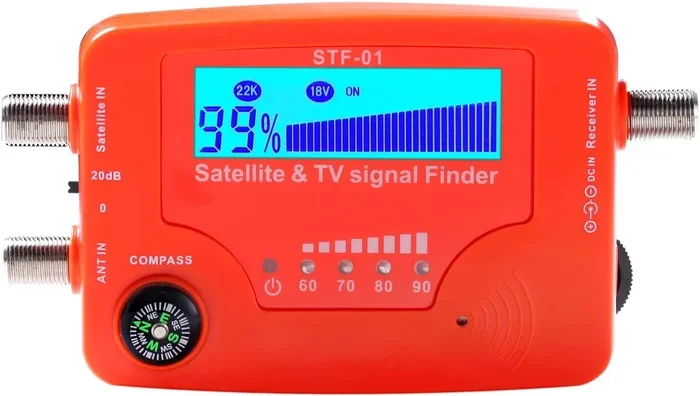
For a more precise reading, you can use an external signal meter. These devices plug into your TV or cable line and give detailed readings. They measure signal strength, signal-to-noise ratio, and error rates. This level of detail helps you pinpoint exact problems.
Signal meters are especially useful for antenna setups. If you are considering improving your antenna game, you might also check out whether you can hook up an antenna to your smart TV for better over-the-air reception.
Common TV Signal Problems and How to Fix Them
TV signal problems come in many forms. Some are easy to fix at home. Others need a bit more effort. Understanding the common causes helps you troubleshoot faster and save time.
Weak Antenna Signal
If you watch free-to-air channels, your antenna is the source of your signal. A weak antenna signal causes grainy pictures and missing channels. Several factors affect antenna performance.
First, check your antenna placement. Antennas work best when they are near a window or outside. Walls and metal objects block signals. Moving your antenna closer to a window can improve reception significantly.
Second, consider the direction your antenna faces. OTA signals come from broadcast towers in specific directions. Use a compass or a signal mapping tool to point your antenna correctly. Even a small adjustment can make a big difference.
Third, check for damage. Old antennas have bent elements or corroded connectors. Replace damaged parts and ensure all connections are tight. A loose cable connection is one of the most common causes of weak signals.
Cable and Connection Issues
Loose or damaged cables are the enemy of a good TV signal. Coaxial cables wear out over time. HDMI cables can develop internal faults that degrade picture quality. Even the way you route your cables matters.
Here are common cable problems to watch for:
- Frayed or bent connectors: These create intermittent signal loss.
- Long cable runs: Signal strength drops over long distances without a booster.
- Old HDMI cables: HDMI standards have improved over the years. An outdated cable may not support your TV’s resolution.
- Splitters: Signal splitters reduce strength. Each split costs you signal quality.
If you use multiple connections, such as both HDMI and component cables to your receiver, make sure your setup is correct. You can learn more about proper connection setups in our guide on connecting your TV to your receiver using both HDMI and component cables.
Interference from Other Devices
Electronic interference is a sneaky signal killer. Microwaves, baby monitors, wireless routers, and even LED light bulbs can disrupt your TV signal. These devices emit electromagnetic noise that overlaps with TV frequencies.
To reduce interference, try these steps:
- Move your TV and cable equipment away from other electronics.
- Turn off nearby devices one at a time to identify the culprit.
- Use shielded cables that block outside interference.
- Switch your router to a different frequency band if it is near your TV setup.
Outdated TV Software
Smart TVs need software updates just like phones do. Outdated software can cause signal processing issues. Manufacturers release updates that fix bugs and improve signal handling.
Check for TV software updates in your Settings menu. Enable automatic updates if your TV supports it. Keeping your TV software current ensures the best signal processing and picture quality.
Tips to Improve Your TV Picture Quality
Once you have checked your signal and fixed any issues, you can take extra steps to improve your picture quality. These tips work alongside a strong signal to make your viewing experience even better.
Adjust Your TV Picture Settings
Most TVs come with preset picture modes that are not optimized for every situation. The default settings are often too bright or too dull for real-world viewing. Tweaking these settings can make a noticeable difference.
Try adjusting these settings one at a time:
- Brightness: Set this so white areas look white, not gray or washed out.
- Contrast: Increase contrast for deeper blacks and more vivid details.
- Sharpness: A slight increase can add crispness, but too much creates artificial-looking edges.
- Color Temperature: Warm settings are easier on the eyes for long viewing sessions.
Enable Game Mode or Movie Mode
Many TVs have specialized picture modes for different content types. Game mode reduces input lag and can sharpen the image. Movie mode optimizes color accuracy and contrast for cinematic content. Try different modes and see which one looks best for your favorite shows.
Clean Your Screen
This sounds too simple, but a dirty screen makes everything look worse. Dust and fingerprints scatter light and reduce perceived clarity. Use a microfiber cloth and a screen-safe cleaner. Wipe gently in circular motions for the best results.
Position Your TV Correctly
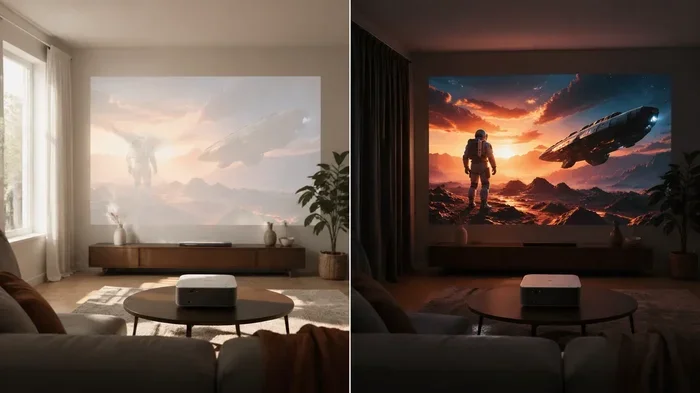
Where your TV sits in the room affects how you perceive picture quality. Glare from windows or lamps washes out the image. Position your TV to avoid direct light hitting the screen. A slight tilt can also reduce reflections and improve contrast.
When to Call a Professional for Signal Help
Not every signal problem can be fixed with a DIY approach. Some issues require professional tools and expertise. Knowing when to call for help saves you time and frustration.
Consider calling a professional if you experience any of these situations:
- Your signal strength is consistently below 50 percent even after repositioning your antenna.
- You have tried new cables and the problem persists.
- Multiple devices in your home have signal issues at the same time.
- Your TV shows a “No Signal” error that does not go away.
- You live in an area with known signal coverage problems.
A professional can install a signal booster or amplifier. These devices strengthen weak signals before they reach your TV. They are especially helpful for homes far from broadcast towers or in areas with challenging terrain.
Professionals can also run new cable lines and install outdoor antennas. These upgrades provide the best long-term solution for persistent signal problems. While the upfront cost is higher, the improvement in picture quality is worth it.
Quick Tips for Better TV Signal and Picture Quality
Here are some quick wins you can try right now to improve your TV signal and picture quality:
- Restart your TV and cable box. This clears temporary glitches and refreshes the signal connection.
- Run a channel scan after moving your antenna. This ensures your TV finds all available channels.
- Check all cable connections and tighten any that feel loose.
- Replace old coaxial cables with new, high-quality ones.
- Use a signal amplifier if you have a long cable run from your antenna.
- Keep your TV software up to date for the best signal processing.
- Reduce interference by moving electronic devices away from your TV setup.
These small changes add up. You may not need to buy expensive equipment to see a real improvement. Start with the free fixes and work your way up.
Final Thoughts on Checking Your TV Signal
Checking your TV signal does not have to be complicated. With the built-in tools on your TV and a few simple checks, you can diagnose most signal problems on your own. A strong signal is the foundation of great picture quality. Everything else builds on top of it.
Start by checking your signal strength using your TV’s diagnostic menu. Look for pixelation and freezing as visual clues. Then work through the common causes one by one. Fix cable issues, reduce interference, and adjust your picture settings.
If your signal problems persist, do not hesitate to call a professional. A signal booster or new antenna can transform your viewing experience. The goal is simple: watch your shows the way they were meant to look.
Take action today. Check your TV signal, make the adjustments, and enjoy a sharper, clearer picture tonight. Your eyes will thank you.
Frequently Asked Questions
What does a weak TV signal look like?
A weak TV signal shows up as pixelation, where small square blocks appear on screen. You might also see freezing, where the picture stops but audio continues. Ghosting and color distortion are other signs of a weak signal.
How can I improve my antenna TV signal at home?
Move your antenna near a window or outside for better reception. Point it toward the nearest broadcast tower. Replace old cables and remove signal splitters. A signal amplifier can also boost weak signals significantly.
Does the type of HDMI cable affect picture quality?
Yes, the type of HDMI cable matters. Older HDMI versions may not support higher resolutions like 4K or 8K. Using a newer High Speed HDMI cable ensures your TV can display the best possible picture quality.
How often should I run a channel scan on my TV?
Run a channel scan whenever you move your antenna or change your TV location. You should also scan after storms or heavy winds, which can shift broadcast towers. A monthly scan is a good habit for antenna users.
Can Wi-Fi interference affect my TV signal?
Yes, Wi-Fi routers and other wireless devices can interfere with TV signals. This is especially true for wireless streaming devices. Moving your router away from your TV and using wired connections can reduce interference.
Is a signal booster worth the cost?
A signal booster is worth it if you have a consistently weak signal. Boosters amplify the incoming signal before it reaches your TV. They are especially helpful for homes far from broadcast towers or in areas with poor coverage.