Does The Starry Projector Light Have An App Review
The Starry Projector Light is a popular ambient device that creates a stunning galaxy effect in any room. But does it have an app to control everything from your phone? The answer is yes, and the app adds a whole new level of convenience. In this review, we break down everything you need to know about the Starry Projector Light app, its features, setup process, and whether it’s worth downloading.
Have you ever brought home a starry projector light and thought, “Wouldn’t it be cool if I could control this from my phone?” You are not alone. The Starry Projector Light has become one of the most popular ambient lighting devices on the market. It turns any room into a mini galaxy with just the flip of a switch.
But here is the real question: does the Starry Projector Light have an app? The short answer is yes. The longer answer is that the app adds a ton of functionality that makes using the projector even more enjoyable. In this review, we will dive deep into everything about the app, how it works, what it can do, and whether you really need it.
If you are considering buying a starry night projector or already own one, this guide will help you understand how the app fits into the picture. We will cover setup, features, troubleshooting, and much more. So grab a cup of coffee and let us get into it.
Key Takeaways
- The Starry Projector Light does have a dedicated app that lets you control settings remotely.
- The app supports multiple modes including galaxy, aurora, and custom color options.
- Setting up the app is straightforward and takes only a few minutes.
- Bluetooth and Wi-Fi connectivity make the app experience smooth and reliable.
- The app enhances the projector experience but the device works fine without it too.
- Some users report minor bugs that the developers are actively fixing.
- The app is free to download and has no hidden subscription fees.
📑 Table of Contents
What Is the Starry Projector Light?
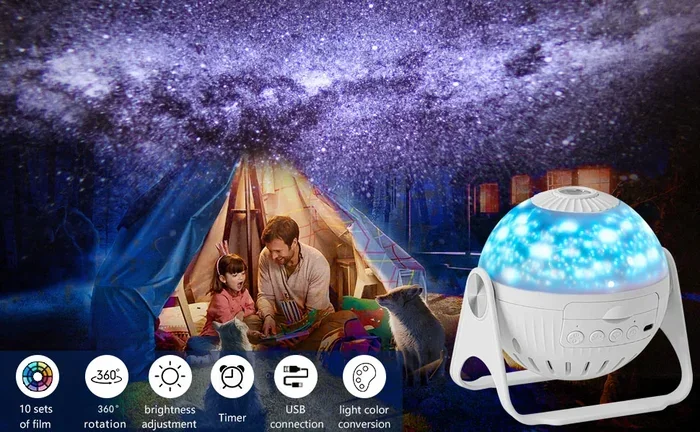
The Starry Projector Light is a compact device that projects a realistic galaxy or starry sky onto your walls and ceiling. It uses LED technology to create colorful, swirling patterns that mimic the night sky. People use these projectors for bedrooms, living rooms, parties, and even meditation spaces.
The device itself is small and portable. You can place it on a desk, shelf, or mount it on a wall. Most models come with a remote control, but the real magic happens when you pair it with the dedicated app. The projector app gives you access to features that the remote simply cannot match.
There are several versions of the galaxy projector on the market. Some are branded as “Starry Projector Light” while others go by names like “Galaxy Projector” or “Night Sky Projector.” The app experience may vary slightly depending on which model you have, but the core functionality remains similar across the board.
Does the Starry Projector Light Have an App?
Yes, the Starry Projector Light does come with a companion app. The app is available for both iOS and Android devices. You can download it from the Apple App Store or Google Play Store. The app is free, and there are no hidden subscription costs.
The app connects to the projector using Bluetooth or Wi-Fi, depending on your model. Once connected, you can control every aspect of the projector right from your phone. This includes brightness, color, speed, and even specific light modes.
One of the biggest advantages of using the app is the ability to create custom settings. You can save your favorite combinations and switch between them with a single tap. This is something you simply cannot do with the physical remote that comes in the box.
How the App Enhances Your Experience
The projector app does more than just replace the remote. It opens up a world of possibilities that make the device far more enjoyable. Here are some of the standout features you get with the app:
- Custom color mixing: You can create any color combination you want and save it as a preset.
- Timed shutoff: Set a timer so the projector turns off automatically after a certain period.
- Music sync: Some versions of the app allow the projector to sync with music playing on your phone.
- Remote control from anywhere: As long as your phone is connected, you can control the projector from across the room.
- Firmware updates: The app notifies you when new updates are available, ensuring your projector always runs smoothly.
These features make the app a valuable addition to the overall experience. If you use your starry sky projector regularly, the app is definitely worth having.
How to Set Up the App
Setting up the app is a pretty simple process. You do not need to be tech-savvy to get it working. Here is a step-by-step guide to get you started.
Step 1: Download the app. Go to the App Store or Google Play Store and search for the Starry Projector Light app. Make sure you download the official app from the developer listed on the product packaging.
Step 2: Turn on the projector. Power on your device and make sure it is in pairing mode. Most projectors have a flashing light or a voice prompt that indicates they are ready to connect.
Step 3: Enable Bluetooth on your phone. Go to your phone settings and turn on Bluetooth. Make sure your phone is discoverable.
Step 4: Pair the devices. Open the app and tap the “Connect” or “Pair” button. The app should detect your projector within a few seconds. Select your device from the list and wait for the connection to establish.
Step 5: Start exploring. Once connected, you can browse through all the available modes and settings. Play around with the controls to get a feel for what the app can do.
If you run into any issues during setup, try resetting both the projector and your phone’s Bluetooth settings. Sometimes a fresh start solves most connectivity problems. Also, make sure your phone is within close range of the projector during the initial pairing process.
Troubleshooting Common App Issues
Like any tech product, the app is not perfect. Some users have reported occasional connection drops or slow response times. Here are a few common issues and how to fix them:
- App won’t connect: Make sure Bluetooth is turned on and the projector is in pairing mode. Restart both devices if needed.
- Lag or delay: Move your phone closer to the projector. Wi-Fi interference from other devices can sometimes cause delays.
- App crashes: Make sure you have the latest version of the app installed. Check for updates in your app store.
- Modes not loading: Try closing and reopening the app. This usually fixes temporary glitches.
Overall, the app works well for the majority of users. The occasional hiccup is normal, but the developers seem to release updates regularly to address any bugs.
App Features vs. Remote Control
You might be wondering whether the app is really necessary or if the included remote control does the job just fine. Let us compare the two so you can decide for yourself.
| Feature | App | Remote Control |
|---|---|---|
| Custom color settings | Yes | Limited |
| Timed shutoff | Yes | Yes |
| Music sync | Yes | No |
| Firmware updates | Yes | No |
| Preset saving | Yes | No |
| Ease of use | High | High |
| Requires phone | Yes | No |
| Control from across the room | Yes | Yes |
As you can see, the app offers several features that the remote control simply cannot provide. The ability to save presets and sync with music are two of the most popular features among users. That said, the remote control is still handy for quick adjustments without needing your phone.
Many people prefer to use both together. They use the remote for quick on-off and mode changes, and the app for more detailed customization. There is no rule that says you have to choose one over the other.
If you want to learn more about connecting your phone to a projector, you can check out our guide on Can I Connect My Phone To Projector With Usb Cable for additional tips and tricks.
Is the App Worth Downloading?
This is probably the question you are really asking. And honestly, it depends on how you plan to use your starry projector light. If you just want a simple night light for your bedroom, the remote control that comes with the device might be all you need.
But if you want to get the most out of your projector, the app is absolutely worth it. The extra features and customization options take the experience to a whole new level. Being able to control the projector from your phone means you never have to get up just to change a setting.
The app is also great for people who like to use their projector for different occasions. For example, if you use it for a movie night, you can quickly switch to a dim, warm glow. If you are hosting a party, you can crank up the colors and sync the lights to the music. All of this is possible right from your phone.
One thing to keep in mind is that the app does require your phone to be nearby. If you leave your phone in another room, you might lose connection temporarily. This is a minor inconvenience, but it is worth noting.
For those who are curious about using a projector in different setups, you might want to read our article on Can I Use A Projector Instead Of A Tv to explore the full potential of your projector.
Tips for Getting the Most Out of Your Starry Projector Light
Whether you use the app or not, there are a few tips that can help you get the best experience from your starry projector light. Here are some practical suggestions:
- Place the projector in the center of the room. This gives you the most even coverage on the walls and ceiling. If you want to know more about projector placement, check out Can I Mount My Projector Off Center.
- Use the projector in a dark room. The galaxy effect looks best when there is minimal ambient light. Draw the curtains and turn off other lights for the full experience.
- Experiment with different modes. The app gives you access to many modes you might not discover with the remote. Take some time to try them all.
- Keep the projector clean. Dust can affect the quality of the projection. Wipe the lens gently with a soft cloth every few weeks.
- Update the app regularly. Developers often release updates that add new features and fix bugs. Keeping the app up to date ensures the best experience.
- Use a timer for bedtime. The timed shutoff feature is perfect for falling asleep to a calming starry sky. Set it for 30 or 60 minutes and let it do its thing.
These simple tips can make a big difference in how much you enjoy your projector. Small adjustments to placement and settings can completely change the vibe of a room.
Final Thoughts
So, does the Starry Projector Light have an app? Absolutely. And it is a really nice addition to an already great product. The app is free, easy to use, and packed with features that make controlling your projector a breeze. Whether you are using it to relax, party, or just add some ambiance to your space, the app helps you get the most out of the experience.
The fact that the projector works perfectly fine without the app is also a plus. It means you are not locked into using it. You can always start with the remote and add the app later if you find you want more control.
Overall, the Starry Projector Light app is a solid companion to a solid product. If you are in the market for a projector that creates a beautiful galaxy effect, this is definitely one to consider. And with the app in your corner, you will have even more ways to make your space feel magical.
If you are also interested in keeping your projector running for long hours, you might want to check out our article on Can I Keep My Galaxy Projector On All Night for helpful insights on safe usage and energy consumption.
Frequently Asked Questions
Can I use the Starry Projector Light without the app?
Yes, the projector works perfectly fine without the app. The remote control that comes with the device allows you to change modes, adjust brightness, and set timers. The app simply adds extra convenience and features.
Is the Starry Projector Light app free to download?
Yes, the app is completely free to download from both the Apple App Store and Google Play Store. There are no hidden subscription fees or in-app purchases required to access the core features.
Can I mirror my phone screen to the projector using the app?
Some models support screen mirroring through the app, but this depends on the specific version of your projector. For more details on phone-to-projector connectivity, you can read our guide on Can I Mirror My Iphone To A Projector.
Does the app work with both iOS and Android?
Yes, the app is compatible with both iOS and Android devices. Make sure your phone is running the latest operating system for the best performance and compatibility.
Why does the app disconnect from the projector sometimes?
Bluetooth and Wi-Fi connections can occasionally drop, especially if there are other wireless devices nearby. Moving your phone closer to the projector and restarting both devices usually fixes the issue. Keeping the app updated also helps maintain a stable connection.
Can I control multiple projectors with one app?
This depends on the app version and your projector model. Some versions allow you to connect and control multiple devices, while others are limited to a single projector. Check the app settings to see if multi-device control is supported.
=== CONCLUSION ===
The Starry Projector Light app is a worthwhile addition for anyone who wants to get the most out of their projector. It is free, easy to use, and packed with features that go beyond what the included remote can offer. From custom color mixing to music sync and timed shutoff, the app makes controlling your projector more convenient and fun.
Even if you do not download the app right away, you can always come back to it later. The projector works great on its own, and the app simply enhances the experience. Whether you are setting up a cozy bedroom atmosphere or hosting a galaxy-themed party, the app gives you the tools to make it happen with just a few taps on your phone.