Does Ps5 Support Bluetooth Here Is What You Should Know
Yes, the PS5 does support Bluetooth, but with some important limitations. Sony’s next-gen console uses a custom Bluetooth 5.1 implementation that primarily connects the DualSense controller and a few select accessories. You cannot pair just any Bluetooth device directly to the PS5, and audio latency can be a real concern for gamers. This guide covers everything you need to know about PS5 Bluetooth connectivity, workarounds, and compatible devices.
This is a comprehensive guide about Does Ps5 Support Bluetooth.
Key Takeaways
- PS5 uses Bluetooth 5.1: Sony’s console supports Bluetooth but only for specific devices like the DualSense controller and select headsets.
- Direct pairing is limited: You cannot connect just any Bluetooth accessory to the PS5 without extra hardware or workarounds.
- A Bluetooth adapter helps: Devices like a USB Bluetooth transmitter can expand what your PS5 can connect to wirelessly.
- Audio latency matters: Wireless Bluetooth headphones may introduce slight delays that affect competitive gaming.
- PS4 Bluetooth differs: The PS5 Bluetooth setup is different from the PS4, and older accessories may not work the same way.
- Official headsets work best: Sony’s Pulse 3D headset and other licensed accessories offer the smoothest experience.
- Troubleshooting is straightforward: Most Bluetooth issues on PS5 can be fixed with simple steps like re-pairing or updating firmware.
[FEATURED_IMAGE_PLACEHOLDER]
Does PS5 Support Bluetooth
The short answer is yes. The PlayStation 5 does support Bluetooth. But the full story is a bit more nuanced than a simple yes or no. Sony built the PS5 with a Bluetooth 5.1 radio, which is the latest wireless standard available in consumer devices. This means the console can handle faster data transfer and more stable connections than older Bluetooth versions.
However, Sony has placed some restrictions on what you can connect. The PS5 does not work like a smartphone or a PC where you can pair any Bluetooth device and expect it to work. Instead, the console uses a curated approach. It connects to the DualSense controller wirelessly, and it supports a limited number of Bluetooth audio devices. If you want to connect something outside of that list, you may need extra steps.
Understanding how PS5 Bluetooth connectivity works is the first step to getting the most out of your console. Whether you want to use wireless headphones, connect a controller to a PC, or explore wireless gaming accessories, knowing the limits and possibilities helps you plan ahead. Let us break it all down.
How PS5 Bluetooth Works
The PS5 uses a custom Bluetooth implementation. Sony designed this system to prioritize low latency and stable connections for gaming. The console communicates with the DualSense controller over Bluetooth, and it handles audio output to compatible headsets the same way.
Bluetooth 5.1 Technology
Bluetooth 5.1 brings several improvements over older versions. It offers better range, faster data transfer, and more precise location tracking. For gaming, these improvements mean a more responsive wireless experience. The PS5 leverages these capabilities to keep your controller and audio devices connected without noticeable lag.
But here is the catch. Bluetooth 5.1 on the PS5 is not open to every device. Sony locks down the Bluetooth stack to maintain performance and security. This is why you cannot just walk up to your PS5 and pair any random Bluetooth speaker or headphones. The console only recognizes devices that are either officially licensed or fall within its supported profile list.
PS5 Bluetooth Settings
You can manage your Bluetooth connections through the PS5 settings menu. Go to Settings, then Bluetooth Devices. From there, you can see paired devices, adjust audio output, and troubleshoot connection issues. The interface is clean and straightforward, but it does not offer the same level of control as a PC or phone Bluetooth menu.
This is a key difference that many gamers notice. If you are used to the flexibility of connecting Bluetooth devices on other platforms, the PS5 might feel restrictive at first. But once you understand the system, it is easy to work with.
What Bluetooth Devices Work With PS5
Not every Bluetooth device plays nice with the PS5. Sony maintains a list of compatible accessories, and sticking to this list saves you a lot of frustration. Here is a closer look at what works and what does not.
Devices That Connect Directly
The following devices connect to the PS5 over Bluetooth without any extra hardware:
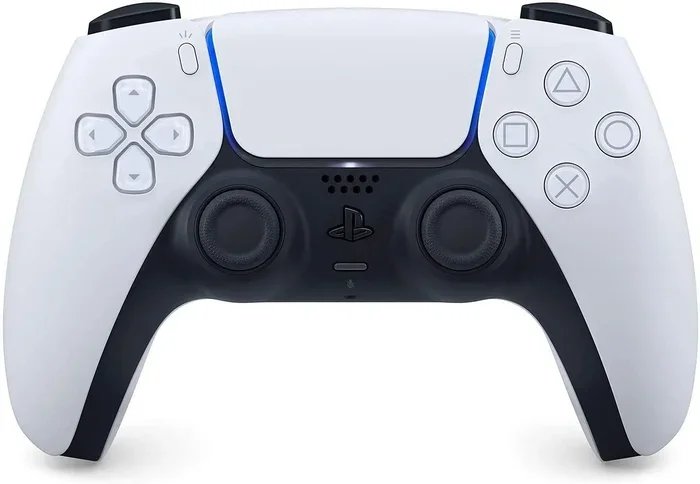
- DualSense Controller: This is the primary Bluetooth device for the PS5. The wireless controller uses Bluetooth to communicate with the console.
- Pulse 3D Headset: Sony’s official wireless headset connects via Bluetooth and offers 3D audio support.
- Licensed Wireless Headsets: Certain third-party headsets from brands like SteelSeries, Turtle Beach, and others support direct Bluetooth pairing.
- PS5 Camera: The camera accessory connects wirelessly for streaming and chat features.
Devices That Do Not Work Directly
Here is where things get tricky. Many popular Bluetooth devices do not connect directly to the PS5:
- Standard Bluetooth headphones: Most generic Bluetooth headphones will not pair with the PS5.
- Bluetooth speakers: You cannot connect a regular Bluetooth speaker to the PS5 for audio output.
- Bluetooth keyboards and mice: While some work for navigating the PS5 menu, they are not officially supported for gaming.
- Bluetooth gamepads from other brands: Xbox controllers and other third-party pads do not connect via Bluetooth to the PS5.
If you want to know more about using Bluetooth headphones with other consoles, check out Can I Use Bluetooth Headphones With Ps4 for a broader look at Bluetooth audio across gaming systems.
How to Connect Bluetooth Devices to PS5
Connecting a supported Bluetooth device to your PS5 is simple. But the process depends on the type of device you are using. Here is a step-by-step guide for the most common scenarios.
Pairing the DualSense Controller
The DualSense controller connects to the PS5 automatically when you turn it on. But if you need to pair it manually or connect it to another device, here is what to do:
- Press and hold the PlayStation button and the Create button at the same time.
- The controller’s light bar will start flashing.
- On your PS5, go to Settings, then Bluetooth Devices.
- Select Add Device and choose the DualSense from the list.
- The controller will connect within a few seconds.
Pairing Wireless Headsets
If you have a compatible wireless headset, the pairing process is similar:
- Put your headset in pairing mode.
- Go to Settings on your PS5 and select Bluetooth Devices.
- Choose Add Device.
- Select your headset from the list of available devices.
- Once paired, set the headset as your audio output device.
Keep in mind that audio latency can vary between different headsets. If you notice a delay between the in-game action and the audio, try moving closer to the console or checking for firmware updates on your headset.
Using a Bluetooth Adapter With PS5
If your favorite Bluetooth device does not connect directly to the PS5, do not worry. You have options. One of the most popular workarounds is using a Bluetooth adapter. These small USB devices plug into the PS5 and expand its Bluetooth capabilities.
What Is a Bluetooth Adapter
A Bluetooth adapter is a tiny USB dongle that adds Bluetooth functionality to a device that may not have it or has limited Bluetooth support. For the PS5, a Bluetooth adapter can help you connect devices that the console does not natively support.
How to Choose the Right Adapter
Not all Bluetooth adapters are created equal. Here is what to look for when shopping for one:
- Bluetooth 5.0 or higher: This ensures a stable connection and low latency.
- Low-latency codec support: Look for adapters that support aptX Low Latency or similar codecs. These reduce audio delay significantly.
- USB port availability: The PS5 has USB ports on both the front and back. Make sure the adapter fits comfortably.
- Compatibility: Check that the adapter works with the PS5 and your specific Bluetooth device.
Using a Bluetooth adapter is one of the best ways to expand your PS5’s wireless capabilities. It lets you connect headphones, speakers, and other accessories that would otherwise be incompatible. If you want to explore how Bluetooth adapters work with TVs and other devices, read Can I Make My Tv Bluetooth With An Adapter for more tips.
PS5 Bluetooth Limitations You Should Know
While the PS5 offers Bluetooth support, it comes with some limitations that every user should understand. These restrictions affect what you can do and how you can do it.
Audio Latency Issues
One of the biggest concerns with Bluetooth audio is latency. This is the delay between when the audio signal is sent and when you hear it. For casual gaming, this delay might be barely noticeable. But for competitive or fast-paced games, even a small delay can put you at a disadvantage.
Sony’s Pulse 3D headset is designed to minimize this issue. But third-party Bluetooth headphones may experience more noticeable lag. If you are a serious gamer, consider using a wired headset or a Bluetooth transmitter that supports low-latency codecs.
Limited Device Support
As mentioned earlier, the PS5 does not support every Bluetooth device. This is a deliberate choice by Sony to maintain performance and stability. The console prioritizes a smooth gaming experience over open connectivity. This means you may need to use workarounds or purchase specific accessories to get the wireless experience you want.
For example, you cannot use a standard Bluetooth speaker to hear game audio. You also cannot pair a random Bluetooth keyboard for typing. The PS5 keeps its Bluetooth ecosystem tightly controlled.
No Bluetooth File Transfer
Unlike smartphones and PCs, the PS5 does not support Bluetooth file transfer. You cannot use Bluetooth to send photos, music, or other files between devices and the PS5. The console uses its built-in storage and USB ports for file management instead.
PS5 Bluetooth vs PS4 Bluetooth
Sony has improved the Bluetooth experience from the PS4 to the PS5, but the differences are worth noting. The PS4 used Bluetooth 2.1, which was slower and less stable than the PS5’s Bluetooth 5.1. This means the PS5 offers better range, faster connections, and lower latency.
The PS4 also had a broader range of compatible Bluetooth audio devices. Some users found it easier to connect third-party Bluetooth headphones to the PS4. The PS5 has tightened these restrictions, which can be frustrating for users who want more flexibility.
If you are curious about how Bluetooth works across different platforms, check out Can I Use Any Bluetooth Headphones With My Tv for a comparison of Bluetooth audio across devices.
Tips for the Best PS5 Bluetooth Experience
Getting the most out of your PS5’s Bluetooth capabilities comes down to a few smart choices. Here are some practical tips to help you.
Keep Your Devices Close
Bluetooth works best when devices are within a few feet of each other. Try to keep your controller and headset within the same room as the PS5. Walls and other obstacles can weaken the signal and increase latency.
Update Your Firmware
Sony regularly releases firmware updates for the PS5 and its accessories. These updates often include Bluetooth performance improvements. Make sure your console and any paired devices are running the latest firmware.
Use Official Accessories When Possible
Sony’s official accessories are designed to work seamlessly with the PS5. The DualSense controller and Pulse 3D headset offer the best Bluetooth experience on the console. If you must use third-party devices, look for ones that are specifically listed as PS5 compatible.
Consider a Wired Connection for Competitive Gaming
If you play competitive games where every millisecond counts, a wired connection is still the best option. Wired headsets and controllers eliminate Bluetooth latency entirely. You can always switch to wireless for casual gaming sessions.
Restart Your PS5 if You Have Connection Issues
Sometimes the simplest fix is the best one. If your Bluetooth devices are acting up, try restarting your PS5. This clears the Bluetooth cache and often resolves connection problems. You can also try removing and re-pairing your devices from the Bluetooth settings menu.
Common PS5 Bluetooth Problems and Fixes
Even with the best setup, you may run into Bluetooth issues from time to time. Here are the most common problems and how to fix them.
Device Not Showing Up in the Bluetooth Menu
If your device does not appear in the PS5 Bluetooth menu, make sure it is in pairing mode. Also check that the device is not already connected to another device. Some Bluetooth devices can only connect to one source at a time.
Audio Cutting Out or Glitching
Interference from other wireless devices can cause audio dropouts. Try moving your PS5 and Bluetooth devices away from Wi-Fi routers, microwaves, and other electronics. If the problem persists, check for firmware updates on your headset.
Controller Not Connecting
If your DualSense controller will not connect, try charging it fully and then pressing the PlayStation button. You can also connect it via USB cable first and then switch to wireless. This often resolves pairing issues.
Final Thoughts
The PS5 does support Bluetooth, and it uses a modern Bluetooth 5.1 connection for solid wireless performance. However, the console limits which devices you can connect directly. Most users will be happy with the DualSense controller and official Sony headsets. But if you want more flexibility, a Bluetooth adapter opens up new possibilities.
Understanding the PS5 Bluetooth limitations and workarounds helps you make informed decisions about your gaming setup. Whether you are a casual player or a competitive gamer, there is a way to get the wireless experience you want. Just remember to keep your devices updated, stay within range, and choose accessories that are known to work with the PS5.
With the right setup, PS5 Bluetooth connectivity delivers a clean, reliable wireless experience that lets you game without tangled cables. Explore your options, experiment with different devices, and enjoy the freedom of wireless gaming on your PlayStation 5.
Frequently Asked Questions
Can I Connect Any Bluetooth Headphones to My PS5?
No, the PS5 does not support every Bluetooth headphone. Only officially licensed and compatible headsets connect directly. Most generic Bluetooth headphones will not pair without a Bluetooth adapter or transmitter.
Does the PS5 Use Bluetooth 5.1?
Yes, the PS5 uses Bluetooth 5.1. This provides faster data transfer, better range, and lower latency compared to older Bluetooth versions used in previous consoles.
Can I Use a Bluetooth Adapter to Connect More Devices to My PS5?
Yes, a USB Bluetooth adapter can expand the PS5’s Bluetooth capabilities. It allows you to connect devices that the PS5 does not natively support, such as standard Bluetooth headphones and speakers.
Why Does My Bluetooth Headset Have Audio Lag on PS5?
Audio lag happens because Bluetooth has inherent latency. The PS5 processes audio and sends it wirelessly, which takes a few milliseconds. Using a headset that supports low-latency codecs can reduce this delay significantly.
Can I Connect My DualSense Controller to a PC via Bluetooth?
Yes, you can pair the DualSense controller with a PC over Bluetooth. Put the controller in pairing mode and add it through your PC’s Bluetooth settings. This works great for PC gaming and emulation.
Is There a Way to Transfer Files Using Bluetooth on the PS5?
No, the PS5 does not support Bluetooth file transfer. You will need to use USB drives or the PS5’s built-in network features to move files between devices.
=== CONCLUSION ===
The PS5 supports Bluetooth, but it is not as open as you might expect. Sony has designed the console to work best with its own accessories and a select group of licensed devices. If you stay within these boundaries, your wireless experience will be smooth and reliable. For users who want more freedom, Bluetooth adapters and transmitters offer practical solutions.
Remember to keep your devices updated, choose low-latency options for competitive gaming, and use the tips in this guide to troubleshoot any issues. With the right approach, PS5 Bluetooth gives you the wireless freedom that modern gaming demands. Happy gaming!