Can You HDMI an iPad The Ultimate Guide You Will Love
Yes, you can HDMI an iPad, but you need the right adapter or cable depending on your iPad model. This guide covers everything from Lightning to HDMI adapters for older iPads to USB-C to HDMI solutions for newer models. You will learn how to mirror your screen, connect to TVs and projectors, and avoid common setup mistakes.
Have you ever wanted to share your iPad screen on a bigger display? Maybe you are giving a presentation at work, watching a movie on your TV, or showing photos to family. The question can you HDMI an iPad comes up more often than you might think. The good news is that yes, you absolutely can. With the right adapter and a simple setup, you can turn any HDMI-equipped display into an extension of your iPad.
Connecting your iPad to an external display opens up a world of possibilities. You can mirror your screen for presentations, extend your display for multitasking, or simply enjoy content on a larger display. But the process is not always straightforward. Different iPad models use different ports, and not all adapters work the same way. This guide will walk you through everything you need to know about HDMI an iPad in 2024 and beyond.
Whether you own an iPad Pro, iPad Air, iPad mini, or the standard iPad, this article has you covered. We will look at the adapters you need, the setup process, common problems, and the best accessories to make your experience seamless. By the end, you will feel confident connecting your iPad to HDMI without any guesswork.
Key Takeaways
- You can connect an iPad to an HDMI display using the correct adapter for your specific iPad model.
- Lightning and USB-C are the two main connection types you need to identify before buying an adapter.
- Screen mirroring works reliably with most Apple-approved adapters and HDMI cables.
- Common issues like no signal or audio problems are usually easy to fix with simple troubleshooting steps.
- Investing in a quality adapter saves you from frustration and ensures a stable connection every time.
- Wireless alternatives exist but wired HDMI connections offer the best performance for presentations and media.
📑 Table of Contents
What You Need to HDMI an iPad
The first step in HDMI an iPad is understanding what hardware you need. The answer depends on your iPad model and the display you want to connect to. Let us break it down by the two main connection types.
Adapter Types by iPad Model
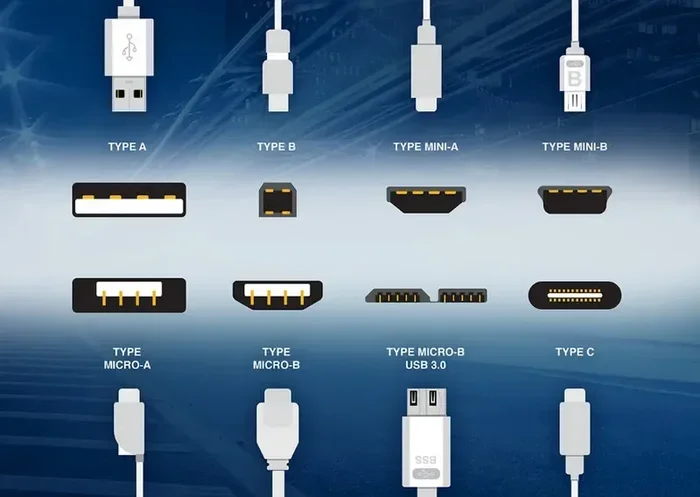
Apple has used two main port types on iPads over the years. Older models use the Lightning connector, while newer models use USB-C. Your adapter choice depends entirely on which port your iPad has.
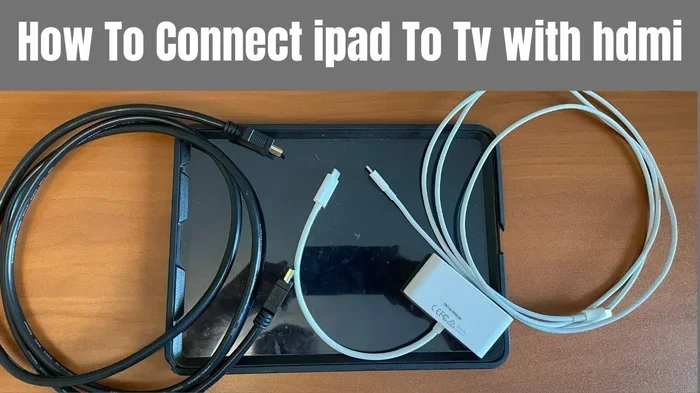
For Lightning iPads, you need a Lightning to HDMI adapter. Apple sells its own version, but many third-party options work well too. These adapters plug into your iPad’s charging port and provide a standard HDMI output. You then connect an HDMI cable from the adapter to your TV or monitor.
For USB-C iPads, the process is simpler. You can use a USB-C to HDMI adapter or a USB-C to HDMI cable that combines both ends. Many modern iPad Pro and iPad Air models support USB-C video output natively, which means you get a reliable digital signal with minimal lag.
Here is a quick look at the two main adapter types you will encounter:
- Lightning to HDMI Adapter: Works with older iPad models. Usually requires external power for best results. Apple’s official adapter is reliable but can be pricey.
- USB-C to HDMI Adapter: Works with newer iPads. Supports higher resolutions including 4K. Does not always need external power. More versatile for other uses too.
Choosing the Right HDMI Cable
Once you have your adapter, you need a good HDMI cable. Not all cables are created equal. For most iPad connections, a standard High-Speed HDMI cable works perfectly. If you want to push higher resolutions like 4K, look for a cable rated as Premium High-Speed HDMI.
Cable length matters too. A shorter cable reduces signal degradation. For most home setups, a 3 to 6-foot cable is ideal. If you need a longer run, consider an active HDMI cable that boosts the signal over distance. A quality cable ensures your iPad display output stays crisp and clear.
Step-by-Step Setup Guide
Now that you have your adapter and cable, let us walk through the actual setup process. Connecting your iPad to HDMI is straightforward once you know the steps.
Connecting iPad to a TV
Most people want to connect their iPad to a television. Here is how to do it in just a few minutes:
- Plug your adapter into the charging port of your iPad.
- Connect an HDMI cable from the adapter to your TV’s HDMI port.
- Switch your TV to the correct HDMI input using your remote.
- Your iPad screen should now appear on the TV. If it does not, try unplugging and replugging the adapter.
For Lightning iPads, you may need to connect the adapter to a power source as well. Some adapters draw power from the iPad, and if the iPad battery is low, the connection might be unstable. Always have your charging cable handy when setting up a Lightning to HDMI connection for the first time.
Connecting iPad to a Monitor or Projector
The process for connecting to a monitor or projector is almost identical. The main difference is that you need to match the input port on your display. Most modern monitors and projectors have HDMI inputs, which makes this easy.
If your projector only has VGA input, you will need a different type of adapter. VGA is an older analog standard, and it does not carry digital signals from iPads well. For the best results, always use an HDMI-equipped display when possible. A USB-C to HDMI setup works beautifully with most modern projectors and monitors.
For business presentations, a USB-C to HDMI adapter paired with a reliable cable gives you a clean, professional setup. You can mirror your slides, videos, or apps directly from your iPad to a large screen without any wireless interruptions. This is especially helpful in conference rooms where Wi-Fi signals may be unreliable.
Common Issues and How to Fix Them
Even with the right equipment, you might run into problems when trying to HDMI an iPad. Here are the most common issues and their solutions.
No Signal Problems
The most frustrating issue is when your TV or monitor shows no signal after connecting your iPad. Before you panic, try these steps:
- Check the HDMI connection at both ends. Make sure the cable is fully seated in the adapter and the display.
- Try a different HDMI port on your TV or monitor. Some ports may not work with certain adapters.
- Restart your iPad by holding the power button and sliding to power off, then turning it back on.
- Remove and reinsert the adapter firmly. A loose connection is often the culprit.
If none of these work, your adapter might be defective. Try a different adapter or test your current one with another device. Sometimes simply flipping the cable around fixes the problem because of how the HDMI pins align.
Audio and Video Sync Issues
Sometimes your video plays but there is no audio, or the sound is out of sync. This can happen for a few reasons:
- Check your TV audio settings. Make sure the TV is set to output audio through the HDMI input.
- Adjust the iPad volume. Even when connected to HDMI, the iPad volume controls still apply to the external output.
- Try a different HDMI cable. Cheap or damaged cables can cause audio dropouts or sync problems.
For USB-C iPads, audio should pass through automatically in most cases. If it does not, go to Settings, then Display and Brightness, and check your external display settings. A good iPad multimedia output setup should handle both video and audio without any extra tweaking.
iPadOS and Display Limitations
It is important to understand that iPadOS has certain limitations when it comes to external display output. Because iPadOS is a proprietary operating system designed and controlled by Apple, not all features work the same way as they do on macOS or Windows. Understanding these limitations helps you set realistic expectations.
For example, when you mirror your iPad to an HDMI display, the external screen typically shows the same content as your iPad screen. True display extension, where you use the external screen as a separate workspace, is limited on many iPad models. The advantages and disadvantages of a proprietary operating system like iPadOS play a role here, as Apple controls which features are available for external display support. You can read more about this topic in our guide on the advantages and disadvantages of a proprietary operating system.
Some newer iPad models support Stage Manager and external display multitasking, but this feature set is still evolving. If you need a fully extended display experience, you may find that iPadOS does not yet offer the same flexibility as a desktop operating system. Still, for most use cases, mirroring your iPad to HDMI works beautifully. Presentations, movie watching, photo sharing, and gaming all work great on a big screen.
Best Accessories for iPad HDMI Setup
Having the right accessories makes a huge difference in your iPad HDMI experience. Here are some recommendations that will make your setup smoother and more reliable.
Docking Stations and Hubs
If you use your iPad for work, a docking station or USB-C hub is a game changer. These devices give you HDMI output plus additional ports like USB-A, SD card slots, and charging passthrough. You can connect your iPad to a monitor, a keyboard, and a power source all at once.
Popular brands like Anker, Belkin, and Satechi make reliable hubs that work well with iPads. When choosing a hub, make sure it supports video output over HDMI. Not all hubs do, so always check the specifications before buying. A good iPad docking station turns your tablet into a full workstation in seconds.
For business users who rely on consistent connectivity, understanding the full picture of your setup matters. In professional environments where devices communicate over shared networks, factors like network infrastructure and connectivity solutions play a role. You might want to explore the advantages and disadvantages of using a value added network for electronic commerce communication if your iPad setup is part of a larger business integration effort. You can learn more about this in our article on advantages and disadvantages of using a value added network for electronic commerce communication.
Wireless Alternatives Worth Considering
While wired HDMI connections offer the best performance, wireless options have their place too. Apple AirPlay lets you mirror your iPad to compatible smart TVs and Apple TVs without any cables. This is great for casual use and quick presentations at home.
However, wireless mirroring can have latency issues, especially with fast-moving video or gaming. For professional presentations where every second counts, a wired iPad HDMI connection is still the most reliable choice. AirPlay also depends on a strong Wi-Fi network, which is not always guaranteed in every environment.
If you need the flexibility of wireless but the reliability of wired, consider a hybrid approach. Use AirPlay for everyday casual use and keep a USB-C to HDMI adapter in your bag for important presentations where you cannot afford any glitches. This way you get the best of both worlds and are always prepared.
Final Thoughts and Recommendations
So, can you HDMI an iPad? Absolutely. With the right adapter, a decent HDMI cable, and a display with an HDMI input, you can connect your iPad to almost any screen in minutes. The key is knowing which adapter matches your iPad model and having realistic expectations about what iPadOS can do with external displays.
Invest in a quality adapter from a trusted brand. Cheap adapters may save you a few dollars upfront but can cause frustrating connection issues down the road. A reliable iPad HDMI setup gives you a seamless experience whether you are working, presenting, or enjoying media. Think of it as a small investment that pays off every time you use it.
Start with the basics. Get the right adapter, test it at home, and then take it on the go. Once you experience the convenience of a big-screen iPad display, you will wonder how you ever managed without it. The ability to connect iPad to HDMI transforms your tablet into a powerful multimedia hub that goes far beyond the screen built into it.
Remember, technology evolves fast. New iPad models may bring even better external display support in the future. For now, the solutions in this guide will serve you well and let you make the most of your iPad wherever you go. Happy connecting!
Frequently Asked Questions
Can all iPads connect to HDMI?
Most iPads can connect to HDMI, but you need the correct adapter. Older iPads with a Lightning port require a Lightning to HDMI adapter. Newer iPads with USB-C use a USB-C to HDMI adapter or cable. Check your iPad model to confirm which port it uses before purchasing an adapter.
Do I need a special HDMI cable for iPad?
A standard High-Speed HDMI cable works for most iPad connections. If you want 4K output, look for a Premium High-Speed HDMI cable. For everyday use, any decent HDMI cable will handle 1080p mirroring without any problems.
Why is there no sound when I HDMI my iPad to a TV?
This usually happens when the TV audio settings are not configured correctly. Make sure your TV is set to output audio through the HDMI input. Also check that your iPad volume is turned up and not muted. Restarting both devices often resolves this issue quickly.
Can I extend my iPad display instead of mirroring it?
True display extension is limited on most iPad models. Mirroring, where the external screen shows the same content as your iPad, works on nearly all models. Some newer iPads with iPadOS 16 and later support limited external display multitasking through Stage Manager, but full extension is not yet widely available.
Is a wireless connection better than a wired HDMI connection for iPad?
Wired HDMI connections are more reliable and have lower latency than wireless options like AirPlay. For presentations, gaming, and watching fast-moving video, a wired connection is the better choice. Use wireless mirroring for casual, everyday use where a few seconds of delay is not a problem.
What should I look for when buying an iPad HDMI adapter?
Look for adapters that match your iPad port type, whether Lightning or USB-C. Choose Apple-certified or well-reviewed third-party options for reliability. Check if the adapter supports your desired resolution, such as 1080p or 4K. Also consider whether it passes through charging if you need to power your iPad while connected.