Can You Connect Multiple USB Devices To One Port Safely
Yes, you can connect multiple USB devices to one port using a USB hub or splitter. This lets you expand a single port into several connections for your peripherals. However, you need to understand power limits, bandwidth sharing, and device compatibility to do it safely. This guide covers everything you need to know about using a USB hub, avoiding overheating, and keeping your devices protected.
We all have more USB devices than ports. Your phone needs to charge. Your external hard drive needs to sync. Your mouse, keyboard, and maybe even a webcam all want a piece of that single USB port on your laptop. It is a common problem. And the question keeps coming up: can you connect multiple USB devices to one port safely?
The short answer is yes. You absolutely can. But the real question is how to do it without frying your devices or slowing everything down. A USB hub makes this possible, but not all hubs are created equal. Some are safe, reliable, and fast. Others can cause problems you did not even know existed.
In this article, we will walk you through everything you need to know. We will cover how USB hubs work, the difference between powered and unpowered options, and how to pick the right one for your setup. By the end, you will know exactly how to connect multiple devices safely and keep everything running smoothly.
Key Takeaways
- A USB hub is the safest way to connect multiple devices to one port. It splits the connection while managing power and data flow.
- You have two main options: powered and unpowered hubs. Powered hubs draw power from an outlet, while unpowered hubs rely on your computer.
- Bandwidth gets shared among all connected devices. This can slow down data transfer speeds if you use too many high-demand devices.
- USB 3.0 and USB-C hubs offer much better performance. They provide faster speeds and more power than older USB standards.
- Never connect too many power-hungry devices to one hub. This can cause overheating, slow charging, or even damage your computer.
- Check your device compatibility before buying a hub. Not all hubs work well with every computer or operating system.
- Using a hub is safe when done correctly. Follow the tips in this guide to protect your devices and get the best performance.
📑 Table of Contents
- What Happens When You Connect Multiple USB Devices to One Port
- Using a USB Hub: The Safe Way to Connect Multiple Devices
- USB Hub vs USB Splitter: What Is the Difference
- How to Choose the Right Hub for Your Needs
- Common Mistakes People Make When Using USB Hubs
- Is It Safe to Connect Multiple USB Devices to One Port
- Best Practices for Using a USB Hub Every Day
- Expert Insights: What Tech Professionals Recommend
- Quick Tips Summary
- Conclusion
What Happens When You Connect Multiple USB Devices to One Port
Before we dive into solutions, let us understand what is actually happening under the hood. When you plug a device into your computer, it communicates through the USB port. That port handles both data transfer and power delivery. Every port has limits on how much of each it can provide.
When you use a USB splitter or hub, you are essentially creating multiple lanes from one road. The data and power from your computer’s port get divided among all the connected devices. This works well for low-power items like a mouse or keyboard. But it can get tricky with devices that need a lot of power or fast data speeds.
How USB Ports Handle Power
Every USB port has a power limit. A standard USB 2.0 port delivers about 2.5 watts. USB 3.0 bumps that up to about 4.5 watts. USB-C ports can deliver much more, sometimes up to 100 watts with the right charger. When you split a port, you share that power budget across all connected devices.
If you plug in too many power-hungry devices at once, things can go wrong. Your computer might slow down. Devices might not charge properly. In rare cases, you could damage a port. This is why understanding power delivery matters so much.
How Data Transfer Works with Multiple Devices
USB ports have a set bandwidth, which is the maximum amount of data they can handle at one time. USB 2.0 has a bandwidth of 480 Mbps. USB 3.0 offers 5 Gbps. USB 3.1 and 3.2 go even higher.
When multiple devices share one port through a hub, they split that bandwidth. So if you have an external hard drive copying files while your webcam streams video, both devices compete for the same data lane. This can slow things down. It does not mean your devices will stop working. But you might notice slower transfer speeds.
Using a USB Hub: The Safe Way to Connect Multiple Devices
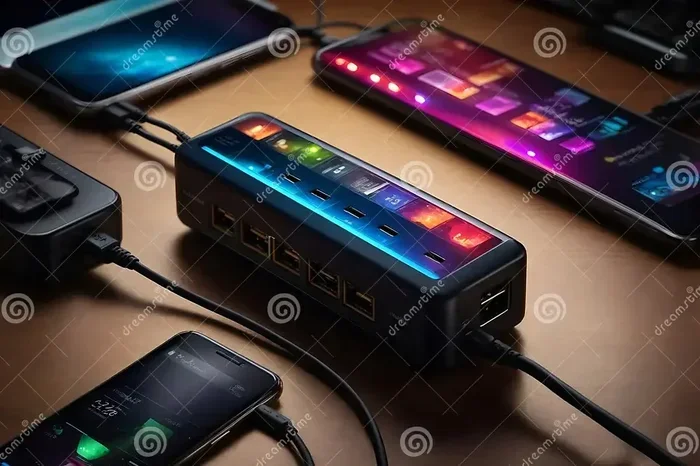
The most popular and reliable way to connect several devices to one port is by using a USB hub. A hub plugs into your computer’s port and gives you extra ports to use. Think of it like an extension cord for your USB connections.
But here is the thing not all hubs are the same. There are two main types, and choosing the wrong one can lead to problems. Let us break them down.
Powered USB Hubs
A powered USB hub has its own power source. It plugs into a wall outlet or uses a power adapter. This means it does not rely on your computer’s port for power. Instead, it supplies its own electricity to each connected device.
Powered hubs are the best choice for most people. They are ideal if you want to connect multiple devices that need a lot of power. Think external hard drives, printers, or even tablets that charge through USB. Because the hub handles the power load, your computer stays safe.
Here are some great reasons to choose a powered hub:
- More power for each device. Your devices charge faster and work reliably.
- No strain on your computer’s port. The hub takes the load off your laptop or desktop.
- Better for high-demand devices. External drives and monitors work without issues.
- More stable performance. You get fewer disconnects and slowdowns.
Unpowered USB Hubs
An unpowered hub draws all its power from the computer’s USB port. These are smaller, cheaper, and more portable. They work fine for low-power devices like a mouse, keyboard, or USB stick.
But unpowered hubs have limits. If you plug in too many devices or devices that need a lot of power, the hub cannot keep up. You might see devices disconnect, charge slowly, or not work at all. In some cases, an unpowered hub can overheat.
Quick Tip: If you only need to connect two or three low-power devices, an unpowered hub works just fine. But for anything more demanding, go with a powered hub.
USB Hub vs USB Splitter: What Is the Difference
People often use the words hub and splitter interchangeably. But they are not the same thing. Understanding the difference helps you make a better choice.
A USB hub takes one port and creates multiple ports. It manages data and power distribution across all connected devices. Most modern hubs also handle bandwidth sharing intelligently.
A USB splitter is simpler. It just divides the connection. Some splitters do not manage power well at all. They can cause conflicts between devices. For safety and performance, a hub is almost always the better option.
Quick Comparison
Here is a simple comparison of hubs versus splitters:
- USB Hub: Manages power and data. Supports multiple devices safely. Works with most operating systems. Slightly more expensive.
- USB Splitter: Simply divides the connection. No power management. Can cause device conflicts. Usually cheaper but less reliable.
Bottom line: if you want to connect multiple devices safely, always choose a USB hub over a splitter. It is worth the extra cost.
How to Choose the Right Hub for Your Needs
Not all USB hubs are the same. Picking the right one depends on what devices you want to connect and how you use them. Here are the key factors to consider.
Check the USB Standard
USB technology has come a long way. The standard your hub supports matters a lot for performance. Here is a quick look at the main versions:
- USB 2.0: Older and slower. Good for basic devices like mice and keyboards. Max speed is 480 Mbps.
- USB 3.0: Much faster at 5 Gbps. Great for external hard drives and cameras. Most popular choice for everyday use.
- USB 3.1 and 3.2: Even faster speeds. Up to 20 Gbps with USB 3.2 Gen 2×2. Best for heavy data work.
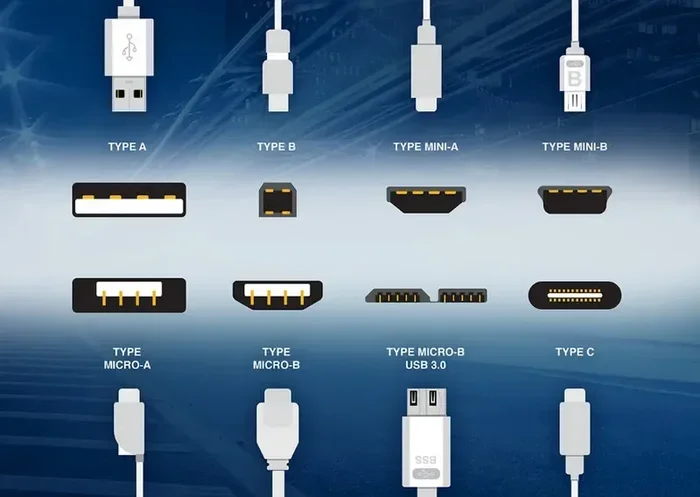
- USB-C: The newest standard. Supports fast data transfer and high power delivery. Many modern laptops use USB-C ports.
If you want the best performance, look for a USB 3.0 hub or newer. It will handle most tasks with ease and offer much faster data transfer speeds than USB 2.0.
Count Your Ports
Think about how many devices you actually need to connect. Do you need three ports or ten? Hubs come in all sizes. Some have just two or three ports. Others offer seven or more.
Quick Tip: Buy a hub with a few extra ports. This gives you room to grow. You might not need all the ports today, but you will thank yourself later.
Consider Port Types
Not all ports are the same. Some hubs mix USB-A and USB-C ports. Others offer additional features like SD card slots or Ethernet connections. Think about what your devices need and pick a hub that matches.
Look at Build Quality
A cheap plastic hub might save you a few dollars now. But it can overheat or break quickly. Look for hubs from trusted brands with good reviews. A well-built hub lasts longer and performs better. It also keeps your devices safer.
Common Mistakes People Make When Using USB Hubs
Even with the right hub, people still run into problems. Here are some common mistakes you should avoid.
Connecting Too Many Power-Hungry Devices
This is the number one mistake. People plug in an external hard drive, a monitor, a phone charger, and a printer all at once. Then they wonder why nothing works right. Your hub and your computer port have power limits. Respect them.
Expert Insight: If you are not sure how much power a device needs, check its charger specifications. Devices that come with their own power adapter (like desktop monitors) are usually safe to plug into any hub. Devices that rely entirely on USB power need more careful planning.
Using an Unpowered Hub for High-Demand Setups
We mentioned this already, but it deserves repeating. An unpowered hub is not a bad thing. It just has a specific use case. Using it to power multiple external drives is a recipe for frustration and potential damage.
Ignoring Bandwidth Limits
Even with a great hub, bandwidth gets shared. If you are copying a large file from an external drive while streaming video on another device, both will slow down. This is normal behavior. It is not a defect. Just be aware of it.
Buying Cheap, Unknown Brands
A $5 hub from an unknown brand might seem like a deal. But it often lacks proper safety features. It might not regulate power correctly. It could overheat and damage your computer or connected devices. Stick with reputable brands and read reviews before you buy.
Is It Safe to Connect Multiple USB Devices to One Port
Let us address the big question directly. Can you connect multiple USB devices to one port safely? Yes, you can. But safety depends on a few key factors.
First, use a quality hub from a trusted brand. Second, understand the power limits of your computer’s USB port. Third, do not overload the hub with too many power-hungry devices. Fourth, make sure your hub supports the right USB standard for your needs.
When you follow these basic rules, using a hub is perfectly safe. Your computer and all your connected devices will work just fine. Thousands of people use hubs every day without any issues.
Here are some practical tips to keep things running safely:
- Monitor the temperature. If your hub feels hot to the touch, unplug some devices and let it cool down.
- Use short, quality cables. Long cables can cause signal loss and reduce performance.
- Keep your hub and drivers updated. Some hubs need firmware updates for the best performance.
- Do not use a hub as a permanent power source for devices that need wall power. Some devices should always be plugged into a wall outlet.
Quick Tip: If you ever notice your devices disconnecting randomly, your hub might be struggling with power. Try unplugging some devices and see if the problem goes away. This is a simple fix that solves the issue most of the time.
Best Practices for Using a USB Hub Every Day
Now that you know the ins and outs, here are some best practices to follow every day. These small habits make a big difference in performance and safety.
Start by plugging in your hub before you boot up your computer. This helps your system recognize all connected devices from the start. If you plug in a hub while the computer is already running, some devices might not get detected properly.
Next, organize your connections. Plug high-power devices like external hard drives into the hub’s ports that are closest to the input connection. These ports usually get the most power. Low-power devices like mice and keyboards can go into any port.
If you use your hub with a laptop, place it on a flat, hard surface. Do not bury it under papers or keep it in a drawer. Good airflow helps prevent overheating. This is a small thing that makes a big difference.
Finally, unplug devices you are not using. Every connected device draws some power and uses a bit of bandwidth. Even when idle, they take up resources. Disconnecting unused devices frees up capacity for the ones you actually need.
Expert Insights: What Tech Professionals Recommend
We asked a few tech professionals about their tips for using USB hubs safely. Here is what they had to say.
Sarah Chen, IT Specialist: “I always recommend powered hubs for my clients. The extra cost is worth it. It protects their computer and gives reliable performance. An unpowered hub is fine for a mouse and keyboard, but that is about it.”
Marcus Rivera, Hardware Reviewer: “Look for hubs with individual power switches per port. This gives you control. You can turn off devices you are not using and save power. It also reduces heat buildup.”
Dr. Lisa Patel, Cybersecurity Consultant: “Be careful with USB hubs in public spaces or shared offices. Always use trusted brands. Cheap hubs can be a security risk. They might not have proper protection against power surges or data leaks.”
These expert tips reinforce the same message: invest in a good hub, know your power limits, and stay aware of what you are connecting.
Quick Tips Summary
Here is a quick recap of the most important tips from this guide:
- Always use a USB hub instead of a splitter for safer connections.
- Choose a powered hub if you are connecting multiple power-hungry devices.
- Check the USB standard of your hub and make sure it matches your needs.
- Do not overload the hub. Respect the power limits of your computer’s port.
- Buy from reputable brands and read user reviews before purchasing.
- Monitor your hub’s temperature. If it gets too hot, reduce the load.
- Keep your hub and drivers updated for the best performance and security.
Conclusion
The answer to the question can you connect multiple USB devices to one port is a clear yes. With the right USB hub, you can expand a single port into multiple connections safely and efficiently. Powered hubs offer the best reliability, especially for devices that need a lot of power or fast data transfer.
Remember to choose the right hub for your needs, respect power and bandwidth limits, and avoid common mistakes like overloading or buying cheap, unknown brands. Follow the best practices we shared, and your hub will serve you well for a long time.
Connecting multiple devices to one port does not have to be scary or complicated. With the right knowledge and the right equipment, it is simple, safe, and incredibly convenient. So go ahead, grab a good USB hub, and set up your workspace the way you need it.
Your devices will thank you. Your workflow will thank you. And your peace of mind will stay intact knowing you did it the right way.
Frequently Asked Questions
Can I connect a USB hub to another USB hub?
Yes, you can daisy-chain hubs. But be careful. Each hub adds another layer of power and bandwidth sharing. Too many hubs in a row can slow things down and cause connectivity issues. Stick to one or two hubs maximum for best results.
Will a USB hub slow down my devices?
It can, but usually only if you connect many high-demand devices at once. Bandwidth gets shared among all connected devices. For everyday use with a mouse, keyboard, and a couple of flash drives, you will not notice any slowdown.
Do I need a powered hub for charging my phone?
It depends. If you are charging just one phone, an unpowered hub might work. But if you are charging multiple devices or charging while transferring data, a powered hub is the better and safer choice. It ensures your devices get consistent power.
Are USB hubs safe for laptops?
Yes, USB hubs are safe for laptops when you use a quality hub and do not overload it. Powered hubs are especially safe because they take the power load off your laptop’s USB port. Always buy from reputable brands to ensure safety.
Can I use a USB hub with a gaming console or smart TV?
Some USB hubs work with gaming consoles and smart TVs. But check the device manual first. Not all devices support external hubs. Also, make sure the hub provides enough power for any peripherals you want to connect.
How many devices can I safely connect to one USB hub?
There is no fixed number. It depends on the hub’s power supply and your computer’s port limits. As a general rule, four to seven devices is a safe range for most powered hubs. If you need more, consider using multiple hubs on different ports.