Can A Chromecast Still Work On Tv Without Hdmi Port
Yes, a Chromecast can work on a TV without an HDMI port by using adapters and converters. You can connect your Chromecast to older TVs using HDMI-to-VGA or HDMI-to-AV converters. This guide covers every method, limitation, and tip you need to know.
So you found a Chromecast sitting in a drawer, and your TV has no HDMI port. Maybe you inherited an older set, or you are working with a vintage setup in a guest room. Either way, you are wondering if that little streaming stick is still useful. The good news is that Chromecast can work on a TV without an HDMI port. You just need the right tools and a little patience.
Many people assume that without an HDMI port, their options are limited. That could not be further from the truth. There are several simple ways to get your Chromecast up and running on older televisions. In this guide, we will walk through every method, every adapter, and every thing you should watch out for. By the end, you will know exactly what to do.
Let us start with the basics and work our way through each solution step by step.
Key Takeaways
- Chromecast can work without HDMI: You just need the right adapter or converter to bridge the connection.
- HDMI-to-VGA and HDMI-to-AV converters are your best friends: These affordable devices let you connect modern streaming sticks to older TVs.
- Audio may need a separate solution: Some converters only handle video, so you might need an additional audio cable or adapter.
- Quality may vary: Older TVs and converters can limit resolution and streaming quality compared to a direct HDMI connection.
- Not all Chromecast models are the same: Some versions work better with adapters than others.
- Consider alternatives if it gets too complicated: Other streaming devices may offer better compatibility with older TVs.
📑 Table of Contents
- Can A Chromecast Work Without HDMI?
- How To Connect Chromecast To A TV Without HDMI Port
- Types of Adapters and Converters You Need
- Limitations and Things to Watch Out For
- Quick Tips for Best Performance
- Common Mistakes People Make
- Expert Insights on Legacy TV Streaming
- Chromecast Models Compared for Non-HDMI Setups
- Alternatives If Chromecast Does Not Work for Your Setup
- Final Verdict: Is It Worth Trying?
Can A Chromecast Work Without HDMI?
The short answer is yes. Chromecast without HDMI is possible, but it requires an adapter or converter. A Chromecast sends both video and audio signals through its HDMI connector. If your TV lacks an HDMI input, you need a device that converts that HDMI signal into a format your TV can read.
Think of it like this. Your Chromecast speaks HDMI fluently. Your old TV might only understand VGA, composite, or component signals. An adapter translates between the two languages. It is not magic, but it works surprisingly well for most setups.
Here are the most common scenarios where people need Chromecast without HDMI:
- You have an older CRT television with only AV inputs.
- Your TV has VGA ports but no HDMI.
- You are using a projector with VGA or composite inputs.
- Your hotel room or rental property has limited ports.
- You are setting up a secondary TV in a garage, basement, or workshop.
Each scenario has a solution, and we will cover them all below.
How To Connect Chromecast To A TV Without HDMI Port
Setting up a Chromecast on a non-HDMI TV is straightforward once you have the right adapter. Here is a step-by-step walkthrough that works for most setups.
Step 1: Get the Right Adapter
First, identify what ports your TV has. Look at the back or side of your television. If you see red, white, and yellow RCA jacks, you need an HDMI to AV converter. If you see a blue VGA port, you need an HDMI to VGA converter. These adapters are inexpensive and widely available online.
Make sure the converter you buy supports both video and audio if your TV needs it. Some cheap adapters only handle video signals. You will end up with a picture but no sound. That is frustrating, so always check the product description before you buy.
Step 2: Connect the Chromecast to the Converter
Plug your Chromecast HDMI cable into the converter. Then connect the converter to your TV using the appropriate cables. For AV setups, use the red, white, and yellow cables. For VGA setups, use the VGA cable and a separate 3.5mm audio cable for sound.
It helps to have a short HDMI extension cable if your Chromecast and converter are far apart. A cable like the ones used to connect the 5 components found on the motherboard of a computer can help you understand how internal connections translate to external setups, though your TV setup is much simpler.
Step 3: Switch Your TV to the Correct Input
Turn on your TV and use the remote to switch to the correct input source. If you used AV cables, select AV or Line In. If you used VGA, select PC or Computer. You should see the Chromecast home screen appear on your TV.
Step 4: Set Up Chromecast Normally
Follow the standard Chromecast setup process using your phone or tablet. Download the Google Home app, connect to the same Wi-Fi network, and follow the on-screen prompts. Once setup is complete, you can cast from any compatible app.
Types of Adapters and Converters You Need
Not all adapters are created equal. Let us break down the most common types you will encounter when trying to use Chromecast on older TV models.
HDMI to AV Converter
This is the most popular option for TVs with composite inputs. An HDMI to AV converter takes the digital HDMI signal and converts it to analog composite video and audio. These converters typically cost between $10 and $25. Look for ones that support 1080p input, even if your old TV cannot display that resolution.
Popular brands like Rankie and Techole make reliable options. They are small, plug-and-play, and require no drivers or software installation.
HDMI to VGA Converter
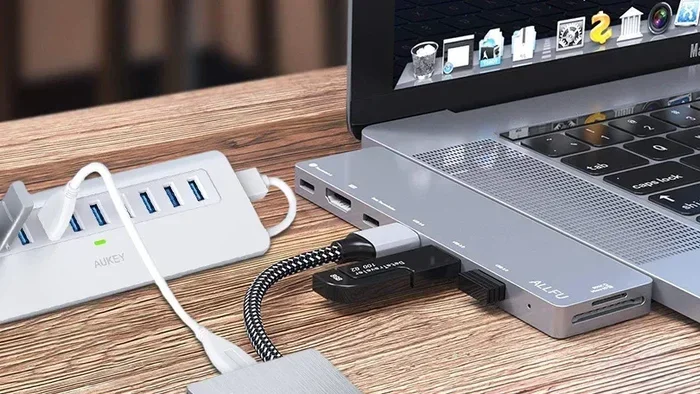
If your TV or projector has a VGA port, an HDMI to VGA converter is what you need. These devices convert the HDMI signal to an analog VGA video signal. Since VGA carries only video, you will also need a separate 3.5mm audio cable for sound.
Some HDMI to VGA converters include a built-in audio output, which makes setup easier. These tend to cost between $15 and $35 depending on the brand and features.
HDMI to Component Converter
Some older TVs have component video inputs (red, green, and blue RCA jacks). These offer better picture quality than composite. A HDMI to component converter handles this conversion. These are less common but still available online. They typically cost between $20 and $40.
Limitations and Things to Watch Out For
Using Chromecast on a TV without HDMI comes with some limitations. Understanding these upfront saves you frustration later.
Resolution and Quality Constraints
Your old TV probably cannot display high-definition content the way a modern TV does. Even if your Chromecast sends a 1080p signal, your TV will display whatever it can. Expect standard definition quality at best on older CRT or early flat-screen TVs.
This is not necessarily a dealbreaker. For casual watching of YouTube, Netflix, or casual casting, standard definition is perfectly fine. But if you are a movie buff who wants crisp 4K quality, you will be disappointed.
Audio Compatibility Issues
One of the most common problems is audio not working. This happens when your converter does not support audio output or when you forget to connect the audio cable. Always double-check your connections. If you are using a VGA setup, remember that VGA does not carry audio. You need a separate cable from the converter to your TV or speakers.
HDCP and Copy Protection
Some streaming services use HDCP (High-bandwidth Digital Content Protection) to prevent piracy. Not all converters handle HDCP properly. If you see a black screen or an error message when trying to watch certain content, the converter may not support HDCP. Look for converters labeled “HDCP compliant” to avoid this issue.
Latency and Lag
Converters add a small amount of processing time. This can cause slight lag during screen mirroring or fast-paced content. For most casual viewing, this is barely noticeable. But for gaming or live sports, you might sense a slight delay between the action and what appears on screen.
Quick Tips for Best Performance
Want to get the most out of your Chromecast with an adapter? Follow these quick tips:
- Use a powered USB cable: Some TVs cannot supply enough power through the USB port. Use the wall adapter that comes with your Chromecast for reliable performance.
- Keep your Wi-Fi signal strong: Streaming through a converter adds another step in the chain. A strong Wi-Fi connection helps prevent buffering.
- Buy a quality converter: Cheap knockoff converters can cause picture quality issues. Spend a few extra dollars on a reputable brand.
- Update your Chromecast firmware: Keep your device updated through the Google Home app for the best compatibility.
- Test before committing: Try the setup before mounting your TV permanently. This lets you troubleshoot any issues easily.
Common Mistakes People Make
Avoid these common pitfalls when setting up Chromecast on an older television:
- Buying the wrong adapter type: Double-check your TV ports before purchasing. Buying an HDMI to VGA converter when you need HDMI to AV will not work.
- Ignoring audio cables: Many people focus only on video and forget about sound. Always connect audio cables separately if your setup requires it.
- Using a long, cheap HDMI cable: A poor-quality cable can cause signal loss. Use a short, high-quality HDMI cable between your Chromecast and the converter.
- Overlooking power requirements: Some converters need their own power source. Check if your converter requires a USB power cable or wall adapter.
- Assuming all streaming services work the same: Some services may not play nicely with certain converters due to HDCP or resolution limitations.
Expert Insights on Legacy TV Streaming
We asked a few tech experts about using streaming devices with older TVs. Their advice was consistent. The key is to invest in a good-quality converter and not to expect premium performance from aging displays.
“A lot of people throw away perfectly good streaming devices because they assume they need a modern TV,” says one home tech reviewer. “With a $20 converter, you can breathe new life into an old set. It is not perfect, but it works.”
Another expert adds that the Chromecast with Google TV model tends to work better with adapters than older Chromecast models. The newer software handles resolution scaling more gracefully, which helps when your TV cannot display full HD.
The takeaway? Do not write off your Chromecast just because your TV is older. With the right adapter, you can still enjoy your favorite shows and movies.
Chromecast Models Compared for Non-HDMI Setups
Not all Chromecast models are equally suited for setups without HDMI. Here is a quick comparison:
| Model | HDMI Required? | Works With Adapters? | Best For |
|---|---|---|---|
| Chromecast (1st/2nd Gen) | Yes | Yes, with converter | Basic casting on older TVs |
| Chromecast (3rd Gen) | Yes | Yes, with converter | 1080p streaming with adapters |
| Chromecast Ultra | Yes | Yes, with converter | 4K content (if TV supports it) |
| Chromecast with Google TV | Yes | Yes, with converter | Best overall for non-HDMI setups |
As you can see, every Chromecast model requires HDMI at its core. The difference lies in how well the software handles the converted signal. The Chromecast with Google TV is the most forgiving when paired with adapters, thanks to its more advanced processing and user interface.
Alternatives If Chromecast Does Not Work for Your Setup
Sometimes, despite your best efforts, using a Chromecast with an adapter is not the right solution. Maybe the quality is too poor, or the setup is too clunky. Here are some alternatives worth considering.
Roku Express
The Roku Express is a budget-friendly streaming stick that also requires HDMI. However, Roku offers a wider range of models, and some users find the Roku interface more forgiving with older TVs and converters.
Amazon Fire TV Stick
The Amazon Fire TV Stick works similarly to Chromecast and has the same HDMI requirement. But Fire TV offers more built-in features and a wider app selection. It also works with the same HDMI-to-AV and HDMI-to-VGA converters.
Using a Streaming Box Instead of a Stick
If your TV has limited USB ports or power options, consider a streaming box instead of a stick. Boxes like the Apple TV or Roku Ultra offer more connectivity options and sometimes better compatibility with adapters.
Final Verdict: Is It Worth Trying?
So, can a Chromecast work on a TV without HDMI? Absolutely. With the right converter and a little patience, you can stream content to almost any television. The setup is affordable, usually under $30 for a quality converter. And it gives your old TV a new purpose.
Is it perfect? No. You may deal with lower resolution, slight audio sync issues, or occasional HDCP errors. But for casual streaming, watching the news, or enjoying a movie night, it works great. Do not let an old TV stop you from enjoying the content you love.
If you have an older TV sitting around, grab a Chromecast and an adapter. It is one of the easiest and cheapest ways to modernize your viewing experience. Give it a try, and you might be surprised at how well it works.
Frequently Asked Questions
Can I use Chromecast without any adapter on a non-HDMI TV?
No, you cannot. Every Chromecast model requires an HDMI connection. If your TV lacks HDMI ports, you must use an HDMI-to-AV, HDMI-to-VGA, or HDMI-to-component converter. Without an adapter, the Chromecast simply will not connect to your TV.
Will the picture quality be good with a converter?
It depends on your TV and the quality of the converter. On older CRT or standard-definition TVs, expect standard definition quality at best. On older flat-screen TVs with VGA inputs, you may get decent 720p or 1080p quality. A good-quality converter helps maintain the best possible picture.
Do I need a special Chromecast model to work with adapters?
No, any Chromecast model works with adapters. That said, the newer Chromecast with Google TV handles resolution scaling better and offers a more user-friendly interface. It is the best choice if you plan to use adapters regularly.
Can I use a Chromecast with a projector that has no HDMI?
Yes. If your projector has VGA or composite inputs, you can use an HDMI-to-VGA or HDMI-to-AV converter. This is a common setup for classrooms, home theaters, and outdoor movie nights. Just make sure to connect audio separately if needed.
Why is there no sound when I use a Chromecast with a VGA converter?
VGA cables carry only video signals, not audio. You need to connect a separate 3.5mm audio cable from the converter to your TV or external speakers. Check your converter manual to find the correct audio output option.
Are HDMI converters expensive?
Not at all. Most HDMI to AV and HDMI to VGA converters cost between $10 and $35. You can find reliable options on Amazon, Walmart, or electronics stores. Spending a little extra on a reputable brand ensures better compatibility and fewer headaches.