Can Usb C Replace Hdmi And See Why It Is The Future
USB C is changing how we connect devices, and many people wonder if it can fully replace HDMI. The short answer is yes, in most cases, but there are a few things you need to know first. USB C offers a single cable solution for video, data, and power, making it a true universal connector. This guide breaks down everything you need to decide if switching to USB C is right for you.
You have probably noticed that USB C is everywhere now. Your phone, your laptop, your tablet — they all use it. But what about that old HDMI cable sitting in your drawer? Can USB C replace HDMI and still give you the same great picture and sound? The answer is more straightforward than you might think.
USB C has become the go-to connector for modern devices. It is small, reversible, and incredibly fast. Many people want to ditch the bulky HDMI cable and use one cable for everything. This guide will walk you through exactly how USB C handles video output, where it falls short, and why it is shaping up to be the universal connector we have all been waiting for.
Whether you are hooking up a laptop to a TV, connecting a monitor for work, or streaming video from a tablet, understanding how USB C and HDMI compare is essential. Let us dive into the details and see if USB C is ready to take over the role that HDMI has held for so long.
Key Takeaways
- USB C can replace HDMI for most devices: With the right adapter or native support, USB C delivers video and audio just like an HDMI cable.
- Thunderbolt 3 and 4 boost USB C capabilities: These protocols allow USB C to handle 4K and even 8K resolutions with ease.
- Not all USB C ports are equal: Some only carry data or power, so check your device specs before you buy an adapter.
- Adapters and docking stations make the switch easy: You can keep your HDMI monitor or TV and still use a USB C laptop.
- USB C is the future-proof choice: More devices are dropping HDMI in favor of the smaller, reversible USB Type-C connector.
- Power delivery adds big convenience: USB C can charge your laptop while sending video to an external display.
- Bandwidth matters for high-resolution setups: Choose the right USB C cable and protocol for your needs.
📑 Table of Contents
- What Is USB C and How Does It Work for Video?
- Can USB C Match HDMI in Performance?
- Do You Need an Adapter to Connect USB C to HDMI?
- Where USB C Wins Over HDMI
- Where HDMI Still Has an Edge
- Quick Tips for Switching from HDMI to USB C
- Common Mistakes People Make with USB C and HDMI
- Expert Insights on the USB C vs HDMI Debate
- Common Mistakes People Make with USB C and HDMI
- The Best USB C to HDMI Setups for Different Users
- Why USB C Is the Future of Connectivity
- Conclusion
What Is USB C and How Does It Work for Video?
USB C, also known as USB Type-C, is a small, oval-shaped connector that has taken the tech world by storm. Unlike older USB connectors, it is reversible, which means you never have to flip it to get it right. But its biggest selling point is versatility. A single USB C cable can carry data, power, and video signals all at once.
So how does USB C send video? The secret lies in something called Alt Mode. When a USB C port supports DisplayPort Alt Mode or HDMI Alt Mode, it can transmit a video signal to an external display. This means your laptop or phone can push high-resolution video through the same port it uses for charging and file transfers.
USB C Alt Mode Explained
Alt Mode is a feature built into the USB C specification. It allows the port to carry non-USB signals, like DisplayPort or HDMI. Here is how it works in simple terms:
- DisplayPort Alt Mode: This is the most common video output method for USB C. It supports high resolutions and refresh rates without needing extra hardware.
- HDMI Alt Mode: Some devices support this directly, but it is less common than DisplayPort Alt Mode.
- Thunderbolt Alt Mode: Thunderbolt 3 and Thunderbolt 4 use the USB C connector and offer even higher bandwidth for demanding tasks.
You do not need to memorize all of this. The key takeaway is that USB C can absolutely send video to a screen. The question is how well it does it, which brings us to our next section.
Can USB C Match HDMI in Performance?
This is the big question on everyone’s mind. When it comes to raw performance, USB C can hold its own against HDMI — and in some cases, it even wins. But the answer depends on the cable, the port, and the protocol you are using.
Resolution and Refresh Rate Comparison
Both USB C and HDMI can support 4K resolution. But the details matter. Here is a quick look at what each can handle:
- HDMI 2.0: Supports 4K at 60Hz. This is standard for most modern HDMI cables.
- HDMI 2.1: Supports 4K at 120Hz and even 8K at 60Hz. This is for high-end gaming and professional displays.
- USB C with DisplayPort 1.4: Supports 4K at 120Hz and 8K at 60Hz with proper compression.
- USB C with Thunderbolt 4: Supports dual 4K displays at 60Hz or a single 4K display at 120Hz.
As you can see, USB C can match or exceed HDMI performance when you use the right setup. For most everyday users, USB C delivers more than enough bandwidth for streaming video, presentations, and casual gaming.
Bandwidth: Why It Matters
Bandwidth is the amount of data a cable can carry per second. Higher bandwidth means higher resolution and smoother motion. USB C with Thunderbolt 3 offers 40 Gbps of bandwidth. USB C with DisplayPort 1.4 offers 32.4 Gbps. Standard HDMI 2.0 offers 18 Gbps. That means a USB C connection can handle much more data than a basic HDMI cable.
If you are a content creator or a gamer, this extra bandwidth is a big deal. You get smoother visuals, better color accuracy, and support for high dynamic range (HDR) content. All of this from a single USB C cable.
Do You Need an Adapter to Connect USB C to HDMI?
Here is where things get a little practical. Not every display has a USB C input. Most monitors and TVs still use HDMI ports. So how do you connect a USB C laptop to an HDMI screen? You need an adapter or a cable that converts the signal.
Types of USB C to HDMI Adapters
There are several options available, and they are all quite simple to use:
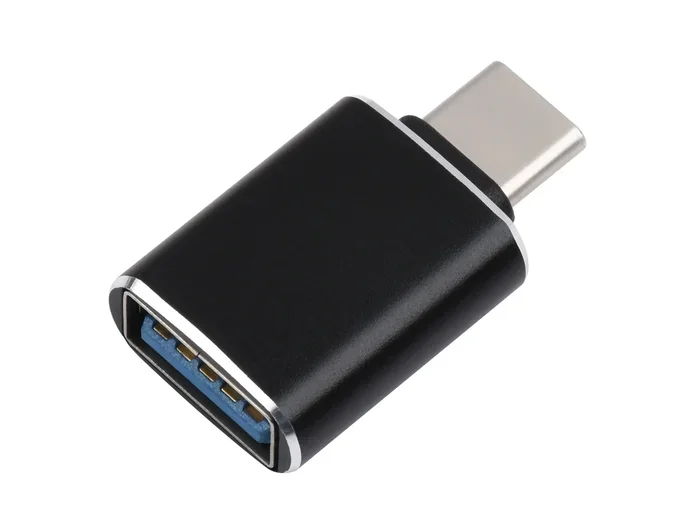
- USB C to HDMI Adapter: A small dongle that plugs into your USB C port and has an HDMI output. Plug in your HDMI cable and you are done.
- USB C to HDMI Cable: This is a single cable with USB C on one end and HDMI on the other. No extra adapter needed.
- USB C Docking Station: A hub that adds multiple ports, including HDMI, USB ports, and an Ethernet connection. Great for a permanent desk setup.
- Thunderbolt Dock: These docks use Thunderbolt over USB C and offer the fastest speeds and the most features.
Quick Tip: Always check that your adapter supports the resolution and refresh rate you need. A cheap adapter might only handle 1080p, even if your laptop supports 4K. Spending a little more on a quality adapter saves you from frustration later.
Do You Need a Special USB C Cable?
Yes and no. A standard USB C cable will work for basic video output. But if you want the best performance, especially at high resolutions, you need a cable that supports the right data speed. Look for cables rated for USB 3.1 or USB 3.2, or Thunderbolt cables if your device supports it.
A good USB C cable should be labeled with its speed rating. If it says 10 Gbps or 20 Gbps, it can handle high-quality video. If it does not mention a speed, it might only be a basic cable meant for charging.
Where USB C Wins Over HDMI
USB C has several clear advantages over HDMI. These are the reasons why the industry is moving toward the USB Type-C connector as the standard for all device connections.
1. One Cable for Everything
This is the biggest advantage of USB C. With a single cable, you can:
- Charge your laptop
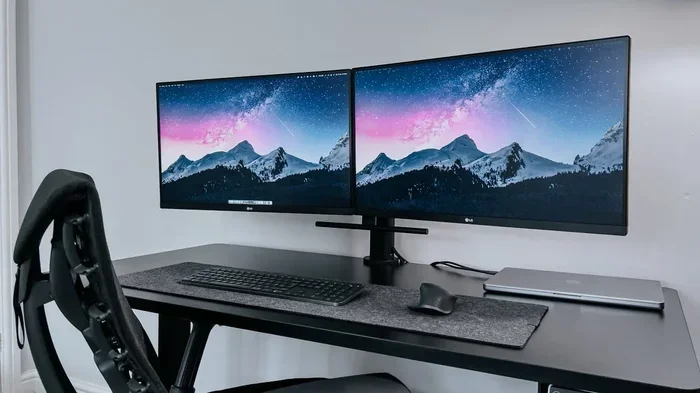
- Connect to an external monitor
- Transfer files to a hard drive
- Connect peripherals like keyboards and mice
- Output audio to headphones or speakers
HDMI cables only carry audio and video. You need a separate power cable and often a USB connection for your peripherals. USB C simplifies your entire setup.
2. Reversible Design
We have all experienced the frustration of flipping an HDMI cable three times before it plugs in. USB C is reversible, just like Apple’s Lightning connector. It goes in either way, every time. This small design change makes a huge difference in daily use.
3. Smaller Form Factor
USB C is much smaller than HDMI. This makes it ideal for thin laptops, tablets, and phones. As devices get thinner and lighter, the bulky HDMI connector simply does not fit anymore. USB C was designed for the modern era of compact devices.
4. Future-Proof Investment
More and more devices are dropping HDMI in favor of USB C. If you invest in USB C accessories now, you are future-proofing your setup. HDMI is not going away overnight, but the trend is clear. USB C is the direction the industry is heading.
Where HDMI Still Has an Edge
USB C is impressive, but it is not perfect for every situation. HDMI still holds advantages in certain scenarios, and it is important to know where those are.
1. Native HDMI on TVs and Monitors
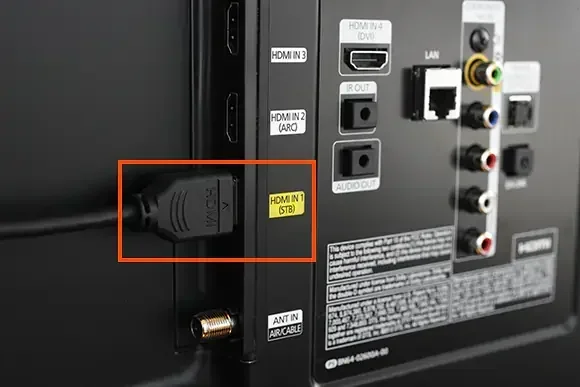
Almost every TV and monitor on the market still uses HDMI as its primary input. You will find USB C inputs on some high-end monitors, but they are far from universal. If you have an older TV or a standard office monitor, you will likely need an adapter to use USB C.
2. Long Cable Runs
HDMI cables can carry a signal over longer distances without significant quality loss. USB C cables, especially those carrying high-resolution video, can suffer from signal degradation over longer runs. If you need to run a cable across a large room, HDMI might still be the better choice.
3. Consumer Electronics and Gaming Consoles
Gaming consoles like PlayStation and Xbox use HDMI. Streaming devices like Apple TV and Roku also rely on HDMI. USB C has not yet replaced HDMI in the living room. If you are connecting these devices to your TV, you will still need an HDMI cable.
4. Simplicity for Non-Tech Users
HDMI is plug-and-play. You do not need to worry about Alt Mode, protocols, or bandwidth. For someone who just wants to connect a laptop to a projector or a cable box to a TV, HDMI is still the simplest option. USB C adds a layer of complexity that some users do not need.
Quick Tips for Switching from HDMI to USB C
Ready to make the switch? Here are some practical tips to help you transition smoothly:
- Check your device specs first. Look up whether your laptop or phone supports video output over USB C. Not every USB C port can carry a video signal.
- Buy a quality adapter. A reliable USB C to HDMI adapter from a reputable brand will save you from connectivity issues and poor image quality.
- Invest in a good USB C cable. A high-speed cable makes a real difference. Look for cables rated for at least 10 Gbps data transfer.
- Consider a docking station. If you use an external monitor regularly, a USB C docking station is a game-changer. It turns one port into a full workstation.
- Test your setup before important meetings. Always test your USB C to HDMI connection before a presentation or a movie night. Do not leave it to chance.
Common Mistakes People Make with USB C and HDMI
Switching between USB C and HDMI can be tricky. Here are some mistakes to avoid:
- Assuming all USB C ports support video: Some USB C ports on budget devices only handle data and power. They cannot output video at all. Always check your device specifications.
- Using a cheap cable or adapter: A $5 adapter might seem like a deal, but it often cannot handle 4K resolution or high refresh rates. Spend a little more for reliable performance.
- Ignoring bandwidth limits: If you try to push 4K at 120Hz through a cable that only supports 10 Gbps, you will get a blank screen or poor quality. Match your cable to your resolution needs.
- Not updating display drivers: Sometimes the issue is not your cable or adapter. Outdated graphics drivers can cause problems with external displays. Keep them up to date.
- Forgetting about audio: USB C can carry audio just like HDMI, but you need to make sure your setup routes the audio correctly. Check your sound output settings on your device.
Expert Insights on the USB C vs HDMI Debate
Industry experts agree that USB C is the future of connectivity. The Video Electronics Standards Association (VESA) has fully embraced DisplayPort over USB C, and major laptop manufacturers like Apple, Dell, and Lenovo have already made USB C their primary video output. Even some new monitors now come with USB C inputs that can charge your laptop while displaying video.
However, HDMI is not dead. The HDMI Forum continues to release new versions, with HDMI 2.1 pushing the boundaries of what a digital interface can do. The reality is that both connectors will coexist for a while. But for most users, USB C is already the better choice for everyday connectivity.
“The shift toward USB C as a universal connector is inevitable,” says a tech analyst from a leading review site. “Consumers want fewer cables, simpler setups, and one connector that does it all. USB C delivers on all of those promises.”
Common Mistakes People Make with USB C and HDMI
Switching between USB C and HDMI can be tricky. Here are some mistakes to avoid:
- Assuming all USB C ports support video: Some USB C ports on budget devices only handle data and power. They cannot output video at all. Always check your device specifications.
- Using a cheap cable or adapter: A $5 adapter might seem like a deal, but it often cannot handle 4K resolution or high refresh rates. Spend a little more for reliable performance.
- Ignoring bandwidth limits: If you try to push 4K at 120Hz through a cable that only supports 10 Gbps, you will get a blank screen or poor quality. Match your cable to your resolution needs.
- Not updating display drivers: Sometimes the issue is not your cable or adapter. Outdated graphics drivers can cause problems with external displays. Keep them up to date.
- Forgetting about audio: USB C can carry audio just like HDMI, but you need to make sure your setup routes the audio correctly. Check your sound output settings on your device.
The Best USB C to HDMI Setups for Different Users
Not everyone needs the same setup. Here are a few recommendations based on common use cases:
| User Type | Recommended Setup | Why It Works |
|---|---|---|
| Business Professional | USB C Docking Station with HDMI output | One dock connects all peripherals and provides reliable video output for presentations |
| Content Creator | Thunderbolt 4 USB C Cable to HDMI Monitor | High bandwidth supports color-accurate 4K displays for editing and design work |
| Student | USB C to HDMI Adapter (compact dongle) | Lightweight, portable, and affordable for connecting to classroom projectors |
| Gamer | USB C to HDMI 2.1 Adapter with 4K 120Hz support | Delivers the high refresh rates and resolution needed for smooth gaming |
| Casual Viewer | USB C to HDMI Cable (all-in-one) | Simple plug-and-play solution for streaming movies and shows on a big screen |
These setups cover most scenarios. You do not need the most expensive option if your needs are basic. But if you push high resolutions or need multiple displays, investing in the right USB C equipment makes a big difference.
Why USB C Is the Future of Connectivity
The writing is on the wall. USB C is becoming the standard connector for almost every device. Here is why it is positioned to replace HDMI and other legacy connectors:
- Universal compatibility: USB C works across laptops, phones, tablets, and even some desktops. One connector fits them all.
- Growing industry support: Major tech companies are standardizing on USB C. The European Union has even mandated USB C for mobile devices.
- Continuous improvement: USB C protocols keep getting faster. USB4, which runs over USB C, offers up to 40 Gbps of bandwidth and supports multiple display protocols.
- Consumer demand: People want simplicity. A single cable that charges your device and connects to your monitor is exactly what the market is asking for.
HDMI will not disappear overnight. There is a massive installed base of HDMI displays and devices. But for new devices and new setups, USB C is the clear winner. It is the connector that bridges the gap between all your devices and simplifies your digital life.
If you are still on the fence, here is the bottom line. USB C can replace HDMI for most people in most situations. You just need the right adapter, the right cable, and a device that supports video output over USB C. Once you make the switch, you will wonder how you ever managed with multiple cables cluttering your desk.
Conclusion
The answer to the question “can USB C replace HDMI” is a strong yes for most users. USB C offers a versatile, fast, and future-proof connection that handles video, audio, data, and power through a single cable. With the right adapter or a native USB C display, you can enjoy the same high-quality experience you get from an HDMI cable.
There are still a few situations where HDMI holds an edge, such as long cable runs, gaming consoles, and older displays. But for everyday use — streaming, working, gaming, and presenting — USB C is more than capable. It is simpler, cleaner, and more convenient than juggling multiple cable types.
The shift toward USB C is not a trend. It is the direction the entire tech industry is moving. By understanding how USB C handles video and investing in the right accessories, you can stay ahead of the curve. Embrace the universal connector and simplify your setup today.
Take a look at your current devices. How many different cables do you use? If you are still relying on HDMI for every video connection, it might be time to explore what USB C can do for you. The future of connectivity is here, and it is smaller, faster, and smarter than ever before.
Frequently Asked Questions
Can any USB C port output video to an HDMI display?
Not all USB C ports support video output. Some ports only handle data transfer and power delivery. Check your device specifications to confirm that your USB C port supports DisplayPort Alt Mode or Thunderbolt before you try to connect to an HDMI display.
Do I need a special cable to get 4K over USB C?
Yes, for reliable 4K performance you need a USB C cable rated for high data speeds. Look for cables that support at least 10 Gbps or are certified Thunderbolt cables. A basic charging-only cable may not have enough bandwidth for 4K video.
Is USB C better than HDMI for gaming?
USB C can be better for gaming if you use Thunderbolt 3 or Thunderbolt 4, which offer high bandwidth and low latency. However, if your gaming setup relies on HDMI 2.1 features like 4K 120Hz, a dedicated HDMI cable may still be the better choice for consoles and PCs.
Can I charge my laptop and connect to a monitor using one USB C cable?
Yes, this is one of the biggest advantages of USB C. Power Delivery (PD) technology allows USB C to charge your laptop while simultaneously sending video to an external monitor through the same cable or through a docking station setup.
Are USB C to HDMI adapters expensive?
They range widely in price. Basic adapters cost around $10 to $15, while high-quality Thunderbolt docks can run $100 or more. For most users, a $20 to $30 adapter from a reputable brand offers excellent performance without breaking the bank.
Will HDMI become obsolete because of USB C?
HDMI will not become obsolete overnight, but its role is shrinking. New devices increasingly favor USB C as the primary connector. HDMI will likely remain in legacy devices and specific use cases like home theater systems for years to come, but USB C is steadily taking over as the universal standard.