Do You Need Anything For Chromecast To Start Watching
Do You Need Anything For Chromecast? The short answer is yes — you need a few basic things to get started. You will need a Chromecast device, a TV with an HDMI port, a Wi-Fi connection, and a mobile device or computer to control it. This guide walks you through every item and requirement so you can start streaming right away.
So you just bought a Chromecast or are thinking about getting one. Maybe you saw the little dongle at the store and wondered what the fuss is about. Or perhaps you already have one sitting in a drawer, unsure of what to do with it.
The good news is that setting up a Chromecast is surprisingly simple. But before you plug anything in, you need to know exactly what you need. Not having the right setup can turn a fun streaming experience into a frustrating one.
In this guide, we will walk through every single thing you need to get your Chromecast streaming up and running. From hardware requirements to app compatibility, we have you covered. By the end, you will know exactly what to prepare and how to avoid common setup mistakes.
Key Takeaways
- A Chromecast device is essential: You cannot stream without the actual dongle or stick that plugs into your TV.
- A stable Wi-Fi network is critical: Chromecast relies entirely on your home Wi-Fi to deliver content smoothly.
- An HDMI port on your TV is required: Without an available HDMI input, you cannot connect a Chromecast at all.
- A smartphone or computer acts as your remote: You use the Google Home app or a web browser to set up and control casting.
- A power source completes the setup: Chromecast needs a USB power cable or wall adapter to stay on.
- Compatible apps make everything work: Apps like Netflix, YouTube, and Spotify support Chromecast natively.
📑 Table of Contents
- What Is a Chromecast and How Does It Work?
- Do You Need Anything For Chromecast Setup?
- What Apps Do You Need for Chromecast?
- Can You Use Chromecast Without a Smartphone?
- Common Mistakes People Make When Setting Up Chromecast
- Do You Need Anything Extra for the Best Experience?
- How to Get Started with Chromecast Right Now
What Is a Chromecast and How Does It Work?
A Chromecast is a small streaming device made by Google. It plugs directly into your TV’s HDMI port and sends content from your phone, tablet, or laptop straight to your screen. Think of it as a bridge between your device and your television.
The way it works is pretty clever. You open an app on your phone, tap the cast icon, and your content starts playing on the TV. Your phone essentially becomes a remote control. The Chromecast handles all the heavy lifting by pulling the video directly from the internet.
There are a few different models available. The standard Chromecast is affordable and straightforward. The Chromecast with Google TV adds a more traditional interface and a remote control. Both options serve the same core purpose — streaming content to your big screen.
Do You Need Anything For Chromecast Setup?
Here is the part most people skip. Yes, you do need several things to use a Chromecast properly. It is not just about plugging in the device and hoping for the best. Let us break down every requirement so you are fully prepared.
A Compatible Television with an HDMI Port
Your TV needs at least one HDMI port available. This is non-negotiable. The Chromecast is a small stick that plugs directly into this port. Without an HDMI input, there is simply no way to connect it.
Most modern TVs come with multiple HDMI ports, so this should not be a problem. If you own an older TV without HDMI, you will need an adapter, and the experience will not be as smooth. Check the back of your TV before you start the setup process.
A Stable Wi-Fi Connection
This is arguably the most important requirement. A Chromecast needs a strong and reliable Wi-Fi network to stream content. Without good internet, you will experience buffering, low quality, or connection drops.
Your Wi-Fi router should be reasonably close to your TV. If your router is far away, consider boosting your Wi-Fi signal to ensure a steady connection. A weak signal will ruin your streaming experience fast.
For the best results, use a dual-band router that supports both 2.4 GHz and 5 GHz frequencies. The 5 GHz band offers faster speeds and less interference, which is ideal for HD and 4K streaming.
A Smartphone, Tablet, or Computer
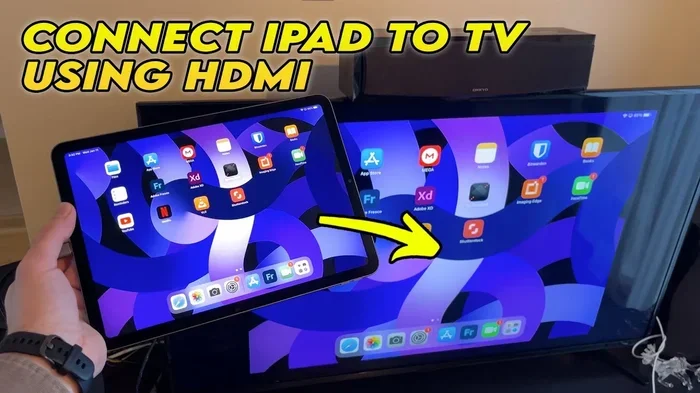
You need a device to control your Chromecast during the initial setup. A Android phone, iPhone, iPad, or laptop all work fine. You will use the Google Home app to configure your device and manage settings.
After setup, you can cast content from many apps directly. But for the initial configuration, having your phone or computer nearby is essential. Make sure your control device is also connected to the same Wi-Fi network.
A Power Source
Every Chromecast needs power to operate. Most models come with a USB power cable that you can plug into your TV’s USB port. If your TV does not have a USB port, the device includes a wall adapter.
Do not underestimate the importance of a reliable power source. An unstable power connection can cause your Chromecast to disconnect randomly or fail to start up properly.
What Apps Do You Need for Chromecast?
One of the best things about Chromecast is its wide app support. Most popular streaming services work with it right out of the box. You do not need to install anything special on your TV — everything runs through your phone or browser.
Streaming Services That Work with Chromecast
Here are some of the most popular apps that support casting to Chromecast:
- Netflix — One of the most used apps for Chromecast streaming
- YouTube — Works seamlessly and is built into the Chromecast experience
- Spotify — Great for casting music to your TV or speakers
- Disney+ — Full HD and 4K support where available
- Hulu — Supports casting with a valid subscription
- Amazon Prime Video — Compatible with most Chromecast models
- Google Photos — Perfect for sharing and displaying your photos on the big screen
Do You Need a Special App to Control Chromecast?
Yes, you need the Google Home app for initial setup and basic control. This free app is available for both Android and iOS devices. It lets you configure your device, manage settings, and cast content from supported apps.
For day-to-day use, you typically do not need any additional apps. The cast button appears inside supported streaming apps on your phone. Just tap it, choose your Chromecast device, and your content starts playing on the TV.
Can You Use Chromecast Without a Smartphone?
Some people wonder if they can set up and use a Chromecast without a phone. The short answer is yes, but with limitations. You can use a computer with the Chrome browser to cast content. You can also use the Google Home app on a tablet instead of a phone.
However, for the smoothest experience, having a smartphone or computer is highly recommended. Your control device makes it easy to search for content, adjust volume, and manage what plays on your TV.
If you are using the Chromecast with Google TV model, it comes with a physical remote. This makes it much easier to navigate menus and find content without needing your phone nearby all the time.
Common Mistakes People Make When Setting Up Chromecast
Many users run into avoidable problems during setup. Here are the most common mistakes and how to fix them.
Skipping the Wi-Fi Check
The biggest mistake is not checking your Wi-Fi signal strength before setup. If your router is too far from your TV, your Chromecast will struggle to maintain a connection. Test your Wi-Fi in the room where your TV is located before you begin.
Plugging Into the Wrong HDMI Port
It sounds simple, but people sometimes plug their Chromecast into an HDMI port that does not carry audio or is not enabled. Make sure you use an active HDMI port and switch your TV to the correct input using your remote.
Forgetting to Update the Firmware
After your initial setup, your Chromecast may prompt you to install updates. Always install these updates. They fix bugs, improve performance, and add new features. Skipping updates can lead to compatibility issues with newer apps.
Using an Old or Slow Router
An outdated router can bottleneck your entire streaming experience. If your router is more than five years old, consider upgrading to a newer model that supports dual-band Wi-Fi. A better router means smoother streaming and fewer interruptions.
Do You Need Anything Extra for the Best Experience?
The basic setup gets you streaming, but a few extras can significantly improve your experience. Here are some optional additions worth considering.
A Good Wi-Fi Extender
If your router is far from your living room, a Wi-Fi extender can boost your signal to the TV area. This is especially helpful for larger homes or apartments with thick walls that block wireless signals.
You can also look into mesh network systems for whole-home coverage. A strong and stable connection is the foundation of a great streaming setup.
An HDMI Extender Cable
Sometimes the Chromecast does not fit snugly behind your TV because of tight cabinet space. An HDMI extender cable gives you more flexibility in where you place the device. It also helps with heat dissipation, which can extend the life of your hardware.
A Quality Sound System
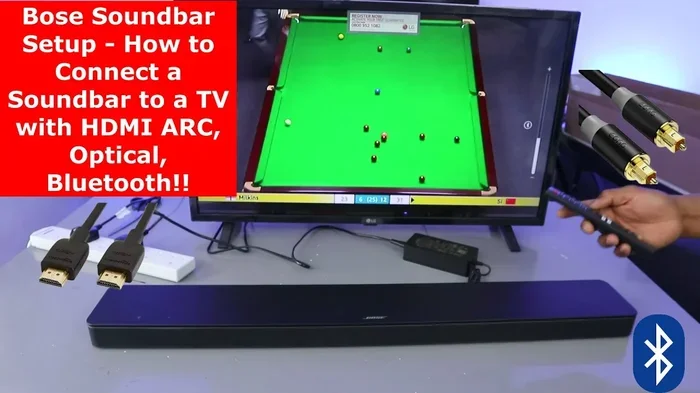
While not required, connecting your Chromecast to a soundbar or home theater system dramatically improves audio quality. Many people focus on video quality but forget that sound makes up half the experience.
You can connect external speakers through your TV’s audio output or use Bluetooth speakers if your TV supports it. Better audio makes movies and music feel much more immersive.
How to Get Started with Chromecast Right Now
Now that you know everything you need, here is a quick step-by-step guide to get you started.
- Plug your Chromecast into an available HDMI port on your TV.
- Connect the USB power cable to a power source.
- Switch your TV to the correct HDMI input.
- Download the Google Home app on your phone or tablet.
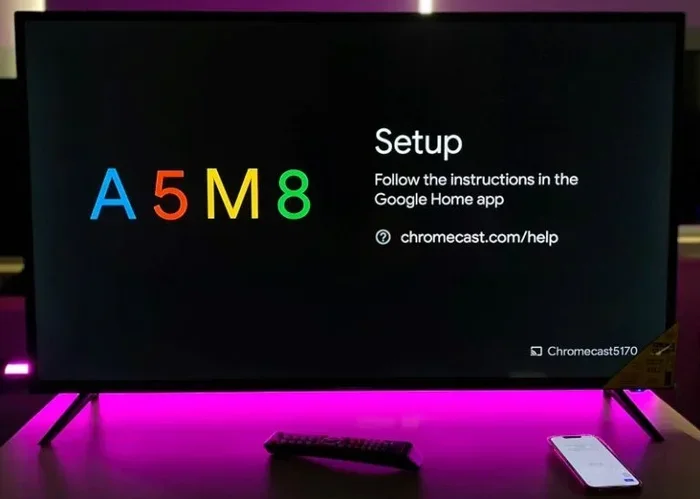
- Follow the on-screen instructions to connect to your Wi-Fi network.
- Once setup is complete, open a supported app and tap the cast icon.
- Select your Chromecast device and start streaming.
That is it. In just a few minutes, you will be watching your favorite shows and movies on the big screen. The simplicity of Chromecast is one of its biggest strengths.
Remember that keeping your Wi-Fi signal strong and your device updated will ensure the best performance over time. If you ever experience issues, restarting both your router and your Chromecast solves most problems.
Streaming has never been easier. With the right setup and a reliable internet connection, your Chromecast becomes the centerpiece of your home entertainment system. Enjoy the freedom of casting anything from your favorite shows to personal photos, all with just a tap on your phone.
Now that you know exactly what you need, there is nothing stopping you from diving into the world of streaming on your TV. Set up your device, grab some snacks, and enjoy the show.
Frequently Asked Questions
Do I need a smart TV to use Chromecast?
No, you do not need a smart TV at all. A regular TV with an HDMI port works perfectly with a Chromecast. The Chromecast adds smart streaming capabilities to any TV with an available HDMI input. You control everything from your phone or computer.
Can I use Chromecast without Wi-Fi?
You need Wi-Fi for most streaming functions. However, you can use Guest Mode or screen mirroring without an internet connection in some cases. For the full experience with apps like Netflix and YouTube, a stable Wi-Fi connection is required.
Do I need a Google account to set up Chromecast?
Yes, a Google account is required to set up and use a Chromecast. You will sign in through the Google Home app during the initial configuration. This account also syncs your preferences and recommendations across devices.
Can I use Chromecast with an iPhone?
Absolutely. Chromecast works with both Android and iOS devices. You can use the Google Home app on your iPhone to set up and control your device. Just make sure both your phone and Chromecast are on the same Wi-Fi network.
Do I need any special cables besides the ones included?
The Chromecast comes with everything you need for basic setup. You get the HDMI connector and a USB power cable. You only need extra cables or adapters if your TV has unusual port configurations or if you want to extend the reach of your setup.
Is Chromecast better than other streaming devices?
It depends on your needs. Chromecast is simple, affordable, and works well with Google ecosystem devices. Other devices like Roku or Fire Stick offer more built-in features. But for straightforward casting and streaming, Chromecast is hard to beat.
=== CONCLUSION ===
So, do you need anything for Chromecast to start watching? Yes, you need a TV with an HDMI port, a stable Wi-Fi network, a power source, and a smartphone or computer for setup. These are the essentials that make Chromecast streaming possible.
Beyond the basics, a few optional extras like a Wi-Fi extender or an HDMI cable can enhance your experience. But none of them are strictly necessary. The beauty of Chromecast lies in its simplicity and affordability.
Now that you have all the information, you are ready to set up your device and start enjoying your favorite content on the big screen. Get your Chromecast plugged in, connect to Wi-Fi, and start casting today. Happy streaming!