Can I Control My Lg Smart Tv Without A Remote Guide
You can absolutely control your LG Smart TV without a remote using several easy methods. From the LG ThinQ app on your phone to built-in voice commands and even smart home setups, there are many ways to navigate your TV. This guide walks you through every option so you can watch your favorite shows without searching for that missing remote.
Key Takeaways
- Use the LG ThinQ App: Turn your phone into a fully functional remote control for your LG Smart TV.
- Try Voice Control: Built-in Google Assistant and Alexa let you change channels and adjust volume hands-free.
- Use HDMI-CEC: Control your LG TV volume and power through your cable box or soundbar remote.
- Look for Physical Buttons: Every LG TV has hidden buttons on the back or bottom edge for basic navigation.
- Get a Universal Remote: A universal remote replacement works great when your original remote is lost or broken.
- Set Up Smart Home Integration: Link your LG TV to Google Home or Alexa for seamless voice and app-based control.
📑 Table of Contents
- Can I Control My LG Smart TV Without a Remote?
- Method 1: Use the LG ThinQ App on Your Phone
- Method 2: Use Voice Control with Google Assistant or Alexa
- Method 3: Use HDMI-CEC to Control Your TV with Another Device
- Method 4: Use the Physical Buttons on Your LG TV
- Method 5: Use a Universal Remote as a Replacement
- Method 6: Use Smart Home Integration for Hands-Free Control
- Comparison of All Control Methods
- Common Mistakes to Avoid When Controlling Your LG TV Without a Remote
- Which Method Is Best for You?
- Final Thoughts
Can I Control My LG Smart TV Without a Remote?
The short answer is yes. You can fully control your LG Smart TV without a remote. LG designed these TVs with multiple backup options. Whether your remote broke, got lost, or you simply prefer a different way to navigate, there is a solution for you.
Modern LG Smart TVs run on the webOS platform. This smart operating system comes packed with built-in features that make remote-free control easy. You can use your smartphone, voice commands, or even hidden buttons on the TV itself. Let us explore every method in detail so you can find what works best for your setup.
Not being able to use your remote can feel frustrating. You might want to change the channel, adjust the volume, or open a streaming app. But here is the good news. Most people do not realize how many alternative control options their LG TV already has. By the end of this guide, you will know all of them.
Why Would You Need to Control Your LG TV Without a Remote?
There are many reasons you might find yourself without your LG TV remote. The most common one is simple. The remote gets lost. It falls between the couch cushions or the kids hide it. Another reason is that the remote stops working. Batteries die, buttons wear out, or the remote gets damaged.
Sometimes, people buy a second TV and only have one remote. Other times, the remote works, but you want a simpler or more convenient way to control your TV. Whatever your reason, knowing your options gives you confidence. You will never be stuck staring at a blank screen again.
Method 1: Use the LG ThinQ App on Your Phone
The LG ThinQ app is the official way to control your LG Smart TV without a remote. It turns your smartphone into a powerful remote. The app works with both Android and iPhone devices. You can download it for free from the Google Play Store or Apple App Store.
How to Set Up the LG ThinQ App
Setting up the app is simple and takes just a few minutes. Follow these steps to get started:
- Download the LG ThinQ app on your phone.
- Make sure your phone and your LG TV are connected to the same Wi-Fi network.
- Open the app and tap the “Add Device” button.
- The app will search for your LG TV on the network.
- Select your TV from the list and follow the on-screen prompts.
- Once connected, your phone screen will show a full remote control interface.
Once paired, you can do everything you would with a physical remote. You can change channels, adjust the volume, open apps, and even access the TV settings menu. The app also lets you type text using your phone keyboard. This makes searching for shows or entering passwords much faster than using the on-screen remote.
Features of the LG ThinQ App
- Full remote control interface: D-pad, volume buttons, power, and home button.
- Voice search: Use your phone’s microphone to search for content.
- Keyboard input: Type search queries easily without the on-screen keyboard.
- Screen mirroring: Cast your phone screen to the TV.
- Multiple device support: Control all your LG smart devices from one app.
- Remote sharing: Let family members connect their phones to the same TV.
Quick Tip: If the app does not find your TV, restart both your phone and your TV. Also, double-check that they are on the same Wi-Fi network. This fixes the issue most of the time.
Method 2: Use Voice Control with Google Assistant or Alexa
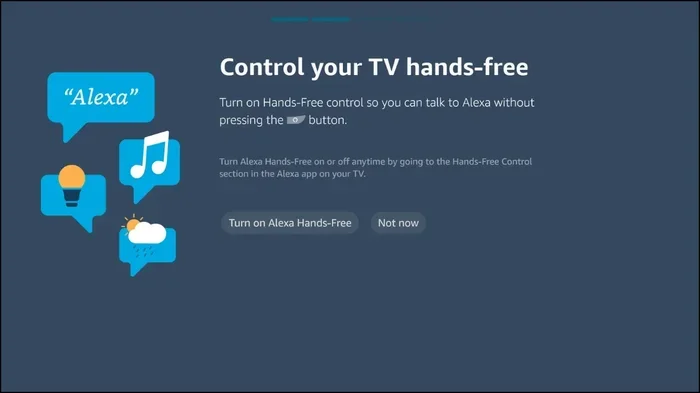
Voice control is one of the easiest ways to control your LG Smart TV without a remote. Most LG Smart TVs come with built-in Google Assistant. Some models also support Amazon Alexa. You can use voice commands to change channels, adjust volume, turn the TV on or off, and launch apps.
Setting Up Google Assistant on Your LG TV
Google Assistant is already built into most LG webOS TVs. Here is how to activate it:
- Press the Home button on your LG TV (or use the on-screen remote in the ThinQ app).
- Go to Settings and select “All Settings.”
- Navigate to “Voice” and choose “Google Assistant.”
- Follow the prompts to link your Google account.
- Once set up, press the voice button on your TV or use a compatible smart speaker.
After setup, you can say things like “Turn on the TV,” “Switch to HDMI 2,” or “Open Netflix.” The TV responds quickly and accurately. Voice control works especially well when you are cooking, eating, or just relaxing on the couch.
Setting Up Alexa on Your LG TV
If you have an Amazon Echo or Alexa-enabled device, you can link it to your LG TV. Open the Alexa app on your phone, go to Skills and Games, and search for “LG ThinQ.” Enable the skill and link your LG account. Now you can control your TV using voice commands through any Alexa device in your home.
Quick Tip: For the best voice control experience, use a smart speaker like Google Nest or Amazon Echo. This gives you hands-free control from anywhere in the room.
Method 3: Use HDMI-CEC to Control Your TV with Another Device
HDMI-CEC is a handy feature that lets you control your LG Smart TV without a remote using another device connected via HDMI. CEC stands for Consumer Electronics Control. It allows devices to communicate with each other over the HDMI cable.
On LG TVs, this feature is called “Simplink.” When enabled, your cable box remote, soundbar remote, or Blu-ray player remote can control the TV. You can power the TV on and off, adjust the volume, and switch inputs. This is incredibly useful when your TV remote is not available.
How to Enable HDMI-CEC (Simplink) on LG TV
- Press the Home button on your LG TV.
- Go to Settings and select “All Settings.”
- Navigate to “General” and then “HDMI-CEC.”
- Turn on “Simplink.”
- Now try using your connected device’s remote to control the TV.
Keep in mind that not all HDMI devices support CEC equally. Some devices may only offer basic functions like power and volume. But for everyday use, HDMI-CEC works very well and is one of the most overlooked control methods.
Method 4: Use the Physical Buttons on Your LG TV
Every LG Smart TV has physical buttons built into the unit. These buttons are hidden in plain sight. Most people do not know where they are because LG places them in discreet locations. But they are there, and they work great when you need basic control.
Where to Find the Buttons on Your LG TV
The button location varies by model, but here are the most common spots:
- Back of the TV: Look near the bottom center or bottom right corner on the back panel.
- Bottom edge: Some models have buttons hidden along the bottom bezel, often under a small panel.
- Side panel: A few models place buttons on the side near the power cord area.
Typically, you will find a power button, a volume button, a channel button, and a menu or home button. These buttons let you power the TV on and off, adjust volume, change channels, and access the main menu. They are not as convenient as a full remote, but they work in a pinch.
Quick Tip: If you have trouble finding the buttons, check your TV’s user manual. You can also search for your model number online. The manual will show you exactly where the buttons are located.
Method 5: Use a Universal Remote as a Replacement
If your LG remote is truly gone and you want a proper replacement, a universal remote is a great option. Universal remotes work with most TV brands and models. They are affordable and easy to set up. You do not need any technical skills to program one.
How to Set Up a Universal Remote for Your LG TV
- Buy a universal remote that supports LG TVs. Popular brands include Logitech Harmony, RCA, and One For All.
- Insert batteries into the remote.
- Find the setup code for your LG TV model. The code list is usually in the remote’s manual or on the manufacturer’s website.
- Enter the code using the remote’s keypad.
- Test the remote by trying to power the TV on and off.
- If it works, you are all set. If not, try a different code from the list.
A universal remote gives you a physical device that feels like the original remote. You get all the buttons you need, including dedicated buttons for popular streaming apps. This is a solid long-term solution if you prefer using a physical remote.
Method 6: Use Smart Home Integration for Hands-Free Control
If you have a smart home setup, you can integrate your LG TV into your existing ecosystem. This lets you control your LG Smart TV without a remote using voice commands, automation routines, and even your phone’s smart home app.
Google Home Integration
To connect your LG TV to Google Home, open the Google Home app on your phone. Tap the “Add” button, then select “Set up device” and choose “Works with Google.” Search for LG ThinQ and follow the prompts to link your account. Once connected, you can use Google Assistant to control your TV from any Google smart speaker or display.
Alexa Smart Home Integration
For Alexa users, the setup is similar. Open the Alexa app, go to Devices, and add a new device. Choose “TV” and select LG. Link your LG ThinQ account. After that, you can use voice commands through Echo devices to control your TV. You can also create routines, like turning the TV on at a specific time every evening.
Apple HomeKit Support
Some newer LG TV models support Apple HomeKit. If your TV is compatible, you can add it to the Home app on your iPhone or iPad. This lets you use Siri voice commands and create HomeKit automations for your TV.
Quick Tip: Smart home integration works best when you combine it with the LG ThinQ app. Use the app for detailed settings and smart home for quick, everyday commands.
Comparison of All Control Methods
Here is a quick comparison of all the methods we have covered. This table helps you choose the best option for your situation.
| Method | Ease of Setup | Features Available | Cost |
|---|---|---|---|
| LG ThinQ App | Very Easy | Full remote + keyboard + voice | Free |
| Voice Control (Google/Alexa) | Easy | Basic commands and app launching | Free (needs smart speaker) |
| HDMI-CEC (Simplink) | Very Easy | Power, volume, input switching | Free |
| Physical TV Buttons | Instant | Basic navigation and power | Free |
| Universal Remote | Easy | Full remote-like experience | $10-$50 |
| Smart Home Integration | Moderate | Voice control and automation | Free (needs smart speaker) |
Common Mistakes to Avoid When Controlling Your LG TV Without a Remote
Even though controlling your LG TV without a remote is straightforward, some common mistakes can cause frustration. Here are a few things to watch out for.
Not Checking Your Wi-Fi Connection
The LG ThinQ app and voice control both rely on your Wi-Fi network. If your internet connection is weak or unstable, the app may not find your TV or may lag when sending commands. Always make sure your phone and TV are on the same network and that the signal is strong.
Forgetting to Enable Simplink
Many users buy soundbars or cable boxes and assume they will automatically control the TV volume. But HDMI-CEC (Simplink) is turned off by default on some LG models. You need to go into the settings and enable it manually.
Using the Wrong Universal Remote Code
When setting up a universal remote, using the wrong code is a common issue. If the remote does not work after the first code, try the next one on the list. LG has multiple codes for different models and years.
Ignoring Firmware Updates
LG regularly releases firmware updates for its TVs. These updates can improve voice control, add new smart home features, and fix bugs. Keep your TV updated to ensure the best experience with all control methods.
Expert Insight: According to LG support specialists, the most reliable backup method is the LG ThinQ app. It offers the closest experience to using the original remote and works consistently across all LG Smart TV models.
Which Method Is Best for You?
The best method depends on your needs and situation. If you want the easiest and most complete solution, use the LG ThinQ app. It is free, works right away, and gives you full control. If you prefer hands-free operation, set up voice control with Google Assistant or Alexa.
If you just need basic power and volume control, enable HDMI-CEC and use your soundbar or cable box remote. For a long-term physical replacement, buy a universal remote. And if you love your smart home setup, integrate your LG TV into Google Home or Alexa for a seamless experience.
You can also combine methods. Many people use the ThinQ app as their primary control and voice commands for quick tasks. This gives you flexibility and ensures you are never stuck without a way to operate your TV.
Final Thoughts
Controlling your LG Smart TV without a remote is entirely possible and easier than most people think. You have at least six different methods available to you right now. Whether you use the LG ThinQ app, voice commands, HDMI-CEC, physical buttons, a universal remote, or smart home integration, you will never be stuck without a way to enjoy your favorite content.
The key is to set up at least one backup method before you actually need it. Spend ten minutes today downloading the ThinQ app or enabling Simplink. That small effort can save you a lot of frustration tomorrow. Your LG Smart TV is designed to be flexible and user-friendly. Take advantage of all the built-in features it offers.
So go ahead. Put that lost remote out of your mind. Pick the method that works best for you and start enjoying your LG TV the way it was meant to be enjoyed. You will wonder how you ever managed without these simple alternatives.
Frequently Asked Questions
Can I control my LG Smart TV without a remote using just my phone?
Yes, absolutely. The LG ThinQ app lets you use your phone as a full remote control for your LG Smart TV. As long as both your phone and TV are on the same Wi-Fi network, you can change channels, adjust volume, and open apps right from your phone screen.
Do I need an internet connection to control my LG TV without a remote?
For app-based control and voice commands, yes, you need Wi-Fi. However, if you use the physical buttons on the TV or HDMI-CEC with a connected device, you do not need an internet connection. These methods work even when your TV is offline.
Can I use Alexa to control my LG Smart TV?
Yes, many LG Smart TVs support Amazon Alexa. You need to enable the LG ThinQ skill in the Alexa app and link your LG account. Once set up, you can use Echo devices or Alexa-enabled smart speakers to control your TV with voice commands.
What should I do if the LG ThinQ app does not find my TV?
First, make sure both your phone and TV are connected to the same Wi-Fi network. Restart both devices and try again. If the problem continues, check for firmware updates on your TV. You can also try resetting the network settings on your TV and reconnecting to Wi-Fi.
Are universal remotes compatible with all LG Smart TV models?
Most universal remotes work with LG TVs. Look for a remote that lists LG compatibility. Popular options like Logitech Harmony and One For All remotes support a wide range of LG models. You can find the correct setup code in the remote’s manual or on the manufacturer’s website.
Can I control my LG TV volume using my cable box remote?
Yes, if HDMI-CEC (called Simplink on LG TVs) is enabled. This feature allows your cable box remote to control the TV volume. Go to Settings, then General, then HDMI-CEC, and turn on Simplink. After that, your cable box remote should adjust the TV volume automatically.
=== CONCLUSION ===
Controlling your LG Smart TV without a remote is simple, practical, and available right now. You have learned about the LG ThinQ app, voice control through Google Assistant and Alexa, HDMI-CEC Simplink, physical TV buttons, universal remotes, and smart home integration. Each method offers a reliable way to navigate your TV without the original remote.
Pick the method that fits your lifestyle. The LG ThinQ app is the most versatile and completely free. Voice control adds convenience for everyday use. HDMI-CEC is perfect for quick volume and power adjustments. And a universal remote gives you a physical backup that feels familiar.
Take a few minutes today to set up your preferred method. You will be glad you did the next time you cannot find your remote. Your LG Smart TV is smarter than you think, and it was built to give you options. Embrace them and enjoy a seamless viewing experience every single day.