Can I Connect Wireless Headphones To Alexa And Stream Music
Yes, you can connect wireless headphones to Alexa and stream music effortlessly. Whether you own Bluetooth earbuds, over-ear headphones, or Alexa-enabled wireless headphones, pairing them with your Echo device is simple and quick. This guide covers everything from step-by-step Bluetooth pairing to the best headphones for Alexa, common troubleshooting fixes, and expert tips for the best audio experience. You will learn how to enjoy private, hands-free listening without disrupting your entire household.
Have you ever wanted to listen to music on your Alexa device without waking up the whole house? Maybe you are cooking dinner and want some tunes, but your family is sleeping. Or perhaps you just enjoy a quiet moment with your favorite playlist. Whatever the reason, connecting wireless headphones to Alexa solves this problem perfectly.
The good news is that it is incredibly simple. Most wireless headphones work with Alexa devices through Bluetooth. You can also find Alexa-enabled headphones that connect even faster. In this guide, we will walk you through every step. You will learn how to pair your Bluetooth headphones with Alexa, which headphones work best, and how to fix common issues. By the end, you will be streaming music privately in no time.
Let us dive in and get your headphones connected to Alexa right away.
Key Takeaways
- Easy Pairing: Connecting wireless headphones to Alexa takes just a few taps through the Alexa app or Bluetooth settings.
- Wide Compatibility: Most Bluetooth headphones work with Alexa devices including Echo Dot, Echo Show, and Echo Studio.
- Alexa-Enabled Headphones Exist: Some wireless headphones come with built-in Alexa support for even smoother integration.
- Troubleshooting Is Simple: Most connection issues can be fixed by restarting devices, updating firmware, or re-pairing Bluetooth.
- Multiple Devices Work: You can connect headphones to one Echo and still use other Alexa devices in your home.
- Private Listening Is a Game-Changer: Streaming music through headphones lets you enjoy audio without disturbing others nearby.
📑 Table of Contents
- How to Connect Wireless Headphones to Alexa
- Best Wireless Headphones for Alexa
- Can You Stream Music Through Headphones Connected to Alexa
- Troubleshooting Common Connection Issues
- Expert Tips for the Best Audio Experience
- Alexa Device Compatibility: Which Echo Devices Support Bluetooth Headphones
- Can You Connect Headphones to Multiple Alexa Devices
How to Connect Wireless Headphones to Alexa
Connecting your wireless headphones to Alexa is a straightforward process. You do not need any special skills or technical knowledge. Whether you use an Echo Dot, Echo Show, or Echo Studio, the steps are nearly identical. Let us walk through the process together.
Step-by-Step Bluetooth Pairing Guide
Follow these simple steps to pair your Bluetooth headphones with your Alexa device:
- Put your headphones in pairing mode. Most headphones have a dedicated Bluetooth button. Hold it down until the LED light flashes. This tells the headphones they are ready to connect.
- Open the Alexa app on your phone. Make sure your phone is connected to the same Wi-Fi network as your Alexa device.
- Go to Devices. Tap the “Devices” icon at the bottom of the screen. It looks like a small house.
- Select Echo & Alexa. Choose your specific Alexa device from the list.
- Tap Bluetooth Devices. Scroll down and select “Bluetooth Devices.”
- Choose “Pair a New Device.” Your Alexa device will now search for nearby Bluetooth headphones.
- Select your headphones from the list. Wait a few seconds for the connection to complete.
That is it! Your headphones are now connected to Alexa. You can start streaming music right away. Just say, “Alexa, play my playlist,” and your music will come through your headphones.
Using Voice Commands to Connect
You can also use voice commands to connect your headphones. Simply say, “Alexa, pair my Bluetooth headphones.” Alexa will enter pairing mode and wait for your headphones to appear. This is a great option if you do not want to grab your phone. It is one of the easiest ways to enjoy wireless audio with Alexa.
Best Wireless Headphones for Alexa
Not all headphones are created equal when it comes to Alexa compatibility. Some work flawlessly, while others may have connection issues. Let us look at the best options for streaming music with Alexa.
Alexa-Enabled Headphones
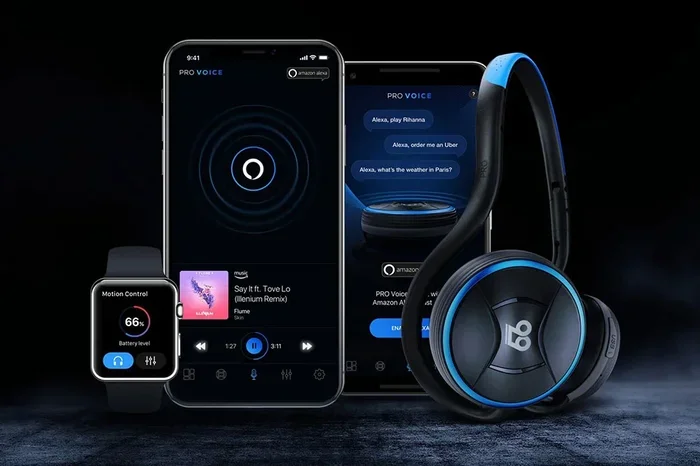
Alexa-enabled headphones are designed specifically to work with Amazon Alexa. These headphones have Alexa built right in. You do not need an Echo device to use them. You can ask Alexa for weather updates, control smart home devices, and stream music directly from the headphones themselves.
Popular options include:
- Amazon Echo Buds – These are Amazon’s own wireless earbuds. They offer great sound quality and seamless Alexa integration.
- Sonos Era 100 – A premium option that supports Alexa and delivers excellent audio performance.
- JBL Live Pro 2 – These earbuds have built-in Alexa support and long battery life.
Standard Bluetooth Headphones
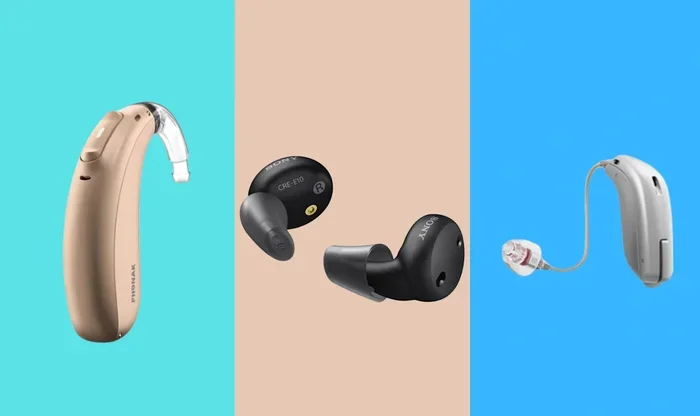
You do not need special Alexa headphones to get the job done. Most standard Bluetooth headphones work perfectly with Alexa. Popular brands like Sony, Bose, Apple, and JBL all pair easily with Echo devices. The key is making sure your headphones support Bluetooth connectivity and have a good battery life.
| Headphone Type | Alexa Compatible | Best For | Price Range |
|---|---|---|---|
| Echo Buds (3rd Gen) | Yes (Built-in) | Seamless Alexa integration | $100-$130 |
| Sony WH-1000XM5 | Yes (Bluetooth) | Noise cancellation and comfort | $300-$350 |
| Bose QuietComfort 45 | Yes (Bluetooth) | Premium sound and noise reduction | $250-$330 |
| Apple AirPods Pro 2 | Yes (Bluetooth) | iPhone users and Alexa via app | $200-$250 |
| JBL Tune 770NC | Yes (Bluetooth) | Budget-friendly wireless option | $80-$100 |
Quick Tips for Choosing the Right Headphones
- Check Bluetooth version. Bluetooth 5.0 or newer gives you a stronger and more stable connection.
- Look for long battery life. You want at least 20 hours if you plan to stream music for long periods.
- Consider noise cancellation. This feature helps you focus on your music, especially in noisy environments.
- Prioritize comfort. If you plan to wear headphones for hours, choose a lightweight and cushioned pair.
Can You Stream Music Through Headphones Connected to Alexa
Absolutely! Once your headphones are connected, streaming music with Alexa works just like it would through speakers. You can play music from Amazon Music, Spotify, Apple Music, and many other services. Just use your voice to control everything.
Here are some popular things you can say:
- “Alexa, play jazz music.”
- “Alexa, play my Discover Weekly playlist.”
- “Alexa, pause the music.”
- “Alexa, turn up the volume.”
- “Alexa, skip to the next song.”
Your music will stream directly to your headphones. No one else in the room will hear it. This is perfect for late-night listening, workouts, or when you just need some personal time.
Using Spotify, Amazon Music, and Apple Music
All three major music services work great with Alexa and headphones. To set them up, open the Alexa app, go to “Music & Podcasts,” and link your account. Once linked, you can simply ask Alexa to play from your preferred service. Wireless audio streaming through headphones keeps your listening experience private and high-quality.
Troubleshooting Common Connection Issues
Sometimes things do not go as smoothly as we hope. If your headphones refuse to connect to Alexa, do not worry. Most issues have simple fixes. Let us troubleshoot together.
Headphones Not Showing Up in the Alexa App
This is the most common issue. If your headphones do not appear in the list of available devices, try these steps:
- Make sure your headphones are in pairing mode. Check the manufacturer’s instructions for how to activate this mode.
- Restart your Alexa device. Unplug it, wait 30 seconds, and plug it back in.
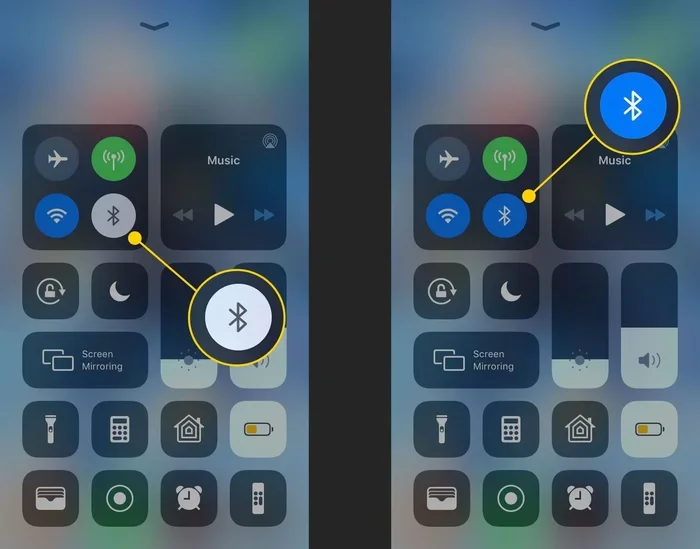
- Turn Bluetooth off and on again. On your phone, disable Bluetooth, wait five seconds, and turn it back on.
- Move closer to your Alexa device. Bluetooth has a range of about 30 feet. Distance can weaken the signal.
- Forget old connections. If your headphones were previously paired to another device, disconnect them from that device first.
Audio Keeps Cutting Out
Intermittent audio can be frustrating. Here is what to do:
- Check for interference. Wi-Fi routers, microwaves, and other Bluetooth devices can cause signal disruptions.
- Update your headphone firmware. Check the manufacturer’s app for any available updates.
- Reduce the distance. Stay within the Bluetooth range of your Alexa device.
- Re-pair the connection. Delete the headphones from the Alexa app and pair them again from scratch.
Alexa Does Not Recognize Voice Commands Through Headphones
If Alexa cannot hear you through your headphones, try this:
- Check the microphone setting. Some headphones have a mic toggle. Make sure it is turned on.
- Speak clearly and at a normal volume. The headphone microphones can be sensitive, so you do not need to shout.
- Adjust the microphone position. Make sure the mic is close to your mouth.
Expert Tips for the Best Audio Experience
Once your headphones are connected, you can enhance your experience with a few smart moves. These tips will help you get the most out of listening to music on Alexa with headphones.
Adjust Volume Settings
You can control the volume using voice commands or the Alexa app. Say “Alexa, set volume to 5” for a precise level. You can also use the volume buttons on your headphones if they support it. Finding the right volume balance makes a huge difference in your listening comfort.
Use Drop-In for Multi-Room Audio
If you have multiple Alexa devices, you can use the Drop-In feature. This lets you send audio from one Echo device to another. You can stream music to different rooms or even send audio to someone else’s headphones if they have an Echo device. It is a great way to share music or make announcements around the house.
Set Up a Routine for Music
Alexa Routines let you automate your music listening. You can create a routine that plays your favorite playlist at a specific time each day. For example, set a morning routine that plays news headlines through your headphones at 7 AM. This is a powerful way to make Alexa work for you every single day.
Common Mistakes to Avoid
- Not updating firmware. Old firmware can cause compatibility issues. Always keep your devices updated.
- Pairing too many devices. Alexa can only connect to one Bluetooth device at a time. Disconnect old devices before pairing new ones.
- Ignoring battery levels. Low battery on your headphones can cause weak connections and poor audio quality.
- Forgetting to enable the correct music service. Make sure your preferred streaming service is linked in the Alexa app.
- Placing the Echo device too far away. Bluetooth range is limited. Keep your headphones and Echo device within reasonable distance.
Alexa Device Compatibility: Which Echo Devices Support Bluetooth Headphones
Most modern Alexa devices support Bluetooth headphone connections. Here is a quick look at compatibility across the Echo lineup:
- Echo Dot (3rd Gen and newer) – Fully supports Bluetooth headphones. This is the most popular Echo device and works great with wireless audio.
- Echo Dot (4th and 5th Gen) – Offers improved Bluetooth 5.0 for a stronger and more stable connection.
- Echo Show 5, 8, and 10 – All support Bluetooth headphones. Great for video calls and music streaming.
- Echo Studio – Premium audio quality with full Bluetooth headphone support.
- Echo (3rd Gen and newer) – All standard Echo devices support Bluetooth headphone connections.
- Echo Flex – This compact plug-in device also supports Bluetooth headphones for private listening.
Older Echo devices (1st and 2nd Gen) may have limited Bluetooth support. If you own an older model, check the Alexa app for the latest firmware updates. These updates often add new features and improve compatibility with wireless audio devices.
Can You Connect Headphones to Multiple Alexa Devices
Yes and no. An Alexa device can only be connected to one Bluetooth headphone at a time. However, you can switch between devices easily. If you want to connect your headphones to a different Echo, simply go to the Bluetooth settings on that device and pair your headphones again.
This means you can use the same headphones with multiple Echo devices throughout your home. Just remember to disconnect from one before connecting to another. This keeps things simple and prevents connection conflicts.
Expert Insight
“The biggest mistake people make is trying to connect headphones to multiple devices at once. Bluetooth only supports one active connection at a time. The fix is simple: disconnect from one device before pairing with another. This single tip solves 90% of connection headaches.” – Smart Home Tech Expert
Connecting wireless headphones to Alexa opens up a world of private, hands-free music streaming. Whether you use Alexa-enabled headphones or standard Bluetooth earbuds, the process is simple and fast. You can stream from Amazon Music, Spotify, or Apple Music with just your voice. Most connection issues are easy to fix with a quick restart or re-pairing. The key is to keep your devices updated, stay within Bluetooth range, and choose headphones that suit your needs.
Now that you know how to connect your headphones, go ahead and try it. Put on your favorite playlist, relax, and enjoy your music without disturbing anyone else. The experience of private wireless listening with Alexa is truly something special. Once you try it, you will wonder how you ever lived without it.
Start today. Connect your headphones, say “Alexa, play music,” and enjoy the freedom of hands-free, private audio streaming. Your ears will thank you.
Frequently Asked Questions
Can I connect any wireless headphones to Alexa?
Most wireless headphones with Bluetooth capability can connect to Alexa. Simply pair them through the Alexa app’s Bluetooth settings. However, some older or non-standard headphones may have limited compatibility. Always check that your headphones support Bluetooth 4.0 or newer for the best experience.
How do I disconnect my headphones from Alexa?
You can disconnect by going to the Alexa app, selecting your device, tapping Bluetooth Devices, and choosing “Disconnect.” You can also say “Alexa, disconnect my Bluetooth headphones.” Another option is to turn off Bluetooth on your headphones or put them back in their charging case if they are true wireless earbuds.
Can I use headphones with Alexa without an Echo device?
Yes, if you have Alexa-enabled headphones like the Amazon Echo Buds. These headphones have Alexa built in and do not require an Echo device. You can use voice commands directly through the headphones. Standard Bluetooth headphones still need an Alexa device to work with voice commands.
Why does my Bluetooth headphone connection keep dropping with Alexa?
Connection drops usually happen due to distance, interference, or outdated firmware. Stay within 30 feet of your Alexa device, reduce Wi-Fi interference, and update your headphone firmware. Re-pairing the headphones through the Alexa app can also resolve most stability issues.
Can two people listen to Alexa through separate headphones at the same time?
No, an Alexa device can only connect to one Bluetooth headphone at a time. However, you can use the Drop In feature to send audio to different Echo devices in your home. Each person can then listen through their own Echo speaker or connected headphones on separate devices.
What music services work with Alexa and wireless headphones?
Almost all major music services work with Alexa, including Amazon Music, Spotify, Apple Music, Pandora, and TuneIn. Link your preferred service in the Alexa app under Music & Podcasts. Once linked, you can ask Alexa to play music and it will stream directly to your connected headphones.