Does Google Wifi Require Cable to Connect Wirelessly
Google Wifi does not strictly require a cable for wireless connectivity, but it does need at least one wired connection during initial setup. The Google Wifi system can create a fully wireless mesh network once configured, allowing you to extend internet coverage throughout your home without running extra cables. Understanding how the setup works helps you decide whether a cable-free experience is possible for your specific situation.
Have you ever wondered whether does Google Wifi require cable to get your network up and running? It is a question many people ask when they are setting up a new home network or looking to ditch the clutter of cables behind their router. The short answer is that Google Wifi needs at least one wired connection during initial setup, but after that, it can work entirely wirelessly.
This article breaks down everything you need to know about Google Wifi and cable requirements. We will walk through the setup process, explain how the wireless mesh network functions, and share practical tips to help you get the best performance without unnecessary cables. Whether you are a tech beginner or someone who wants to simplify your network, you will find useful information here.
Key Takeaways
- Initial Setup Needs a Cable: Google Wifi requires a wired connection to your modem during the first-time setup process.
- Wireless Mesh Network After Setup: Once configured, Google Wifi units communicate wirelessly and form a seamless mesh network.
- Ethernet Backhaul Is Optional: You can use ethernet cables between points for faster speeds, but it is not mandatory.
- Power Cables Are Required: Every Google Wifi point needs a power outlet, even though they connect wirelessly to each other.
- Google Wifi Can Act as an Access Point: It can extend an existing network, giving you flexible deployment options.
- Wireless Standards Matter: Google Wifi supports dual-band and wireless-AC standards for reliable wireless performance.
📑 Table of Contents
- What Is Google Wifi and How Does It Work?
- Does Google Wifi Require Cable for Initial Setup?
- Can Google Wifi Work Completely Wirelessly After Setup?
- Setting Up Google Wifi Without Extra Cables
- When You Might Need Additional Cables
- Google Wifi and Wireless Standards
- Common Mistakes to Avoid When Setting Up Google Wifi
- Expert Tips for a Cable-Free Google Wifi Experience
- How Google Wifi Compares to Other Mesh Systems
- Final Thoughts on Google Wifi and Cable Requirements
What Is Google Wifi and How Does It Work?
Google Wifi is a mesh WiFi system designed to provide whole-home internet coverage. Instead of relying on a single router that may struggle to reach every corner of your house, Google Wifi uses multiple points that work together to create one unified network. Each point acts as a node that shares the internet connection with the others.
The system uses a technology called mesh networking. This means every Google Wifi point talks to the other points wirelessly, creating a web of connectivity. Your devices connect to the nearest point, and that point communicates with the others to make sure your data travels the fastest route possible. This setup eliminates dead zones and keeps your signal strong throughout your home.
One of the best things about Google Wifi is how simple it is to set up. The Google Home app walks you through every step, from connecting the first point to adding more units around your home. The app also lets you manage your network, set up guest access, and run speed tests right from your phone.
How Mesh Networking Differs From Traditional Routers
Traditional routers send a signal out from one central location. If your house is large or has thick walls, the signal can weaken or disappear in certain rooms. Mesh networks solve this problem by spreading the connection across multiple points. Each point receives and rebroadcasts the signal, creating a stronger and more reliable wireless connection everywhere.
With a traditional router, you might need a WiFi extender to reach far rooms. Extenders often create a separate network name, which means your devices have to switch networks as you move around your home. Google Wifi avoids this problem because all points share the same network name and password. Your devices stay connected seamlessly as you walk from room to room.
Does Google Wifi Require Cable for Initial Setup?
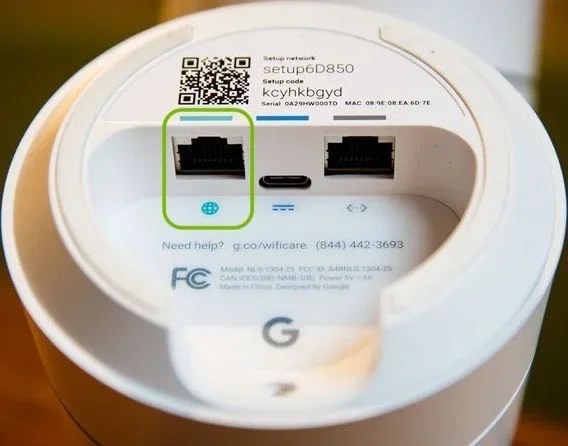
Yes, Google Wifi does require a cable during the initial setup phase. You need to connect the first Google Wifi point to your modem using an ethernet cable. This cable carries the internet signal from your internet service provider into the Google Wifi system. Without this wired connection, the first point cannot receive internet data to share with the other points.
Here is what you need for the initial setup:
- One Google Wifi point (the primary unit)
- An ethernet cable (usually included in the box)
- A modem from your internet service provider
- A smartphone with the Google Home app installed
- A power outlet near your modem
The setup process takes about 10 to 15 minutes. You plug the first Google Wifi point into a power outlet, connect it to your modem with the ethernet cable, and follow the prompts in the Google Home app. Once the first point is online, you can add more points wirelessly without needing any additional cables.
Why the Wired Connection Matters
The wired connection between your modem and the first Google Wifi point ensures a stable and fast internet source. This is called the WAN connection, or Wide Area Network connection. It is the backbone of your entire home network. If this connection is weak or unstable, every wireless device in your home will feel the impact.
Think of it like a water pipe system. The pipe from the main water supply is the ethernet cable. The faucets in your house are the Google Wifi points. If the main pipe is narrow or leaking, the water pressure at every faucet will be weak. A solid wired connection to your modem ensures strong and consistent internet throughout your home.
Can Google Wifi Work Completely Wirelessly After Setup?
Once the initial setup is complete, Google Wifi can operate mostly without cables for its wireless connections. The additional points you add around your home communicate with the primary point and each other wirelessly. This means you do not need to run ethernet cables between every Google Wifi point in your house.
However, there is an important distinction to understand. While the data connection between Google Wifi points is wireless, each point still needs a power cable plugged into a wall outlet. Google Wifi points do not run on batteries. Every unit must have a constant power supply to function.
So when people ask if Google Wifi works without cables, the answer is nuanced. The data travels wirelessly between points, but each point needs electrical power. You will have power cables coming out of every Google Wifi unit, but you do not need to run network cables between them.
Wireless vs Wired Backhaul: What Is the Difference?
Backhaul refers to the connection between Google Wifi points that carries data back and forth. There are two types of backhaul:
- Wireless Backhaul: Points communicate with each other using WiFi signals. This is the default setting and requires no extra cables between points.
- Wired Backhaul (Ethernet Backhaul): You connect points to each other using ethernet cables for faster and more stable data transfer.
Most users do perfectly well with wireless backhaul. It is convenient and keeps your home free of extra cables. However, if you have a large home or need the absolute best performance, ethernet backhaul can give you a speed boost. The choice depends on your needs and how much effort you want to put into cabling.
Setting Up Google Wifi Without Extra Cables
Setting up a Google Wifi mesh network with minimal cables is straightforward. You only need one cable during the entire process. Here is a step-by-step guide to getting everything running with the least amount of wiring.
Step-by-Step Setup Guide
- Place your modem in a central location near where you want your primary Google Wifi point.
- Plug the modem into a power outlet and turn it on.
- Connect the ethernet cable from your modem to the WAN port on the first Google Wifi point.
- Plug the Google Wifi point into a power outlet and wait for the light to turn solid white.
- Open the Google Home app on your smartphone and follow the on-screen instructions.
- Once the primary point is set up, open the app and tap Add Point.
- Place your additional Google Wifi points in other rooms. The app will guide you through the process.
- Each new point connects wirelessly to the primary point. No extra cables are needed.
That is it. One cable for the initial modem connection, and everything else happens wirelessly. The Google Home app makes the entire process simple and beginner-friendly. You do not need any technical networking knowledge to get started.
Tips for Optimal Wireless Placement
Placement of your Google Wifi points matters a lot for wireless performance. Here are some tips to get the best signal without running extra cables:
- Place points in open areas, not inside cabinets or behind furniture.
- Keep points within reasonable range of each other. About 10 to 15 meters apart works well for most homes.
- Avoid placing points near large metal objects or thick concrete walls.
- Elevate points on shelves or tables for better signal spread.
- Keep the primary point close to the center of your home for the best coverage.
Following these tips helps your Google Wifi points communicate more effectively with each other wirelessly. Better placement means stronger WiFi signal strength and faster speeds throughout your home.
When You Might Need Additional Cables
While Google Wifi can work with minimal cabling, there are situations where additional cables improve performance. Understanding these scenarios helps you make the best decision for your home network.
Using Ethernet Backhaul for Better Performance
If you have a large home or need maximum speed, consider using ethernet cables between your Google Wifi points. This is called ethernet backhaul, and it provides a dedicated wired connection between points. The result is faster data transfer and more stable connections.
Ethernet backhaul is especially useful in these situations:
- Your home has thick walls or multiple floors that weaken wireless signals.
- You stream a lot of 4K video or play online games that demand low latency.
- You have many devices connected simultaneously and need consistent performance.
- Wireless backhaul is causing speed drops between points.
Adding ethernet cables between points does require more effort, but the performance gains can be significant. You can run cables along baseboards, through doorways, or even use flat cables that slide under doors for a clean look.
Google Wifi as an Access Point
Google Wifi can also function as an access point in an existing network. If you already have a router and want to extend its coverage, you can set up a Google Wifi point in access point mode. In this mode, the Google Wifi point connects to your existing router, either wirelessly or via ethernet, and extends the network.
This is a great option if you do not want to replace your current router but need better coverage in certain areas of your home. You can use a single ethernet cable from your router to the Google Wifi point, and then the Google Wifi point broadcasts WiFi wirelessly to the rest of the area.
Google Wifi and Wireless Standards
Google Wifi supports modern wireless standards that make wireless connections fast and reliable. The system uses WiFi 5 (802.11ac) and WiFi 6 (802.11ax) depending on the model. These standards support dual-band connectivity, meaning Google Wifi can transmit on both the 2.4 GHz and 5 GHz frequency bands.
The 2.4 GHz band offers wider coverage but slower speeds. The 5 GHz band provides faster speeds but has a shorter range. Google Wifi automatically directs your devices to the best band based on your location and usage. This smart switching happens in the background without you needing to do anything.
Understanding these wireless standards helps you appreciate why Google Wifi can work so well without cables between points. The wireless bridge technology built into the system makes efficient use of available radio frequencies to keep data flowing smoothly between all your Google Wifi units.
Can You Force Google Wifi to Use a Specific Band?
Yes, you can manage which frequency band your devices use through the Google Home app. While Google Wifi handles most of this automatically, you can manually assign devices to a specific band if needed. This is helpful if you have devices that perform better on one band over the other.
For example, older devices sometimes work better on the 2.4 GHz band because it has a longer range. Newer devices that need high speeds benefit from the 5 GHz band. You can adjust these settings in the Google Home app under your network settings.
Common Mistakes to Avoid When Setting Up Google Wifi
Setting up Google Wifi is simple, but a few common mistakes can cause problems. Here are pitfalls to watch out for when setting up your system without unnecessary cables.
Placing the Primary Point Too Far From the Modem
The first Google Wifi point must connect to your modem via ethernet cable. Keep the primary point as close to the modem as possible during setup. Once everything is configured, you can move the primary point to a better location if needed.
Skipping Firmware Updates
Google regularly releases firmware updates that improve performance and fix bugs. Always check for updates after setup. The Google Home app notifies you when updates are available. Keeping your system updated ensures the best wireless performance.
Overloading a Single Point
Each Google Wifi point has a limit on how many devices it can handle efficiently. If you place too many devices on a single point, performance can drop. Spread your devices across multiple points for the best experience.
Ignoring Power Outlet Availability
Even though Google Wifi works wirelessly for data, every point needs a power outlet. Before placing a point, make sure there is a nearby outlet. Using extension cords or power strips is fine, but avoid plugging Google Wifi into power strips with surge protectors that can interfere with the signal.
Expert Tips for a Cable-Free Google Wifi Experience
Want to minimize cables while getting the best performance from your Google Wifi system? Here are some expert tips to help you achieve a clean, cable-free setup.
- Use a single ethernet cable for the initial connection. After setup, you can leave the cable connected permanently or move the primary point if needed.
- Invest in a long ethernet cable for the modem connection. This gives you flexibility in placing the primary Google Wifi point where it works best.
- Use the Google Home app to monitor your network. The app shows signal strength, connected devices, and speed test results so you can optimize placement.
- Consider a wireless router as an alternative. If you want a completely cable-free experience from day one, some wireless routers offer similar mesh capabilities without even needing a modem connection via cable.
- Explore portable WiFi options. If you need internet on the go without cables, portable WiFi hotspots can be a great complement to your home Google Wifi system.
These tips help you keep your home network clean and efficient while taking full advantage of Google Wifi wireless capabilities. The goal is to get strong, reliable internet everywhere in your home with the fewest cables possible.
How Google Wifi Compares to Other Mesh Systems
Google Wifi is not the only mesh system on the market. Let us look at how it compares to other popular options in terms of cable requirements and wireless performance.
| Feature | Google Wifi | Other Mesh Systems |
|---|---|---|
| Initial Setup Cable Required | Yes (ethernet to modem) | Yes (ethernet to modem) |
| Wireless Backhaul | Yes | Yes |
| Ethernet Backhaul Option | Yes | Yes |
| Power Cable Per Unit | Yes | Yes |
| App-Based Setup | Yes (Google Home) | Varies by brand |
| Dual Band Support | Yes | Most models yes |
| WiFi 6 Support | Yes ( newer models) | Varies |
As you can see, most mesh WiFi systems share similar cable requirements. The initial modem connection always needs a cable, but the wireless mesh between points is standard across the industry. Google Wifi holds its own with strong wireless performance and a user-friendly setup experience.
Final Thoughts on Google Wifi and Cable Requirements
So, does Google Wifi require cable? The answer is yes and no. You need one ethernet cable to connect the first Google Wifi point to your modem during initial setup. After that, the system runs wirelessly, with each point communicating with the others without any additional network cables.
Every Google Wifi point does need a power cable to stay on, but this is standard for any networking equipment. The beauty of Google Wifi is that it gives you a clean, cable-minimized setup that still delivers powerful whole-home coverage.
If you are looking for a wireless connection that covers every corner of your home without the hassle of running network cables between rooms, Google Wifi is an excellent choice. The setup is simple, the app is intuitive, and the wireless mesh technology does the heavy lifting for you.
Take the time to plan your point placement, keep your firmware updated, and enjoy a fast, reliable WiFi network that works without the cable clutter. With Google Wifi, you get the best of both worlds: a solid wired foundation and a clean wireless experience throughout your home.
Frequently Asked Questions
Do I need an ethernet cable to set up Google Wifi?
Yes, you need one ethernet cable to connect the first Google Wifi point to your modem during the initial setup. This cable is essential for the system to receive internet data. After setup, you can remove the cable if you prefer a fully wireless arrangement between points.
Can Google Wifi points connect to each other without any cables?
Yes, after the initial setup, Google Wifi points communicate with each other wirelessly. They form a mesh network that sends data between points without needing network cables between them. Each point still requires a power cable to stay operational.
Is ethernet backhaul necessary for good performance?
Ethernet backhaul is not necessary for most homes. Wireless backhaul works well for typical household usage. However, if you have a large home or need maximum speed, ethernet backhaul can improve performance. It is an optional upgrade, not a requirement.
Can I use Google Wifi with any modem?
Google Wifi works with most standard modems that provide an ethernet output. You need a modem from your internet service provider or a compatible third-party modem. Check that your modem has an available ethernet port for the initial cable connection.
How many Google Wifi points do I need for my home?
The number of points depends on your home size and layout. A single Google Wifi point covers about 1,500 square feet. For larger homes, you can add more points wirelessly. The Google Home app helps you determine the best placement for each additional point.
Does Google Wifi work without a power outlet near each point?
No, every Google Wifi point must be plugged into a power outlet. The units do not have batteries and cannot operate without electricity. If you do not have a nearby outlet, you can use a power strip or extension cord to reach one.