Does Fire Stick Have To Be Connected To Wifi Always
A Fire Stick does not always need a WiFi connection to work. You can use some features offline, connect via a mobile hotspot, or even mirror content from your phone. However, most streaming and app features require a WiFi connection to function properly. This guide covers every way to use a Fire Stick with or without internet access.
Amazon Fire Stick is one of the most popular streaming devices on the market today. It turns any regular TV into a smart TV in minutes. But a common question keeps coming up: does Fire Stick have to be connected to WiFi all the time? The short answer is no, but the full answer is more interesting than you might think.
Whether you are traveling, living in an area with spotty internet, or just curious about what your Fire Stick can do offline, this guide has you covered. We will walk through every scenario step by step. You will learn exactly when WiFi is essential and when you can go without it.
Streaming devices like the Fire Stick have changed how we watch movies, shows, and live TV. But they rely heavily on a stable internet connection for most of their features. Understanding how WiFi fits into the picture helps you get the most out of your device. Let us dive into the details.
Key Takeaways
- A Fire Stick needs WiFi for streaming: Most apps and content require an active internet connection to work.
- Limited offline use is possible: You can sideload apps and access some downloaded content without WiFi.
- A mobile hotspot works as an alternative: You can connect your Fire Stick to a phone hotspot for internet access.
- HDMI and Bluetooth features work offline: Screen mirroring and local media playback do not need WiFi.
- WiFi speed matters for streaming quality: Faster connections deliver better resolution and fewer buffering issues.
- Router placement affects performance: Small adjustments can significantly improve your Fire Stick experience.
📑 Table of Contents
- What Exactly Does a Fire Stick Need WiFi For?
- Can You Use a Fire Stick Without WiFi at All?
- How to Connect Your Fire Stick to WiFi
- Using a Mobile Hotspot as a WiFi Alternative
- Can You Stream Without WiFi Using Other Methods?
- Common Fire Stick WiFi Problems and How to Fix Them
- Expert Tips for Getting the Best Fire Stick Experience
- Final Thoughts
What Exactly Does a Fire Stick Need WiFi For?
The Fire Stick is designed to stream content from the internet. Without WiFi, it loses access to most of its core features. Here is a breakdown of what requires a wireless network and what does not.
Streaming Apps and Content
Apps like Netflix, Hulu, Amazon Prime Video, and Disney+ all need internet to play content. When you open any of these apps, your Fire Stick sends a request to the internet and receives video data in real time. This process is called streaming, and it cannot happen without a connection.
Even free apps like Tubi or Pluto TV require WiFi. They pull content from online servers, so no internet means no content. If your network speed is slow, you may experience buffering or low resolution.
Voice Commands Through Alexa
The Alexa voice remote that comes with the Fire Stick needs WiFi to process commands. When you say “play Stranger Things,” your voice travels to Amazon’s servers, which send back the command to launch the app. Without WiFi, voice search and commands simply will not work.
App Downloads and Updates
Installing new apps or updating existing ones requires an internet connection. The Fire Stick downloads app files from the Amazon Appstore. A strong WiFi signal makes this process fast and smooth. Slow connections can cause apps to fail or install incorrectly.
Can You Use a Fire Stick Without WiFi at All?
Surprisingly, yes. You can use a Fire Stick without WiFi, but only for certain tasks. The device still has built-in features that work offline. Let us look at what is possible.
Playing Local Media Files
You can sideload apps like VLC Media Player onto your Fire Stick. These apps can play video files stored on a USB drive or accessed through a local network. If you have downloaded movies or TV shows to a USB stick, you can watch them directly on your TV.
This is a great option for people who travel frequently or live in areas with limited internet access. You simply load up your USB drive before you leave home and enjoy your content anywhere.
Using Bluetooth Features
Bluetooth connectivity on the Fire Stick works without WiFi. You can pair Bluetooth headphones, speakers, or game controllers. This means you can listen to audio privately or play games even when there is no internet.
For example, if you want to connect a Bluetooth speaker to your Fire Stick for better audio, you can do so without any internet connection. The pairing process happens locally between the two devices.
Screen Mirroring from Your Phone
If you want to connect your phone to your TV for Wi Fi screen mirroring, some methods work without a shared WiFi network. Certain apps allow you to mirror your phone screen to the Fire Stick using Bluetooth or direct connections. However, most screen mirroring features work best when both devices are on the same network.
How to Connect Your Fire Stick to WiFi
Setting up your Fire Stick with WiFi is straightforward. Here is a simple walkthrough to get you connected in just a few minutes.
Step-by-Step Connection Process
- Turn on your TV and switch to the HDMI input where your Fire Stick is plugged in.
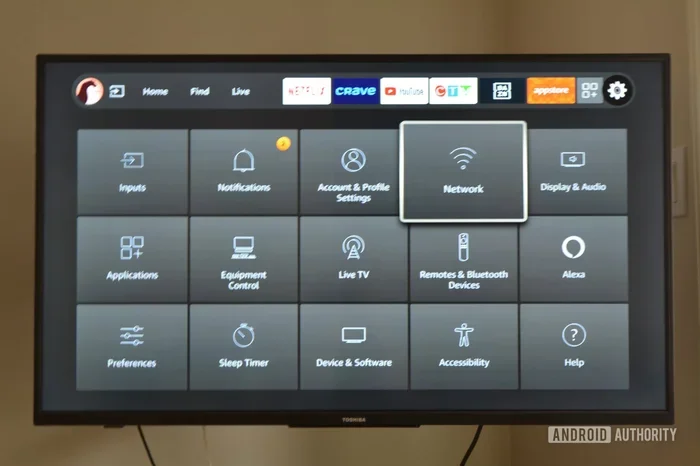
- Navigate to the top menu and select Settings.
- Click on Network or Wi-Fi in the settings menu.
- Your Fire Stick will scan for available networks. Select your network name.
- Enter your WiFi password using the on-screen keyboard.
- Wait for the connection to establish. You will see a confirmation message.
Once connected, your Fire Stick will remember the network and reconnect automatically every time you turn it on. This makes the process seamless after the initial setup.
Choosing Between 2.4GHz and 5GHz Networks
Most modern routers broadcast on two frequency bands. The 2.4GHz band offers wider coverage but slower speeds. The 5GHz band provides faster speeds but has a shorter range.
If your Fire Stick is close to your router, the 5GHz band is ideal for HD and 4K streaming. If you are farther away, the 2.4GHz band may give you a more stable connection. You can also change your Wi Fi from 5Ghz to 2 4 Ghz in your router settings if needed.
Using a Mobile Hotspot as a WiFi Alternative
Not having WiFi does not mean you are out of options. A mobile hotspot can serve as your internet source for the Fire Stick. This is especially useful when traveling or during internet outages.
How to Connect Fire Stick to a Mobile Hotspot
- Turn on the mobile hotspot feature on your phone.
- Set a strong password for your hotspot to prevent unauthorized use.
- On your Fire Stick, go to Settings > Network.
- Select your phone’s hotspot from the list of available networks.
- Enter the hotspot password and wait for the connection.
Keep in mind that streaming uses a lot of data. Watching a movie in HD can use around 3 to 5 gigabytes per hour. If you have a limited data plan, monitor your usage closely. You can also lower the streaming quality in app settings to save data.
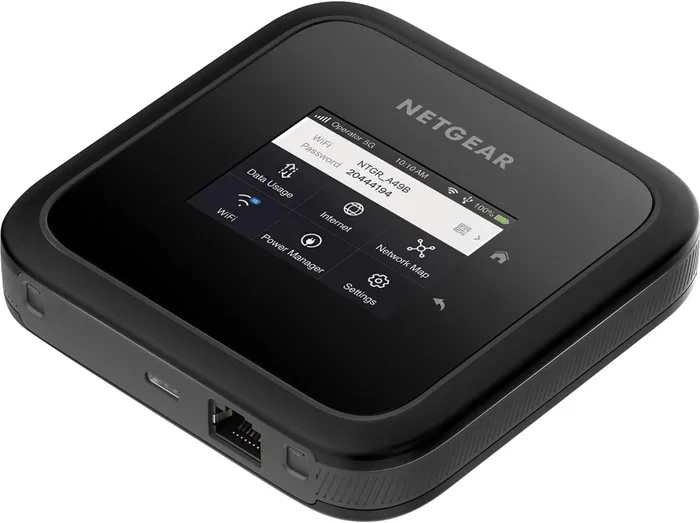
Some people also use portable WiFi devices when traveling. If you are planning a trip, you might want to check if you can buy your own portable wifi before you travel. This gives you more control over your connection and data costs.
Hotspot vs. Home WiFi for Streaming
| Feature | Home WiFi | Mobile Hotspot |
|---|---|---|
| Speed | Usually faster and more stable | Depends on cellular signal strength |
| Data Limits | Generally unlimited | Often has a monthly cap |
| Coverage | Covers your home | Works anywhere with cell service |
| Cost | Already paid for with your internet plan | Uses your phone data plan |
| Best For | Daily streaming at home | Travel or emergency backup |
Can You Stream Without WiFi Using Other Methods?
There are a few creative workarounds if you need to stream content but do not have access to WiFi. These methods are not always perfect, but they can save the day.
Downloading Content for Offline Viewing
Some streaming apps allow you to download content directly to your Fire Stick for offline playback. Amazon Prime Video, for instance, lets you download select movies and shows. Once downloaded, you can watch them without any internet connection.
This feature is a lifesaver for long flights or road trips. Just make sure you download content while you still have WiFi access. You can then enjoy your favorite shows anywhere, anytime.
Using HDMI-CEC and External Devices
Some external devices can connect to your Fire Stick without relying on WiFi. For example, you can use a USB media player or a gaming console connected via HDMI. These devices can play local content without needing an internet connection.
You might also wonder if HDMI can be transmitted over wifi. While HDMI itself is a wired connection, there are wireless HDMI transmitters that send audio and video signals without a physical cable. These devices create their own local connection and do not need WiFi.
Offline Games and Apps
The Fire Stick supports some games and apps that work entirely offline. Casual games, puzzle apps, and some utility tools do not need internet access. While the selection is limited compared to online apps, they can still provide entertainment without WiFi.
Common Fire Stick WiFi Problems and How to Fix Them
Even when you have WiFi, you may run into issues that affect your Fire Stick performance. Here are the most common problems and simple fixes.
Slow Streaming and Buffering
Buffering is the most frustrating issue with any streaming device. It usually happens when your internet speed is too slow for the content you are trying to watch.
Try these fixes:
- Move your router closer to the Fire Stick.
- Reduce the number of devices using your network.
- Lower the streaming quality in the app settings.
- Restart your router and Fire Stick.
Fire Stick Not Finding WiFi Network
If your Fire Stick cannot detect your WiFi network, try restarting both your router and the Fire Stick. Make sure your router is broadcasting on a frequency the Fire Stick supports. Older Fire Stick models work only on the 2.4GHz band.
You can also try forgetting the network on your Fire Stick and reconnecting from scratch. Sometimes simply re-entering the password solves the problem.
Weak WiFi Signal in Certain Rooms
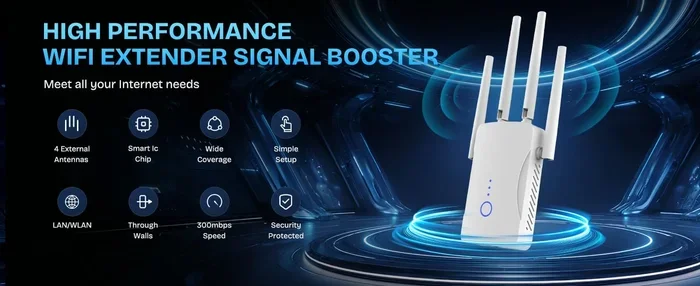
If your Fire Stick works well in one room but not another, the WiFi signal may be weak in the problem area. Consider using a WiFi extender or moving your router to a more central location.
You can also extend your Wi Fi to 200 feet away with a range extender or mesh system. This ensures strong coverage throughout your home.
Expert Tips for Getting the Best Fire Stick Experience
A few simple habits can make a huge difference in how your Fire Stick performs. These tips come from years of streaming experience and technical best practices.
Restart Your Fire Stick Regularly
Just like any electronic device, the Fire Stick benefits from regular restarts. Restarting clears temporary files and refreshes the connection to your network. Make it a habit to restart your device once a week.
Keep Your Fire Stick Software Updated
Amazon releases software updates that improve performance and fix bugs. Go to Settings > My Fire TV > About > Check for Updates regularly. Keeping your device updated ensures the best streaming experience.
Use an Ethernet Adapter for Stability
If WiFi keeps giving you trouble, consider using an Ethernet adapter. This plugs into the USB port on your Fire Stick and connects directly to your router with an Ethernet cable. You get a rock-solid connection with no interference or signal drops.
Clear Cache to Free Up Space
Over time, apps accumulate cached data that can slow down your Fire Stick. Go to Settings > Applications > Manage Installed Applications and clear the cache for apps you use frequently. This simple step can noticeably improve performance.
Final Thoughts
So, does Fire Stick have to be connected to WiFi always? The answer is clearly no. While WiFi unlocks the full potential of your Fire Stick for streaming apps, voice commands, and downloads, the device still has useful offline capabilities. You can play local media, use Bluetooth accessories, and even connect through a mobile hotspot when WiFi is not available.
Understanding how your Fire Stick uses WiFi helps you troubleshoot problems and get the best experience. Whether you are at home with a strong wireless network or on the road with just a mobile hotspot, your Fire Stick can adapt to the situation.
Take the time to set up your device properly, keep it updated, and explore all the features it has to offer. With the right setup, your Fire Stick becomes an essential part of your entertainment setup. Enjoy streaming, and remember that a little knowledge goes a long way toward solving any connectivity challenge you might face.
Frequently Asked Questions
Can I use a Fire Stick without any internet connection at all?
Yes, you can use a Fire Stick without internet for limited functions. You can play local media files from a USB drive, use Bluetooth headphones or speakers, and play some offline games. However, you cannot stream content from apps like Netflix or Hulu without a connection.
How much WiFi speed do I need for smooth Fire Stick streaming?
For standard definition streaming, you need at least 3 to 5 Mbps. For HD content, aim for 10 to 15 Mbps. If you want to watch 4K content, you will need 25 Mbps or higher. A faster connection means fewer pauses and better picture quality.
Can I connect my Fire Stick to a mobile hotspot instead of home WiFi?
Yes, you can connect your Fire Stick to a mobile hotspot. Just go to Settings, select Network, choose your hotspot, and enter the password. Keep an eye on your data usage since streaming can consume a lot of data quickly.
Why does my Fire Stick keep disconnecting from WiFi?
This usually happens because of a weak signal or router issues. Try moving your router closer to the Fire Stick, restarting both devices, or switching to the 2.4GHz band for a more stable connection. Interference from other devices can also cause disconnections.
Can I use Fire Stick features while traveling abroad without my home WiFi?
You can use some offline features while traveling. Download content before you leave, use a mobile hotspot, or connect to WiFi at your hotel. You can also check if you can get pocket wifi in your destination country to stay connected while abroad.
Does a Fire Stick work with any WiFi router?
Most Fire Stick models work with standard WiFi routers that broadcast on 2.4GHz or 5GHz bands. Very old routers that only support outdated wireless standards may not be compatible. Make sure your router supports at least 802.11n for the best Fire Stick performance.