Can I Change My WiFi From 5GHz to 24GHz Right Now
Yes, you can absolutely change your WiFi from 5GHz to 2.4GHz in just a few simple steps. Whether you need better range through walls or want to connect older devices, switching to the 2.4GHz band solves many common WiFi problems. This guide walks you through the entire process with clear, easy-to-follow instructions.
Have you ever stood in the next room and wondered why your WiFi signal drops to nothing? Or maybe your smart TV keeps buffering even though your router is just one wall away. If so, you are not alone. Millions of people face WiFi coverage problems every single day. And one of the simplest fixes is learning how to change your WiFi from 5GHz to 2.4GHz.
The truth is, most modern routers broadcast on two different frequency bands. The 5GHz band offers faster speeds but shorter range. The 2.4GHz band delivers slower speeds but covers much more space. So when you switch your WiFi from 5GHz to 2.4GHz, you are essentially choosing coverage over raw speed. And for many households, that is exactly the right call.
This guide will show you how to change WiFi from 5GHz to 2.4GHz step by step. You will learn what each band does, when to use which one, and how to access your router settings with confidence. No tech degree required. Let us dive in.
Key Takeaways
- Easy Switching: You can change your WiFi frequency band from 5GHz to 2.4GHz through your router settings in minutes.
- Better Range: The 2.4GHz band travels farther and penetrates walls better than the 5GHz band.
- More Device Compatibility: Many older smart home devices and IoT gadgets only work on the 2.4GHz frequency.
- Simple Process: No special tools or technical skills are needed to make the switch.
- Trade-Offs Exist: The 2.4GHz band is slower and more crowded than 5GHz, so consider your needs first.
- Dual-Band Routers Help: Most modern routers let you run both bands at the same time for the best of both worlds.
📑 Table of Contents
Understanding WiFi Frequency Bands
Before you make any changes, it helps to understand what you are working with. Your wireless router sends out radio signals on specific frequencies. Most home routers today are dual-band, meaning they can broadcast on both the 2.4GHz band and the 5GHz band at the same time.
What Is the 5GHz Band?
The 5GHz WiFi band is the newer of the two frequencies. It offers faster data transfer rates and less congestion from neighboring networks. If you are streaming 4K video or playing online games, the 5GHz band usually delivers a smoother experience. However, its signal does not travel as far. Thick walls, large furniture, and even microwave ovens can weaken a 5GHz signal quickly.
Think of the 5GHz band like a sprinter. It is fast and powerful but tires out over distance. If you are sitting right next to your router, 5GHz is fantastic. But move a few rooms away, and the performance drops fast.
What Is the 2.4GHz Band?
The 2.4GHz WiFi frequency has been around for a long time. It travels farther and passes through walls and obstacles much better than 5GHz. The trade-off is lower top speeds and more interference. Many household devices use the 2.4GHz range, including baby monitors, Bluetooth speakers, and cordless phones.
Think of 2.4GHz like a marathon runner. It may not be as fast, but it keeps going strong over longer distances. For devices that are far from the router or in hard-to-reach areas, the 2.4GHz wireless band often provides a more stable connection.
Which Band Should You Use?
The answer depends on what you need. Here is a quick breakdown:
- Choose 5GHz if you want maximum speed and your device is close to the router.
- Choose 2.4GHz if you need wider coverage or your device struggles to connect to 5GHz.
- Use both if your router supports dual-band and your devices can handle the difference.
Many people do not even realize their router is broadcasting two separate networks. Once you know how to switch WiFi from 5GHz to 2.4GHz, you can pick the right band for each device in your home.
Why You Might Want to Switch to 2.4GHz
There are several real-world reasons why switching from 5GHz to 2.4GHz WiFi makes sense. Let us look at the most common ones.
Better Coverage Through Walls and Floors
If you have ever noticed your WiFi signal dying in the bathroom or the basement, the 5GHz frequency is likely the culprit. The 2.4GHz band handles physical obstacles far better. It can punch through drywall, brick, and even concrete more effectively. So if you want stronger WiFi coverage throughout your home, switching to 2.4GHz is a smart move.
Connecting Older Smart Home Devices
Many smart home gadgets, including smart plugs, light bulbs, and security cameras, only support the 2.4GHz wireless network. They simply cannot connect to 5GHz. If you have set up a new smart device and it keeps failing during setup, the band mismatch could be the problem. Switching your network to 2.4GHz often solves this instantly.
Reducing Connection Drops
Some devices have weaker WiFi antennas than others. Older laptops, budget tablets, and e-readers often struggle to maintain a stable 5GHz connection. When you change your WiFi from 5GHz to 2.4GHz, these devices may connect more reliably and experience fewer dropouts.
Less Congestion in Dense Areas
Wait, did we just say 2.4GHz has more interference? Yes, but in some situations, it actually works better. In apartment buildings or densely populated neighborhoods, many routers compete for space on the 5GHz band. The 2.4GHz band, while more crowded overall, sometimes offers a more predictable connection depending on your environment.
How to Change Your WiFi From 5GHz to 2.4GHz
Now for the part you have been waiting for. Changing your WiFi frequency band is easier than you might think. You just need to access your router settings. Here is exactly how to do it.
Step 1: Find Your Router IP Address
First, you need to open your router’s admin panel. On most computers, you can do this by opening a web browser and typing your router’s IP address into the address bar. Common addresses include 192.168.1.1 or 192.168.0.1. You can also check the sticker on the back of your router for the default gateway address.
If you are on a Mac, you can find this by going to System Settings, then Network, then Advanced, and looking at the TCP/IP tab. On Windows, open Command Prompt and type ipconfig. Look for the Default Gateway number.
Step 2: Log In to Your Router
Once you have the IP address, type it into your browser and press Enter. You will see a login screen. The default username and password are usually printed on a sticker on the back or bottom of your router. Common combinations are admin/admin or admin/password. If you have changed these before and forgot, you can reset your router to factory defaults by holding the reset button for about 10 seconds.
Step 3: Navigate to Wireless Settings
After logging in, look for a section called Wireless, WiFi Settings, or Radio Settings. The exact name varies by router brand. On many routers, you will see options for both the 2.4GHz band and the 5GHz band listed separately.
Step 4: Disable the 5GHz Band
To switch your WiFi from 5GHz to 2.4GHz, simply find the 5GHz wireless setting and toggle it off or uncheck the enable box. Some routers let you disable one band while keeping the other active. Save your changes and exit the admin panel.
Step 5: Connect Your Devices
Now go to your device’s WiFi settings and look for your network name. It may now appear as a single network or with a different suffix. Connect to it, and you should be on the 2.4GHz frequency. If your router uses the same SSID for both bands, you may need to check your device’s WiFi details to confirm it connected to 2.4GHz.
Alternative Method: Use Your Router’s Mobile App
Many modern routers come with a companion app. Brands like Netgear, TP-Link, ASUS, and Linksys all offer free mobile apps. Simply download the app, log in, and look for wireless settings. From there, you can switch from 5GHz to 2.4GHz with just a few taps. This is often the easiest method if you do not want to deal with IP addresses and admin panels.
Pros and Cons of Switching to 2.4GHz
Every choice has trade-offs, and switching to the 2.4GHz WiFi band is no different. Let us look at both sides honestly.
| Pros of 2.4GHz | Cons of 2.4GHz |
|---|---|
| Wider coverage area | Slower maximum speeds |
| Better wall penetration | More prone to interference |
| Works with older devices | More crowded frequency space |
| More stable for distant devices | Less ideal for heavy streaming or gaming |
| Simple setup with most smart devices | Fewer non-overlapping channels |
As you can see, the 2.4GHz band shines when coverage and compatibility matter most. But if you are right next to your router and need blazing-fast speeds, 5GHz is still the better choice for many tasks.
Quick Tips for the Best Results
- Check your device specs: Before switching, confirm your device supports 2.4GHz. Almost all WiFi-enabled devices do, but it is worth a quick check.
- Restart after changes: Always reboot your router after changing frequency settings. This ensures the new settings take full effect.
- Use both bands when possible: If your router allows, keep both bands active. Let newer devices use 5GHz and older devices use 2.4GHz.
- Change the channel: If you experience interference on 2.4GHz, try switching to a less crowded channel like 1, 6, or 11.
- Update router firmware: Always keep your router firmware up to date for the best performance and security.
Common Mistakes When Switching WiFi Bands
Even a simple process like changing your WiFi from 5GHz to 2.4GHz can go wrong if you are not careful. Here are the most common mistakes people make.
Forgetting to Save Settings
This happens more often than you would think. After toggling off the 5GHz band, always click the Save or Apply button before exiting the admin panel. If you forget, your router will revert to the previous settings after a reboot.
Confusing Network Names
If your router uses different names for each band (like MyNetwork_2G and MyNetwork_5G), make sure you connect to the correct one after switching. Otherwise, your device might still try to connect to the 5GHz band even though you disabled it.
Not Checking All Connected Devices
After you switch WiFi from 5GHz to 2.4GHz, check that all your devices reconnect properly. Some smart TVs and gaming consoles may need to be manually reconnected. Go through each device and verify the connection is working.
Ignoring Interference Sources
The 2.4GHz band shares its frequency space with many household devices. Microwaves, baby monitors, and even USB 3.0 cables can cause interference. If you notice poor performance after switching, check for nearby sources of interference and move them if possible.
Assuming One Band Is Always Better
There is no universally “best” WiFi band. The right choice depends on your specific situation. Do not assume that 5GHz is always superior or that 2.4GHz is always worse. Each has its place in a well-designed home network.
Expert Tips to Optimize Your WiFi Network
Once you have switched your WiFi from 5GHz to 2.4GHz, you can take a few extra steps to get the most out of your network. These tips come from networking best practices and real-world experience.
Position Your Router Strategically
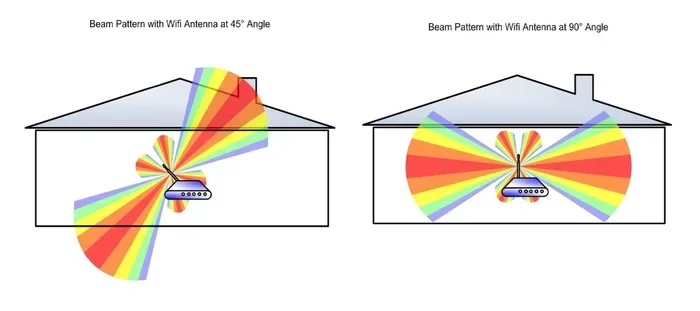
Where you place your router matters a lot. Put it in a central location in your home, elevated off the floor, and away from thick walls and metal objects. Avoid hiding it inside a cabinet or behind a TV. The more open space your 2.4GHz signal has to travel through, the better your coverage will be.
Use a WiFi Analyzer App
Download a free WiFi analyzer app on your phone. These tools show you which channels are least congested in your area. You can then manually set your router to use the best 2.4GHz channel for your environment. Channels 1, 6, and 11 are the most commonly recommended because they do not overlap with each other.
Consider a WiFi Extender or Mesh System
If you have a large home and even the 2.4GHz band does not reach every room, consider adding a WiFi extender or a mesh WiFi system. These devices boost your signal and extend coverage without sacrificing much speed. They work especially well with the 2.4GHz wireless band because they help bridge the gap between distant rooms.
Update Your Router’s Firmware Regularly
Router manufacturers release firmware updates to fix bugs, improve performance, and patch security vulnerabilities. Check for updates at least once a month. Most modern routers have an auto-update feature, but it is always good to double-check in the admin panel under Administration or System Settings.
Separate Your Bands With Different Names
If your router allows it, consider giving each band a unique network name. For example, name your 2.4GHz network MyHome_2G and your 5GHz network MyHome_5G. This makes it easy to connect the right device to the right band every time. It also helps with WiFi troubleshooting because you always know exactly which frequency you are using.
When to Stick With 5GHz Instead
Switching to 2.4GHz WiFi is not always the right answer. There are plenty of situations where sticking with 5GHz makes more sense. If you live in a small apartment or your devices are all close to the router, 5GHz will give you faster speeds and a more responsive connection. Online gamers, video editors, and anyone who streams a lot of high-quality content will usually prefer the 5GHz wireless band for its superior speed and lower latency.
The key is understanding your needs. If speed is your top priority and range is not an issue, stay on 5GHz. If coverage and device compatibility matter more, make the switch to 2.4GHz. And if you have a dual-band router, use both bands wisely for the best overall experience.
Conclusion
So, can you change your WiFi from 5GHz to 2.4GHz right now? Absolutely yes. The process is straightforward, takes just a few minutes, and can dramatically improve your WiFi experience in the right situation. Whether you need better range through your walls, a connection for older smart devices, or simply a more stable signal in the far corners of your home, the 2.4GHz band delivers where 5GHz falls short.
Remember the trade-offs. The 2.4GHz band is slower and more prone to interference, but its coverage advantages are hard to beat. Use the tips in this guide to make an informed decision and get the most out of your wireless network. Now that you know how to change WiFi from 5GHz to 2.4GHz, you have full control over your home network. Go ahead, make the switch, and enjoy a stronger, more reliable WiFi connection today.
Frequently Asked Questions
Can I change my WiFi from 5GHz to 2.4GHz without buying new equipment?
Yes, you can. Most dual-band routers already support both frequencies. You just need to access your router settings and disable the 5GHz band. No new hardware is required to make this switch.
Will switching to 2.4GHz reduce my internet speed?
It can. The 2.4GHz band has lower maximum speeds compared to 5GHz. However, for everyday tasks like browsing, email, and light streaming, the speed difference is often not noticeable. The trade-off is better range and more reliable coverage.
How do I know if my device is connected to 2.4GHz or 5GHz?
On most devices, you can check the WiFi network details in your settings. Look for the frequency band or network name. If your router uses the same name for both bands, check your router admin panel to see which devices are connected to which frequency.
Can I use both 2.4GHz and 5GHz at the same time?
Yes, most modern routers support simultaneous dual-band operation. You can keep both bands active and let your devices automatically connect to the best one. This gives you the speed of 5GHz and the range of 2.4GHz without having to switch manually.
Why does my smart device only connect to 2.4GHz?
Many smart home devices, including smart plugs, cameras, and sensors, only support the 2.4GHz frequency. They lack the hardware needed to connect to 5GHz. This is why switching to 2.4GHz often fixes smart device setup issues.
Is it safe to change my router WiFi settings?
Yes, it is completely safe. Changing frequency bands or wireless settings will not damage your router. Just make sure to save your changes and write down your original settings before making any changes. This way, you can easily revert if needed.