Can Hdmi Be Transmitted Over Wifi Without Any Wires
Yes, you can transmit HDMI over WiFi without any wires. Wireless HDMI technology allows you to stream high-quality video and audio from your devices to your TV or monitor using your home WiFi network. This guide covers everything from how HDMI over WiFi works to the best devices and common mistakes to avoid.
Have you ever wanted to send an HDMI signal from your laptop or gaming console to your TV without plugging in a single cable? It sounds like something from the future, but the truth is that HDMI over WiFi is very much a reality today. You can ditch the tangled cords and still enjoy crisp, high-definition video on your big screen. Whether you are setting up a home theater, giving a presentation, or just want a cleaner living room, going wireless with your HDMI connection is a game changer.
The idea of transmitting HDMI over WiFi might sound too good to be true. After all, HDMI cables were designed to deliver uncompressed video and audio at high speeds. How can WiFi possibly match that? The answer lies in modern wireless technology. Today’s devices use advanced compression and powerful WiFi standards to send HD and even 4K content through the air. In this guide, we will walk you through everything you need to know about sending HDMI over WiFi. You will learn how it works, what the benefits are, which devices to buy, and how to avoid common pitfalls.
By the time you finish reading, you will have a clear picture of whether wireless HDMI is right for your setup. We will cover the technology in simple terms, share practical tips, and give you honest comparisons. No jargon, no fluff, just the facts you need to make your cable-free connection work perfectly.
Key Takeaways
- HDMI over WiFi is real: You can absolutely send HDMI signals wirelessly using transmitters, WiFi Direct, or streaming devices.
- No cables needed: Wireless HDMI eliminates cable clutter and gives you freedom to place devices anywhere in your home.
- Quality depends on your setup: Bandwidth, distance, and interference all affect the video quality you get over WiFi.
- Latency can be an issue: For gaming or fast-action content, wired HDMI still offers the lowest delay.
- Many devices support it: From dedicated transmitters to smart TV apps, there are multiple ways to go wireless.
- Budget options exist: You don’t need to spend a fortune to get HDMI over WiFi working in your home.
📑 Table of Contents
Understanding HDMI Over WiFi Technology
Before you jump into buying any gear, it helps to understand what HDMI over WiFi actually means. The basic idea is simple. Instead of using a physical HDMI cable to connect a source device to a display, you use your home WiFi network to send the same signal. This is called wireless video transmission, and it has come a long way in recent years.
What Exactly Is HDMI Over WiFi?
HDMI over WiFi refers to any method that sends HDMI-quality video and audio through a wireless network. Your source device, like a laptop or Blu-ray player, captures the HDMI signal. It then compresses that signal and sends it over WiFi to a receiver. The receiver decompresses the signal and outputs it to your TV or monitor through a real HDMI port. The whole process happens in milliseconds, so you barely notice any difference from a wired connection.
There are a few different ways to achieve this. Some devices use a dedicated HDMI transmitter and HDMI receiver pair that connects to your WiFi network. Others use WiFi Direct, which lets two devices talk to each other without a router. And then there are software-based solutions like screen mirroring apps that use your existing WiFi setup. Each method has its own strengths, and we will explore them in detail below.
How Does Wireless HDMI Transmission Work?
Here is a simple breakdown of how wireless HDMI works in practice. First, your source device outputs an HDMI signal. The wireless HDMI transmitter picks up that signal and compresses it using a codec. Compression is key because raw HDMI data is huge. Without compression, your WiFi network would struggle to keep up.
Next, the compressed data is sent over your WiFi network as radio waves. Your wireless HDMI receiver picks up those radio waves and decompresses the data. Finally, the receiver sends the video and audio out through its own HDMI port to your TV or monitor. The entire process is nearly instant, which is why modern wireless display technology feels so seamless.
The quality of your HDMI over WiFi experience depends on several factors. Your WiFi speed matters a lot. A 5GHz network will give you much better results than a 2.4GHz network. The distance between the transmitter and receiver also plays a role. And the compression codec used by your device affects both quality and signal delay. We will talk more about these factors later in the article.
Benefits of Transmitting HDMI Over WiFi
Now that you understand the basics, let us talk about why you would want to use HDMI over WiFi in the first place. There are many real-world benefits that make wireless HDMI a smart choice for many people.
Freedom From Cable Clutter
Let us start with the most obvious benefit. Cable-free connection means no more tangled wires behind your TV stand or desk. You know the scene. You have three HDMI cables, a power cord, an Ethernet cable, and a mess of other wires that make your setup look like a spider web. Going wireless with HDMI over WiFi eliminates all of that. Your living room or office instantly looks cleaner and more organized.
This is especially helpful if your TV is mounted on a wall. Running cables up the wall and through the drywall can be a real hassle. With wireless HDMI, you just place your transmitter near the source device and your receiver near the TV. No drilling, no cables, no headaches.
Flexibility and Range
Another big advantage of HDMI over WiFi is flexibility. With a cable, you are limited by the length of that cable. If your source device is far from your TV, you need a long cable or a signal booster. With WiFi, your range depends on your network coverage. Most modern WiFi systems can cover an entire home, which means you can place your devices almost anywhere.
Want to play a game from your bedroom on the TV in the living room? HDMI over WiFi makes that easy. You can also move your laptop around the room and still stream video to your TV without unplugging and replugging cables. This kind of flexibility and mobility is something a simple HDMI cable just cannot offer.
Quick Setup and Portability
Setting up a wireless HDMI system is usually very quick. Most HDMI transmitter and receiver kits come with a simple plug-and-play design. You connect the transmitter to your source device, connect the receiver to your TV, and pair them. Some devices even connect automatically through your WiFi network. In just a few minutes, you can be watching or presenting without a single cable in sight.
Portability is another perk. Many wireless HDMI kits are compact and lightweight. You can pack them in a bag and take them to a friend’s house, a conference room, or a vacation rental. This makes HDMI over WiFi a great option for people who travel or frequently set up temporary displays.
How to Transmit HDMI Over WiFi: Step by Step
So how do you actually set up HDMI over WiFi in your home? There are three main methods, and each has its own approach. Let us walk through them one by one.
Wireless HDMI Transmitter and Receiver Kits
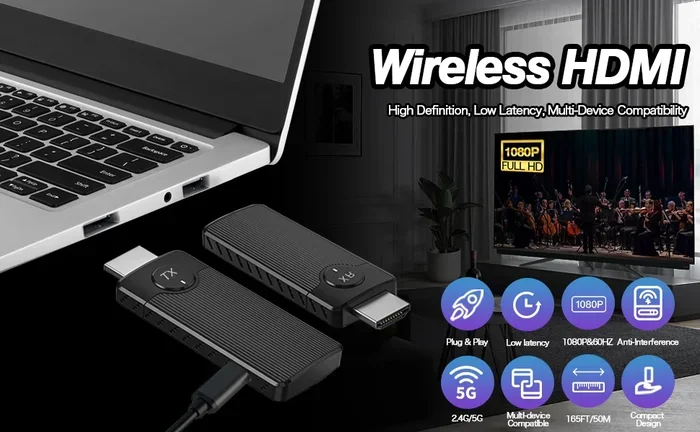
This is the most popular and reliable method for HDMI over WiFi. You buy a wireless HDMI transmitter and a matching wireless HDMI receiver. The transmitter plugs into the HDMI port of your source device, like a laptop, cable box, or gaming console. The receiver plugs into the HDMI port of your TV or projector.
Most kits work by creating a dedicated WiFi link between the transmitter and receiver. This means they do not rely on your home WiFi network, which reduces interference and improves performance. Some kits use the 5GHz band for faster speeds, while others use the 60GHz millimeter wave band for even higher quality. The setup process is usually straightforward. You plug in both devices, power them on, and they pair automatically.
Here are some tips for getting the best results with a transmitter and receiver kit:
- Place the transmitter and receiver within line of sight whenever possible.
- Keep them away from thick walls and large metal objects.
- Use a 5GHz WiFi band for less interference and lower signal delay.
- Make sure both devices are on the same firmware version for the best compatibility.
WiFi Direct and Screen Mirroring
Many modern devices support WiFi Direct, which allows two devices to connect directly without a router. Smart TVs, streaming sticks, and even some laptops have built-in WiFi Direct capabilities. You can use this to mirror your screen and send video from your device to your TV wirelessly.
Screen mirroring protocols like Miracast (for Windows and Android) and AirPlay (for Apple devices) use WiFi Direct to create a cable-free connection. These are great for everyday use, like showing photos on a big screen or streaming a movie from your phone. However, they are not true HDMI over WiFi solutions. They compress the video differently, and the quality may not match a dedicated wireless HDMI kit.
If you want to try WiFi Direct screen mirroring, here is what you need to do:
- Make sure both your source device and your TV support the same protocol.
- Enable WiFi Direct or screen mirroring on your TV.
- On your source device, find the screen mirroring or cast option in your settings.
- Select your TV from the list of available devices.
- Wait for the connection to establish, and your screen should appear on the TV.
Streaming Devices as an Alternative
Another way to achieve HDMI over WiFi is by using a streaming device. Devices like Roku, Amazon Fire TV Stick, Apple TV, or Google Chromecast can receive video content over WiFi and output it to your TV through HDMI. While this is not technically wireless HDMI in the traditional sense, it achieves the same goal of getting content from your device to your TV without a physical HDMI cable from the source.
This method works best for media streaming rather than mirroring your entire screen. You open an app on the streaming device, browse your content, and watch it directly. The video quality is usually excellent because these devices are optimized for media streaming over WiFi.
Wired HDMI vs WiFi HDMI: A Side-by-Side Comparison
It is natural to wonder how HDMI over WiFi compares to a traditional wired HDMI connection. Both have their place, and understanding the differences helps you make the right choice for your setup.
| Feature | Wired HDMI | WiFi HDMI |
|---|---|---|
| Video Quality | Uncompressed, maximum quality | Compressed, very good quality |
| Latency | Near zero | Small delay (10-50ms) |
| Cable Clutter | Yes | None |
| Setup Complexity | Very simple | Slightly more complex |
| Range | Limited by cable length | Up to 30+ feet wirelessly |
| Cost | Low (cable cost only) | Moderate (transmitter + receiver) |
| Best For | Gaming, professional use | Home theater, presentations |
| Reliability | Very high | Good, depends on WiFi strength |
As you can see from the table above, wired HDMI still wins on pure quality and latency. But for most casual users and home setups, HDMI over WiFi delivers an excellent experience that is well worth the trade-off. The convenience and flexibility of a cable-free connection make it a popular choice for many households.
Common Problems When Sending HDMI Over WiFi
HDMI over WiFi is not perfect, and like any wireless technology, it can run into issues. Understanding these problems helps you troubleshoot them quickly and get back to enjoying your content.
Latency and Input Lag Issues
The most common complaint about HDMI over WiFi is latency, also known as input lag. This is the small delay between when you press a button on your controller or keyboard and when you see the action on screen. For casual movie watching, this delay is barely noticeable. But for fast-paced gaming or competitive esports, even a small lag can be frustrating.
Wired HDMI has near-zero latency, which is why serious gamers still prefer it. However, many modern wireless HDMI transmitters have reduced latency to acceptable levels. Look for devices that advertise low-latency modes or gaming profiles. These use faster compression algorithms to minimize the signal delay as much as possible.
Signal Interference and Dropouts
Because HDMI over WiFi relies on wireless signals, it can be affected by interference. Other WiFi devices, microwaves, baby monitors, and even thick walls can weaken your signal. This can cause video dropouts, stuttering, or a drop in resolution.
To reduce interference, try these steps:
- Switch your WiFi network to the 5GHz band instead of 2.4GHz.
- Place your transmitter and receiver closer together.
- Keep them away from other electronic devices that emit signals.
- Use a WiFi extender or mesh system to strengthen the connection in your setup area.
Bandwidth Limitations
Not all WiFi networks are created equal. Older routers or slow internet plans may not have enough bandwidth to support high-quality HDMI over WiFi. If you want to stream 4K content wirelessly, you need a WiFi network that can handle the data. A basic 802.11n router will struggle, while a modern WiFi 6 or WiFi 6E router will perform much better.
Bandwidth requirements vary depending on the resolution and frame rate you want. Here is a quick guide:
- 1080p at 30fps: Needs about 5-10 Mbps of bandwidth.
- 1080p at 60fps: Needs about 10-20 Mbps of bandwidth.
- 4K at 30fps: Needs about 25-40 Mbps of bandwidth.
- 4K at 60fps: Needs about 40-60 Mbps of bandwidth.
Make sure your WiFi network can handle the bandwidth you need. If your router is old, upgrading to a newer model can make a huge difference in your wireless video transmission quality.
Quick Tips:
- Always test your HDMI over WiFi setup before a big event or movie night.
- Keep your WiFi firmware updated for the best performance and security.
- If you experience lag, try reducing the resolution or frame rate temporarily.
Common Mistakes:
- Placing the transmitter behind a metal object or inside a closed cabinet.
- Using a 2.4GHz network for 4K streaming, which is too slow.
- Ignoring firmware updates for your wireless HDMI devices.
- Expecting zero latency from any HDMI over WiFi solution.
Expert Insights:
According to AV industry experts, the biggest factor in a successful wireless HDMI setup is your WiFi network. A strong, dedicated 5GHz network makes all the difference. Many professionals recommend using a separate WiFi access point just for your wireless display technology to avoid congestion from other devices on your network.
Best Devices for HDMI Over WiFi in 2024
Now that you know how HDMI over WiFi works and what to watch out for, let us look at some of the best devices available. Whether you need a premium setup or a budget-friendly option, there is something for everyone.
Top Wireless HDMI Transmitters
The Wireless HDMI transmitter and receiver market has grown significantly. Here are some of the top options that deliver excellent 4K wireless transmission:
- IOGEAR Wireless HDMI Kit: A reliable option that supports 1080p and 4K at 30Hz. It uses a dedicated 5GHz connection for low interference.
- AmazingCAST Wireless HDMI: Known for its low latency and easy setup. Great for both home theater and business presentations.
- Toshiba Wireless HDMI Adapter: A solid performer with good range and stable connectivity. Works well for streaming and gaming.
- Everest TWS500: A budget-friendly HDMI over WiFi kit that still delivers surprisingly good quality for the price.
Budget-Friendly Options
You do not need to spend a fortune to get HDMI over WiFi working. Several affordable options deliver solid performance for everyday use. Look for WiFi HDMI adapter kits that support at least 1080p resolution. Many budget options now support 4K as well, which was not common just a few years ago.
When shopping for a budget wireless HDMI kit, keep these things in mind:
- Check if it supports the resolution and frame rate you need.
- Look for devices with a dedicated WiFi band to avoid interference.
- Read user reviews for real-world performance insights.
- Consider whether you need audio support alongside video.
Key Takeaways:
- HDMI over WiFi works well for most home setups: It is a practical and convenient alternative to wired HDMI for the majority of users.
- Invest in a good WiFi network: Your wireless HDMI experience is only as good as your WiFi connection.
- Dedicated transmitter-receiver kits offer the best quality: They provide a more reliable cable-free connection than software-based mirroring.
- Latency matters for gaming: If you are a serious gamer, test your setup carefully before committing.
- Budget options have improved dramatically: Even affordable wireless HDMI kits now deliver impressive results.
The world of HDMI over WiFi has changed a lot in recent years. What was once a clunky and unreliable experience is now a smooth and practical solution for many people. Whether you want to clean up your living room, set up a home theater, or give a wireless presentation at work, wireless HDMI technology has you covered.
The key is to understand your needs and choose the right method. If you want the best possible quality and the lowest latency, a dedicated wireless HDMI transmitter and receiver kit is your best bet. If you just want to mirror your phone or laptop screen occasionally, built-in WiFi Direct or a streaming device will do the job just fine.
Remember that HDMI over WiFi is not meant to completely replace wired HDMI. For professional settings, competitive gaming, or situations where every millisecond counts, a physical HDMI cable is still the gold standard. But for everyday home use, going wireless is a fantastic option that offers freedom, flexibility, and a cleaner setup. Give HDMI over WiFi a try, and you might never go back to cables again.
Frequently Asked Questions
Can HDMI Be Transmitted Over WiFi Without Losing Quality?
Yes, modern HDMI over WiFi technology can transmit high-quality video and audio without significant loss. Dedicated wireless HDMI kits use advanced compression to preserve picture quality. However, the quality you get depends on your WiFi speed, distance, and the device you use. A strong 5GHz network will give you the best results.
Is HDMI Over WiFi Good for Gaming?
HDMI over WiFi can work for gaming, but it depends on the game. Casual and single-player games are fine with wireless HDMI. Competitive or fast-paced games may suffer from slight input lag. Look for devices that advertise low-latency or gaming modes for the best gaming over WiFi experience.
What Is the Best WiFi Standard for HDMI Over WiFi?
WiFi 5 (802.11ac) and WiFi 6 (802.11ax) are the best standards for HDMI over WiFi. They offer fast speeds and low interference on the 5GHz band. If your router supports WiFi 6E, that is even better because it uses the 6GHz band, which is less crowded and delivers the fastest wireless video transmission.
Can I Use HDMI Over WiFi for 4K Content?
Yes, many wireless HDMI kits now support 4K resolution. However, 4K requires more bandwidth, so you need a strong WiFi network. Some budget kits may only support 4K at 30Hz instead of 60Hz. Check the specifications of your device to make sure it meets your needs for 4K wireless transmission.
Do I Need a Special Router for HDMI Over WiFi?
You do not necessarily need a special router, but a good one helps. Your router should support at least WiFi 5 and ideally operate on the 5GHz band. For the best experience with HDMI over WiFi, consider using a dedicated WiFi access point or mesh system to ensure a strong, stable connection between your transmitter and receiver.
How Far Can HDMI Be Transmitted Over WiFi?
The range of HDMI over WiFi depends on your device and WiFi network. Most dedicated wireless HDMI kits work well up to 30 feet indoors. Some high-end kits claim ranges of 50 feet or more. Walls, furniture, and other obstacles can reduce the effective range. A strong WiFi signal is essential for maintaining a reliable cable-free connection at longer distances.