Can I Connect My Phone To My Tv For Wi Fi On Any Screen
Yes, you can connect your phone to your TV for Wi-Fi on any screen. Whether you own a smart TV or a basic model, multiple methods make wireless screen sharing simple and fast. This guide walks you through every option, from Chromecast and AirPlay to HDMI adapters and Wi-Fi Direct. You will learn how to cast your phone screen to any TV in minutes, no technical skills required.
Have you ever wanted to show something on your phone but wished it was on a bigger screen? Maybe it is a funny video, a photo album, or a movie you downloaded. The good news is that you absolutely can connect your phone to your TV for Wi-Fi on almost any screen you own. You do not need expensive equipment or a computer science degree to make it work.
Wireless screen sharing has become one of the most popular ways people enjoy content at home. Whether you are hosting a movie night, presenting slides, or just browsing the web with family, casting your phone to a TV opens up a world of possibilities. And the best part is that most modern TVs and phones already support this feature out of the box.
In this guide, we will cover every method you can use to cast your phone to TV wirelessly. We will talk about smart TV built-in features, streaming devices, adapters, and even older TVs that are not smart. By the end, you will know exactly which method works best for your setup and how to get started in just a few minutes.
Key Takeaways
- Multiple Connection Methods: You can connect your phone to your TV for Wi-Fi using screen mirroring, casting apps, HDMI adapters, Wi-Fi Direct, and DLNA protocols.
- Works on Any Screen: Smart TVs, non-smart TVs, monitors, and projectors can all receive a signal from your phone with the right tool or adapter.
- No Extra Cost Needed: Many built-in features like AirPlay and Miracast are free and require no additional hardware.
- Setup Takes Minutes: Most wireless connections can be established in under five minutes with simple step-by-step instructions.
- Common Issues Have Simple Fixes: Connectivity problems often come down to network settings, distance, or outdated software.
- Streaming and Gaming Are Possible: Once connected, you can stream videos, play mobile games, and display photos on the big screen.
📑 Table of Contents
- Why Connect Your Phone to Your TV Over Wi-Fi?
- Understanding Your TV and Phone Compatibility
- Method 1: Use Built-In Screen Mirroring
- Method 2: Use a Streaming Device Like Chromecast or Roku
- Method 3: Use an HDMI Adapter or Cable
- Method 4: Use Wi-Fi Direct for Direct Device Connection
- Method 5: Use DLNA or Media Streaming Apps
- Common Problems and How to Fix Them
- Expert Tips for the Best Wireless Viewing Experience
- Which Method Is Right for You?
- Final Thoughts on Connecting Your Phone to Your TV for Wi-Fi
Why Connect Your Phone to Your TV Over Wi-Fi?
You might wonder why you should bother connecting your phone to your TV. The answer is simple. Your phone screen is small. Watching videos, viewing photos, or playing games on a tiny display is okay for a quick check. But when you want to share something with others or enjoy a more immersive experience, a TV screen makes all the difference.
Wireless screen mirroring lets you see everything on your phone displayed in full size on your TV. You do not need to transfer files or use cables. Everything happens over your home network. This means you can control what plays right from your phone while everyone watches the big screen.
Here are some of the top reasons people love to stream from their phone to TV:
- Bigger screen viewing: Movies, videos, and photos look so much better on a large display.
- Easy sharing: Show vacation photos or home videos to friends and family without passing around a small phone.
- Mobile gaming on TV: Some games feel way more fun when played on a big screen.
- Presentations and slides: Business users can share their screen during meetings without extra cables.
- No file transfers: You do not need to move files between devices. Just mirror what is on your phone.
- Cost savings: Many wireless methods are free and do not require extra hardware.
Understanding Your TV and Phone Compatibility
Before you start connecting your phone to your TV, it helps to know what your devices can do. Not every TV and phone combination works the same way. But the good news is that most devices made in the last five years support wireless display features.
What Kind of TV Do You Have?
Your TV type determines which wireless methods you can use. Here is a quick breakdown of common TV categories and what they support for screen mirroring:
- Smart TVs (Samsung, LG, Sony, etc.): Most smart TVs come with built-in casting features. Samsung uses Smart View, LG uses Screen Share, and Sony supports both Miracast and Google Cast.
- Android TVs and Google TV: These TVs natively support Google Cast and Chromecast built-in. You can cast directly from your phone without any extra device.
- Apple TVs: If you have an Apple TV, you can use AirPlay to mirror your iPhone or iPad screen wirelessly.
- Non-Smart TVs (Basic TVs): These TVs do not have built-in Wi-Fi, but you can still connect your phone using an HDMI adapter or a streaming device like a Chromecast or Roku stick.
- Older TVs with HDMI Ports: Even older TVs can receive a wireless signal if you plug in a streaming stick or use an HDMI adapter connected to your phone.
What Kind of Phone Do You Have?
Your phone also plays a big role in how you cast phone to TV wirelessly. Here is what different phone types support:
- Android Phones: Most Android phones support Miracast, Google Cast, and Wi-Fi Direct. Samsung phones also have Smart View, and other brands may have their own casting features.
- iPhones and iPads: Apple devices use AirPlay for wireless screen sharing. This works with Apple TVs and some smart TVs that support AirPlay natively.
- Windows Phones: These are rare now, but older Windows phones supported Miracast for wireless display.
The key takeaway is that almost any phone made in the last few years can connect to a TV wirelessly. You just need to know which protocol or app to use.
Method 1: Use Built-In Screen Mirroring
The easiest way to connect your phone to your TV for Wi-Fi is by using the built-in screen mirroring feature. Most smart TVs and phones have this capability already turned on. You do not need to download anything or buy any extra equipment.
How to Mirror Your Screen on Android
Android phones make wireless screen sharing very simple. Here is how to do it step by step:
- Make sure your phone and TV are on the same Wi-Fi network.
- Open your phone settings and look for Cast, Screen Mirroring, or Smart View.
- Tap the casting icon in your quick settings panel.
- Select your TV from the list of available devices.
- Your phone screen will now appear on your TV.
Quick Tip: If you cannot find the casting option, try pulling down your notification shade and looking for a Cast or Screen Share button. Some Android phones also let you search for nearby devices in the display settings.
How to Mirror Your Screen on iPhone
iPhone users have an equally simple process using AirPlay:
- Connect your iPhone and your TV to the same Wi-Fi network.
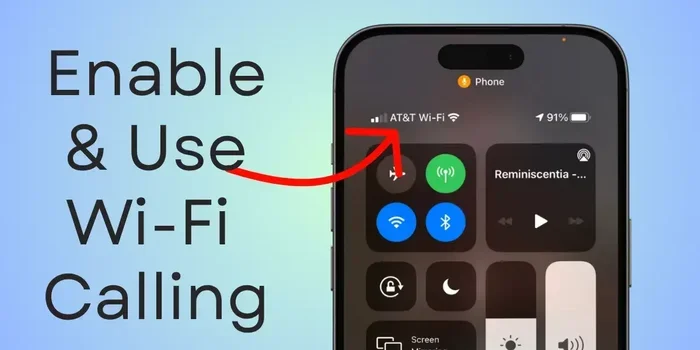
- Swipe down from the top right corner of your screen to open Control Center.
- Tap the Screen Mirroring button (it looks like two overlapping rectangles).
- Choose your TV from the list.
- Enter the AirPlay code if your TV asks for one.
Once connected, everything on your iPhone will show up on your TV. You can scroll, play videos, and even use apps just like you would on your phone screen.
Method 2: Use a Streaming Device Like Chromecast or Roku
If your TV is not smart or does not support built-in screen mirroring, a streaming device is your best friend. These small plugs or sticks connect to your TV’s HDMI port and give it smart capabilities. They act as a bridge between your phone and your TV over Wi-Fi.
Google Chromecast
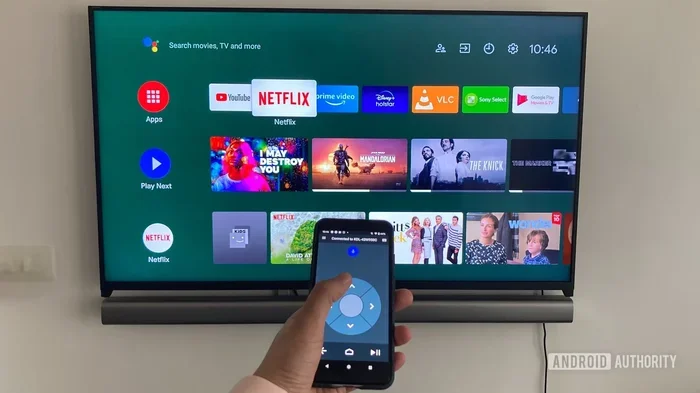
Chromecast is one of the most popular ways to cast phone to TV wirelessly. It is a small device that plugs into your TV’s HDMI port and connects to your Wi-Fi network. You then use your phone as a remote control.
Here is how to set up Chromecast:
- Plug the Chromecast into your TV’s HDMI port.
- Download the Google Home app on your phone.
- Follow the on-screen instructions to connect Chromecast to your Wi-Fi.
- Open any supported app on your phone (like YouTube, Netflix, or Google Photos).
- Tap the Cast icon and select your Chromecast device.
Chromecast works great with both Android and iPhone. It also supports Google Cast protocol, which means many popular apps have built-in casting buttons.
Roku Streaming Stick
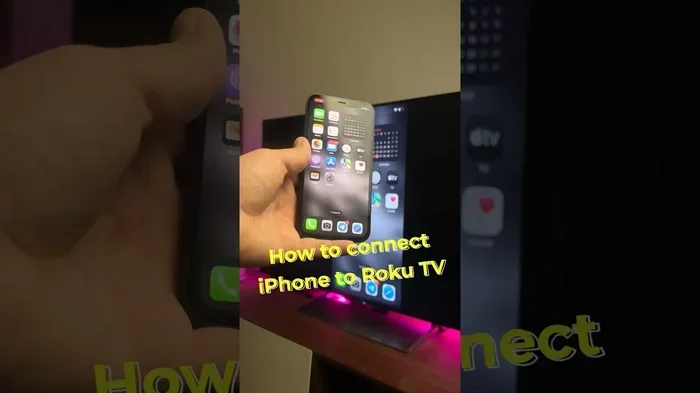
Roku is another excellent option for wireless display from your phone. Roku devices support screen mirroring through Miracast and also have a dedicated mobile app for streaming content. The setup process is similar to Chromecast and works with most phones.
Amazon Fire TV Stick
The Fire TV Stick from Amazon also lets you mirror your phone screen. It works best with Android phones and supports screen sharing through the Amazon Prime Video app and the built-in mirroring feature.
Method 3: Use an HDMI Adapter or Cable
Not every connection needs to be wireless. If you want a stable, lag-free connection, an HDMI adapter is a reliable option. This method works with any TV that has an HDMI port, even older models that are not smart.
Lightning to HDMI Adapter (For iPhones)
Apple sells a Lightning to HDMI adapter that lets you connect your iPhone directly to your TV with an HDMI cable. Here is how it works:
- Plug the adapter into your iPhone’s charging port.
- Connect an HDMI cable from the adapter to your TV.
- Switch your TV to the correct HDMI input.
- Your iPhone screen will instantly appear on the TV.
This method does not use Wi-Fi at all. It creates a direct wired connection, which means no lag, no buffering, and no network issues. It is perfect for presentations or when you need a rock-solid connection.
USB-C to HDMI Adapter (For Android Phones)
Many modern Android phones use USB-C charging ports. You can buy a USB-C to HDMI adapter or cable to connect your phone directly to your TV. The process is the same as the iPhone method above. Just plug in the adapter, connect the HDMI cable, and switch your TV input.
Quick Tip: Make sure your phone supports MHL (Mobile High-Definition Link) or DisplayPort Alt Mode before buying a USB-C adapter. Not all Android phones support wired screen output through USB-C.
Method 4: Use Wi-Fi Direct for Direct Device Connection
Wi-Fi Direct is a technology that lets two devices connect to each other without needing a router or Wi-Fi network. Your phone and TV create their own direct wireless connection. This can be handy when you do not have access to a Wi-Fi network or when your network is too crowded.
Some smart TVs support Wi-Fi Direct natively. You can find this option in your TV’s network or display settings. On Android phones, you can also use Wi-Fi Direct through the wireless display or screen mirroring settings.
One thing to keep in mind is that Wi-Fi Direct connections may be slightly slower than network-based casting. But for basic screen mirroring and video playback, it works very well.
When to Use Wi-Fi Direct
- You are at a location without Wi-Fi access.
- Your home network is slow or congested.
- You want a direct connection with fewer devices involved.
- You are using a mobile hotspot from your phone and want to connect your TV directly.
Method 5: Use DLNA or Media Streaming Apps
DLNA (Digital Living Network Alliance) is a protocol that lets devices share media files over a local network. Many smart TVs and streaming devices support DLNA. This means you can send photos, videos, and music from your phone to your TV without mirroring the entire screen.
Apps like BubbleUPnP for Android and PlayerXtreme for iPhone let you browse your phone’s media library and send files to your TV over Wi-Fi. This is different from screen mirroring because it only streams the media file, not your entire phone screen.
This method is great when you want to watch a video or listen to music on your TV while still using your phone for other things. It is also very efficient and uses less bandwidth than full screen mirroring.
Common Problems and How to Fix Them
Even though connecting your phone to your TV for Wi-Fi is usually straightforward, you might run into some issues. Here are the most common problems and their solutions.
Phone and TV Are Not Finding Each Other
This is the most common issue. The first thing to check is that both devices are on the same Wi-Fi network. Some routers have separate bands for 2.4 GHz and 5 GHz. Make sure both your phone and TV are connected to the same band.
Also, try restarting both devices. A simple reboot often fixes connection problems. If you are using a streaming device like Chromecast, make sure it is properly set up in the Google Home app.
Lag or Delay During Screen Mirroring
If your mirrored screen is lagging, it is usually because of a weak Wi-Fi signal. Try moving your router closer to the TV. You can also reduce the screen resolution or frame rate in your phone’s casting settings to improve performance.
Audio Is Not Syncing with Video
Audio lag is a common annoyance with wireless screen mirroring. This happens because video and audio travel through different processing paths. To reduce this issue, make sure your Wi-Fi signal is strong and stable. Using a wired HDMI connection eliminates this problem completely.
TV Shows a Black Screen
A black screen usually means the connection was not established properly. Check that you selected the correct input source on your TV. Also, make sure your phone’s screen is not locked or dimming during the connection. Some phones have battery optimization settings that can interrupt screen mirroring.
Expert Tips for the Best Wireless Viewing Experience
Want to get the most out of your wireless display setup? Here are some expert-backed tips that make a real difference.
- Use a 5 GHz Wi-Fi band: It is faster and less congested than the 2.4 GHz band. This reduces lag and improves video quality.
- Keep your phone close to the router: A strong Wi-Fi signal means a smoother streaming experience.
- Close background apps: Too many apps running can slow down your phone and affect casting performance.
- Update your software: Keep both your phone and TV firmware up to date for the best compatibility.
- Use a dedicated streaming device: Devices like Chromecast or Apple TV often deliver better performance than built-in TV smart features.
- Avoid interference: Other electronic devices like microwaves and baby monitors can interfere with your Wi-Fi signal. Keep your router and TV away from these devices.
Which Method Is Right for You?
Choosing the best way to connect your phone to your TV for Wi-Fi depends on your situation. Here is a quick comparison to help you decide:
| Method | Best For | Requires Extra Hardware? | Works on Non-Smart TVs? |
|---|---|---|---|
| Built-in Screen Mirroring | Smart TV owners who want quick setup | No | No |
| Chromecast / Streaming Stick | Non-smart TVs or TVs with limited features | Yes (Chromecast, Roku, Fire Stick) | Yes |
| HDMI Adapter | Stable, lag-free connections | Yes (adapter and cable) | Yes |
| Wi-Fi Direct | Situations without a shared Wi-Fi network | No | Some models |
| DLNA / Media Apps | Streaming media files without full mirroring | No | Some smart TVs |
If you have a smart TV, start with the built-in mirroring feature. It is the fastest and easiest method. If your TV is older or not smart, a streaming device or HDMI adapter will get the job done. Both options are affordable and widely available.
Final Thoughts on Connecting Your Phone to Your TV for Wi-Fi
Connecting your phone to your TV for Wi-Fi is easier than most people think. You have many options, from free built-in features to affordable streaming devices and adapters. No matter what kind of TV or phone you own, there is a method that will work for you.
The key is to understand your devices and choose the right method for your needs. If you want convenience, use built-in screen mirroring. If you want reliability, use an HDMI adapter. If you want flexibility, invest in a streaming stick like Chromecast or Roku.
Once you set up your wireless display connection, you will wonder how you ever lived without it. Streaming videos, sharing photos, playing games, and giving presentations all become much more enjoyable on a big screen. So go ahead, try it out, and enjoy the experience of casting your phone screen to your TV today.
Remember, the technology is designed to be simple. Do not let setup steps intimidate you. Follow the steps in this guide, and you will be watching your favorite content on the big screen in no time.
Frequently Asked Questions
Can I connect my phone to any TV using Wi-Fi?
Yes, you can connect your phone to most TVs using Wi-Fi if the TV is a smart TV with built-in casting support. For non-smart TVs, you can use a streaming device like Chromecast or an HDMI adapter to receive a wireless signal from your phone.
Do I need Wi-Fi to connect my phone to my TV?
Most wireless methods require both devices to be on the same Wi-Fi network. However, some methods like Wi-Fi Direct allow a direct connection without a router, and HDMI adapters create a wired connection that does not need Wi-Fi at all.
Is screen mirroring the same as casting?
They are similar but not the same. Screen mirroring shows everything on your phone screen on your TV in real time. Casting sends specific content from an app to your TV while you can still use your phone for other things.
Why is my wireless connection laggy when mirroring my phone?
Lag usually happens when the Wi-Fi signal is weak or the network is congested. Try moving closer to your router, switching to a 5 GHz band, or reducing the streaming quality in your phone settings to improve performance.
Can I connect an iPhone to an Android TV wirelessly?
Yes, you can connect an iPhone to an Android TV using AirPlay if the TV supports it. Alternatively, you can use a streaming device like Chromecast or a third-party app that supports cross-platform screen sharing.
What is the best free way to connect my phone to my TV?
The best free method is using your TV and phone’s built-in screen mirroring features. Both Android and iPhone support this natively. You just need both devices on the same Wi-Fi network and a few minutes to set it up.
=== CONCLUSION ===
Can I connect my phone to my TV for Wi-Fi on any screen? The answer is a clear yes. You now know all the main methods, from built-in screen mirroring and streaming devices to HDMI adapters and Wi-Fi Direct. Each method has its strengths, and the best choice depends on your TV type, phone model, and what you want to do.
Take a few minutes today to try one of these methods. You will be amazed at how simple it is to cast your phone screen to your TV and enjoy your favorite content on a bigger display. Once you start using wireless screen sharing, you will not want to go back to watching on a small phone screen ever again.