Does the X670e Have Built in Wifi or Need a Dongle
The AMD X670E chipset does not include WiFi directly in the chipset itself. However, many X670E motherboard manufacturers include a WiFi 6E dongle or module in the box or on the board. Whether your board has built-in wireless depends on the specific model and manufacturer. This guide covers everything you need to know about X670E WiFi options, how to add wireless connectivity, and which boards are worth your money.
When you are building or upgrading a PC with the AMD X670E chipset, one of the first questions that comes up is does X670e have wifi. The short answer is that the chipset itself does not include WiFi. But the longer answer is much more interesting. Many X670E motherboards come with wireless options built right in, and there are several ways to add WiFi if your board does not include it.
Whether you are a gamer, a remote worker, or just someone who wants to ditch the Ethernet cable, understanding your wireless connectivity options on the X670E platform matters. In this guide, we will break down everything you need to know about X670E WiFi support, how to add it, and which boards make the most sense for your setup.
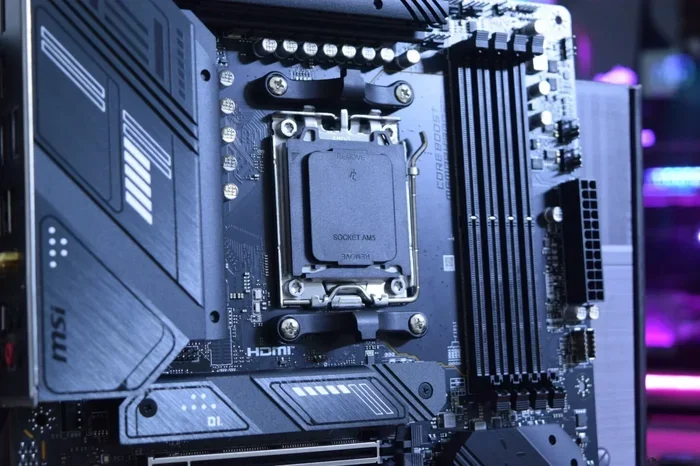
The AMD X670E is a premium chipset designed for the AM5 socket. It supports the latest Ryzen 7000 series processors and offers cutting-edge features like PCIe 5.0 and USB 4.0. But when it comes to built-in wireless, things get a bit more nuanced. Let us dive in and explore what you can expect.
Key Takeaways
- The X670E chipset itself lacks built-in WiFi: you will likely need a dongle, module, or PCIe card for wireless connectivity.
- Many X670E motherboards ship with a WiFi 6E dongle included: check the box or specs before buying a separate adapter.
- WiFi 6E offers faster speeds and lower latency: it operates on the 6GHz band for less congestion.
- You can add WiFi later via a PCIe card or M.2 WiFi module: this gives you flexibility if your board does not include it.
- Not all X670E boards are equal: some premium models include WiFi, while budget options often do not.
- Setting up WiFi on an X670E board is straightforward: just install the dongle or card and install drivers.
- Consider your internet needs: casual browsing needs less bandwidth than gaming or streaming on multiple devices.
📑 Table of Contents
Does the X670E Have WiFi?
The X670E chipset does not have WiFi integrated into the silicon. This means that out of the box, the chipset provides no wireless capability. However, this does not mean your motherboard will be stuck without WiFi. Motherboard manufacturers have found creative ways to include wireless features in their X670E boards.
Here is how it typically works. Some X670E motherboards include a WiFi 6E dongle that plugs into an M.2 slot on the board. Others include a full WiFi module soldered directly onto the PCB. And some boards simply do not include any wireless option at all. It all depends on the manufacturer and the price point of the board.
What the Chipset Actually Provides
The X670E chipset focuses on wired connectivity and expansion. It offers multiple PCIe 5.0 lanes for ultra-fast NVMe SSDs and graphics cards. It also supports USB 4.0 for high-speed data transfer. But wireless networking is not part of the chipset’s design. This is by design, not an oversight.
AMD likely left WiFi out of the chipset to keep costs down and give motherboard makers the freedom to choose their own wireless solutions. This approach allows for more variety in board designs and lets manufacturers tailor their products to different budgets and use cases.
Why This Matters for Your Build
If you are planning a build around the X670E chipset, you need to know whether your chosen board includes WiFi. If it does not, you will need to add a WiFi adapter or use a wired Ethernet connection. For many users, a wired connection works just fine. But if you want the freedom of wireless, you need to plan ahead.
Before purchasing an X670E motherboard, always check the product specifications. Look for terms like “WiFi included,” “WiFi 6E module,” or “wireless LAN.” If you do not see any mention of WiFi, assume the board does not have it and plan accordingly.
WiFi 6E vs WiFi 6: What You Get on X670E Boards
When you do find an X670E board with WiFi, it is almost always WiFi 6E or WiFi 6. These are the latest wireless standards, and they offer significant improvements over older WiFi generations. Let us break down the differences.
WiFi 6 (802.11ax)
WiFi 6 is the current mainstream standard. It offers speeds up to 9.6 Gbps in theory and works on the 2.4GHz and 5GHz bands. For most users, WiFi 6 provides more than enough speed for streaming, browsing, and even gaming. It also handles multiple devices well, which is great for households with several connected gadgets.
If you are connecting your PC to a home router that supports WiFi 6, you will get excellent performance. The real-world speeds will depend on your router, your distance from it, and the number of walls between your PC and the router. For the best results, try to keep your PC in the same room as your router or use a mesh WiFi system to extend coverage.
WiFi 6E (802.11ax Extended)
WiFi 6E is the newer standard that adds support for the 6GHz band. This band is less crowded, which means less interference from other devices. The result is faster speeds and lower latency. For gamers and streamers, this can make a real difference.
WiFi 6E boards typically come with a WiFi 6E dongle or module included. These dongles plug into an M.2 slot on the motherboard. The speeds you can expect with WiFi 6E are impressive, with real-world throughput often exceeding 1 Gbps on a clear 6GHz channel.
Which One Do You Need?
For most users, WiFi 6 is perfectly sufficient. You only really need WiFi 6E if you have a router that supports the 6GHz band and you want the absolute best wireless performance. If you are a casual user, WiFi 6 will serve you well. If you are a power user or gamer, WiFi 6E is worth the extra investment.
When shopping for an X670E board, look at what wireless standard the included WiFi module supports. This information is usually listed in the product specifications. Do not assume all WiFi-enabled boards are the same.
How to Add WiFi to Your X670E Board
If your X670E motherboard does not include WiFi, do not worry. Adding wireless connectivity is straightforward and affordable. There are a few different methods you can use, each with its own pros and cons.
Option 1: USB WiFi Adapter
The simplest way to add WiFi to an X670E board is with a USB WiFi adapter. These small dongles plug into a USB port and provide wireless connectivity instantly. They are plug-and-play in most cases, meaning you just insert them and Windows installs the drivers automatically.
USB WiFi adapters range from budget options around $15 to high-end models that support WiFi 6E for $80 or more. For basic browsing and streaming, a budget adapter works fine. For gaming or heavy downloads, invest in a better model. Look for adapters that support WiFi 6 or WiFi 6E for the best performance.
One downside of USB adapters is that they take up a USB port. They can also be less stable than internal solutions. If you move your PC around or have a lot of cables, a USB adapter might get bumped or disconnected.
Option 2: PCIe WiFi Card
A PCIe WiFi card is a more permanent and reliable solution. These cards plug into a PCIe slot on your motherboard and include a WiFi antenna that you mount inside your PC case. They tend to offer better performance and more stable connections than USB adapters.
Popular PCIe WiFi cards include models from Intel and TP-Link that support WiFi 6 and WiFi 6E. Installation is simple. You just insert the card into a PCIe slot, connect the antenna cables, and install the drivers. Most cards come with detailed instructions.
If you are building a gaming PC or a workstation, a PCIe WiFi card is the way to go. It provides the best wireless performance and reliability. Plus, it frees up your USB ports for other devices like controllers or external drives.
Option 3: M.2 WiFi Module (Dongle)
Many X670E boards that include WiFi use an M.2 WiFi module. These small modules slot directly into an M.2 connector on the motherboard. They are compact and do not take up any additional space inside your case.
If your board includes an M.2 WiFi module, you are all set. Just make sure the module is properly seated and that you install the drivers from the manufacturer’s website. If your board does not include one, you can purchase an M.2 WiFi module separately and install it in an empty M.2 slot.
M.2 WiFi modules are the most elegant solution because they are hidden inside the PC case. They also tend to provide good performance. However, they can be harder to find and may cost a bit more than USB adapters.
Quick Tips for WiFi Setup
- Always install the latest drivers from the manufacturer’s website for the best performance.
- Place your router in a central location for the best wireless coverage.
- If you experience slow speeds, try switching to the 5GHz or 6GHz band instead of 2.4GHz.
- Keep your WiFi adapter or module away from other electronic devices that might cause interference.
- Update your router firmware regularly for security and performance improvements.
X670E Boards That Come With WiFi
Not all X670E motherboards are created equal when it comes to WiFi. Some premium models include wireless features out of the box, while others leave you to figure out your own WiFi solution. Here is what you need to know.
Premium X670E Boards With WiFi
High-end X670E boards from manufacturers like ASUS, MSI, Gigabyte, and ASRock often include WiFi 6E as a standard feature. These boards target enthusiasts and power users who want the best connectivity options. Examples include the ASUS ROG Crosshair X670E Hero and the MSI MEG X670E ACE.
These boards typically include a WiFi 6E dongle that is either soldered onto the board or included in the accessory box. They also tend to have better antennas and more robust wireless performance compared to budget boards. If you want the best wireless experience on the X670E platform, a premium board is the way to go.
Budget X670E Boards Without WiFi
Budget-friendly X670E boards often skip WiFi to keep costs down. These boards are great if you plan to use a wired Ethernet connection. They still offer excellent performance for the CPU and RAM, but you will need to add WiFi yourself if you want wireless.
Examples of budget X670E boards include models from lesser-known brands or entry-level offerings from major manufacturers. Always check the specifications before buying. If WiFi is important to you, make sure the board includes it or factor in the cost of a separate adapter.
Mid-Range X670E Boards
Mid-range X670E boards are a sweet spot for many builders. They often include WiFi 6 or WiFi 6E at a reasonable price point. These boards offer a good balance of features, performance, and cost. They are ideal for most users who want wireless connectivity without paying a premium.
When comparing mid-range boards, look at the WiFi standard supported, the quality of the included antennas, and any additional networking features. Some boards include 2.5Gb Ethernet in addition to WiFi, which gives you the best of both worlds.
Comparison Table: WiFi vs No WiFi X670E Boards
| Feature | Boards With WiFi | Boards Without WiFi |
|---|---|---|
| Wireless Connectivity | Included | Not Included |
| Price | Higher | Lower |
| Setup | Plug and play | Requires adapter |
| Flexibility | Can still add a better adapter later | Must add adapter for WiFi |
| Best For | Users who want wireless out of the box | Users who prefer wired connections |
Common Mistakes When Setting Up WiFi on X670E Boards
Setting up WiFi on an X670E board is usually simple, but there are a few common mistakes that can cause problems. Avoid these pitfalls to ensure a smooth wireless experience.
Forgetting to Install Drivers
The most common mistake is not installing the WiFi drivers after setting up the board. Even if Windows detects the WiFi adapter, you will not get the best performance without the proper drivers. Always visit the motherboard manufacturer’s website and download the latest WiFi and network drivers for your specific model.
Placing the Router Too Far Away
Another mistake is placing the router too far from your PC. WiFi signals weaken with distance and through walls. If your PC is in a different room from your router, you may experience slow speeds and dropouts. Try to keep your PC in the same room or as close to the router as possible.
Using the Wrong WiFi Band
Many users leave their devices on the 2.4GHz band by default. While this band has good range, it is also crowded with other devices like microwaves, Bluetooth devices, and neighboring networks. If your router supports it, switch to the 5GHz or 6GHz band for better speeds and less interference.
Ignoring Antenna Placement
If you are using a PCIe WiFi card with external antennas, proper antenna placement matters. Position the antennas vertically and away from metal objects. Avoid placing them near the power supply or other components that might cause interference. Good antenna placement can significantly improve your WiFi signal strength and speed.
Not Updating Router Firmware
An outdated router can cause all sorts of WiFi problems. Make sure your router firmware is up to date for the best performance and security. Most modern routers have an automatic update feature, but it is worth checking manually every few months.
Assuming All WiFi Is the Same
Not all WiFi is created equal. A cheap USB adapter will not perform as well as a dedicated PCIe card or an M.2 module. If you need reliable, fast WiFi, invest in a quality adapter. Do not just grab the cheapest option at the store.
Expert Insights on X670E WiFi
When it comes to WiFi on the X670E platform, the experts agree that the best approach depends on your needs and budget. For most users, a mid-range X670E board with WiFi 6E included is the best value. You get wireless connectivity without the hassle of installing a separate adapter.
For enthusiasts and gamers, a premium board with WiFi 6E and high-quality antennas provides the best wireless performance. These boards are designed to deliver fast, stable connections even in congested wireless environments.
If you are on a tight budget, a budget X670E board without WiFi paired with a good PCIe WiFi card is a smart choice. You save money on the board and still get excellent wireless performance. Just make sure the WiFi card you choose supports the latest standards for future-proofing.
One thing the experts all agree on is that wired Ethernet is still the gold standard for gaming and high-bandwidth tasks. WiFi is convenient and fast enough for most uses, but if you need the absolute lowest latency and most stable connection, a wired connection is hard to beat.
Also, keep in mind that your WiFi performance depends heavily on your home network setup. A good router makes a huge difference. If your router is outdated, even the best WiFi card on your X670E board will not perform well. Consider upgrading your router if you are serious about wireless performance.
Key Takeaways
- The X670E chipset does not include WiFi: the chipset itself lacks wireless networking capabilities.
- Many X670E motherboards include WiFi 6E: check the specs of your specific board to confirm.
- Adding WiFi is easy and affordable: USB adapters, PCIe cards, and M.2 modules are all viable options.
- WiFi 6E is the best choice for X670E boards: it offers faster speeds and less interference on the 6GHz band.
- Avoid common setup mistakes: install drivers, place your router well, and use the right WiFi band.
- Wired Ethernet still wins for performance: use WiFi for convenience and Ethernet for the best experience.
Frequently Asked Questions
Does every X670E motherboard have WiFi?
No, not every X670E motherboard includes WiFi. The X670E chipset itself does not have built-in WiFi, so it is up to each motherboard manufacturer to decide whether to include a WiFi module. Always check the product specifications before purchasing.
Can I add WiFi to an X670E board that does not have it?
Yes, you can easily add WiFi to an X670E board without built-in wireless. You can use a USB WiFi adapter, a PCIe WiFi card, or an M.2 WiFi module. Each option has its own advantages, so choose the one that fits your needs and budget.
Is WiFi 6E worth it on an X670E board?
WiFi 6E is worth it if you have a router that supports the 6GHz band and you want the fastest wireless speeds with the least interference. For most users, WiFi 6 is sufficient, but WiFi 6E offers a noticeable upgrade for gaming and streaming.
What is the difference between a WiFi dongle and a PCIe WiFi card?
A WiFi dongle is a small module that plugs into an M.2 slot and is typically included with X670E boards that have WiFi. A PCIe WiFi card is a larger card that plugs into a PCIe slot and usually has external antennas. PCIe cards tend to offer better performance and easier antenna placement.
Can I use my phone as a WiFi hotspot for my X670E PC?
Yes, you can use your phone as a WiFi hotspot to connect your PC to the internet. This is a useful temporary solution if you do not have a WiFi adapter or if your home network is down. Just keep in mind that it can use a lot of your phone’s data quickly.
Do I need a special router for WiFi 6E on my X670E board?
Yes, to take advantage of WiFi 6E speeds, you need a router that supports the 6GHz band. If your router only supports WiFi 5 or WiFi 6, your X670E board will still connect, but it will fall back to the older standard and you will not get the full WiFi 6E benefits.
=== CONCLUSION ===
So, does the X670e have WiFi? The answer is that the chipset does not include it, but many X670E motherboards come with WiFi 6E support through included dongles or modules. Whether your specific board has WiFi depends on the manufacturer and model you choose. If it does not, adding wireless connectivity is simple and affordable with a USB adapter, PCIe card, or M.2 module.
The X670E platform is an excellent choice for modern PC builds, and the wireless connectivity options are flexible enough to suit any need. Whether you are a casual user who just wants to browse the web or a hardcore gamer who needs the lowest possible latency, there is an X670E board and WiFi solution that fits the bill.
Take the time to check your board specifications, install the right drivers, and set up your network properly. With the right setup, you can enjoy fast, reliable wireless connectivity on your X670E system. Happy building.