How Can I Get My Iphone To Work Without Wi Fi Right Now
You can absolutely keep your iPhone working without Wi-Fi by using cellular data, enabling offline mode, and leveraging built-in features like Airplane Mode and Bluetooth. This guide shows you step-by-step how to stay productive, entertained, and connected even when you have no wireless network available.
Your iPhone is a powerful device, and it does not need Wi-Fi to do amazing things. Whether you are traveling, in a dead zone, or just trying to save data, there are plenty of ways to keep your phone running smoothly without a wireless connection. This guide walks you through every method you can use to stay connected, productive, and entertained.
Many people think their iPhone becomes useless without Wi-Fi. That is far from the truth. Your phone has cellular data, Bluetooth, offline apps, and many other features that work independently of any wireless network. Once you know what is possible, you will never worry about being offline again.
We have broken this guide into clear, easy-to-follow sections. Each one covers a different way to use your iPhone without Wi-Fi. You will learn practical tips, discover hidden features, and find answers to common questions. Let us dive right in.
Key Takeaways
- Cellular data is your best friend: You can use your iPhone fully without Wi-Fi as long as you have an active cellular plan.
- Offline apps work great: Many apps let you download content and use them without any internet connection at all.
- You can create your own hotspot: Turn your iPhone into a personal hotspot and share data with other devices.
- Airplane Mode has hidden uses: It helps you troubleshoot and save battery when Wi-Fi is unavailable.
- Bluetooth and USB tethering work too: These are solid alternatives for connecting peripherals and sharing data.
- Offline entertainment is easy: Download music, videos, and podcasts ahead of time for offline enjoyment.
📑 Table of Contents
- What Happens When Your iPhone Loses Wi-Fi
- Ways To Keep Your iPhone Working Without Wi-Fi
- Using Cellular Data As Your Primary Connection
- Offline Features You Can Still Use On Your iPhone
- How To Set Up a Mobile Hotspot Without Wi-Fi
- Troubleshooting iPhone Connectivity Issues Without Wi-Fi
- Staying Connected When There Is No Wi-Fi Anywhere
- Final Thoughts
What Happens When Your iPhone Loses Wi-Fi
When your iPhone disconnects from Wi-Fi, some things stop working right away. Apps that need the internet will show errors. Email will not send or receive. Maps may not load new directions. Social media feeds will freeze. But here is the good news: your phone still works in many important ways.
Your cellular data connection keeps the core functions alive. You can still make calls, send texts, and use apps that do not require constant internet access. Your camera still takes photos. Your notes app still works. Your calendar still sends reminders. Understanding what stays active helps you plan ahead and use your phone smarter.
Sometimes losing Wi-Fi happens because of a weak signal, a router issue, or a network outage. Other times, you might be in an area with no wireless coverage at all. Knowing how to switch to alternatives quickly saves you a lot of frustration. Let us look at the best options next.
Ways To Keep Your iPhone Working Without Wi-Fi
Use Cellular Data
The most obvious alternative to Wi-Fi is your cellular data plan. Almost every iPhone comes with the ability to connect to 4G or 5G networks through your carrier. As long as you have signal bars at the top of your screen, you can browse the web, stream videos, and use most apps.
To make sure cellular data is on, go to Settings > Cellular and toggle the switch. You can also check which apps are allowed to use data. This helps you manage your usage and avoid surprise charges. If you travel a lot, consider an unlimited data plan to stay connected without worry.
Enable Airplane Mode for Troubleshooting
Airplane Mode is not just for flights. It is a powerful tool when you want to reset your network connections. When you turn on Airplane Mode and then turn off just the Wi-Fi toggle, your phone stops searching for networks. This can save battery and help you focus on other connections like Bluetooth or cellular.
Some people use Airplane Mode as a quick way to troubleshoot connection issues. Turning it off and back on resets your network settings temporarily. This simple trick often fixes slow data speeds and dropped signals without needing a full reset.
Connect via Bluetooth
Bluetooth lets your iPhone talk to other devices without Wi-Fi. You can connect wireless headphones, speakers, smartwatches, and even keyboards. This works anywhere, as long as the devices are within range, usually about 30 feet apart.
To pair a Bluetooth device, go to Settings > Bluetooth and select the device from the list. Once paired, the connection stays active until you turn off Bluetooth or remove the device. This is great for listening to music, taking calls, or tracking your fitness goals without needing any wireless network.
For example, if you want to listen to music during a hike where there is no Wi-Fi or cell signal, you can download songs ahead of time and play them through Bluetooth headphones. This works completely offline.
Use USB Tethering
USB tethering is a handy trick that shares your phone’s data connection with a computer through a cable. You plug your iPhone into your laptop using a USB cord and enable tethering in your phone settings. Your computer then gets internet access through your phone’s cellular data.
This method is faster and more stable than wireless hotspots. It also charges your phone while you work. USB tethering is perfect for working remotely when you have no Wi-Fi but still need to check email or finish a project on your laptop.
Using Cellular Data As Your Primary Connection
Many people rely entirely on cellular data instead of Wi-Fi. This works great if you have a strong signal and a generous data plan. Your iPhone handles data tasks just as well on cellular as it does on wireless networks. The difference is mainly in speed and data limits.
To check your current data usage, go to Settings > Cellular. Here you can see how much data each app has consumed. This helps you identify apps that use too much data in the background. You can restrict those apps to save your monthly allowance.
One thing to watch out for is data throttling. Some carriers slow down your speeds after you hit a certain usage limit. If you notice your data getting slower, check your plan details. Switching to a different carrier or a different plan can make a big difference in your experience without Wi-Fi.
Also, keep in mind that 5G networks offer much faster speeds than older 4G connections. If your phone and carrier support 5G, you get a near-Wi-Fi experience on cellular data. This makes working, streaming, and browsing without wireless networks much more enjoyable.
Managing Data Usage Without Wi-Fi
When you do not have Wi-Fi, every megabyte of data counts. Here are some quick tips to stretch your data plan:
- Download content over Wi-Fi: Save music, videos, and maps before you leave home.
- Turn off auto-updates: Apps should only update when connected to Wi-Fi, not cellular data.
- Use data saver mode: Your iPhone has a Low Data Mode option that reduces background usage.
- Stream at lower quality: Netflix and YouTube let you choose lower resolutions to save data.
- Disable background app refresh: This stops apps from using data when you are not actively using them.
These small changes add up fast. You will be surprised how much longer your data lasts when you manage it carefully.
Offline Features You Can Still Use On Your iPhone
Your iPhone has many features that work fully offline. You do not need Wi-Fi or even cellular data to enjoy them. This is one of the most overlooked benefits of owning an iPhone.
Offline Apps and Content
Many popular apps let you download content for offline use. Spotify and Apple Music let you save playlists and podcasts directly to your phone. Netflix and YouTube Premium allow you to download movies and shows for watching later. Google Maps lets you download entire regions for navigation without any internet connection.
These offline features are a game changer when you are traveling or in areas with poor coverage. You can still enjoy your favorite entertainment and get directions even when completely disconnected from any network. Just make sure to download everything while you still have a connection.
Camera and Photos
Your iPhone camera works perfectly without Wi-Fi. You can take photos, record videos, and edit them all offline. The Photos app gives you full access to your gallery without needing any internet. You can crop, apply filters, and organize your images with no connection required.
When you are ready to sync your photos, connect to Wi-Fi or use iCloud to upload everything. Until then, your camera and photo library remain fully functional and ready to capture memories.
Notes, Reminders, and Calendar
Apple’s built-in productivity apps work entirely offline. You can jot down notes, set reminders, and schedule events without any network access. Everything syncs automatically once you reconnect to Wi-Fi or cellular data.
This makes your iPhone a reliable tool for staying organized, even in areas with no connectivity. You never lose your thoughts or miss a deadline just because you are offline.
How To Set Up a Mobile Hotspot Without Wi-Fi
Did you know you can turn your iPhone into a personal hotspot? This lets you share your cellular data with other devices like laptops, tablets, and even other phones. It is one of the most useful features when you need internet but have no Wi-Fi available.
To set up a hotspot, go to Settings > Personal Hotspot and toggle it on. You will see a password and a network name. Connect your other device to this network just like you would connect to any wireless router. Your iPhone then shares its cellular data connection with the other device.
You can also check if your carrier supports hotspot tethering. Some plans include this feature, while others require an add-on. If you are wondering whether you can get a hotspot without phone service, check out our guide on Can I Get Hotspot Without Phone Service for more details.
Keep an eye on your data usage when using a hotspot. Streaming and downloading on connected devices eat through data fast. Set a data limit in your hotspot settings if your iPhone supports it, and always monitor usage to avoid overage charges.
Troubleshooting iPhone Connectivity Issues Without Wi-Fi
Sometimes your iPhone has trouble connecting to anything, even cellular data. When this happens, a few simple fixes usually solve the problem. Here is what you can try:
- Toggle Airplane Mode: Turn it on, wait 10 seconds, and turn it off again. This resets your network connections quickly.
- Restart your iPhone: A fresh restart clears temporary glitches that may be affecting your connection.
- Update your iOS: Software updates often fix connectivity bugs. Go to Settings > General > Software Update.
- Reset network settings: This clears saved networks and starts fresh. Go to Settings > General > Transfer or Reset > Reset > Reset Network Settings.
- Remove and reinsert your SIM card: This refreshes your connection to the cellular network.
If none of these work, contact your carrier. There may be an outage or a problem with your account. You can also check if your phone has a hardware issue by visiting an Apple Store or authorized service center.
Another useful trick is to check whether your carrier offers free Wi-Fi hotspots in your area. You can connect to these when available and save your cellular data. To learn more about connecting to Wi-Fi networks outside your home, read our article on Can I Connect to Xfinity Wi-Fi Away From Home.
Staying Connected When There Is No Wi-Fi Anywhere
Being without Wi-Fi does not mean being without options. Your iPhone has built-in tools and settings that keep you connected in many situations. From cellular data to Bluetooth to offline apps, you have more than enough to stay productive and entertained.
One often-overlooked feature is the ability to make calls without cellular service using Wi-Fi calling when Wi-Fi is available, or through apps like FaceTime and WhatsApp when you have data. If you want to learn more about making calls in tricky situations, our guide on Can I Call Using Wi-Fi and No Service has helpful tips.
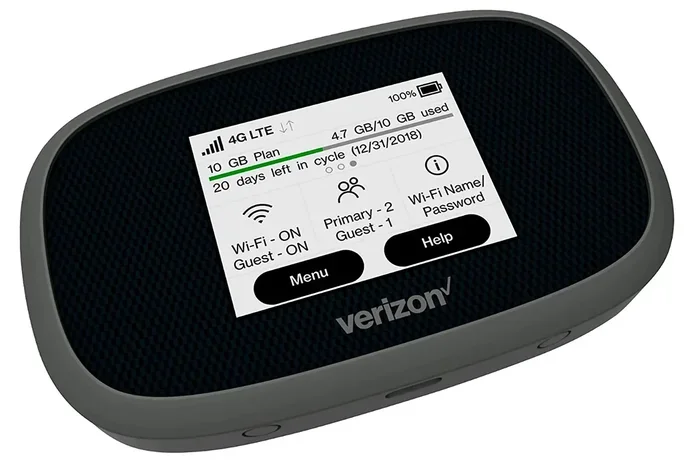
For travelers who need internet in foreign countries, consider getting a local SIM card or a pocket Wi-Fi device. These options give you data access without relying on hotel or café wireless networks. You can find more information about pocket Wi-Fi options in our piece on Can I Get Pocket Wi-Fi in Japan, which covers international data solutions.
Finally, remember that your iPhone is designed to work in many different scenarios. Whether you are offline for a few minutes or for days, the right settings and preparations keep everything running. Download content ahead of time, manage your data usage, and explore the offline features you may not have known about.
Final Thoughts
Getting your iPhone to work without Wi-Fi is easier than you might think. With cellular data, offline apps, Bluetooth connections, and hotspot features, your phone stays useful in almost any situation. The key is knowing what tools are available and using them wisely.
Take a few minutes today to explore your iPhone settings. Check your data plan, download some offline content, and try out Bluetooth connections. These small steps make a big difference when you find yourself without a wireless network. Your iPhone is more capable offline than you give it credit for.
Stay prepared, stay connected, and never let a lack of Wi-Fi slow you down. Your iPhone has everything you need to keep going, no matter where you are.
Frequently Asked Questions
Can I use my iPhone without Wi-Fi and cellular data?
Yes, you can still use many features without either connection. Your camera, notes, reminders, calculator, and offline apps all work without Wi-Fi or data. You just cannot browse the web, stream content, or send messages that need internet access.
How do I save data when I do not have Wi-Fi?
Turn on Low Data Mode in Settings, disable background app refresh, and download content ahead of time. Streaming at lower quality and turning off auto-updates also helps you stretch your data plan when Wi-Fi is not available.
Can I make phone calls without Wi-Fi?
Absolutely. As long as you have cellular signal, you can make and receive regular calls. You can also use messaging apps like iMessage and WhatsApp if you have cellular data, even without Wi-Fi.
Does Airplane Mode turn off everything on my iPhone?
Airplane Mode turns off wireless connections like Wi-Fi, cellular, and Bluetooth. However, you can manually re-enable Bluetooth or cellular data while Airplane Mode is on. This lets you use specific features while still cutting other connections.
Can I use my iPhone as a hotspot without Wi-Fi?
Yes, your iPhone hotspot uses your cellular data to create a network for other devices. It does not need Wi-Fi to work. Just make sure your cellular signal is strong and your data plan supports tethering.
What happens to my apps when I lose Wi-Fi?
Apps that need internet will not refresh or load new content. However, apps you have already opened or downloaded content for will continue to work. Offline games, note-taking apps, and downloaded music keep working fine without any connection.
=== CONCLUSION ===
Your iPhone is built to handle life without Wi-Fi. From cellular data to offline apps, Bluetooth connections, and personal hotspots, you have many tools to stay connected and productive. The tips and tricks in this guide help you make the most of your phone, no matter where you are or what network is available.
Take action today. Explore your settings, download offline content, and try out the features you learned here. You will be surprised how capable your iPhone really is without a Wi-Fi connection. Stay prepared and enjoy the freedom of being connected anywhere, anytime.