How Can I See All Devices Connected To My Wi Fi Network
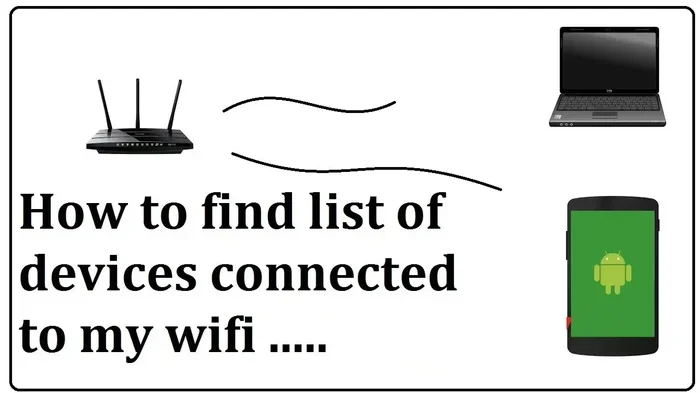
Finding out how can I see all devices connected to my Wi-Fi is easier than most people think. You can check your router admin panel, use your smartphone, or scan from a computer to view every connected gadget. This guide walks you through each method so you can spot unknown devices and protect your network.
Key Takeaways
- Router Admin Panel: The most reliable way to view all devices on your network.
- Phone Apps: Use your phone to quickly scan and identify connected devices.
- Windows & Mac Tools: Built-in and third-party tools make desktop scanning simple.
- Spot Unknown Devices: Learn how to identify and remove unauthorized gadgets.
- Network Security: Simple steps to lock down your wireless network today.
📑 Table of Contents
- Why You Should Check Devices on Your Wi-Fi Network
- How to See All Devices Connected to Your Wi-Fi Through Your Router
- How to Check Connected Devices Using Your Phone
- How to See Connected Devices on Windows and Mac Computers
- What to Do When You Spot Unknown Devices
- Tips to Keep Your Wireless Network Safe and Fast
- Common Mistakes People Make With Network Security
- Expert Insights on Network Monitoring
- Key Takeaways
- Conclusion
Why You Should Check Devices on Your Wi-Fi Network
Your wireless network is like your digital front door. Anyone who walks through can slow things down, steal bandwidth, or even access shared files. That is exactly why you need to know how can I see all devices connected to my Wi-Fi at any given time.
Most people never think about this until their internet starts crawling. A movie buffers endlessly. A video call drops for no reason. The culprit could be a neighbor piggybacking on your signal. Or it could be a smart device you forgot about running in the background.
Checking your connected devices takes just a few minutes. It gives you peace of mind and keeps your network running smoothly. Below, we walk through every method you can use right now.
How to See All Devices Connected to Your Wi-Fi Through Your Router
The router admin panel is the gold standard for viewing your Wi-Fi connected devices. Every router has a built-in dashboard that shows a complete list of gadgets currently online.
Step-by-Step Router Login
First, open any web browser on a device connected to your network. Type your router IP address into the address bar. Most routers use either 192.168.1.1 or 192.168.0.1. Check the sticker on the back of your router if you are not sure.
Next, enter your admin username and password. The default login is usually printed right on that same sticker. If you changed it before and forgot, you can reset the router to factory settings. Just hold the small reset button for about 10 seconds.
Once logged in, look for a section called “Connected Devices,” “Device List,” or “DHCP Client List.” This page shows every device along with its name, IP address, and MAC address. You will see everything from your laptop to your smart thermostat.
What Each Column Means
Here is what you will typically find on the device list page:
- Device Name: A label like “iPhone” or “Living Room TV.” Some devices show generic names.
- IP Address: A unique number assigned to each device on your network.
- MAC Address: The hardware identifier. Every gadget has a unique one.
- Connection Type: Shows whether the device is on Wi-Fi or wired Ethernet.
- Signal Strength: Tells you how strong the connection is for each device.
Write down the names and addresses that look unfamiliar. We will cover what to do about unknown devices later in this guide.
How to Check Connected Devices Using Your Phone
Not everyone wants to dig into router settings. The good news is that your phone can help you answer how can I see all devices connected to my Wi-Fi without opening a browser.
Using Your Android Phone
If you have an Android device, you can use built-in network tools or download a free app. Open your phone settings and tap on “Network & Internet” or “Connections.” Look for “Wi-Fi” and then tap the network you are connected to.
Some Android phones show a list of connected devices right there. Others will redirect you to the router page. Either way, you get the information you need fast. You can also download apps like Fing or Wireless Network Watcher from the Google Play Store.
These apps do the heavy lifting for you. They scan your network and display every device in a clean, easy-to-read list. You do not need to be a tech expert to use them.
Using Your iPhone
iPhone users have a slightly different path. Open the Settings app and tap “Wi-Fi.” Tap the “i” icon next to your connected network. Scroll down and look for the router address. Tap it to open the router admin page in your browser.
Unfortunately, iOS does not have a built-in network scanner like Android does. That is where a third-party app comes in handy. Apps like Fing or Network Analyzer work great on iPhones. They scan your network and show all connected devices in seconds.
One thing to keep in mind: your Wi-Fi password may be needed to access certain router features from your phone. If you have forgotten it, you can find it on your router or in your phone settings.
How to See Connected Devices on Windows and Mac Computers
Desktop and laptop computers offer their own ways to view your network. These methods work well if you prefer using a larger screen for this kind of task.
On Windows 10 and 11
Open the Settings app on your PC. Go to “Network & Internet” and then click “Properties” under your active Wi-Fi connection. Scroll down to find the list of devices connected through your network.
For a more detailed view, open the Command Prompt. Type “arp -a” and press Enter. This command shows the IP and MAC addresses of all devices on your local network. It is a quick and powerful way to see what is on your network without logging into the router.
You can also download free network scanning tools like Advanced IP Scanner or Angry IP Scanner. These tools give you a visual map of every device connected to your network. They show device names, IP addresses, and even the manufacturer of each gadget.
On Mac Computers
Mac users can use the built-in Network Utility. Open Spotlight by pressing Command and Space. Type “Network Utility” and hit Enter. Go to the “Port Scan” tab and enter your router IP address.
Another great option is the Terminal app. Type “ping” followed by your network range to discover active devices. You can also download free apps like Lansweeper or Fing for Mac. These tools make scanning simple and visual.
What to Do When You Spot Unknown Devices
Finding a device you do not recognize on your network can be scary. But do not panic. There is a clear process to handle this situation.
First, Identify the Device
Before taking any action, figure out what the device actually is. Look up the MAC address online. Many websites let you enter a MAC address and tell you the manufacturer. That “unknown” gadget might just be a new smart speaker or a friend’s phone.
Cross-check the device name with everyone in your household. Sometimes a family member connected a new gadget and forgot to tell you. Smart home devices often show up with confusing names too.
Then, Remove Unauthorized Devices
If you confirm the device does not belong to anyone in your home, it is time to act. The fastest way is to change your Wi-Fi password. Every device will get kicked off, and only those with the new password can reconnect.
Go back to your router admin panel and change the password under wireless settings. Pick a strong password with a mix of letters, numbers, and symbols. Make sure to update the password on all your own devices afterward.
Prevent Future Intrusions
Changing the password is a quick fix, but you should also strengthen your network for the long term. Enable WPA3 encryption if your router supports it. WPA3 is the latest and most secure Wi-Fi protection standard.
You can also disable WPS (Wi-Fi Protected Setup). While convenient, WPS has known security vulnerabilities. Turn it off in your router settings. Another great step is to hide your network name (SSID). This makes your network invisible to casual snoopers.
Tips to Keep Your Wireless Network Safe and Fast
Protecting your network goes beyond just removing unknown devices. A few simple habits keep your home network secure and running at full speed.
- Update your router firmware regularly. Manufacturers release updates that fix security holes and improve performance.
- Place your router in a central location. This gives you the best internet speed and limits signal leakage outside your home.
- Create a guest network. Let visitors use the internet without giving them access to your main devices and files.
- Monitor your network monthly. Make it a habit to check your connected devices every few weeks.
- Use a strong, unique password. Avoid simple passwords like “password123” or your street address.
These steps take very little time but offer big protection. Think of them as routine maintenance for your home network. Just like you lock your front door at night, you should lock down your wireless network every day.
Common Mistakes People Make With Network Security
Even careful users sometimes make mistakes that leave their network exposed. Here are the most common ones to avoid.
Never sharing your password carelessly. It is tempting to tell the neighbor your password when they ask. But every extra person increases the risk. They might share it further without realizing it. Instead, set up a guest network for visitors.
Ignoring firmware updates. Outdated router software is one of the biggest security risks. Hackers constantly find new ways to exploit old firmware. Check for updates at least once a month.
Using the default router login. Leaving the admin username and password as “admin” and “password” is an open invitation. Change these credentials immediately after setup.
Not checking connected devices regularly. Many people set up their network and forget about it. A quick check once a month can catch problems early before they cause real damage.
Expert Insights on Network Monitoring
Network security professionals recommend treating your Wi-Fi network like you would treat your physical home. You would not leave the door unlocked and the windows open. The same logic applies to your wireless connection.
“The first line of defense is awareness,” says a network security expert. “If you do not know what is on your network, you cannot protect it.” Regular scanning and monitoring are the best habits any home user can develop.
Most modern routers now come with companion apps that make monitoring easier. Brands like Netgear, TP-Link, and ASUS offer free apps that let you see connected devices from your phone. These apps also send alerts when a new device joins your network.
If you ever feel overwhelmed, start simple. Just log into your router once and look at the device list. That single step gives you more control over your network than most users ever take.
Key Takeaways
- Router Admin Panel: The most reliable way to view all devices on your network.
- Phone Apps: Use your phone to quickly scan and identify connected devices.
- Windows & Mac Tools: Built-in and third-party tools make desktop scanning simple.
- Spot Unknown Devices: Learn how to identify and remove unauthorized gadgets.
- Network Security: Simple steps to lock down your wireless network today.
Conclusion
Knowing how can I see all devices connected to my Wi-Fi gives you control over your home network. You do not need expensive equipment or technical skills. A quick login to your router or a free app on your phone is all it takes.
Make it a habit to check your connected devices regularly. Spot the unknown ones early. Remove them quickly. And always keep your network security strong with updated passwords and firmware. Your Wi-Fi is your gateway to the internet. Treat it with the care it deserves.
Start today. Spend five minutes logging into your router and reviewing your device list. That small action can save you from bandwidth theft, privacy breaches, and slow internet. You will feel more confident and in control the moment you see exactly who is on your network.
Frequently Asked Questions
Can I see all devices connected to my Wi-Fi for free?
Yes, absolutely. Your router admin panel is free to access. You can also download free apps like Fing or Advanced IP Scanner on your phone or computer. No paid tools are needed to view your connected devices.
What should I do if I find an unknown device on my network?
First, try to identify it by looking up the MAC address. If it truly does not belong to anyone in your home, change your Wi-Fi password immediately. This kicks off all unauthorized devices and keeps your network safe.
How many devices should be on my Wi-Fi network?
There is no set number. It depends on how many gadgets you own. A typical home might have 10 to 20 connected devices. If you see significantly more than that, it could mean someone is using your network without permission.
Can someone hack my Wi-Fi if they are connected to it?
Yes, an unauthorized user can potentially access shared files, slow down your internet, or even intercept data. That is why it is important to regularly check your connected devices and use strong encryption like WPA3.
Do I need to be tech-savvy to check my connected devices?
Not at all. The methods in this guide are designed for beginners. Logging into your router or using a free app takes just a few minutes. Anyone can do it with basic instructions.
How often should I check my Wi-Fi connected devices?
Once a month is a good routine. If you notice slow internet or strange behavior, check sooner. Regular monitoring helps you catch problems early and keep your network secure.