How Do I Access My Cox Panoramic Router and Login Info
Accessing your Cox Panoramic Router is simple once you know the right steps. This guide walks you through logging into your router admin panel, changing WiFi settings, and troubleshooting common issues. Whether you need to update your password or adjust network settings, you will find everything you need here.
Setting up and managing your home network becomes much easier when you know how to access your Cox Panoramic Router. Many people struggle with the router admin panel at first, but the process is actually quite straightforward once you understand the steps involved.
Your Cox Panoramic Router serves as both a modem and a router, which means it handles your internet connection and distributes WiFi throughout your home. Being able to log in and adjust settings gives you control over your network configuration, WiFi password, and overall internet settings. In this guide, we will walk you through every step of the process.
Whether you want to change your wireless settings, improve your connection troubleshooting skills, or simply understand your router better, this article has you covered. We will also share tips on securing your network and avoiding common mistakes. Let us get started!
Key Takeaways
- Default login info: The standard Cox Panoramic Router admin URL is 10.0.0.1, and default credentials are printed on your router label.
- Admin panel access: You can reach your router settings by typing the IP address into any web browser on a connected device.
- WiFi customization: Once logged in, you can change your network name, password, and frequency band settings.
- Troubleshooting tips: Clearing your browser cache or using a wired connection often solves access problems.
- Security matters: Always change default login credentials and use a strong WiFi password to protect your home network.
- Password recovery: You can reset your router to factory settings if you forget your custom login details.
📑 Table of Contents
What Is a Cox Panoramic Router?
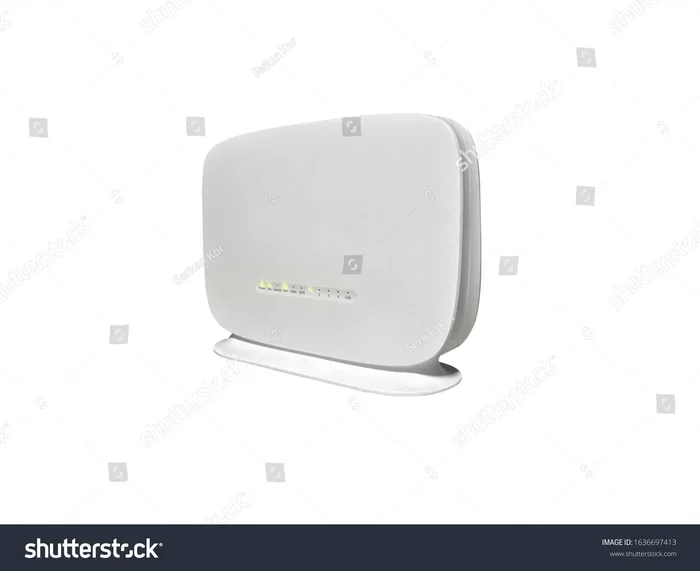
The Cox Panoramic Router is a gateway device provided by Cox Communications to its internet subscribers. It combines the functions of a modem and a router into one device. This means it receives the internet signal from your provider and then broadcasts it as WiFi throughout your home.
Also known as the Panoramic WiFi Gateway, this device supports dual-band connectivity. It offers both a 2.4 GHz and a 5 GHz frequency band. The 2.4 GHz band provides wider coverage, while the 5 GHz band delivers faster speeds for devices close to the router.
Why Access Your Router Admin Panel?
There are many reasons you might need to log into your Cox Panoramic Router. You may want to change your WiFi password, update your network name, or adjust parental controls. Some users also need to access the admin panel to troubleshoot slow speeds or connectivity issues.
Understanding how to reach your router settings empowers you to manage your home network without calling customer support. It saves time and gives you greater control over your internet experience.
How to Access Your Cox Panoramic Router Admin Panel
Logging into your Cox Panoramic Router requires just a few simple steps. You do not need any special software or technical expertise. All you need is a device connected to your network and a web browser.
Step-by-Step Login Process
Follow these steps to access your router admin panel:
- Connect to your Cox network: Make sure your device is connected to the Cox Panoramic Router either through WiFi or an Ethernet cable.
- Open a web browser: Use Chrome, Safari, Firefox, or any other browser you prefer.
- Type the IP address: Enter 10.0.0.1 into the address bar and press Enter.
- Enter login credentials: Type in the default username and password found on the router label.
- Access the dashboard: You will now see the router admin panel where you can adjust settings.
If the default IP address does not work, try 192.168.0.1 or 192.168.1.1. Some Cox gateway models use different addresses depending on the firmware version.
Using the Cox Customer Portal
Cox also offers an online customer portal where you can manage some router settings remotely. To use this option, log in to your Cox account on their website. From there, you can access basic WiFi management tools and view your connection status.
The customer portal is convenient when you are away from home. However, for full control over advanced settings, logging into the router directly through the admin panel is the best approach.
Default Login Credentials for Cox Routers
Every Cox Panoramic Router comes with default login credentials printed on a sticker on the bottom or back of the device. These credentials are essential for your first login.
Where to Find Your Credentials
Check the following locations on your router for default login information:
- Bottom label: Most Cox routers have a sticker on the bottom with the default username and password.
- Back panel: Some models print credentials on the rear near the ports.
- Quick start guide: The manual that came with your router often lists default login details.
Common Default Login Details
While every router is slightly different, the most common default credentials for Cox Panoramic Routers are:
- Username: admin or useradmin
- Password: password or the password printed on the router label
If you have changed your login credentials before and forgot them, you can always perform a factory reset. Just press and hold the reset button on the back of the router for about 10 seconds. This will restore all settings to their defaults.
Changing Default Credentials for Security
After your first login, it is highly recommended that you change the default admin password. Leaving the default credentials makes your router vulnerable to unauthorized access. Choose a strong password that includes a mix of letters, numbers, and symbols.
Changing your router admin password is one of the simplest yet most effective steps you can take to secure your home network. Make sure to store your new credentials somewhere safe.
Customizing Your WiFi Settings
Once you are logged into the admin panel, you can customize a variety of WiFi settings. These adjustments can improve your home network performance and security.
Changing Your WiFi Network Name
Your WiFi network name, also called the SSID, is what devices see when searching for available networks. To change it, navigate to the wireless settings section in your admin panel. Type in your preferred network name and save the changes.
Choosing a unique and recognizable network name helps you identify your WiFi easily. Avoid using personal information in your network name for privacy reasons.
Updating Your WiFi Password
Changing your WiFi password regularly is a good security practice. In the wireless settings section, locate the password field and enter your new password. Make sure to use a strong password that is at least 12 characters long.
After updating your password, all connected devices will need to reconnect using the new credentials. This includes phones, laptops, smart TVs, and any other WiFi-enabled devices.
Adjusting Frequency Bands
The Cox Panoramic Router supports both 2.4 GHz and 5 GHz bands. You can choose to use one band or both, depending on your needs.
- 2.4 GHz: Offers wider coverage and better wall penetration but slower speeds.
- 5 GHz: Provides faster speeds but has a shorter range.
You can also set up separate network names for each band. This allows you to choose which band your devices connect to. For more information on managing WiFi frequency settings, check out our guide on how to force your phone to use 2.4 GHz WiFi.
Setting Up Parental Controls
The Cox Panoramic Router admin panel includes parental control features. You can block certain websites, set time limits for internet usage, and pause WiFi access for specific devices. These tools help you manage your family’s internet use effectively.
To access parental controls, look for the “Parental Controls” or “Access Control” section in your router dashboard. Follow the prompts to set up restrictions for individual devices or content categories.
Troubleshooting Common Access Issues
Sometimes you may run into problems when trying to access your Cox Panoramic Router. Here are some common issues and their solutions.
Cannot Reach the Admin Page
If typing 10.0.0.1 does not bring up the login page, try the following:
- Make sure your device is connected to the Cox network.
- Clear your browser cache and try again.
- Try a different web browser.
- Check if a VPN or proxy is interfering with the connection.
- Restart your router and try again.
Using a wired Ethernet connection instead of WiFi can also help resolve access issues. This eliminates any WiFi-related problems that might be blocking your connection to the admin panel.
Forgot Admin Password
If you have changed your admin password and cannot remember it, a factory reset is your best option. Locate the small reset button on the back of your router. Press and hold it for 10 to 15 seconds using a paperclip or pin.
After the reset, your router will restart and all settings will return to factory defaults. You will need to log in using the default credentials and reconfigure your network settings.
Slow Internet After Login
If your internet feels slow after accessing the router settings, it could be due to a configuration change. Try the following steps:
- Check if any QoS (Quality of Service) settings are limiting your bandwidth.
- Make sure your WiFi channel is set to automatic.
- Restart your router to apply any pending updates.
- Move closer to the router to rule out signal strength issues.
For tips on improving your overall WiFi performance, you might also want to read about how to increase WiFi signal strength.
Device Not Connecting After Password Change
After changing your WiFi password, some devices may fail to reconnect. This is normal. On each device, go to WiFi settings, forget the old network, and reconnect using the new password.
If you need to check your current WiFi password from a connected Android device, our guide on how to see your WiFi password on Android can help.
Tips for Securing Your Cox Panoramic Router
Securing your router is one of the most important things you can do for your home network. An unsecured router can expose your personal data and slow down your internet speed.
Change Default Login Details
As mentioned earlier, always change the default admin username and password. Hackers often know the default credentials for popular router models, so creating a unique login is essential.
Use WPA3 or WPA2 Encryption
Make sure your WiFi network uses WPA3 or at least WPA2 encryption. These security protocols protect your data from being intercepted by unauthorized users. You can find these settings in the wireless security section of your router admin panel.
Keep Firmware Updated
Cox periodically releases firmware updates for the Panoramic Router. These updates often include security patches and performance improvements. Check for firmware updates regularly in the admin panel under the system or maintenance section.
Disable Remote Management
Remote management allows you to access your router settings from outside your home network. While convenient, it also creates a potential security risk. Unless you specifically need this feature, it is best to disable it.
Guest Network Setup
Setting up a guest network is a great way to keep your main network secure. Visitors can use the guest network for internet access without gaining access to your primary devices and files.
You can enable a guest network in the wireless settings of your admin panel. Give it a separate name and password, and make sure to enable isolation so guest devices cannot access your main network.
For more tips on managing your home WiFi network, you may also enjoy our article on how to change the SSID on your router.
Conclusion
Accessing your Cox Panoramic Router and managing your router login info does not have to be complicated. With the steps outlined in this guide, you can confidently log into your admin panel, adjust your WiFi settings, and troubleshoot common issues. Remember to always change your default credentials, keep your firmware updated, and use strong encryption to keep your network secure.
Taking control of your home network gives you peace of mind and a better internet experience. Whether you are adjusting wireless settings, setting up parental controls, or simply checking your connection status, the knowledge you gained from this article will serve you well. Apply these tips today and enjoy a faster, safer, and more reliable home network.
Frequently Asked Questions
What is the default IP address for Cox Panoramic Router?
The most common default IP address for Cox Panoramic Routers is 10.0.0.1. If that does not work, try 192.168.0.1 or 192.168.1.1. You can find the correct address on the sticker at the bottom of your router.
How do I find my Cox Panoramic Router login password?
The default admin password is printed on a label on the bottom or back of your router. If you have changed it and forgotten it, you will need to perform a factory reset by holding the reset button for 10 to 15 seconds.
Can I access my Cox router settings from my phone?
Yes, you can access your Cox Panoramic Router settings from any device connected to the network, including smartphones. Simply open a web browser and type in the router IP address to reach the admin panel.
Why can I not log into my Cox router admin panel?
Common reasons include entering the wrong IP address, using incorrect credentials, or having a cached browser. Try clearing your browser cache, using a wired connection, or double-checking the IP address and login details.
Is it safe to change my Cox router WiFi password?
Absolutely. Changing your WiFi password regularly is one of the best ways to keep your home network secure. Just make sure to update the password on all your connected devices afterward.
How often should I update my Cox router firmware?
You should check for firmware updates at least once a month. Cox releases updates periodically to improve performance and security. You can check for updates in the system or maintenance section of your router admin panel.