Can You Create Your Own Wi Fi Network From Scratch Today
Yes, you can create your own Wi Fi network from scratch using a few simple tools and a basic understanding of how wireless connections work. Whether you want a home network, a portable hotspot, or a full mesh setup, this guide walks you through every step. You will learn about wireless router setup, network security, and how to boost your Wi-Fi signal strength with ease.
Have you ever wondered if you can create your own Wi Fi network from nothing at all? The short answer is yes. You do not need to be a tech expert to set up a wireless network in your home or office. With the right equipment and a bit of patience, you can have a fully working wireless network setup in under an hour.
Creating a Wi-Fi network from scratch gives you full control over your internet experience. You choose the name, the password, the security settings, and even the type of connection you want. No more relying on someone else’s network or dealing with weak signals in the far corner of your house.
In this guide, we will walk you through everything you need to know. From picking the right wireless router to securing your network connection, we have you covered. Whether you are a complete beginner or someone who has tried before and run into issues, this article will help you succeed.
Key Takeaways
- Creating your own Wi Fi network is simple: You need a wireless router or a device that supports hotspot mode.
- Network security matters: Always use WPA3 or WPA2 encryption and a strong password to protect your connection.
- You have multiple options: From a single router to a mesh network, you can scale your setup to fit any space.
- Mobile devices can help: Your phone or laptop can act as a Wi-Fi hotspot in a pinch.
- Placement is key: The location of your router affects your Wi-Fi signal strength and coverage area.
- Troubleshooting is easy: Most common issues can be fixed with a few simple steps like restarting or repositioning your router.
📑 Table of Contents
- What Does It Mean to Create Your Own Wi Fi Network?
- Different Ways to Create Your Own Wi Fi Network
- Step-by-Step Guide to Setting Up Your Own Wi Fi Network
- How to Secure Your Wi Fi Network Properly
- Common Problems When Creating Your Own Wi Fi Network
- Expert Tips for a Better Wi Fi Experience
- Can You Create Your Own Wi Fi Without Internet? Yes, You Can
- Quick Tips for Beginners
- Conclusion
What Does It Mean to Create Your Own Wi Fi Network?
When you create your own Wi Fi network, you are building a private wireless connection that lets your devices talk to each other and reach the internet. Think of it like building your own little internet highway that only you control.
A wireless network uses radio waves to send data between your router and your devices. Your phone, laptop, tablet, and smart home gadgets all connect to this invisible web. The router acts as the traffic controller, sending data to the right place at the right time.
Here are the basic parts you need:
- A modem: This brings the internet into your home from your Internet Service Provider, or ISP.
- A wireless router: This takes the internet signal from the modem and broadcasts it wirelessly.
- A device to configure the router: This can be a phone, tablet, or computer.
- A broadband connection: This is the actual internet service you pay for each month.
Some people use a single device that combines the modem and router into one unit. This is called a gateway device. It simplifies the setup process and reduces the number of cables you need to manage.
Once you have these pieces, you can start building your network. The process is much easier than most people think. Let us look at the different ways you can go about it.
Different Ways to Create Your Own Wi Fi Network
Not every Wi-Fi network setup looks the same. Your choice depends on your space, your budget, and what you need the network to do. Here are the most common methods people use.
1. Standard Router Setup
This is the most traditional way to build a home wireless network. You connect your modem to the router, plug in the power, and follow the setup wizard. Most modern routers come with a mobile app that makes this process very simple.
You will need to choose a network name, which is also called the SSID. This is the name that appears when someone searches for available networks. You will also pick a password and select a security type. WPA3 is the newest and most secure option, but WPA2 still works well for most homes.
2. Mobile Hotspot
Can you turn your phone into a Wi-Fi hotspot? Absolutely. Both iPhones and Android phones have a built-in mobile hotspot feature. This lets you share your phone’s data connection with other devices.
This is perfect for travel, temporary setups, or when you need a quick internet connection sharing solution. The downside is that it uses your cellular data plan, so keep an eye on your usage.
3. Mesh Wi-Fi System
A mesh network uses multiple nodes placed around your home to create one seamless wireless network. This is ideal for larger homes or spaces with thick walls that block signals.
Popular mesh systems include brands like Google Nest Wi-Fi, Eero, and TP-Link Deco. They are easy to set up and manage through a phone app. A mesh system removes dead zones and gives you consistent Wi-Fi signal strength everywhere.
4. Ad-Hoc Network
An ad-hoc network connects devices directly to each other without a router. This is useful for file sharing between two laptops or connecting a game console to a PC without a router.
Most modern operating systems support ad-hoc connections. Windows calls this a “Mobile Hotspot” feature, while macOS uses “Internet Sharing.” It is a quick and easy way to share an internet connection without extra hardware.
Step-by-Step Guide to Setting Up Your Own Wi Fi Network
Now that you know your options, let us walk through the actual setup process. This guide covers the standard router method since it is the most common approach.
Step 1: Gather Your Equipment
Before you start, make sure you have everything ready:
- A wireless router that supports the latest Wi-Fi standards
- A modem from your ISP
- An Ethernet cable (usually included with the router)
- A smartphone, tablet, or computer for configuration
- Your ISP account details (if needed)
Check that your router supports Wi-Fi 6 or Wi-Fi 5 standards. These offer faster speeds and better performance than older models. If you are unsure, check the router’s packaging or its product page online.
Step 2: Connect the Modem to the Router
Plug one end of the Ethernet cable into the modem and the other end into the router’s WAN or Internet port. This port is usually colored differently from the others to help you identify it.
Next, plug in the modem and wait for the lights to stabilize. Then plug in the router and give it a minute to boot up. You will know it is ready when the power light turns solid.
Step 3: Configure the Router Settings
Open a web browser on your phone or computer. Type the router’s default IP address into the address bar. This is usually something like 192.168.1.1 or 192.168.0.1. Check the router’s manual if you are not sure.
Log in with the default username and password. These are often printed on a sticker on the bottom of the router. Once you are in, you can change the following settings:
- Network name (SSID): Pick something unique but not personally identifiable.
- Password: Use a strong mix of letters, numbers, and symbols.
- Security type: Choose WPA3 if your router supports it, otherwise use WPA2.
- Wi-Fi frequency band: Choose between 2.4 GHz and 5 GHz based on your needs.
Step 4: Connect Your Devices
Now go to your devices and look for the network name you just created. Select it, enter the password, and you are connected. Test your connection by loading a webpage or running an internet speed test.
Step 5: Optimize Your Network
Here are some quick tips to get the best performance from your new network:
- Place the router in a central location in your home.
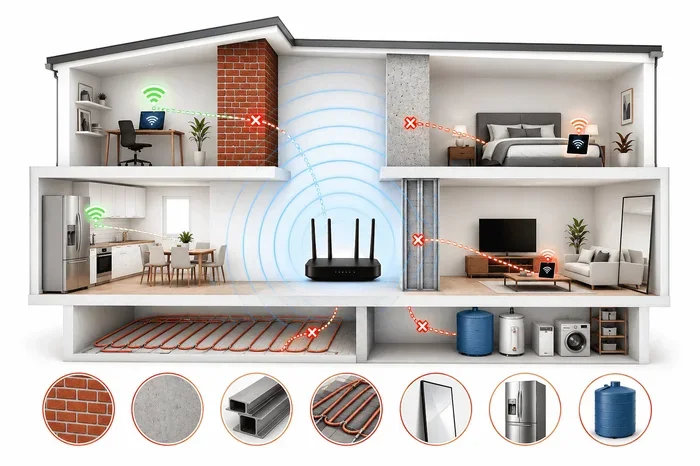
- Keep the router away from thick walls and metal objects.
- Change the Wi-Fi channel if you experience interference from neighbors.
- Update the router’s firmware regularly for the best security and performance.
- Use the 5 GHz band for streaming and gaming, and the 2.4 GHz band for smart home devices.
How to Secure Your Wi Fi Network Properly
Security should be a top priority when you set up a wireless network. An unsecured network can be accessed by anyone nearby, which puts your personal data at risk.
Choose the Right Encryption
WPA3 is the latest and most secure encryption standard. It protects against brute-force attacks and provides better privacy. If your router does not support WPA3, use WPA2-AES as a strong alternative.
Never use WEP or open networks. These are outdated and offer little to no protection. A simple password-protected network with modern encryption keeps most threats at bay.
Create a Strong Password
Your Wi-Fi password should be at least 12 characters long. Use a mix of uppercase and lowercase letters, numbers, and special characters. Avoid using your name, address, or birthday as part of the password.
Consider using a passphrase instead of a single word. For example, “BlueSky!Coffee42” is both strong and easy to remember.
Enable Network Encryption and Firewall
Most routers come with a built-in firewall. Make sure it is turned on. This adds an extra layer of protection against unauthorized access and network attacks.
You should also disable WPS (Wi-Fi Protected Setup). While convenient, WPS has known vulnerabilities that hackers can exploit. Turning it off makes your network security much stronger.
Common Problems When Creating Your Own Wi Fi Network
Even with the best setup, you might run into some issues. Here are the most common problems and how to fix them.
Slow Internet Speeds
Slow speeds can be caused by several factors. Interference from other electronic devices, a crowded Wi-Fi channel, or an old router can all slow things down.
Try these fixes:
- Move the router to a more central location.
- Switch to a less crowded Wi-Fi channel using your router’s settings.
- Restart the router and modem.
- Check if your ISP plan meets your speed needs.
Weak Signal in Certain Rooms
If your Wi-Fi signal strength drops in some areas, you have a few options. You can move the router closer to those areas, use a Wi-Fi range extender, or switch to a mesh network system.
Thick walls, large metal objects, and even fish tanks can block wireless signals. Try to place your router in an open, elevated space for the best coverage.
Devices Won’t Connect
If a device cannot find your network, try the following:
- Make sure the router is powered on and broadcasting.
- Restart the device you are trying to connect.
- Check if the network name is hidden and needs to be manually added.
- Forget the network on the device and reconnect from scratch.
Expert Tips for a Better Wi Fi Experience
Here are some expert insights that can take your wireless network setup to the next level.
Update Your Router Firmware Regularly
Router manufacturers release firmware updates to fix bugs, improve performance, and patch security holes. Check for updates every few months. Most modern routers have an automatic update feature you can enable in the settings.
Use Quality of Service (QoS) Settings
QoS lets you prioritize certain types of traffic on your network. For example, you can give video calls and gaming priority over background downloads. This ensures a smoother experience when you need it most.
Monitor Connected Devices
Most router admin panels let you see all devices connected to your network. If you spot a device you do not recognize, it could be a sign that someone is using your Wi-Fi network without permission. Change your password immediately if this happens.
Consider a Dual-Band or Tri-Band Router
A dual-band router broadcasts on both 2.4 GHz and 5 GHz frequencies. The 2.4 GHz band covers a wider area but at slower speeds. The 5 GHz band is faster but has a shorter range. A tri-band router adds a second 5 GHz band, which is great for homes with many devices.
Can You Create Your Own Wi Fi Without Internet? Yes, You Can
You do not always need an internet connection to create a local Wi-Fi network. This is called a local area network or LAN. It lets devices communicate with each other without accessing the wider internet.
This is useful for:
- Sharing files between devices in your home
- Setting up a private gaming network
- Streaming media from a local server
- Creating a smart home network for IoT devices
To set up a local wireless network, you simply configure your router without connecting it to a modem. The router will still broadcast a Wi-Fi signal and assign IP addresses to connected devices. They just will not have access to the broader internet.
Quick Tips for Beginners
If you are new to networking, keep these tips in mind:
- Start simple. A basic router setup is all you need for most homes.
- Write down your network name and password and keep it in a safe place.
- Place your router in a central, open area for the best coverage.
- Restart your router once a month to keep things running smoothly.
- Use a strong, unique password and change it every six months.
- Check your Wi-Fi signal strength using your phone or a free app.
Conclusion
So, can you create your own Wi Fi network from scratch? Absolutely. You do not need expensive equipment or advanced technical skills. With a modem, a wireless router, and a few minutes of your time, you can have a fully functional wireless network setup up and running.
Remember to prioritize network security by using strong passwords and modern encryption. Place your router strategically for the best Wi-Fi signal strength. And do not be afraid to explore advanced features like mesh networks or QoS settings as your needs grow.
Creating your own Wi-Fi network gives you freedom, control, and peace of mind. Take what you learned from this guide, gather your equipment, and start building today. Your personal wireless network is closer than you think.
Frequently Asked Questions
Do I need special equipment to create my own Wi Fi network?
You need a modem and a wireless router, or a combined gateway device. Most Internet Service Providers offer rental equipment, but buying your own router gives you more control and better performance. A basic setup costs between $50 and $200 for the equipment.
Can I create a Wi Fi network using just my laptop or phone?
Yes. Both Windows laptops and smartphones have built-in hotspot features. You can share your cellular data or a wired connection wirelessly. This is a quick way to create a temporary network without buying extra hardware.
How do I choose the best Wi-Fi channel for my network?
Use a free Wi-Fi analyzer app to scan for crowded channels in your area. Choose a channel with the least interference. Most routers let you change the channel in their settings. Switching to a less congested channel can significantly improve your Wi-Fi signal strength.
Is it legal to create your own Wi Fi network?
Yes. Creating a personal wireless network is completely legal in most countries. Just make sure you follow local regulations on signal strength and radio frequencies. You should also secure your network to prevent unauthorized use.
What is the difference between a router and an access point?
A router manages your network and connects it to the internet. An access point extends the wireless coverage of an existing network. In a home setup, a single router usually acts as both the router and the access point. Larger setups may use dedicated access points for better coverage.
How far can a Wi Fi network reach?
A standard home router covers about 150 feet indoors and 300 feet outdoors. Walls, floors, and electronic interference reduce this range. A Wi-Fi range extender or mesh network system can significantly expand your coverage area and eliminate weak spots.