How Do I Access My Linksys Router Admin In Minutes
Accessing your Linksys router admin panel is simple and takes just a few minutes. You need your router’s IP address, a web browser, and your admin credentials. This guide walks you through every step so you can manage your network settings with confidence.
Have you ever needed to change something on your Linksys router but didn’t know where to start? Maybe your Wi-Fi keeps dropping, or you want to change your network name. Whatever the reason, accessing your Linksys router admin panel is the first step to taking control of your home network.
The good news? It’s way easier than most people think. You don’t need to be a tech expert. In just a few minutes, you can log in, adjust your router settings, and get your network running smoothly. This guide covers everything you need to know.
We’ll walk you through finding your router’s IP address, entering the admin panel, and making changes like a pro. By the end, you’ll feel confident managing your wireless network without calling for help. Let’s get started.
Key Takeaways
- Default IP addresses like 192.168.1.1 are the gateway to your Linksys admin panel.
- Default login credentials are usually printed on the bottom of your router.
- Changing your admin password after first login is a critical security step.
- Common issues like “page not found” errors can be fixed with simple troubleshooting.
- You can manage Wi-Fi settings, firmware updates, and security from the admin panel.
- Resetting your router restores factory settings if you get locked out.
- Keeping your firmware updated ensures the best performance and security.
📑 Table of Contents
What Is the Linksys Router Admin Panel?
The admin panel is the control center for your Linksys router. Think of it as the brain of your local network. From here, you can change your Wi-Fi name, set passwords, update firmware, and manage connected devices.
Every Linksys router comes with a built-in web interface. You access it through any browser on a device connected to your network. It doesn’t matter if you use Chrome, Firefox, Safari, or Edge. They all work the same way.
Once inside, you’ll see options for wireless settings, security features, and advanced configurations. The layout varies slightly depending on your router model. But the basic process stays the same across all Linksys routers.
Why Should You Access Your Admin Panel?
There are many reasons to log into your router. Here are some of the most common ones:
- Change your Wi-Fi name or password to keep your network secure.
- Update your router’s firmware to fix bugs and improve performance.
- Set up parental controls to manage screen time for kids.
- Check which devices are connected to your network.
- Adjust bandwidth settings to prioritize certain devices.
- Enable port forwarding for gaming or remote access.
- Change your DNS settings for faster browsing.
Each of these changes can make a big difference in how your network performs. And none of them require a technician. You can do it all yourself.
How Do I Access My Linksys Router Admin?
Now let’s get to the main question. Accessing your Linksys router admin panel is a straightforward process. Follow these steps carefully and you’ll be inside in no time.
Step 1: Connect to Your Linksys Router
First, make sure your device is connected to the router. You can use a Wi-Fi connection or an Ethernet cable. Both work fine. If you just set up your router and haven’t changed the default Wi-Fi name, look for it on the sticker on the back of the router.
The sticker will also show the default admin password. Write it down or take a photo. You’ll need it later. If you already changed your Wi-Fi password and forgot it, you can connect using an Ethernet cable instead. This bypasses the need for Wi-Fi entirely.
Step 2: Open Your Web Browser
Next, open any web browser on your connected device. It can be your phone, tablet, laptop, or desktop computer. Type a simple address into the browser address bar at the top of the screen.
The most common default IP address for Linksys routers is 192.168.1.1. Some models use 192.168.0.1 instead. Type one of these into the address bar and press Enter. Don’t type it into a search engine box. Type it directly into the address bar at the top.
Step 3: Enter Your Login Credentials
A login page will appear. You’ll need two things here: a username and a password. For most Linksys routers, the default username is left blank. The default password is usually “admin.”
If that doesn’t work, check the sticker on the bottom of your router. It will list the exact admin credentials for your specific model. Some newer Linksys routers use a different login setup. They may ask you to create a cloud account instead. Follow the on-screen prompts if that’s the case.
Step 4: Explore the Admin Dashboard
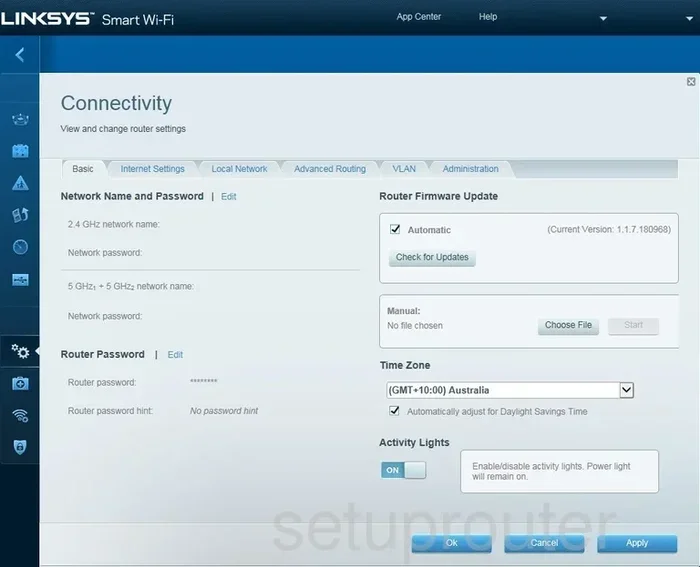
Once you log in, you’ll see the admin dashboard. This is where all the magic happens. You’ll find tabs for wireless settings, security, device management, and more. Take a moment to look around. Don’t be afraid to click on different options.
Just be careful not to change anything you don’t understand. If you’re only looking to update your Wi-Fi password, look for the wireless or Wi-Fi settings tab. That’s usually on the main page or under a “Wireless” heading.
Finding Your Router’s IP Address
Sometimes the default IP address doesn’t work. This can happen if your internet service provider changed it during setup. Don’t worry. There’s an easy way to find your router’s IP address on any device.
On Windows, open the Command Prompt. Type “ipconfig” and press Enter. Look for the “Default Gateway” line. The number next to it is your router’s IP address. On a Mac, go to System Preferences, then Network, then Advanced. Your router IP shows up as the “Router” address.
On a phone or tablet, go to your Wi-Fi settings. Tap on the network you’re connected to. The router IP is listed there. This is the number you type into your browser to reach the router admin panel.
If none of these methods work, try typing “routerlogin.net” or “linksyssmartwifi.com” into your browser. Some Linksys models use a web-based address instead of an IP address. Check your router’s manual if you’re unsure.
What Can You Do Inside the Admin Panel?
Once you’re logged in, you have a lot of power at your fingertips. Let’s look at the most useful things you can do from the admin panel.
Change Your Wi-Fi Name and Password
This is the most common reason people access their router admin. To change your network name, look for the SSID field under wireless settings. Type in your new name and save. Then find the password field and enter a strong new password.
For tips on managing your router name and settings, you might want to check out how to change the SSID on your router. A strong password keeps strangers off your network and protects your data.
Update Your Router Firmware
Firmware is the software that runs your router. Linksys releases updates to fix security holes and improve performance. Look for a “Firmware Update” or “Administration” tab in your admin panel. If an update is available, click download and follow the prompts.
Never turn off your router during a firmware update. This can damage the device. Wait patiently until the process finishes and the router restarts on its own.
Manage Connected Devices
Your admin panel shows a list of all devices connected to your network. You can see their names, IP addresses, and how much data they’re using. If you spot a device you don’t recognize, you can block it right from here.
This is a great way to keep your network secure. If a neighbor is using your Wi-Fi without permission, you’ll see them on this list. You can also use this feature to set up parental controls and limit screen time for specific devices.
Adjust Bandwidth and Quality of Service
If your internet feels slow, you might be able to fix it from the admin panel. Look for a “Quality of Service” or “Bandwidth” setting. This lets you prioritize certain devices or activities. For example, you can give your work laptop more speed than a smart TV.
Some users also want to boost their upload speed through router settings. While results vary, adjusting QoS settings can help allocate bandwidth more effectively across your home network.
Change Your Wi-Fi Frequency Band
Most modern Linksys routers support both 2.4 GHz and 5 GHz bands. The 2.4 GHz band covers a wider area but is slower. The 5 GHz band is faster but has a shorter range. You can switch between bands or set up separate network names for each.
If you’re having trouble connecting certain devices, you might need to force your phone to use the 2.4 GHz band for better range. The admin panel gives you full control over these settings.
Improve Your Wi-Fi Signal
Some Linksys routers have built-in signal optimization tools. These can help you get better coverage throughout your home. Look for a “Wireless” or “Signal” section in the admin panel.
You can also increase your Wi-Fi signal through router settings. Adjusting the transmission power or changing the channel can reduce interference from neighboring networks. These small changes can make a big difference.
Troubleshooting Common Access Issues
Sometimes things don’t go as planned. Here are the most common problems people face when trying to access their Linksys admin panel and how to fix them.
The Login Page Won’t Load
This is the most common issue. If the page won’t load, double-check that you typed the IP address correctly. Make sure there are no extra spaces or typos. Also confirm that your device is actually connected to the router’s network.
Try using a different browser if one doesn’t work. Clear your browser cache and try again. If you still can’t reach the page, restart your router and try once more. Sometimes a simple reboot fixes everything.
Forgot Your Admin Password
Don’t panic. You can reset your router to factory settings. Look for a small reset button on the back of the router. Use a paperclip to press and hold it for about 10 seconds. The router will restart and all settings will go back to default.
This means you’ll need to set up your Wi-Fi name and password again. So only use this method if you really can’t log in any other way. After resetting, use the default credentials from the sticker on the bottom of the router.
You Get a “Page Not Found” Error
This usually means you’re using the wrong IP address. Try 192.168.1.1 first. If that doesn’t work, try 192.168.0.1. You can also check your device’s network settings to find the correct default gateway.
If you’ve recently changed your router’s IP address and forgot it, a factory reset will bring it back to the original settings. Just remember that this erases all custom configurations.
Tips to Keep Your Linksys Router Secure
Once you’ve accessed your admin panel, take a few minutes to lock things down. Security should always be a priority for home networks. Here are some quick steps you should take.
- Change the default admin password. The default password is well-known. Anyone can look it up. Set a strong, unique password right away.
- Use WPA3 or WPA2 encryption. This encrypts your Wi-Fi traffic and keeps outsiders out. Avoid using WEP, as it’s outdated and easy to crack.
- Disable remote management. This prevents anyone outside your home from accessing your router settings. Unless you specifically need it, turn it off.
- Keep your firmware updated. Updates patch security vulnerabilities. Check for updates once a month.
- Hide your SSID if needed. This makes your network invisible to casual scanners. It’s not foolproof, but it adds a layer of protection.
- Create a guest network. This lets visitors use your internet without accessing your main network. Keep your personal devices on the private network.
Taking these steps only takes a few minutes. But they can save you from serious security problems down the road. A secure router means a safer home network for everyone.
When Should You Contact Linksys Support?
Most router issues can be solved at home. But sometimes you need professional help. Contact Linksys support if you’ve tried everything and still can’t access your admin panel. Also reach out if your router keeps restarting on its own or if you notice strange activity on your network.
Before you call, have your router model number handy. You can find it on the sticker on the bottom of the device. Support will ask for this information first. Having it ready saves time and gets you help faster.
You can also visit the Linksys website for troubleshooting guides and community forums. Many common issues have already been solved by other users. A quick search might save you a phone call.
Conclusion
Accessing your Linksys router admin panel is a simple process that anyone can do. You just need your router’s IP address, a web browser, and your login credentials. Once inside, you can change your Wi-Fi password, update firmware, manage connected devices, and much more.
Take a few minutes to explore your admin panel today. You’ll be surprised by how much control you have over your home network. And don’t forget to secure your router with strong passwords and updated firmware. A little effort now saves a lot of headaches later.
Whether you’re fixing a slow connection, adding a new device, or just curious about your network settings, the admin panel has you covered. You’ve got this. Now go log in and take charge of your Linksys router.
Frequently Asked Questions
What is the default IP address for Linksys routers?
The most common default IP address is 192.168.1.1. Some older models use 192.168.0.1. You can also find your router’s IP address by checking your device’s network settings under the “Default Gateway” or “Router” entry.
What are the default login credentials for Linksys routers?
For most Linksys routers, the username is left blank and the password is “admin.” However, newer models may require you to create a cloud account. Check the sticker on the bottom of your router for the exact credentials.
Can I access my Linksys admin panel from my phone?
Yes, you can. As long as your phone is connected to the Linksys router’s Wi-Fi network, open any browser and type the router’s IP address into the address bar. You’ll reach the login page just like on a computer.
What should I do if I forgot my admin password?
You can reset your router to factory settings by pressing and holding the reset button on the back for about 10 seconds. This restores the default login credentials. Remember that it also erases all your custom settings, so use this as a last resort.
Is it safe to access my router admin panel over Wi-Fi?
Yes, it’s safe as long as you’re connected to your own trusted network. Avoid accessing router settings on public Wi-Fi networks. Always make sure your connection is secure and private before entering login credentials.
How often should I update my Linksys router firmware?
It’s a good practice to check for firmware updates once a month. Linksys releases updates to fix bugs, improve performance, and patch security vulnerabilities. You can check for updates directly from the admin panel under the Administration or Firmware tab.
=== CONCLUSION ===
Now you know exactly how to access your Linksys router admin panel in minutes. From finding your IP address to logging in and making changes, every step is within your reach. You don’t need special skills or expensive tools. Just follow the steps in this guide and you’re good to go.
Take control of your home network today. Change your passwords, update your firmware, and explore the settings available to you. A well-managed router means a faster, safer, and more reliable internet experience for everyone in your household. Happy configuring!