How to Access Your Verizon Router Configuration Tool
Accessing your Verizon router configuration tool is easier than you think. You can log in using your router’s IP address, admin username, and password to manage network settings, update firmware, and secure your connection. This guide walks you through every step so you can take full control of your home network.
Have you ever wanted to tweak your home network but didn’t know where to start? Maybe your Wi-Fi keeps dropping, or you want to change your network name and password. Whatever the reason, knowing how to access your Verizon router configuration tool is a game-changer. You don’t need to be a tech expert. With just a few clicks, you can take charge of your network settings and get things running smoothly.
Many people avoid diving into their router settings because it sounds complicated. But here’s the truth — it’s surprisingly simple. Once you know the steps, you’ll wonder why you didn’t do it sooner. This guide breaks everything down into easy-to-follow instructions. You’ll learn how to log in, what settings you can adjust, and how to keep your network secure. Let’s get started.
## What Is the Verizon Router Configuration Tool?
The Verizon router configuration tool is a browser-based interface that lets you manage your router’s settings. Think of it as the control center for your home network. When you log in, you can view and change everything from your Wi-Fi name to your broadband settings.
Verizon Fios gateways come with a built-in router that handles both your internet connection and your wireless network. The configuration tool gives you access to features like device management, network security, and even parental controls. It’s all right there, waiting for you to explore.
### Why Should You Access Your Router Settings?
There are plenty of reasons to open up your router’s admin panel. Maybe you want to change your Wi-Fi network name so it’s easier to identify. Or perhaps you need to update your admin password to keep your network safe. You might also want to check which devices are connected to your network.
Here are some common reasons people access their router settings:
- Change Wi-Fi credentials: Update your network name and password regularly for better security.
- Improve network speed: Adjust channel settings to reduce interference and boost performance.
- Set up parental controls: Restrict access to certain websites or limit usage times for kids.
- Update firmware: Keep your router running the latest software for optimal performance.
- Troubleshoot issues: Diagnose connectivity problems without calling support.
## How to Access Your Verizon Router Configuration Tool
Accessing your Verizon router configuration tool is straightforward. You just need a few pieces of information and a web browser. Let me walk you through the exact steps.
### Step 1: Connect to Your Network
First, make sure your device is connected to your Verizon router. You can connect via Wi-Fi or use an ethernet connection for a more stable link. The ethernet cable is especially helpful if you’re having wireless issues.
To connect via Wi-Fi, look for your network name on your device. If you haven’t changed it yet, the default name is usually printed on a sticker on the back of your router.
### Step 2: Find Your Router’s IP Address
Next, you need to find your router’s default gateway IP address. This is the address you’ll type into your browser to reach the login page. For most Verizon routers, the default gateway is 192.168.1.1 or 192.168.0.1.
Here’s how to find it on different devices:
On Windows:
- Open the Start menu and type “cmd” to open the Command Prompt.
- Type “ipconfig” and press Enter.
- Look for the “Default Gateway” line. That’s your router’s IP address.
On Mac:
- Open System Preferences and click on Network.
- Select your active connection and click Advanced.
- Go to the TCP/IP tab. Your router IP is listed next to “Router.”
On Mobile Devices:
- Go to Settings and tap on Wi-Fi.
- Tap on your connected network.
- Look for the “Gateway” or “Router” field.
### Step 3: Open Your Browser and Log In
Now that you have your IP address, open any web browser on your connected device. Type the IP address into the address bar and press Enter. You’ll see a login page asking for your admin username and admin password.
Don’t worry if you don’t remember these credentials. They’re printed on a sticker on the bottom or back of your Verizon router. The default username is usually “admin” and the password is often printed right next to it.
Pro tip: If the default password doesn’t work, try “password” or “admin” as the password. Some older Verizon routers use these simple defaults.
### Step 4: Explore the Configuration Dashboard
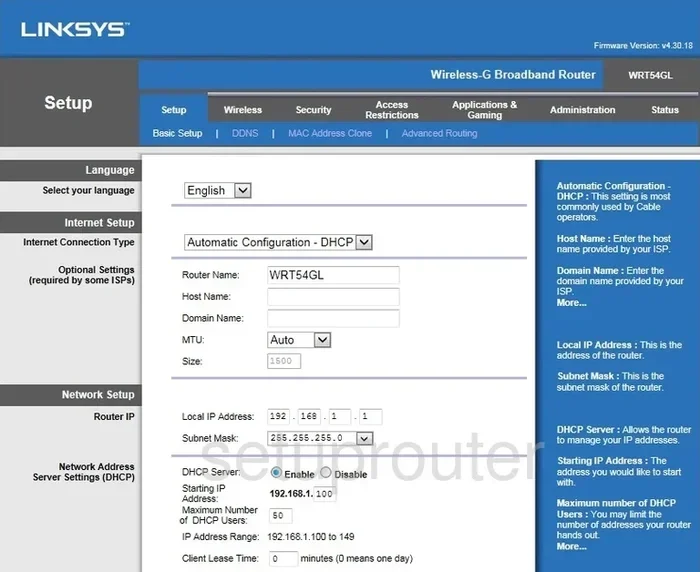
Once you log in, you’ll see the main dashboard. This is where the magic happens. The layout varies slightly depending on your router model, but the core options are similar across all Verizon gateways.
You’ll typically see sections for:
- Internet: View your connection status and broadband settings.
- Wi-Fi: Change your network name, password, and channel settings.
- Firewall: Manage security settings and access controls.
- Device Manager: See all devices connected to your network.
- Parental Controls: Set restrictions and usage limits.
## Common Settings You Can Adjust
Now that you’re in, let’s talk about what you can actually do. The Verizon router configuration tool offers a lot of customization options. Here are the most useful settings you can tweak.
### Change Your Wi-Fi Network Name and Password
Your Wi-Fi network name, also known as the SSID, is the name that appears when people search for networks. You might want to change it to something more personal or easier to recognize.
To change your network name and password:
- Navigate to the Wi-Fi settings section in the admin panel.
- Look for the “Network Name (SSID)” field.
- Type in your new name.
- Find the password field and enter a strong new password.
- Save your changes and reconnect your devices.
If you want to learn more about managing your network name, check out our guide on how to change the SSID on your router.
### Update Your Router’s Firmware
Keeping your router’s firmware up to date is one of the best things you can do. Firmware updates fix bugs, improve performance, and patch security vulnerabilities. Most Verizon routers check for updates automatically, but it’s good to verify manually.
To check for firmware updates:
- Go to the System or Advanced settings in your admin panel.
- Look for a “Firmware Update” or “Software Update” section.
- Click “Check for Updates.”
- If an update is available, follow the on-screen instructions to install it.
### Set Up Parental Controls
If you have kids, the parental controls in your Verizon router are incredibly helpful. You can block specific websites, set time limits for internet usage, and even pause the internet for individual devices.
To set up parental controls:
- Navigate to the Parental Controls section.
- Select the device or profile you want to manage.
- Set content filters and time restrictions.
- Save your settings and they’ll apply automatically.
### Manage Connected Devices
Ever wondered how many devices are using your network? The device management section lets you see every device connected to your router. You can also block unauthorized devices from joining your network.
This is especially useful if you notice your internet speed dropping. Too many connected devices can slow things down significantly.
## Troubleshooting Common Access Issues
Sometimes things don’t go as smoothly as we’d like. If you can’t access your Verizon router configuration tool, don’t panic. Here are some common issues and how to fix them.
### Can’t Reach the Login Page
If typing your router’s IP address doesn’t bring up the login page, try these fixes:
- Double-check your IP address: Make sure you typed it correctly. A single wrong number will send you nowhere.
- Try a different browser: Some browsers have extensions that interfere with router login pages.
- Restart your router: Unplug it for 30 seconds, then plug it back in.
- Use a wired connection: An ethernet cable eliminates Wi-Fi-related issues.
### Forgot Your Admin Password
If you’ve changed your admin password and forgotten it, you’ll need to reset your router. Here’s how:
- Find the small reset button on the back of your router.
- Press and hold it for about 15 seconds with a paperclip or pin.
- The router will restart and revert to factory settings.
- Use the default credentials from the sticker to log in again.
Keep in mind that a factory reset erases all your custom settings. You’ll need to set up your network name, password, and other preferences from scratch.
### Slow Connection After Logging In
If your network feels slow after accessing the configuration tool, it might be due to a setting change. Double-check that you haven’t accidentally changed your channel width or bandwidth settings. You can also try switching to a less congested Wi-Fi channel for better performance.
## Tips for Securing Your Verizon Router
Security should always be a priority when managing your router settings. A poorly secured router can leave your network vulnerable to hackers and unauthorized users. Here are some essential tips to keep your network safe.
First, always change the default admin password. The default credentials are widely known, which makes them a security risk. Pick a strong password that includes a mix of letters, numbers, and special characters.
Second, enable WPA3 encryption if your router supports it. WPA3 is the latest and most secure wireless encryption standard. If WPA3 isn’t available, use WPA2 at minimum.
Third, disable WPS (Wi-Fi Protected Setup). While convenient, WPS has known vulnerabilities that hackers can exploit.
Fourth, keep your firmware updated. As mentioned earlier, updates patch security holes and improve performance.
Fifth, consider changing your network name to something that doesn’t reveal your router model or personal information.
For more tips on improving your overall network security and speed, you might find our article on boosting your upload speed helpful as well.
## Expert Insights: Getting the Most from Your Router Settings
I’ve helped plenty of people navigate their router settings, and there are a few things that consistently make a big difference. Let me share some expert insights that go beyond the basics.
Channel selection matters. If you live in a densely populated area, your neighbors’ Wi-Fi networks might be interfering with yours. Switching to a less crowded channel can significantly improve your signal strength and speed.
Placement of your router is just as important as its settings. Keep your router in a central, elevated location away from walls and electronic devices that cause interference. This simple change can boost your Wi-Fi signal throughout your home.
Regular maintenance goes a long way. Make it a habit to check your router settings every few months. Look at connected devices, update firmware, and review your security settings. A little attention goes a long way toward keeping your network fast and safe.
If you’re interested in extending your network coverage, you might want to explore options for getting a Wi-Fi extension. Check out our guide on getting an extension on your Wi-Fi for more information.
## Key Takeaways
Key Takeaways
- Know Your Router’s IP Address: The default gateway is usually 192.168.1.1 or 192.168.0.1 — this is your gateway to the admin panel.
- Default Login Details Are on the Sticker: Every Verizon router comes with a label showing the admin username and password you need to log in.
- You Can Customize Key Settings: From changing your Wi-Fi name to setting up parental controls, the configuration tool gives you full control.
- Keep Your Firmware Updated: Regular updates improve security and performance, and you can install them directly through the admin panel.
- Reset When Needed: A factory reset can solve most login or connectivity issues, but you’ll need to reconfigure everything afterward.
- Security Matters: Always change the default admin password and use strong Wi-Fi encryption to protect your network.
Key Takeaways
- Accessing your Verizon router configuration tool is simple: Just enter your router’s IP address in a browser and log in with your credentials.
- Your default login info is on the router sticker: Keep it handy or change it to something secure right away.
- You can customize many settings: From Wi-Fi names and passwords to parental controls and device management, the possibilities are vast.
- Firmware updates are essential: They keep your router secure and running at peak performance.
- Security should never be an afterthought: Strong passwords, proper encryption, and regular maintenance protect your network.
- Troubleshooting is straightforward: Most common issues have simple fixes that don’t require professional help.
## Frequently Asked Questions
What is the default IP address for Verizon routers?
The most common default IP address for Verizon routers is 192.168.1.1. Some models use 192.168.0.1 instead. You can also find the correct IP address on the sticker at the bottom of your router or by checking your device’s network settings.
Can I access the Verizon router configuration tool from my phone?
Yes, you can access the configuration tool from any device connected to your network, including smartphones and tablets. Just make sure you’re connected to your Verizon Wi-Fi network, open a browser, and enter the router’s IP address. The mobile experience is slightly different but works just as well.
What should I do if I can’t remember my admin password?
If you’ve forgotten your admin password, you’ll need to perform a factory reset on your router. Locate the reset button on the back of the device, press and hold it for 15 seconds, and wait for the router to restart. This restores the default settings, including the original admin password printed on the router sticker.
Is it safe to change my router’s DNS settings?
Yes, changing your DNS settings is generally safe and can even improve your browsing experience. Many people switch to faster DNS servers like Google DNS or Cloudflare DNS for better performance. Just make sure you write down your original settings before making changes so you can revert if needed.
How often should I update my router’s firmware?
You should check for firmware updates at least once a month. Many Verizon routers update automatically, but it’s good practice to verify manually. Keeping your firmware current ensures you have the latest security patches and performance improvements.
Can I access the configuration tool if I’m not connected to my Wi-Fi?
You need to be connected to your Verizon network to access the configuration tool. You can connect via Wi-Fi or use an ethernet cable directly from your computer to the router. Without a connection to the network, your browser won’t be able to reach the router’s admin page.
## Conclusion
Accessing your Verizon router configuration tool opens up a world of possibilities for managing your home network. From changing your Wi-Fi name and password to updating firmware and setting up parental controls, the admin panel puts you in the driver’s seat. You don’t need technical expertise — just a little curiosity and the willingness to explore.
Remember, your router is the backbone of your home internet experience. Taking a few minutes to understand and optimize its settings can make a huge difference in your daily life. Whether you’re troubleshooting slow speeds, adding new devices, or strengthening your network security, the configuration tool has everything you need.
So go ahead and log in. Explore the settings. Make changes that work for you. You’ll be amazed at how much control you actually have over your home network. And if you ever get stuck, just come back to this guide for a quick refresher. Happy configuring!
Frequently Asked Questions
What is How Do I Access My Verizon Router Configuration Tool?
How Do I Access My Verizon Router Configuration Tool is an important topic with many practical applications.