How Do I Add Someone To My Xfinity Wifi Step By Step
Adding someone to your Xfinity WiFi is easier than you think. Whether you want to share your home network with a family member or set up a guest account, this step-by-step guide walks you through every method. You will learn how to use the Xfinity xFi app, your router admin panel, and guest network features to grant safe, controlled access to your Xfinity internet connection.
So you want to know how do I add someone to my Xfinity WiFi? Maybe your roommate just moved in, a family member needs access, or you are hosting guests and want them to get online. Whatever the reason, sharing your Xfinity WiFi does not have to be complicated.
The good news is that Xfinity gives you several ways to add people to your network. You can do it right from your phone using the xFi app, or you can log into your router settings through a web browser. And if you want extra security, you can set up a guest network that keeps your main devices protected.
In this guide, we will walk you through every method step by step. By the time you finish reading, you will know exactly which approach works best for your situation and how to keep your home network safe and fast.
Key Takeaways
- Multiple methods exist: You can add someone through the Xfinity xFi app, the admin portal, or by sharing your WiFi password directly.
- Guest networks keep you safe: Setting up a separate guest network protects your main devices while still giving visitors internet access.
- Device limits matter: Xfinity plans have connection limits, so keep track of how many devices are on your network.
- The xFi app is your best friend: It makes managing devices, viewing connected users, and setting up guest access simple and fast.
- Security should always come first: Use strong passwords, change defaults, and monitor your network regularly.
📑 Table of Contents
- Why You Might Want to Add Someone to Your Xfinity WiFi
- Method 1: Add Someone Using the Xfinity xFi App
- Method 2: Add Someone Through Your Router Admin Panel
- Method 3: Share Your Main WiFi Password Directly
- How to Set Up a Guest Network on Xfinity
- Managing Devices and Network Security
- Common Mistakes to Avoid When Adding Someone to Xfinity WiFi
- Frequently Asked Questions About Xfinity WiFi Sharing
- Final Thoughts
Why You Might Want to Add Someone to Your Xfinity WiFi
There are plenty of reasons to share your Xfinity WiFi connection. Let us look at the most common ones so you can see if your situation fits.
Roommates and Family Members
When someone moves into your home, they need internet access. Rather than handing over your main WiFi password and giving them full access to everything on your network, you can add them properly. This way, they get online without putting your personal devices at risk.
Guests and Visitors
Having friends over for a movie night or hosting a family gathering? A guest network lets visitors use the internet without seeing your shared folders, printers, or other private resources. It is a simple courtesy that also protects your home wifi network.
Working From Home Setups
If someone in your household works remotely, they may need a reliable and separate connection. Adding them as an authorized user on your Xfinity network ensures they get the bandwidth they need without interfering with your own work setup.
Method 1: Add Someone Using the Xfinity xFi App
The xFi app is the easiest and most convenient way to manage your Xfinity WiFi network. It works on both iPhone and Android, and it gives you full control over your connected devices.
Step-by-Step Instructions
- Open the xFi app on your phone or tablet. Make sure you are logged in with your Xfinity account credentials.
- Tap on “Network” or the device list icon at the bottom of the screen. This shows all devices currently connected to your Xfinity network.
- Look for the “Guest Network” or “Add Device” option. The exact label may vary depending on your app version.
- Follow the on-screen prompts to create a guest network or add a new authorized user. You will be asked to set a network name and password.
- Share the credentials with the person you want to add. You can send it through a text message, email, or even a handwritten note.
Tips for Using the xFi App Effectively
- Keep the app updated to your latest version for the best experience and newest features.
- Use the pause feature to temporarily block guest devices when they are not in use.
- Check your data usage regularly to make sure adding new devices does not slow down your connection.
Using the xFi app is hands down the fastest way to connect someone to your Xfinity WiFi. It takes less than two minutes and does not require any technical knowledge.
Method 2: Add Someone Through Your Router Admin Panel
If you prefer using a computer or if the xFi app is not available, you can manage your network settings directly through your router’s admin panel. This method works well for people who like more control over their Xfinity home network.
Step-by-Step Instructions
- Open a web browser on a device connected to your Xfinity WiFi network.
- Type in your router’s IP address. For most Xfinity gateways, this is 10.0.0.1 or 192.168.1.1. Press Enter.
- Log in with your admin credentials. The default username is usually “admin” and the password is printed on the bottom of your Xfinity gateway device. If you have changed these before, use your updated login details.
- Navigate to the “Wireless” or “WiFi Settings” section. Look for a tab labeled “Guest Network” or “User Management.”
- Enable the guest network and set a new SSID (network name) and password.
- Save your settings and restart the gateway if prompted.
- Share the new guest network details with the person you want to add.
Important Settings to Check
- Network Name (SSID): Give your guest network a recognizable name so visitors know which one to connect to.
- Password: Use a strong password that is different from your main network. This adds a layer of security.
- Band Selection: If your gateway supports both 2.4 GHz and 5 GHz bands, consider which one to use for your guest. The 2.4 GHz band offers wider coverage, while 5 GHz provides faster speeds for closer devices.
Using the admin panel gives you more granular control over your network settings. It is especially useful if you want to adjust bandwidth limits or set up specific access rules for new users.
Method 3: Share Your Main WiFi Password Directly
The simplest method is also the most basic. You can just give someone your main Xfinity WiFi password and let them connect directly. This works fine for casual situations, but it does come with some trade-offs.
How to Do It
- Find your WiFi password: You can view it in the xFi app, on a connected device, or on the sticker on your Xfinity gateway.
- Share it securely: Avoid texting it in plain text. Use a secure messaging app or tell them in person.
- Have them connect: They go to their device WiFi settings, find your network name, and enter the password.
When to Use This Method
Direct password sharing works well for short-term visitors or quick connections. However, if you are adding someone who will be on your network regularly, we recommend using the guest network method instead. This keeps your main network more secure and gives you better control over who is accessing your Xfinity wireless gateway.
How to Set Up a Guest Network on Xfinity
A guest network is one of the best ways to share your internet safely. It creates a separate WiFi network for visitors, keeping your main devices and files private. Here is how to set one up on your Xfinity network.
What Is a Guest Network?
A guest network is a separate WiFi network that runs alongside your main one. It gives visitors internet access without exposing your shared folders, smart home devices, or personal computers. Think of it as a VIP lounge for the internet, where guests can browse and stream without touching your private stuff.
Setting It Up Through the xFi App
- Open the xFi app and go to the Network tab.
- Tap “Guest Network.” Toggle it on to activate the feature.
- Set a network name and password. Make them easy to remember but hard to guess.
- Tap “Save” and your guest network is ready.
Setting It Up Through the Admin Panel
- Log into your router admin panel using 10.0.0.1 or 192.168.1.1.
- Find the Guest Network section under Wireless Settings.
- Enable it and configure the SSID and password.
- Save and apply the changes.
Best Practices for Guest Networks
- Change the guest password regularly, especially after large gatherings.
- Limit the number of devices that can connect to the guest network if your plan has restrictions.
- Disable guest access to your local network resources, such as file sharing and printers.
Setting up a guest network is one of the smartest things you can do for your Xfinity WiFi security. It takes just a few minutes and gives you peace of mind every time someone visits your home.
Managing Devices and Network Security
Once you have added someone to your Xfinity WiFi, it is important to manage their access and keep your network safe. Here are some practical tips to help you stay on top of things.
Viewing Connected Devices
The xFi app makes it easy to see which devices are connected to your network at any time. You can check the device list, see how much data each device uses, and even pause or block specific devices. This is especially helpful if you notice an unfamiliar device on your network.
Removing Access When Needed
If someone moves out or you no longer want a guest on your network, you can easily remove their access. In the xFi app, simply go to the device list, select the device, and choose “Remove” or “Block.” Through the admin panel, you can delete the device from your DHCP client list or disable its access in the wireless settings.
Changing Your WiFi Password Regularly
It is a good habit to change your Xfinity WiFi password every few months. This prevents unauthorized access and keeps your network running smoothly. You can change your password through the xFi app or the admin panel under Wireless Settings.
Extending Your WiFi Coverage
If the person you are adding lives in a different part of your home and has weak signal, you might want to boost your coverage. You can get a WiFi extension to improve the signal in distant rooms. Alternatively, you could connect a mesh router to your existing router to create a stronger, more reliable network throughout your home.
Strong coverage means better speeds for everyone on your network, whether they are in the living room or the backyard.
Common Mistakes to Avoid When Adding Someone to Xfinity WiFi
Even though adding someone to your Xfinity WiFi is straightforward, there are a few common mistakes that can cause problems. Here is what to watch out for.
- Sharing your main network password instead of using a guest network. This exposes your personal devices and files to anyone who connects.
- Using weak passwords** for guest networks. A simple password like “12345678” or “password” is an open invitation for strangers to hop on your network.
- Not checking your device limit. Xfinity plans have a set number of connected devices. Adding too many can slow down your internet speed for everyone.
- Forgetting to remove old devices. Over time, your network can get cluttered with devices that no longer need access. Clean it up regularly.
- Ignoring firmware updates. Keeping your Xfinity gateway firmware up to date ensures the best performance and security for all connected devices.
Avoiding these mistakes keeps your network fast, secure, and hassle-free for everyone who uses it.
Frequently Asked Questions About Xfinity WiFi Sharing
Can I see who is connected to my Xfinity WiFi?
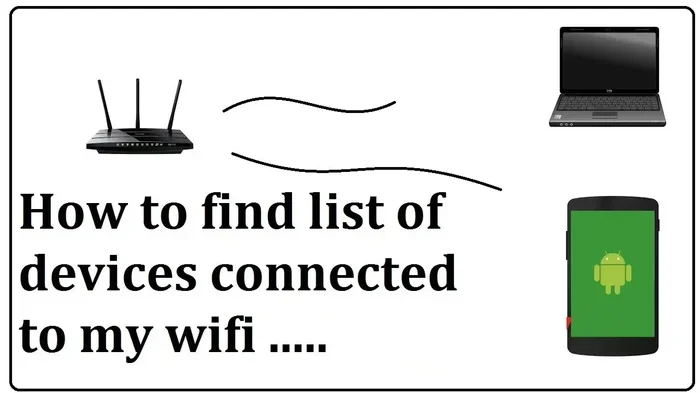
Yes, you can. The xFi app shows a full list of all devices connected to your network. You can see the device name, IP address, and data usage for each one. This makes it easy to monitor your network and spot any unauthorized connections.
Is there a limit to how many devices I can add to my Xfinity WiFi?
Xfinity plans typically support a certain number of concurrent connections, usually around 15 to 20 devices depending on your plan. If you add too many devices, your internet speed may slow down. You can manage connected devices through the xFi app to stay within your limits.
Can I set up a separate WiFi network for my guests?
Absolutely. Xfinity gateways support guest networks, which let you create a separate WiFi connection for visitors. This keeps your main network private and secure while still giving guests full internet access. You can set up a guest network through the xFi app or your router admin panel.
Do I need to restart my Xfinity gateway after adding a new device?
Usually, you do not need to restart your gateway. However, if the new device has trouble connecting or if you made changes through the admin panel, a quick restart can help apply the new settings. Simply unplug the gateway, wait 30 seconds, and plug it back in.
Can I block a device from my Xfinity WiFi after adding it?
Yes, you can. Through the xFi app, you can pause or block any device connected to your network. In the admin panel, you can also remove the device from your DHCP list or change your WiFi password to revoke access. This is useful if someone no longer needs connectivity or if you want to remove an unauthorized user.
What is the difference between 2.4 GHz and 5 GHz bands on Xfinity WiFi?
The 2.4 GHz band provides wider coverage and better wall penetration, making it ideal for guests who need a reliable connection from a distance. The 5 GHz band offers faster speeds but has a shorter range. When setting up a guest network, choose the band that best fits your guest’s needs and location in your home.
Final Thoughts
So there you have it. Adding someone to your Xfinity WiFi is a simple process whether you use the xFi app, the router admin panel, or just share your password directly. The best approach depends on your situation and how much control you want over your network.
For most people, using the guest network feature is the safest and most convenient option. It keeps your personal devices protected while giving visitors the internet access they need. And with the xFi app, managing all of this takes just a few taps on your phone.
Remember to keep your network secure by using strong passwords, monitoring connected devices, and removing access when it is no longer needed. A little bit of maintenance goes a long way in keeping your Xfinity home network fast and safe for everyone.
Now that you know exactly how to add someone to your Xfinity WiFi, go ahead and get it set up. Your guests will thank you, and your network will stay secure and running smoothly.