Can You Use A Non Apple Keyboard With A Mac And How
Yes, you can use a non Apple keyboard with a Mac. Connecting an external keyboard to your Mac is easy and works great. You just need to know the setup steps and key differences. This guide shows you exactly how to make it work today.
Have you ever wondered if you can use a non Apple keyboard with a Mac? The answer is a simple yes. You do not need to buy an expensive Apple Magic Keyboard. Using a non Apple keyboard with a Mac works just fine. It can even feel better if you prefer a different layout. Many people ask, Can I Use A Non Apple Keyboard With A Mac? They worry it will not work or cause problems. This guide clears up all the confusion. You will learn how to connect, set up, and map the keys. We will cover USB and Bluetooth options too. You will also learn about key mapping and modifier keys. Let us get started right away.
Key Takeaways
- Easy Connection: You can connect a non Apple keyboard with a Mac via USB or Bluetooth in seconds.
- Key Mapping Matters: Swapping the Command and Alt keys is essential for smooth keyboard shortcuts.
- Mac Compatibility: The Mac operating system supports almost all external keyboards natively.
- Customization Options: You can use third-party software to remap any key on your non Apple keyboard with a Mac.
- No Drivers Needed: Most wireless keyboards and USB keyboards work instantly without extra software.
- Value for Money: A non Apple keyboard often costs less and offers more features than the Apple Magic Keyboard.
📑 Table of Contents
- Can I Use A Non Apple Keyboard With A Mac
- How Does a Non Apple Keyboard Connect to a Mac
- Key Mapping and Function Differences
- Setting Up Your External Keyboard
- Choosing the Best Non Apple Keyboard for Your Mac
- Pros and Cons of Using a Non Apple Keyboard
- Common Mistakes to Avoid
- Expert Insights and Final Thoughts
Can I Use A Non Apple Keyboard With A Mac
The short answer is absolutely yes. You can connect almost any keyboard to a Mac. Apple makes it easy to use external keyboards. Your Mac operating system supports many different devices. You do not need an Apple Magic Keyboard to type on a Mac. A non Apple keyboard with a Mac works just as well. It might even feel better in your hands. Many people prefer the keys on a Windows keyboard or a mechanical keyboard. Whatever you choose, your Mac will work with it. The key is knowing how to set it up correctly.
How Does a Non Apple Keyboard Connect to a Mac
Connecting an external keyboard to your Mac is very easy. You have a few options to choose from. The method you pick depends on the keyboard type. Most modern keyboards work right out of the box. Here are the main ways to connect your non Apple keyboard with a Mac. Mac compatibility is very high for almost all modern keyboards. You can use a wired or wireless connection. Both methods work great with the Mac operating system.
Using a USB Keyboard
Plugging in a USB keyboard is the fastest method. It requires no setup or batteries. Just insert the USB cable into your Mac. Wait a few seconds. The Mac setup process is instant. Your keyboard is ready to type. This is great for people who want a simple Mac setup guide without any fuss. Mac compatibility with wired keyboards is excellent. You rarely run into problems with this method. If you use a USB hub, make sure it has enough power. Some keyboards need a direct connection to work properly. A wired connection is also best for gaming or fast typing. If your Mac only has USB-C ports, you can use a simple USB-A adapter.
Pairing a Bluetooth Keyboard
A Bluetooth keyboard gives you more freedom. You do not need a cable. This saves a USB port and keeps your desk clean. You just need to pair it once. First, turn on your keyboard. Put it in pairing mode. On your Mac, open System Settings. Click on Bluetooth. Find your keyboard in the list. Click Connect. This is a standard Mac setup step. Once paired, it stays connected until you turn it off. A wireless keyboard is perfect for a clean workspace. Just remember to charge the batteries regularly. You can also use a wireless keyboard with a USB receiver. Bluetooth keyboards usually have a range of about 30 feet.
Using a Wireless Receiver
Some keyboards use a small USB dongle. Plug the dongle in, and the keyboard connects automatically. This is different from Bluetooth. The dongle creates a direct radio link. This often results in less lag and better stability. If you play games or type fast, a receiver is a good choice. It is a simple way to add an external keyboard to your desk. The dongle usually plugs into a USB port. Make sure the dongle is not blocked by other objects. A clear line of sight helps maintain a strong connection.
Checking Mac Compatibility
Almost any external keyboard works with the Mac operating system. Mac compatibility is very high. Whether you use a simple office keyboard or a fancy mechanical keyboard, it will work. You might need to change a few settings. But the basic typing function is always there. You do not need special drivers for most keyboards. Your Mac handles the basics on its own. Even older keyboards usually work fine. The Mac operating system is very good at supporting different devices. You can check Mac compatibility by simply plugging it in and trying it out.
Key Mapping and Function Differences
When you use a non Apple keyboard with a Mac, you will notice some differences. The keys are not exactly the same. This is called key mapping. You need to know what changes. This helps you avoid frustration. Let us look at the main key differences between a Windows keyboard and a Mac.
The Command Key vs Alt Key
The biggest change is the modifier keys. On a Mac, the Command key does the heavy lifting. On a Windows keyboard, the Alt key sits where the Command key should be. You need to swap these in your mind. If you copy text on a Mac, you press Command plus C. On a Windows keyboard, you would press Alt plus C by accident. This can slow you down at first. But soon, muscle memory kicks in. You will get used to the new keyboard shortcuts. The Option key on a Mac acts like the Alt key on Windows. You can use it for special characters too. Learning this swap is the most important part of key mapping.
Understanding the Function Row
Many keyboards have a row of function keys at the top. On a Mac, these keys control system features. They control volume and screen brightness. If you want to use the actual F1 or F2 keys, you must hold the Function key. This is a common key difference for new users. Some people prefer the Mac default. Others want the standard function keys. You can change this behavior in your settings. Just go to System Settings and look for keyboard options. You can flip the function keys to act as standard F keys. This makes a big difference for some users.
Special Mac Keys
Your non Apple keyboard might be missing the Command key. It also might be missing the Option key. You can still do everything on a Mac. You just use different keys. The Mac operating system is very flexible. It lets you change what any key does. This is very helpful for key mapping. You can make your external keyboards feel just like an Apple keyboard. You can assign the Command function to another key. This makes keyboard shortcuts much easier to use. The Mac OS handles all the translations behind the scenes.
Using Third-Party Software for Advanced Mapping
Sometimes the built-in Mac settings are not enough. You might want to completely change how a key works. This is where third-party software comes in. Apps like Karabiner-Elements are very popular. They let you change every single key on your external keyboards. You can make a Windows keyboard act exactly like a Mac keyboard. This software is free and open source. It is a great tool for key mapping. You can create complex keyboard shortcuts with it. This is perfect for power users. It allows for deep customization of your non Apple keyboard with a Mac setup.
Setting Up Your External Keyboard
Setting up your new external keyboard takes only a few minutes. The process is simple and fun. You do not need to be a tech expert. Follow these steps for a smooth Mac setup. Your non Apple keyboard with a Mac will be ready to go. Mac compatibility means the setup is usually very smooth.
Step-by-Step Mac Setup
- Plug in or turn on your keyboard.
- Go to System Settings on your Mac.
- Find the Keyboard section.
- Look for your keyboard in the list.
- Adjust the settings if needed.
That is all you need for a basic Mac setup. Your Mac will recognize the device. You can start typing right away. If the keys feel wrong, do not worry. We will fix that in the next step. A Mac setup guide like this makes the process easy. You do not need to read a long manual. Just follow the simple steps above.
Quick Tips for Smooth Sailing
Here are some quick tips to make your life easier. These small steps save a lot of time. They help you avoid common problems.
- Update your Mac: Always use the latest Mac operating system. This fixes many bugs and improves Mac compatibility.
- Check batteries: A low battery can cause connection drops. Keep spares handy.
- Restart your Mac: A simple restart fixes most connection issues. It refreshes the system.
- Clean the keys: Dust can stop keys from working properly. Use a soft cloth.
- Stay close: For wireless keyboards, stay within range. Walls can block the signal.
- Try a different port: If using USB, try another port. It might be a power issue.
These tips keep your external keyboards running perfectly. A little care goes a long way. Your wireless keyboard will last longer too. You will avoid most common connection issues.
Choosing the Best Non Apple Keyboard for Your Mac
Not all keyboards are the same. Some are better for typing. Others are better for gaming. You need to pick the right one. This section helps you choose the best non Apple keyboard with a Mac. Think about what you do on your computer every day.
Mechanical Keyboards
A mechanical keyboard offers great tactile feedback. Each key has its own switch. This makes typing feel satisfying. Many writers love mechanical keyboards. They are also very durable. You can find them in many different sizes. They are a popular choice for power users. However, they can be louder than other keyboards. If you type a lot, this feedback helps you type faster and more accurately. Look for switches that match your preferred typing feel.
Ergonomic Keyboards
An ergonomic keyboard helps prevent wrist pain. It splits the keys into two halves. This keeps your hands in a natural position. If you type for hours, this is a great choice. It might take a few days to get used to the split layout. But the comfort is worth it. Reducing strain is very important for your health. An ergonomic external keyboard is a smart investment. It can help you stay comfortable during long work sessions.
Compact and Portable Keyboards
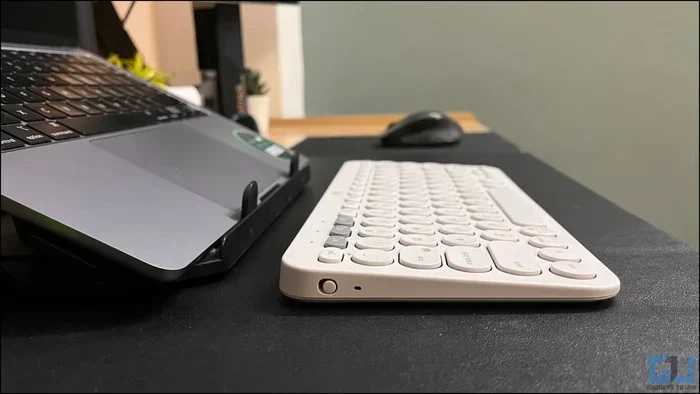
A compact keyboard saves desk space. It is perfect for small desks or travel. Many compact keyboards use a Bluetooth keyboard design. They are wireless and light. You can easily carry them in a laptop bag. They work great with the Mac operating system. If you travel a lot, a compact wireless keyboard is a must-have. They often lack the number pad but offer great portability.
Pros and Cons of Using a Non Apple Keyboard
Before you buy a non Apple keyboard with a Mac, consider the good and bad sides. Every choice has trade-offs. Here is a quick look at what to expect. Weighing the pros and cons helps you make the best decision.
| Feature | Apple Magic Keyboard | Non Apple Keyboard |
|---|---|---|
| Price | Higher cost | Lower cost |
| Key Feel | Slim and light | Many styles available |
| Connectivity | Bluetooth only | USB or Bluetooth |
| Customization | Limited | High with key mapping |
| Durability | Very good | Varies by brand |
| Portability | Good | Excellent for compact models |
As you can see, a non Apple keyboard offers great value. You get more choices and lower prices. Many people prefer the feel of a mechanical keyboard too. The trade-off is a few extra steps during Mac setup. But the benefits often outweigh the small hassle. You also get more key differences to customize. A Windows keyboard is often much cheaper than an Apple model.
Common Mistakes to Avoid
Even with an easy setup, people make mistakes. Avoiding these saves you time and stress. Here are the top errors to watch out for when using a non Apple keyboard with a Mac. Learning from these mistakes makes your life much easier.
Ignoring Key Mapping
Do not just start typing and get frustrated. If the keys do not match, take five minutes to map them. Key mapping is essential for a non Apple keyboard with a Mac. You can use free software to remap keys. This makes your keyboard shortcuts work perfectly. Skipping this step is the biggest mistake people make. You will keep hitting the wrong keys for special characters. Take the time to fix it now.
Forgetting to Update Drivers
While most keyboards work without drivers, some need updates. A Windows keyboard might need a driver for full Mac compatibility. Check the manufacturer website for updates. This is especially true for advanced mechanical keyboards. Keeping your software updated ensures smooth operation. Outdated software can cause connection drops or missing keys.
Overlooking the Function Lock
Many keyboards have a function lock key. This key toggles the function row. If your volume keys are not working, check for this lock. Press the Fn key or a dedicated lock button. This is a small thing that causes big confusion. It is a very common mistake for new users. Look for a small lock icon on your keyboard.
Using the Wrong USB Port
Some Macs have USB-C and USB-A ports. Make sure you use the right one for your keyboard. If your keyboard has a USB-A plug, you need a USB-C adapter. A bad adapter can cause connection issues. Always use a high-quality adapter for the best Mac compatibility.
Expert Insights and Final Thoughts
Using a non Apple keyboard with a Mac is a smart move for many users. It saves money and adds comfort. You can use any wireless keyboard or wired model you like. The Mac operating system supports a wide range of devices. Just remember to check Mac compatibility before you buy. Focus on key mapping and modifier keys to get the best experience. A little setup goes a long way. Now you know the answer to Can I Use A Non Apple Keyboard With A Mac. Go ahead and try it today! Your perfect keyboard setup is just a few steps away. Enjoy your new keyboard and happy typing!
Frequently Asked Questions
Frequently Asked Questions
Will a Windows keyboard work with a Mac?
Yes, a Windows keyboard works perfectly with a Mac. You just need to adjust the modifier keys and key mapping settings. The Mac operating system handles the rest automatically.
How do I change the keys on my external keyboard?
You can change keys through the System Settings on your Mac. Go to Keyboard and look for modifier keys. You can also use third-party software for deeper key mapping and customization of your non Apple keyboard with a Mac.
Can I use a mechanical keyboard with a Mac?
Absolutely. A mechanical keyboard is fully compatible with the Mac operating system. Just remember that some advanced features might require specific drivers or software for the best Mac compatibility.
Why are some keys missing on my non Apple keyboard?
Some Windows keyboards have extra keys that do not exist on a Mac. You can ignore these extra keys or remap them using key mapping software. The missing Mac-specific keys can be recreated through system settings.
Do I need drivers for a non Apple keyboard?
Most external keyboards do not need drivers. The Mac operating system supports them natively. However, some advanced mechanical keyboards or gaming models might need a driver for full functionality.
Can I use a gaming keyboard with a Mac?
Yes, you can use a gaming keyboard with a Mac. Many gamers prefer a non Apple keyboard with a Mac for better tactile feedback. Just check for Mac compatibility and be prepared to adjust keyboard shortcuts and key mapping in the software.
=== CONCLUSION ===
Conclusion
To sum it all up, you can absolutely use a non Apple keyboard with a Mac. Whether you prefer a USB keyboard, a wireless keyboard, or a Bluetooth keyboard, your Mac will work with it. The process is simple and straightforward. You just need to handle the key mapping and modifier keys properly. A Windows keyboard or a mechanical keyboard can be a great choice for your Mac. They often cost less and offer more features. Do not let the fear of setup stop you. The Mac operating system is designed to be flexible. You can make any external keyboard feel right at home. Now that you know Can I Use A Non Apple Keyboard With A Mac, you are ready to explore your options. Pick the keyboard you love, set it up, and enjoy typing on your Mac today!